AI Chat Component
- 9 minutes to read
DevExpress Blazor AI Chat (<DxAIChat>) allows you to add an interactive chat UI to your Blazor application.
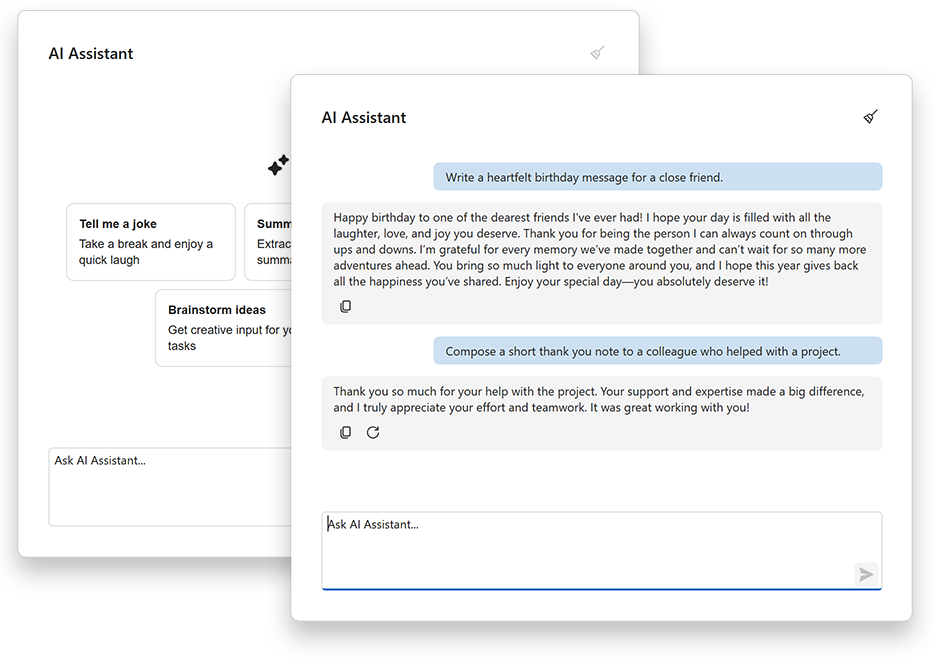
The DevExpress Blazor AI Chat component works with supported cloud AI providers and self-hosted language models. You can also integrate custom AI providers or add support for proprietary, in-house LLMs.
For a list of supported AI providers and integration instructions, see the following help topic: DevExpress AI-powered Extensions for Blazor.
Getting Started
Add the following NuGet packages to your project:
Register the
DevExpress.BlazorandDevExpress.AIIntegration.Blazor.Chatnamespaces in the _Imports.razor or Components\_Imports.razor file:<!-- ... --> @using DevExpress.Blazor @using DevExpress.AIIntegration.Blazor.ChatApply the application-wide DevExpress Blazor theme and add client scripts to the App.razor or Components\App.razor file.
<!DOCTYPE html>
<html lang="en">
<head>
    <meta charset="utf-8" />
    <meta name="viewport" content="width=device-width, initial-scale=1.0" />
    <base href="/" />
    @DxResourceManager.RegisterTheme(Themes.Fluent)
    @DxResourceManager.RegisterScripts()
    <link rel="stylesheet" href="app.css" />
    <link rel="stylesheet" href="MyBlazorApp.styles.css" />
    <HeadOutlet />
</head>
<body>
    <Routes />
    <script src="_framework/blazor.web.js"></script>
</body>
</html>
Note
In a Blazor WebAssembly app, register the DevExpress Blazor theme in the
HeadContentblock ofApp.razor:<HeadContent> @DxResourceManager.RegisterTheme(Themes.Fluent) </HeadContent>In the project’s entry point class (Program.cs):
Create a chat client instance:
IChatClient chatClient = new OllamaApiClient("http://localhost:11434", "phi4");For a full list of supported AI providers and detailed integration instructions, see the following article: DevExpress AI-powered Extensions for Blazor.
Register the chat client in the services collection.
builder.Services.AddChatClient(chatClient);Add DevExpress AI services to the application service collection and register a default
IChatResponseProviderbased on the previously registered chat client service.IChatResponseProvideris a vendor-agnostic interface for AI agents, workflows, and advanced chat services.builder.Services.AddDevExpressAI();Register internal DevExpress Blazor services and configure global options for DevExpress Blazor components.
builder.Services.AddDevExpressBlazor();
Add the DxAIChat component to a page in your application.
@page "/"
@rendermode InteractiveServer

<PageTitle>Home</PageTitle>

<DxAIChat />
Note
DxAIChat does not support static render mode. Enable interactivity so the component can execute scripts and display data.
Customize Chat UI and Appearance
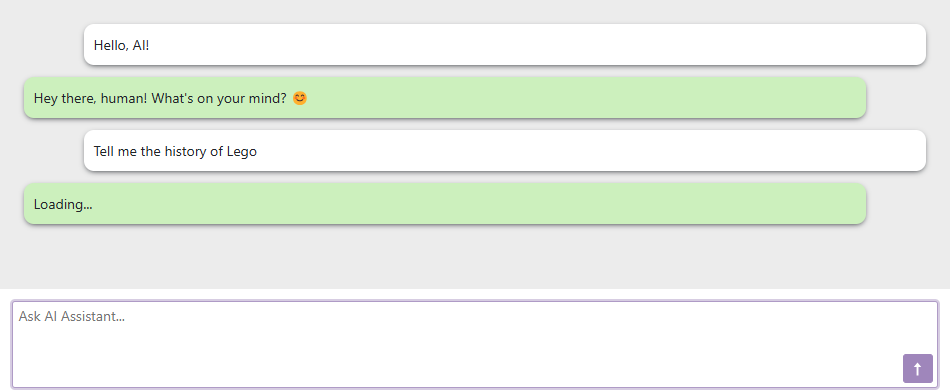
DxAIChat allows you to customize the chat UI and adapt it to your application’s visual style. Assign a custom CSS class to the component, use templates to customize message bubbles and message content, customize the empty message area, and add prompt suggestions.
- CssClass
- Assigns a custom CSS class to the AI Chat component.
- MessageTemplate
- Changes the message bubble rendering, including paddings and inner content alignment.
- MessageContentTemplate
- Alters message bubble content without affecting layout.
- EmptyMessageAreaTemplate
- Specifies the template used to display the message area if there are no message bubbles.
- EmptyMessageAreaText
- Specifies text displayed in the empty message area.
- InputBoxNullText
- Specifies prompt text in the chat input box when it is empty.
Chat Header
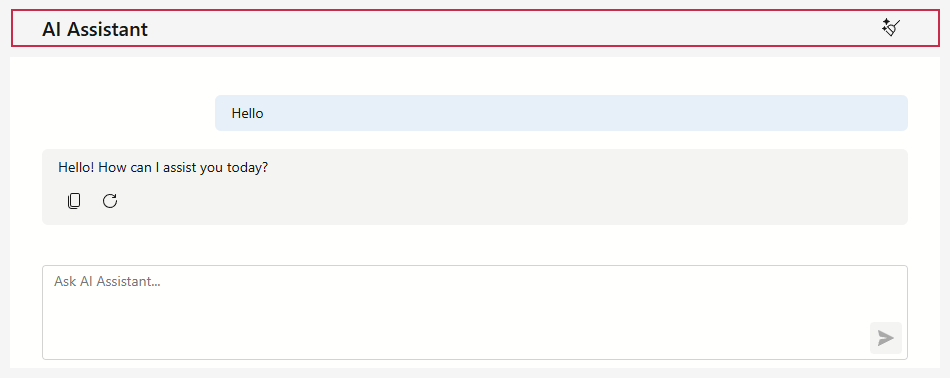
You can display a header above the chat area to identify the assistant and let users clear the current conversation. Set the ShowHeader property to true to display the header, and use HeaderText to specify the title text. The header also includes a built-in Clear Chat button.
Resizable Input Box
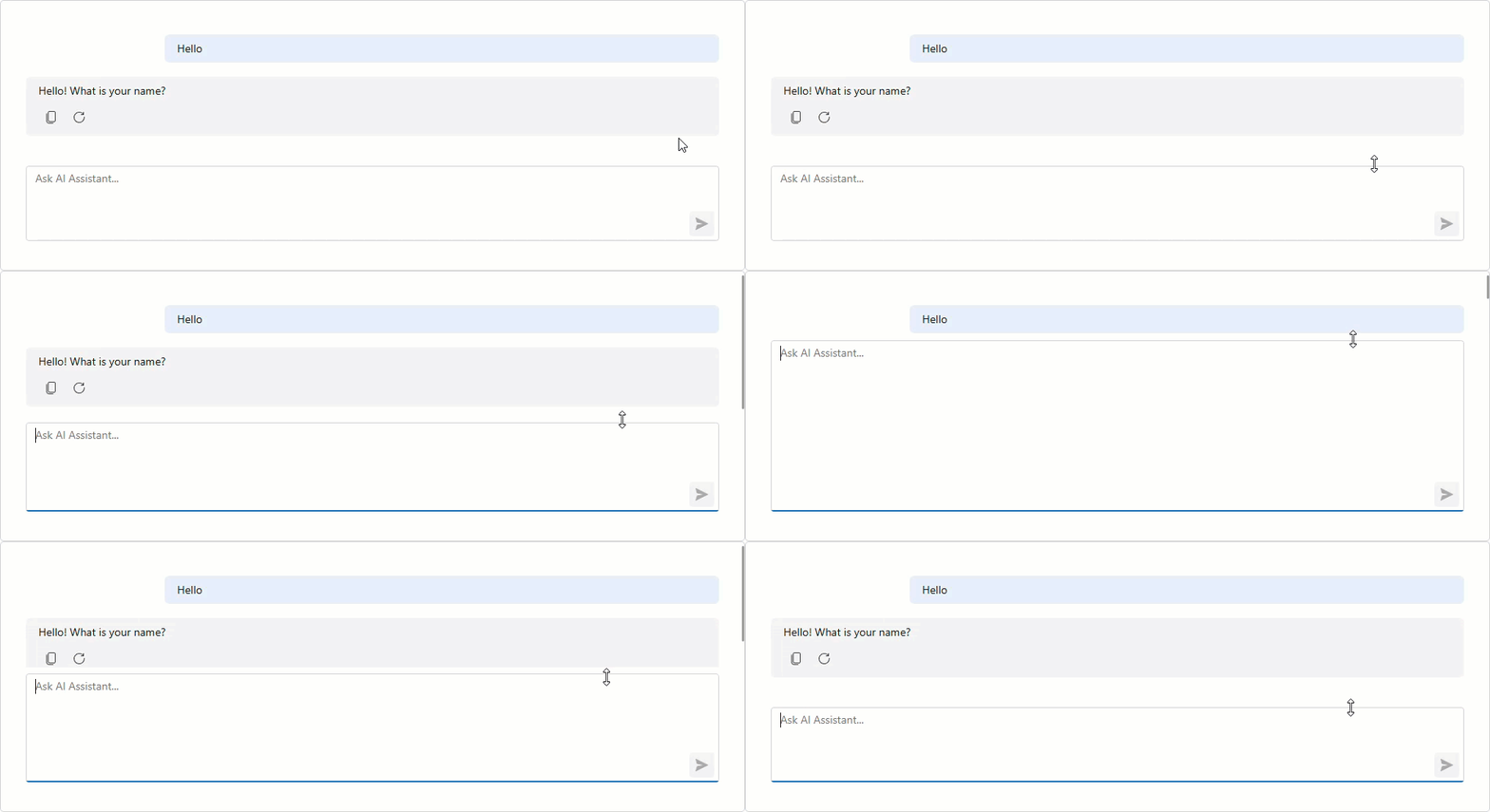
Set the AllowResizeInput property to true to allow users to resize the chat input box. Drag the top edge up to create more typing space, or drag it down to display more chat history.
Prompt Suggestions
DevExpress Blazor AI Chat supports prompt suggestions – hints that guide users to possible actions. The component displays prompt suggestions (hint bubbles) when the chat area is empty.
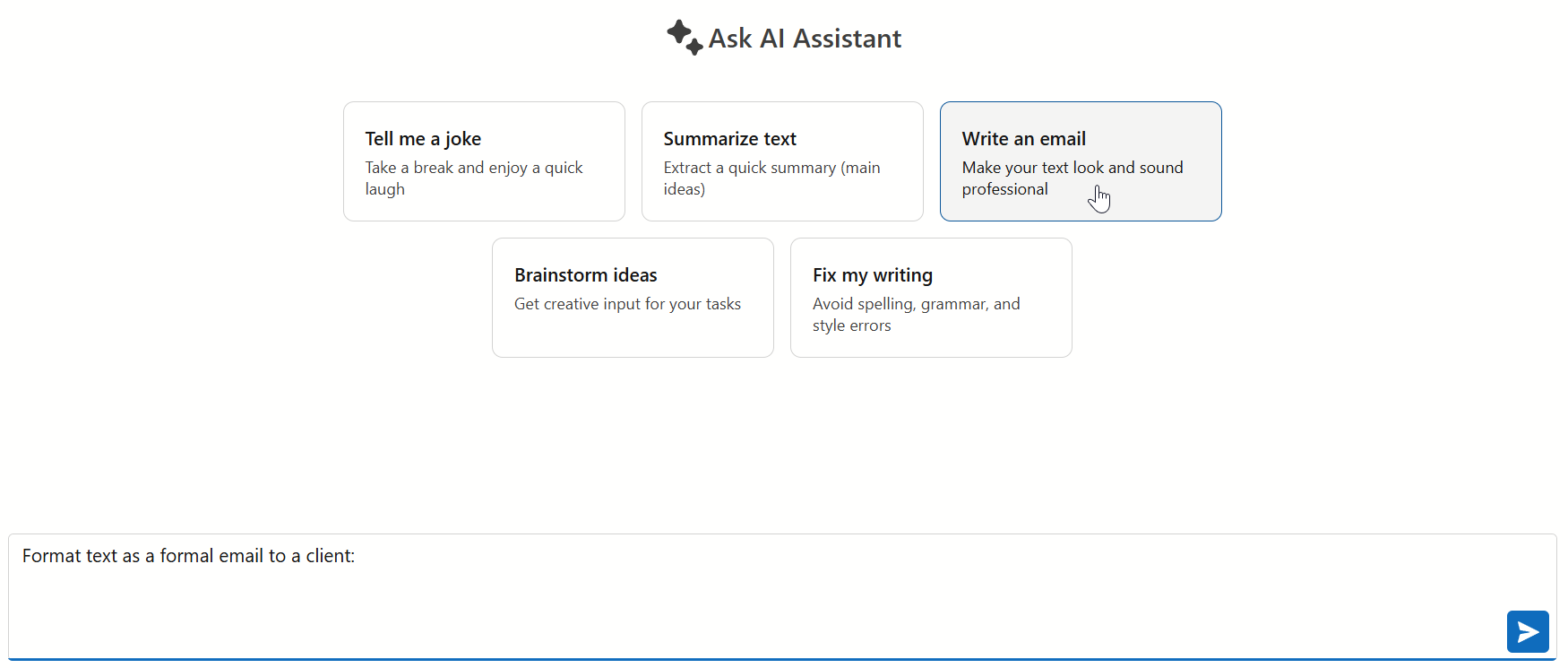
Follow the steps below to enable and configure prompt suggestions:
- Populate the component’s PromptSuggestions property with DxAIChatPromptSuggestion objects (hint bubbles).
- Specify bubble content using Title and Text properties.
- Use the PromptMessage property to specify the text to be displayed in the input field after a user clicks the corresponding suggestion.
@using DevExpress.AIIntegration.Blazor.Chat

<DxAIChat Initialized="ChatInitialized">
    <PromptSuggestions>
        @foreach (var suggestion in PromptSuggestions) {
            <DxAIChatPromptSuggestion Title="@suggestion.Title"
                                      Text="@suggestion.Text"
                                      PromptMessage="@suggestion.PromptMessage" />
        }
    </PromptSuggestions>
</DxAIChat>

@code {
    List<PromptSuggestion> PromptSuggestions { get; set; }
    void ChatInitialized() {
        PromptSuggestions = GetData();
    }
}
Additionally, you can use the PromptSuggestionContentTemplate property to specify a template for prompt suggestions.
Get Responses Faster
The AI Chat component can display responses from the AI assistant as they are generated in a natural, conversational flow (rather than waiting for the entire message to complete before showing it to the user). Enable the UseStreaming property to display parts of the response as they become available:
<DxAIChat UseStreaming="true" />
Give AI More Context
To generate more relevant responses, AI Chat can work with additional context that goes beyond the current message. You can initialize the chat with system-level instructions, let users attach files to individual prompts, or offer reusable AI resources that include reference material and other supporting data for the conversation.
Note
The DevExpress Blazor AI Chat component only handles file and binary resource uploads. It does not process or analyze uploaded content. Support for specific file formats depends entirely on the connected AI model’s capabilities.
System Prompts
DevExpress Blazor AI Chat allows you to create a system prompt that provides the AI model with initial role context and specific instructions. The following code snippet adds a system prompt to the chat using the LoadMessages method in the DxAIChat.Initialized event handler:
<DxAIChat Initialized="ChatInitialized" />

@code {
    async Task ChatInitialized(IAIChat chat) {
        var prompt = @"
            You are a friendly hiking enthusiast who helps people discover fun hikes in their area.
            You introduce yourself when first saying hello.
            When helping people out, you always ask them for this information
            to inform the hiking recommendation you provide:

            1. The location where they would like to hike
            2. What hiking intensity they are looking for

            You will then provide three suggestions for nearby hikes that vary in length
            after you get that information. You will also share an interesting fact about
            local nature on the hikes when making a recommendation. At the end of your
            response, ask if there is anything else you can help with.
        ";
        chat.LoadMessages(new[] {
            new BlazorChatMessage(Microsoft.Extensions.AI.ChatRole.System, prompt),
        });
    }
}
File Attachments
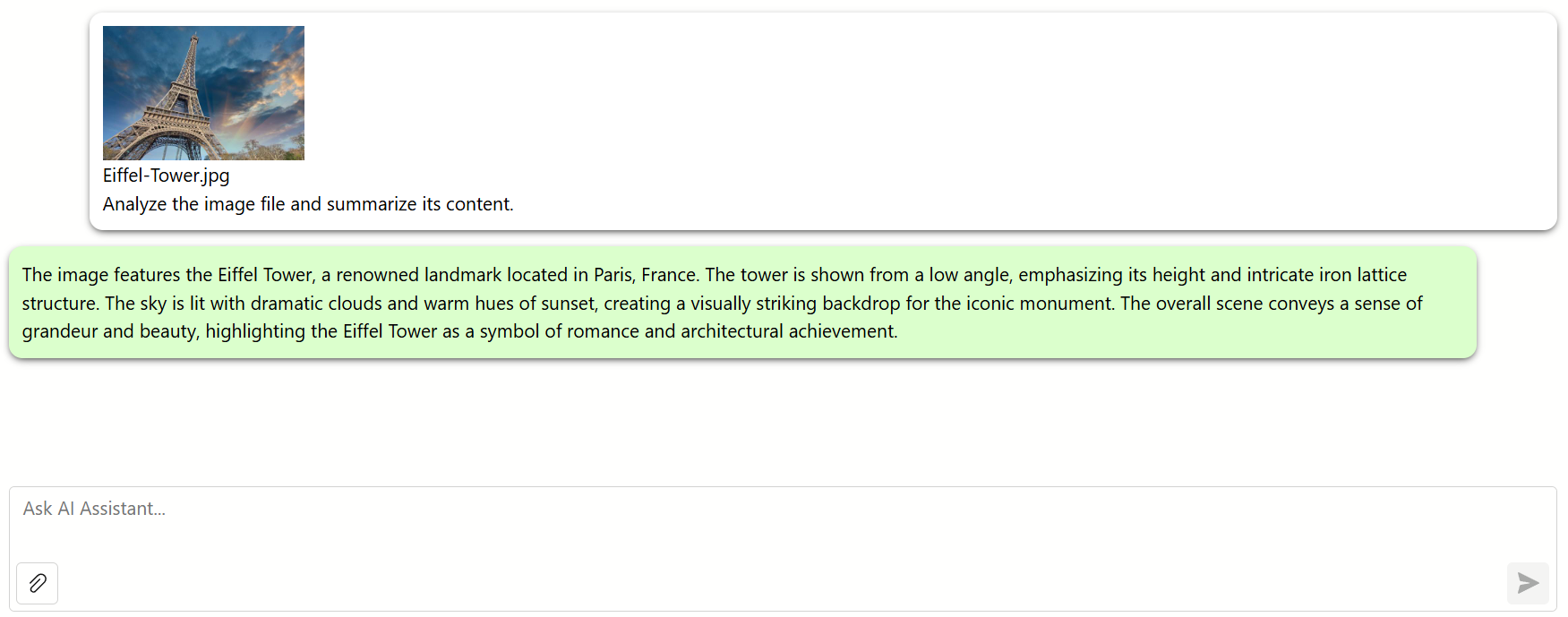
DxAIChat allows users to attach files to their chat messages. The AI analyzes document content, such as text files, PDFs, and images, and delivers more context-aware responses. Set the DxAIChat.FileUploadEnabled property to true to enable file upload operations.
Configure DxAIChatFileUploadSettings to limit the number of attachments in a message and specify allowed file attributes (type and size).
AI Resources
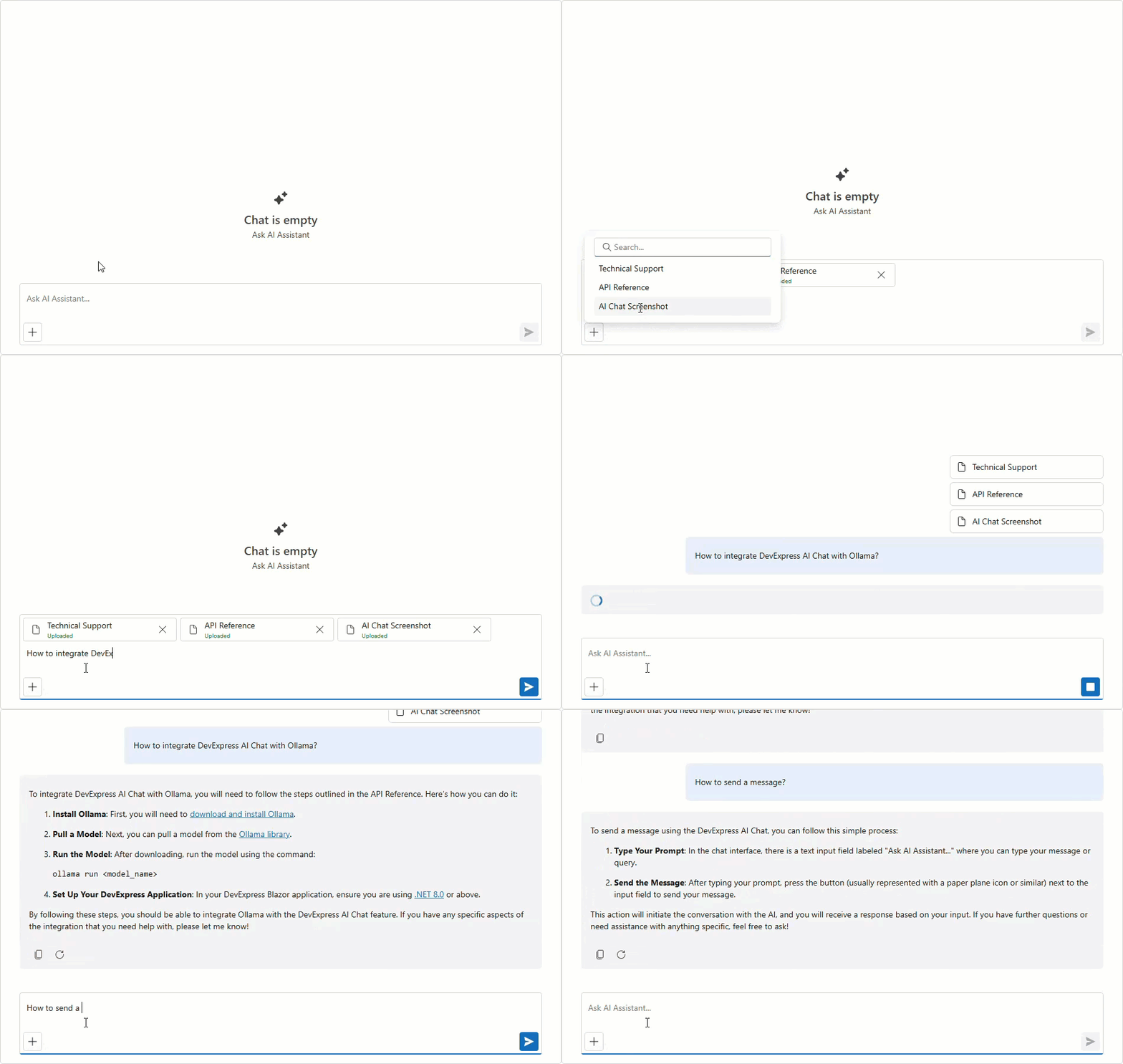
Use the DxAIChat.Resources property to include reusable context that users can select for a chat session. Each AIChatResource can define assistant instructions, attach reference documents, or include binary content that helps ground AI responses in your data.
You can also use Model Context Protocol (MCP) to connect AI Chat securely to enterprise data sources, technical manuals, internal wikis, GitHub, Jira, or web search services. Add these capabilities through an MCP server without changing client code.
Render Rich Formatted Responses
DxAIChat can display Markdown content and render individual AI content items in a custom message template. For additional information, refer to the following topic: Rich Formatted Chat Responses.
Keep Conversations Across Sessions
You can save and restore chat sessions to preserve context across page reloads, user sessions, or application restarts. Use the DxAIChat.SaveMessages and DxAIChat.LoadMessages methods to manage conversation history in code.
The following code snippet restores a saved conversation when the chat component is initialized:
<DxAIChat Initialized="ChatInitialized" />

@code {
    void ChatInitialized(IAIChat chat) {
        chat.LoadMessages(new[] {
            new BlazorChatMessage(Microsoft.Extensions.AI.ChatRole.Assistant, "Hello, how can I help you?")
        });
    }
}
Switch Between AI Models at Runtime
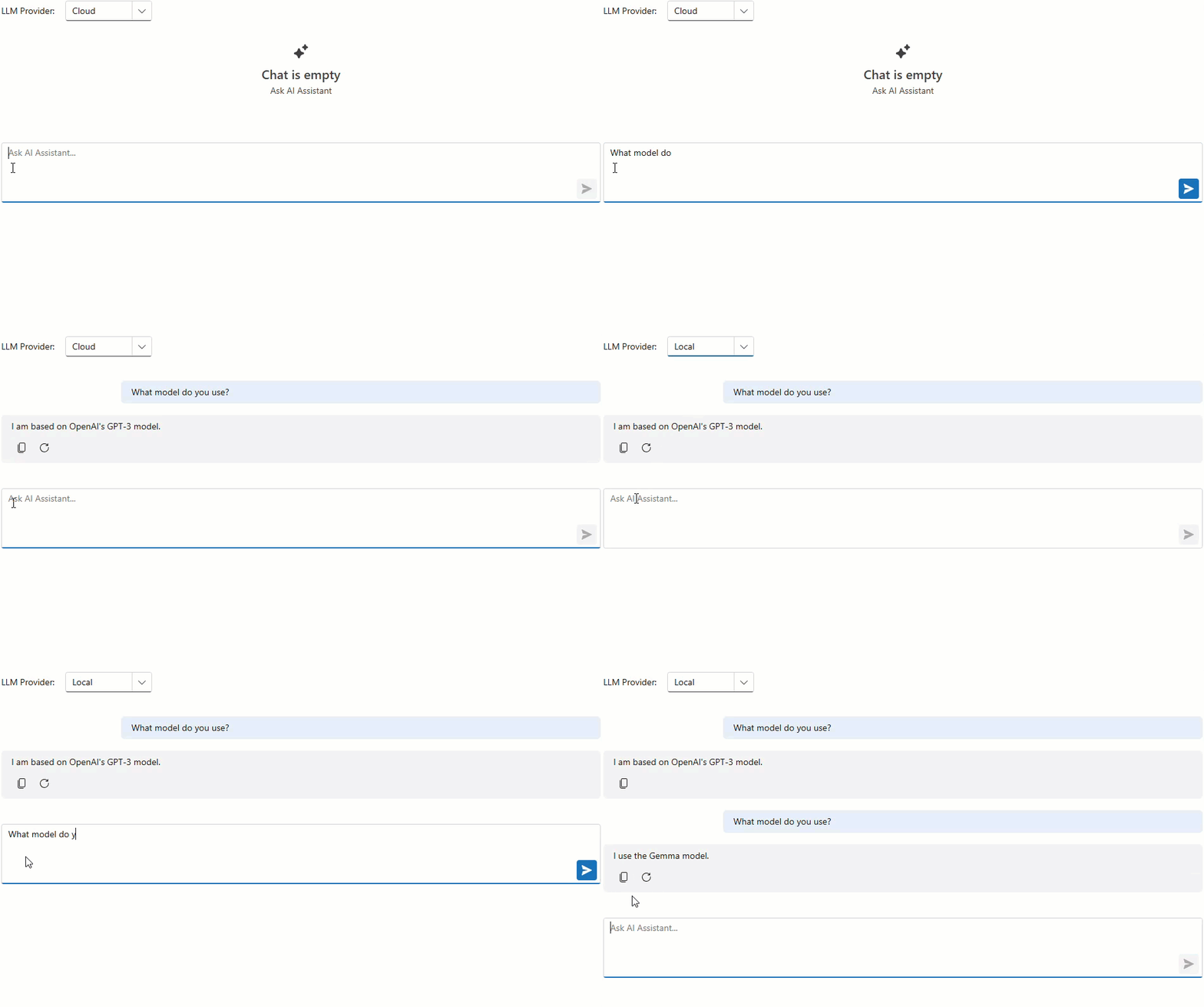
One DxAIChat component can work with multiple AI services. This allows you to separate conversation contexts and provide specialized AI assistants for different user tasks. For example, you can use a reasoning model for complex queries and a faster, cost-effective model for simpler interactions.
In a typical setup, DevExpress Blazor AI Chat uses a single IChatResponseProvider service automatically registered by the AddDevExpressAI() call. To choose between AI providers, tenants, or different models from the same provider, use the AddKeyedScoped method to register multiple IChatResponseProvider implementations under unique string keys.
Once the AI service is registered, you can dynamically bind it to the AI chat component by specifying its string identifier in the ChatResponseProviderServiceKey property.
Note
You can combine keyed and non-keyed IChatResponseProvider services. The AI Chat components that do not specify ChatResponseProviderServiceKey continue to use the primary client.
<DxFormLayout>
    <DxFormLayoutItem Caption="LLM Provider:">
        <DxComboBox Data="chatResponseProviders"
                    TextFieldName="Value"
                    ValueFieldName="Key"
                    @bind-Value="chatResponseProviderServiceKey" />
    </DxFormLayoutItem>
</DxFormLayout>

<DxAIChat ChatResponseProviderServiceKey="@chatResponseProviderServiceKey" />

@code {
    Dictionary<string, string> chatResponseProviders = new()
    {
        { "azureAiProviderServiceKey", "Cloud" },
        { "ollamaAiProviderServiceKey", "Local" }
    };

    string chatResponseProviderServiceKey = "";

    protected override void OnInitialized()
    {
        chatResponseProviderServiceKey = chatResponseProviders.First().Key;
        base.OnInitialized();
    }
}
Process Messages Programmatically
Handle outgoing messages, replace the default delivery flow, display loading progress, and inspect responses in application code. For details, see the following topic: Manual Message Processing.
Invoke AI Tools
DxAIChat component can invoke application tools based on natural-language input and display tool call details in the chat UI. For details, see the following topic: AI Tool Calling.
API Reference
Refer to the following list for the component API reference: DxAIChat Members.