Columns in Blazor TreeList
- 33 minutes to read
DevExpress Blazor TreeList supports the following column types: data column (bound and unbound), command column, and selection column.
DxTreeList generates user-friendly captions for all data columns. Caption text is based on the bound data field name. Use the Caption property to change the generated caption.
Data Column (Bound)
Bound columns obtain their data from data source fields. Declare a DxTreeListDataColumn object in the Columns tag and specify the FieldName property to bind the column to a data field.
Note
The FieldName property value must be unique for each data column.
@inject EmployeeTaskService EmployeeTaskService

<DxTreeList Data="TreeListData" KeyFieldName="Id" ParentKeyFieldName="ParentId">
    <Columns>
        <DxTreeListDataColumn FieldName="Name" Caption="Task" />
        <DxTreeListDataColumn FieldName="EmployeeName" />
        <DxTreeListDataColumn FieldName="StartDate" />
        <DxTreeListDataColumn FieldName="DueDate" />
    </Columns>
</DxTreeList>

@code {
    List<EmployeeTask> TreeListData { get; set; }

    protected override void OnInitialized() {
        TreeListData = EmployeeTaskService.GenerateData();
    }
}

Data Column (Unbound)
Unbound columns display values that are not stored in the assigned data collection. To create an unbound column, declare a DxTreeListDataColumn object in the Columns template and specify the following properties:
- UnboundType
- Indicates that the column is unbound and specifies its data type.
- FieldName
- Specifies a unique name that does not match field names in the bound data source.
Note
The TreeList does not support unbound columns when bound to a GridDevExtremeDataSource.
You can use one of the following APIs to populate unbound columns with data:
- UnboundExpression
- Specifies an expression used to calculate column values. An expression should use our Criteria Language Syntax and include field names, constants, operators, or functions. Unbound expression samples:
"[Quantity] * [UnitPrice] * (1 - [BonusAmount])""[FirstName] + ' ' + [LastName]""[Country] == 'USA'""[OrderDate] > #8/16/1994# AND [Quantity] > 20"
- UnboundColumnData
- Allows you to implement custom logic or obtain column values from a custom/external data source.
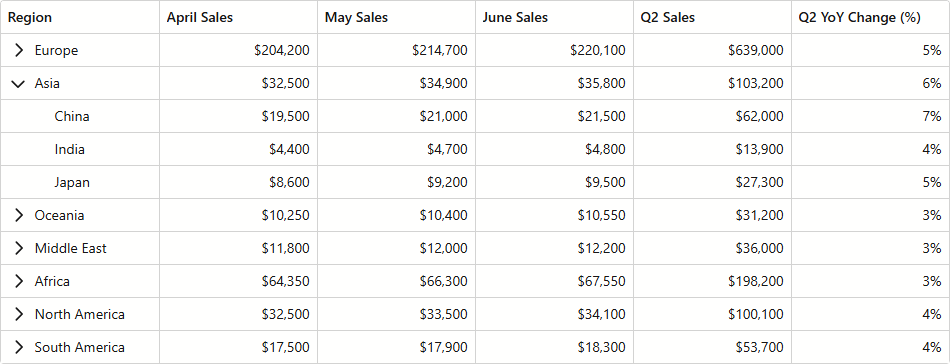
The following code snippet creates two unbound columns:
- Q2 Sales uses UnboundExpression to calculate cell values.
- Q2 YoY Change (%) uses a UnboundColumnData event handler to obtain column data.
@inject ISalesByRegionDataProvider SalesByRegionDataProvider

<DxTreeList Data="TreeListData"
            KeyFieldName="ID"
            ParentKeyFieldName="RegionID"
            ShowAllRows="true"
            ColumnResizeMode="TreeListColumnResizeMode.NextColumn"
            TextWrapEnabled="false"
            SizeMode="Params.SizeMode"
            CssClass="max-h-480"
            UnboundColumnData="TreeList_UnboundColumnData">
    <Columns>
        <DxTreeListDataColumn FieldName="Region" />
        <DxTreeListDataColumn FieldName="AprilSales" DisplayFormat="c0" />
        <DxTreeListDataColumn FieldName="MaySales" DisplayFormat="c0" />
        <DxTreeListDataColumn FieldName="JuneSales" DisplayFormat="c0" />
        <DxTreeListDataColumn FieldName="Q2Sales"
                              Caption="Q2 Sales"
                              DisplayFormat="c0"
                              UnboundType="TreeListUnboundColumnType.Decimal"
                              UnboundExpression="[AprilSales] + [MaySales] + [JuneSales]" />
        <DxTreeListDataColumn FieldName="Q2YoYChange"
                              Caption="Q2 YoY Change (%)"
                              DisplayFormat="p0"
                              UnboundType="TreeListUnboundColumnType.Decimal" />
    </Columns>
</DxTreeList>

@code {
    object TreeListData { get; set; }

    protected override void OnInitialized() {
        TreeListData = SalesByRegionDataProvider.GenerateData();
    }

    void TreeList_UnboundColumnData(TreeListUnboundColumnDataEventArgs e) {
        if(e.FieldName == "Q2YoYChange") {
            var sales = ((SalesByRegion) e.DataItem);
            var currentValue = (decimal)e.GetRowValue("Q2Sales");
            var prevValue = sales.MonthlySalesPrev[3] + sales.MonthlySalesPrev[4] + sales.MonthlySalesPrev[5];
            e.Value = (currentValue - prevValue) / currentValue;
        }
    }
}
Command Column
Declare a DxTreeListCommandColumn object in the Columns template to display a command column.
<DxTreeList Data="TreeListData" KeyFieldName="Id" ParentKeyFieldName="ParentId" ShowFilterRow="true">
    <Columns>
        <DxTreeListCommandColumn />
        <DxTreeListDataColumn FieldName="Name" Caption="Task"/>
        <DxTreeListDataColumn FieldName="EmployeeName" Caption="Task"/>
        <DxTreeListDataColumn FieldName="StartDate" Width="120px"/>
        <DxTreeListDataColumn FieldName="DueDate" Width="120px"/>
    </Columns>
</DxTreeList>
The command column displays predefined New, Edit, and Delete buttons for data rows in display mode. In EditRow and EditCell edit modes, this column displays Save and Cancel buttons for the edited row. In the filter row, the column displays the Clear button.

The following properties allow you to hide unnecessary command buttons:
- NewButtonVisible
- EditButtonVisible
- DeleteButtonVisible
- ClearFilterButtonVisible
- SaveButtonVisible
- CancelButtonVisible
Selection Column
Declare a DxTreeListSelectionColumn object in the Columns template to display the selection column:
@inject EmployeeTaskService EmployeeTaskService

<DxTreeList Data="TreeListData"
            KeyFieldName="Id"
            ParentKeyFieldName="ParentId">
    <Columns>
        <DxTreeListSelectionColumn />
        <DxTreeListDataColumn FieldName="Name" Caption="Task" />
        <DxTreeListDataColumn FieldName="EmployeeName" />
        <DxTreeListDataColumn FieldName="StartDate" />
        <DxTreeListDataColumn FieldName="DueDate" />
    </Columns>
</DxTreeList>

@code {
    List<EmployeeTask> TreeListData { get; set; }

    protected override void OnInitialized() {
        TreeListData = EmployeeTaskService.GenerateData();
    }
}
Single Selection
When the SelectionMode property is set to Single, the selection column displays radio buttons. Users can click a button to select one row at a time.
<DxTreeList Data="TreeListData"
            KeyFieldName="Id"
            ParentKeyFieldName="ParentId"
            SelectionMode="TreeListSelectionMode.Single">
    <Columns>
        <DxTreeListSelectionColumn />
        <DxTreeListDataColumn FieldName="Name" Caption="Task" />
        <DxTreeListDataColumn FieldName="EmployeeName" />
        <DxTreeListDataColumn FieldName="StartDate" />
        <DxTreeListDataColumn FieldName="DueDate" />
    </Columns>
</DxTreeList>

Multiple Selection
When the SelectionMode property is set to Multiple (the default value), the selection column displays checkboxes. Users can click them to select and deselect individual rows.

In Multiple selection mode, the selection column displays the Select All checkbox in the column header. A user can click this checkbox to select or deselect all rows on the current page or on all TreeList pages depending on the SelectAllCheckboxMode property value. Available property values are as follows:
- Page
- The Select All checkbox does not affect child rows of collapsed items and selects/deselects rows on the current page only.
- AllPages
- The Select All checkbox affects child rows of collapsed items and selects/deselects all rows on all pages.
- Mixed
- The Select All checkbox does not affect child rows of collapsed items and selects/deselects rows on the current page only. An additional drop-down button displays a context menu that allows users to select and deselect all rows on all pages.
Note that the selection state of a parent node does not affect selection states of its child nodes and vice versa.
<DxTreeList Data="TreeListData"
            KeyFieldName="Id"
            ParentKeyFieldName="ParentId"
            SelectAllCheckboxMode="TreeListSelectAllCheckboxMode.Mixed">
    <Columns>
        <DxTreeListSelectionColumn />
        <DxTreeListDataColumn FieldName="Name" Caption="Task" />
        <DxTreeListDataColumn FieldName="EmployeeName" />
        <DxTreeListDataColumn FieldName="StartDate" />
        <DxTreeListDataColumn FieldName="DueDate" />
    </Columns>
</DxTreeList>

To hide the Select All checkbox, disable the column’s AllowSelectAll option.
Note
The Select All checkbox functionality has limitations. For additional information, refer to the following section: Selection Limitations.
Band Column (Header Bands)
You can combine columns into logical groups called bands. To create such a group, declare a DxTreeListBandColumn object and specify child columns in the Columns tag. You can create as many nesting levels as your business task requires.

<DxTreeList Data="TreeListData" KeyFieldName="ID" ParentKeyFieldName="RegionID">
    <Columns>
        <DxTreeListBandColumn Caption="Sales">
            <Columns>
                <DxTreeListDataColumn FieldName="Region" />
                <DxTreeListDataColumn FieldName="MarchSales" Caption="March" DisplayFormat="c0" />
                <DxTreeListDataColumn FieldName="SeptemberSales" Caption="September" DisplayFormat="c0" />
            </Columns>
        </DxTreeListBandColumn>
        <DxTreeListBandColumn Caption="Year-Over-Year Comparison">
            <Columns>
                <DxTreeListDataColumn FieldName="MarchChange" Caption="March" DisplayFormat="p2" />
                <DxTreeListDataColumn FieldName="SeptemberChange" Caption="September" DisplayFormat="p2" />
            </Columns>
        </DxTreeListBandColumn>
        <DxTreeListDataColumn FieldName="MarketShare" DisplayFormat="p0" />
    </Columns>
</DxTreeList>

@code {
    object TreeListData { get; set; }
    protected override void OnInitialized() {
        TreeListData = SalesByRegionDataProvider.GenerateData();
    }
}
Task-Based Examples
Display an Image Column
To display an image from a binary source, place an <img> element into the CellDisplayTemplate and specify the image source:
<DxTreeListDataColumn FieldName="ImageData">
    <CellDisplayTemplate>
        <img style="width: 300px;" src="@GetImageSource(context)" />
    </CellDisplayTemplate>
</DxTreeListDataColumn>
const string ImageSourceFormat = "data:image/gif;base64,{0}";

void GetImageSource(TreeListCellDisplayTemplateContext context) {
    return string.Format(ImageSourceFormat, Convert.ToBase64String((byte[])context.Value));
}
Create a Foreign Key (ComboBox/Lookup) Column
A foreign key is a database key that manages relationships between tables. It identifies a column in a referenced table and lets you access that column’s data. Follow the steps below to create such a column:
- Add a DxTreeListDataColumn object to the Columns tag.
- Assign the field name that stores foreign keys to the column’s FieldName property.
- Place DxComboBoxSettings into the column’s EditSettings tag.
- Assign an external data source to the Data property.
- Assign the name of the external data source field that stores foreign keys to the ValueFieldName property. The TextFieldName property allows you to specify text strings displayed within the TreeList instead of foreign keys.

@inject EmployeeTaskService EmployeeTaskService

<DxTreeList Data="TreeListData"
            KeyFieldName="Id"
            ParentKeyFieldName="ParentId"
            EditModelSaving="TreeList_EditModelSaving"
            DataItemDeleting="TreeList_DataItemDeleting"
            CustomizeEditModel="TreeList_CustomizeEditModel">
    <Columns>
        <DxTreeListCommandColumn />
        <DxTreeListDataColumn FieldName="Name" Caption="Task" />
        <DxTreeListDataColumn FieldName="EmployeeName">
            <EditSettings>
                <DxComboBoxSettings Data="TreeListData"
                                    ValueFieldName="EmployeeName"
                                    TextFieldName="EmployeeName" />
            </EditSettings>
        </DxTreeListDataColumn>
        <DxTreeListDataColumn FieldName="StartDate" />
        <DxTreeListDataColumn FieldName="DueDate" />
    </Columns>
</DxTreeList>

@code {
    List<EmployeeTask> TreeListData { get; set; }

    protected override void OnInitialized() {
        TreeListData = EmployeeTaskService.GenerateData();
    }
    void TreeList_CustomizeEditModel(TreeListCustomizeEditModelEventArgs e) {
        if (e.IsNew) {
            var newTask = (EmployeeTask)e.EditModel;
            newTask.Id = TreeListData.Max(x => x.Id) + 1;
            if (e.ParentDataItem != null)
                newTask.ParentId = ((EmployeeTask)e.ParentDataItem).Id;
        }
    }
    async Task TreeList_EditModelSaving(TreeListEditModelSavingEventArgs e) {
        if (e.IsNew)
            TreeListData.Add((EmployeeTask)e.EditModel);
        else
            e.CopyChangesToDataItem();
    }
    async Task TreeList_DataItemDeleting(TreeListDataItemDeletingEventArgs e) {
        TreeListData.Remove((EmployeeTask)e.DataItem);
    }
}
Create Columns at Runtime
The following example creates columns at runtime. Note: you can combine columns declared in markup and created at runtime.
@using System.Reflection
@using System.ComponentModel
@inject EmployeeTaskService EmployeeTaskService

<DxTreeList @ref="@TreeList"
            Data="@Data"
            KeyFieldName="@keyFieldName"
            ParentKeyFieldName="@parentKeyFieldName">
    <Columns>
        <DxTreeListSelectionColumn />
        @BuildTreeListColumns(typeof(EmployeeTask))
    </Columns>
</DxTreeList>

@code {
    ITreeList TreeList { get; set; }
    List<EmployeeTask> Data { get; set; }
    string keyFieldName = "Id";
    string parentKeyFieldName = "ParentId";

    protected override void OnInitialized() {
        Data = EmployeeTaskService.GenerateData();
    }
    RenderFragment BuildTreeListColumns(Type itemType) {
        var props = TypeDescriptor.GetProperties(itemType);
        return b => {
            foreach (PropertyDescriptor prop in props) {
                if (prop.Name != keyFieldName && prop.Name != parentKeyFieldName) {
                    b.OpenComponent(0, typeof(DxTreeListDataColumn));
                    b.AddAttribute(1, "FieldName", prop.Name);
                    b.CloseComponent();
                }
            }
        };
    }
}
Display Values of Two Fields in One Column
Implement an unbound column to merge data from two data fields.
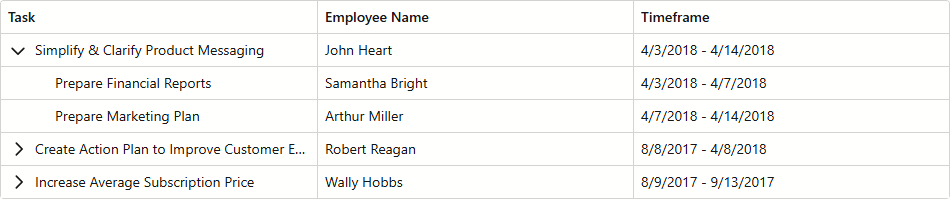
In the following code snippet, the TreeList data source contains StartDate and DueDate fields. To display full timeframe in a column, create an unbound column and set its UnboundType property to String. You can calculate column values in two ways:
Add StartDate and DueDate hidden columns and concatenate their values using the UnboundExpression property.
@inject EmployeeTaskService EmployeeTaskService <DxTreeList Data="TreeListData" KeyFieldName="Id" ParentKeyFieldName="ParentId"> <Columns> <DxTreeListDataColumn FieldName="Name" Caption="Task" /> <DxTreeListDataColumn FieldName="EmployeeName" /> <DxTreeListDataColumn FieldName="StartDate" Visible="false" /> <DxTreeListDataColumn FieldName="DueDate" Visible="false" /> <DxTreeListDataColumn FieldName="Timeframe" UnboundType="TreeListUnboundColumnType.String" UnboundExpression="[StartDate]+ ' - ' +[DueDate]" /> </Columns> </DxTreeList> @code { List<EmployeeTask> TreeListData { get; set; } protected override void OnInitialized() { TreeListData = EmployeeTaskService.GenerateData(); } }Handle the UnboundColumnData event and use the GetRowValue(String) method to access StartDate and DueDate field values.
@inject EmployeeTaskService EmployeeTaskService

<DxTreeList Data="TreeListData"
            KeyFieldName="Id"
            ParentKeyFieldName="ParentId"
            UnboundColumnData="TreeList_UnboundColumnData">
    <Columns>
        <DxTreeListDataColumn FieldName="Name" Caption="Task" />
        <DxTreeListDataColumn FieldName="EmployeeName" />
        <DxTreeListDataColumn FieldName="Timeframe" UnboundType="TreeListUnboundColumnType.String" />
    </Columns>
</DxTreeList>

@code {
    List<EmployeeTask> TreeListData { get; set; }

    protected override void OnInitialized() {
        TreeListData = EmployeeTaskService.GenerateData();
    }
    void TreeList_UnboundColumnData(TreeListUnboundColumnDataEventArgs e) {
        if(e.FieldName == "Timeframe") {
            e.Value = $"{e.GetRowValue("StartDate")} - {e.GetRowValue("DueDate")}";
        }
    }
}