Column Chooser in Blazor TreeList
- 7 minutes to read
The column chooser is a pop-up window that lists all TreeList columns and allows you to:
- Show or hide columns
- Users can toggle a checkbox in the chooser to show/hide the corresponding column. This action changes the Column.Visible property value.
- Reorder columns
- Users can move a column to a new position within the column chooser. Such an operation changes the Column.VisibleIndex property value.
Show a Column Chooser
Call any of the ShowColumnChooser method overloads to display the column chooser:
<DxTreeList @ref="TreeList" Data="Data" ChildrenFieldName="Satellites">
    <Columns>
        @* ... *@
    </Columns>
    <ToolbarTemplate>
        <DxToolbar ItemRenderStyleMode="ToolbarRenderStyleMode.Plain">
            <DxToolbarItem Text="Column Chooser" Click="ColumnChooserButton_Click" />
        </DxToolbar>
    </ToolbarTemplate>
</DxTreeList>

@code {
    ITreeList TreeList { get; set; }

    void ColumnChooserButton_Click() {
        TreeList.ShowColumnChooser();
    }
}
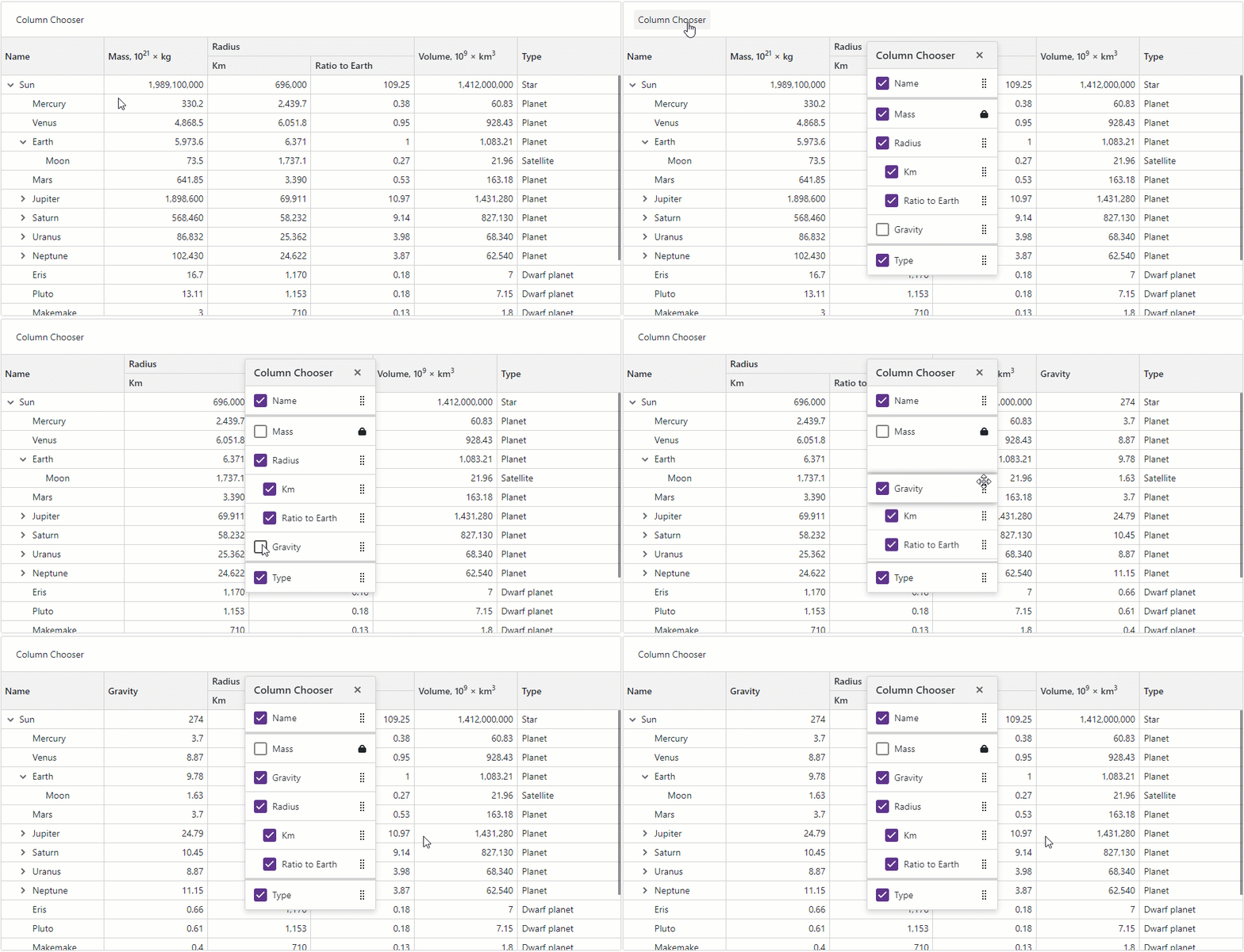
You can also open the column chooser dialog via the built-in TreeList context menu. Use the ShowColumnChooser property to add or remove the column chooser item:
@inject EmployeeTaskService EmployeeTaskService

<DxTreeList Data="TreeListData"
            KeyFieldName="Id"
            ParentKeyFieldName="ParentId"
            ContextMenus="TreeListContextMenus.All"
            CustomizeContextMenu="CustomizeContextMenu">
    <Columns>
        <DxTreeListSelectionColumn Width="80px" />
        <DxTreeListDataColumn FieldName="Name" Caption="Task" />
        <DxTreeListDataColumn FieldName="EmployeeName" />
        <DxTreeListDataColumn FieldName="StartDate" />
        <DxTreeListDataColumn FieldName="DueDate" />
    </Columns>
</DxTreeList>

@code {
    List<EmployeeTask> TreeListData { get; set; }

    protected override void OnInitialized() {
        TreeListData = EmployeeTaskService.GenerateData();
    }
    void CustomizeContextMenu(TreeListCustomizeContextMenuEventArgs args) {
        args.Items.Remove(TreeListContextMenuDefaultItemNames.ShowColumnChooser);
    }
}
Column Chooser Items
The column chooser displays all visible and hidden TreeList columns. Disable a column’s ShowInColumnChooser option to remove this column (and its children) from the dialog.
The column chooser reflects column settings as follows:
- The chooser draws a thick line between regular and fixed column zones (users can reorder columns within a zone but cannot move columns between zones).
- Lock icon indicates that users cannot change a column’s position.
<DxTreeList Data="Data" ChildrenFieldName="Satellites">
<Columns>
<DxTreeListDataColumn FieldName="Name" FixedPosition="TreeListColumnFixedPosition.Left" />
<DxTreeListDataColumn FieldName="TypeOfObject" FixedPosition="TreeListColumnFixedPosition.Right" Caption="Type"/>
<DxTreeListDataColumn FieldName="Mass10pow21kg" Caption="Mass, kg" AllowReorder="false">
<HeaderCaptionTemplate>Mass, 10<sup>21</sup> × kg</HeaderCaptionTemplate>
</DxTreeListDataColumn>
<DxTreeListBandColumn Caption="Radius">
<Columns>
<DxTreeListDataColumn FieldName="MeanRadiusInKM" Caption="Km" />
<DxTreeListDataColumn FieldName="MeanRadiusByEarth" Caption="Ratio to Earth"/>
</Columns>
</DxTreeListBandColumn>
<DxTreeListDataColumn FieldName="Volume10pow9KM3" Caption="Mass" ShowInColumnChooser="false">
<HeaderCaptionTemplate>Volume, 10<sup>9</sup> × km<sup>3</sup></HeaderCaptionTemplate>
</DxTreeListDataColumn>
<DxTreeListDataColumn FieldName="SurfaceGravity" Caption="Gravity" Visible="false" />
</Columns>
</DxTreeList>

Customize Appearance
To customize the appearance of column chooser items, handle the CustomizeElement event. The following code snippet highlights fixed columns in the column chooser.
<DxTreeList @ref="@TreeList"
            Data="TreeListData"
            KeyFieldName="Id"
            ParentKeyFieldName="ParentId"
            CustomizeElement="CustomizeColumnChooserItems">
    <Columns>
        <DxTreeListSelectionColumn FixedPosition="TreeListColumnFixedPosition.Left" />
        <DxTreeListDataColumn FieldName="Name" Caption="Task" FixedPosition="TreeListColumnFixedPosition.Right" />
        <DxTreeListDataColumn FieldName="EmployeeName" />
        <DxTreeListDataColumn FieldName="StartDate" />
        <DxTreeListDataColumn FieldName="DueDate" />
    </Columns>
</DxTreeList>

@code {
    //...
    void CustomizeColumnChooserItems(TreeListCustomizeElementEventArgs e) {
        if(e.ElementType == TreeListElementType.ColumnChooserItem && e.Column.FixedPosition != TreeListColumnFixedPosition.None) {
            e.CssClass = "highlighted-item";
        }
    }
}

Task-Based Examples
Display a Custom Column Chooser with Columns Sorted in Alphabetical Order
The TreeList displays columns in the column chooser in the same order as they appear in the component. If the column chooser in your application does not require the column reorder feature, you can implement a custom column chooser to display columns alphabetically.
In the following code snippet, the DxListBox<TData, TValue> component lists TreeList columns. When a user selects or deselects List Box items, the ValueChanged event fires. The event handler changes the column’s Visible property value according to the current item selection.
<DxListBox CssClass="my-list-box"
           Data="AllColumns"
           SelectionMode="ListBoxSelectionMode.Multiple"
           ShowCheckboxes="true"
           TextFieldName="Caption"
           Values="VisibleColumns"
           ValuesChanged="@((IEnumerable<ITreeListColumn> values) => SelectedDataItemsChanged(values))" />
<DxTreeList @ref="TreeList"
            Data="Data"
            KeyFieldName="Id"
            ParentKeyFieldName="ParentId">
    <Columns>
        <DxTreeListSelectionColumn Caption="Selection Column" />
        <DxTreeListCommandColumn Caption="Command Column" />
        <DxTreeListDataColumn FieldName="Name" Caption="Task" Width="40%" />
        <DxTreeListDataColumn FieldName="EmployeeName" Caption="Employee Name" />
        <DxTreeListDataColumn FieldName="StartDate" Caption="Start Date" />
        <DxTreeListDataColumn FieldName="DueDate" Caption="Due Date" />
        <DxTreeListDataColumn FieldName="Completed" Caption="Progress" />
    </Columns>
</DxTreeList>

@code {
    ITreeList TreeList { get; set; }
    object Data { get; set; }
    public IEnumerable<ITreeListColumn> AllColumns { get; set; }
    public IEnumerable<ITreeListColumn> VisibleColumns { get; set; }

    protected override void OnInitialized() {
        Data = EmployeeTaskService.GenerateData();
    }
    void SelectedDataItemsChanged(IEnumerable<ITreeListColumn> values) {
        TreeList.BeginUpdate();
        foreach (var column in TreeList.GetColumns())
            column.Visible = values.Contains(column);
        TreeList.EndUpdate();
        VisibleColumns = values;
    }

    protected override void OnAfterRender(bool firstRender) {
        if (firstRender) {
            AllColumns = TreeList.GetColumns().OrderBy(i => i, ColumnsComparerImpl.Default).ToList();
            VisibleColumns = TreeList.GetVisibleColumns();
            StateHasChanged();
        }
    }

    class ColumnsComparerImpl : IComparer<ITreeListColumn> {
        public static IComparer<ITreeListColumn> Default { get; } = new ColumnsComparerImpl();
        ColumnsComparerImpl() { }
        int IComparer<ITreeListColumn>.Compare(ITreeListColumn x, ITreeListColumn y) {
            if (x is ITreeListSelectionColumn)
                return -1;
            if (x is ITreeListDataColumn xData && y is ITreeListDataColumn yData) {
                var xName = !string.IsNullOrEmpty(xData.Caption) ? xData.Caption : xData.FieldName;
                var yName = !string.IsNullOrEmpty(yData.Caption) ? yData.Caption : yData.FieldName;
                return string.Compare(xName, yName);
            }
            return 0;
        }
    }
}
