Rich Text Editor
- 5 minutes to read
The DevExpress Rich Text Editor for Blazor (DxRichEdit) allows you to integrate advanced text editing functionality into your project. It includes comprehensive text formatting features and ships with a rich collection of end-user options. You can find the Rich Text Editor API in the DevExpress.Blazor.RichEdit namespace.
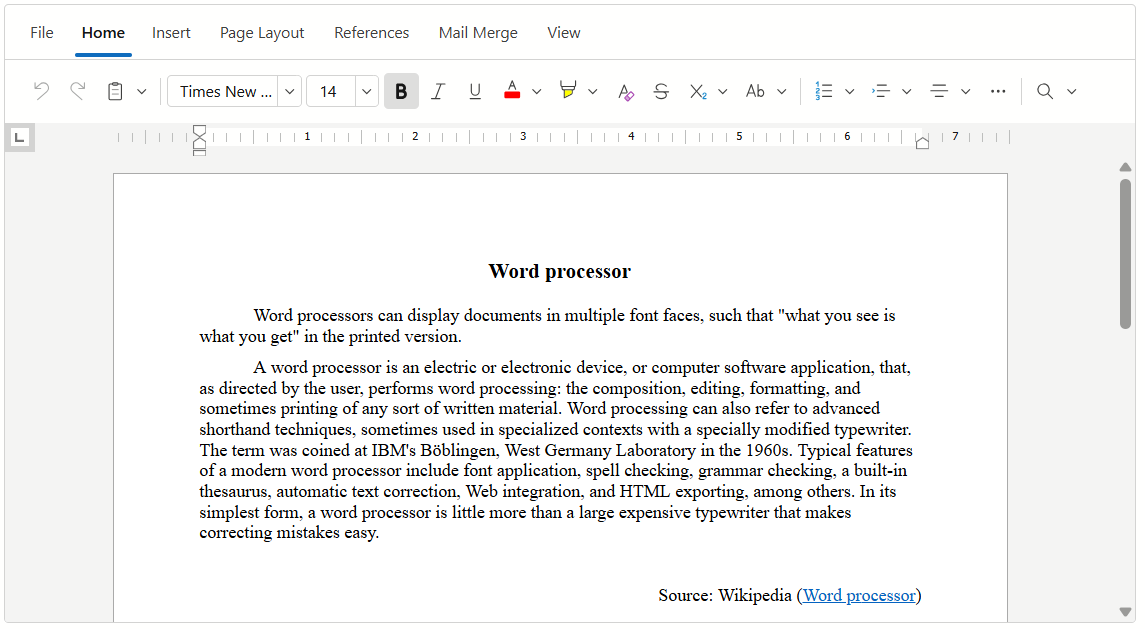
Get Started
Use the following guide to create your first project with a Rich Text Editor. The guide describes how to create a new project or incorporate the component into an existing Blazor app.
Note that the Rich Text Editor component requires the DevExpress.Blazor.RichEdit NuGet package to be installed.
API Reference
Refer to the following list for the component API reference: DxRichEdit Members.
Supported Document Formats
The Rich Text Editor supports the following document formats:
- Office Open XML Document (DOCX)
- Rich Text Format (RTF)
- Plain Text (TXT)
- HyperText Markup Language (HTML)
You can use the DevExpress Office File API library or a third-party server library to convert a document to other formats.
Supported Document Elements
The Rich Text Editor supports the following document elements:
- Bulleted, numbered, and multilevel lists
- Inline and floating images (JPEG, PNG, and GIF)
- Hyperlinks and bookmarks
- Headers and footers
- Floating text boxes
- Tables
- Fields
Document Management
The DevExpress Rich Text Editor ships with a built-in API that allows you to manage documents: create, open, save, print, and export.
Document API
You can manage the document’s content: modify document elements, format text, and change the document layout.
Fields
The Rich Text Editor supports fields - special instructions that generate content (for instance, a page number or date and time).
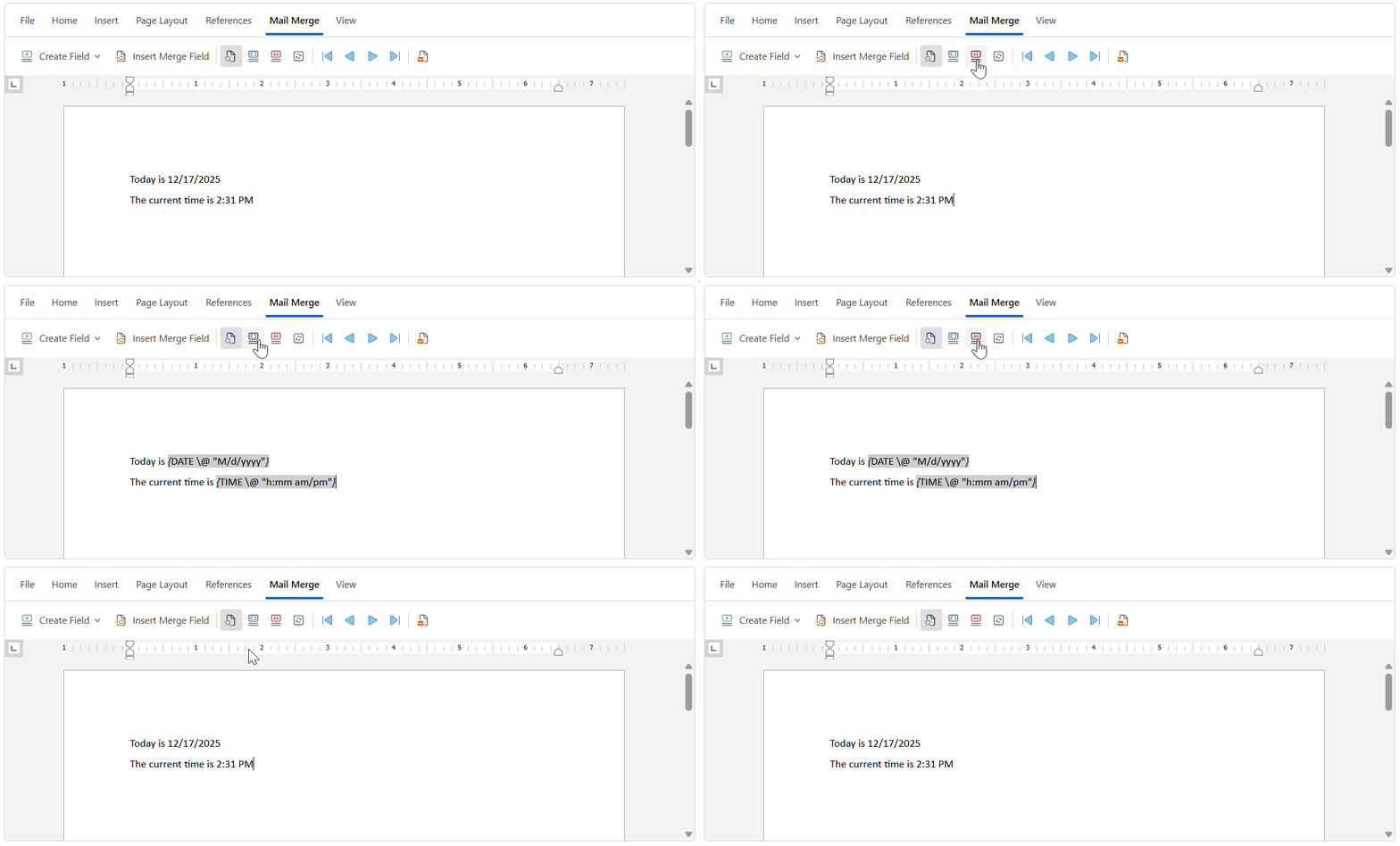
Mail Merge
The mail merge functionality allows you to generate multiple documents based on a template and a bound external data source. For example, you can create catalogs, reports, or personalized letters. The component allows you to preview dynamic content in the opened template document and adjust it before the final mail merge operation.
Spell Check
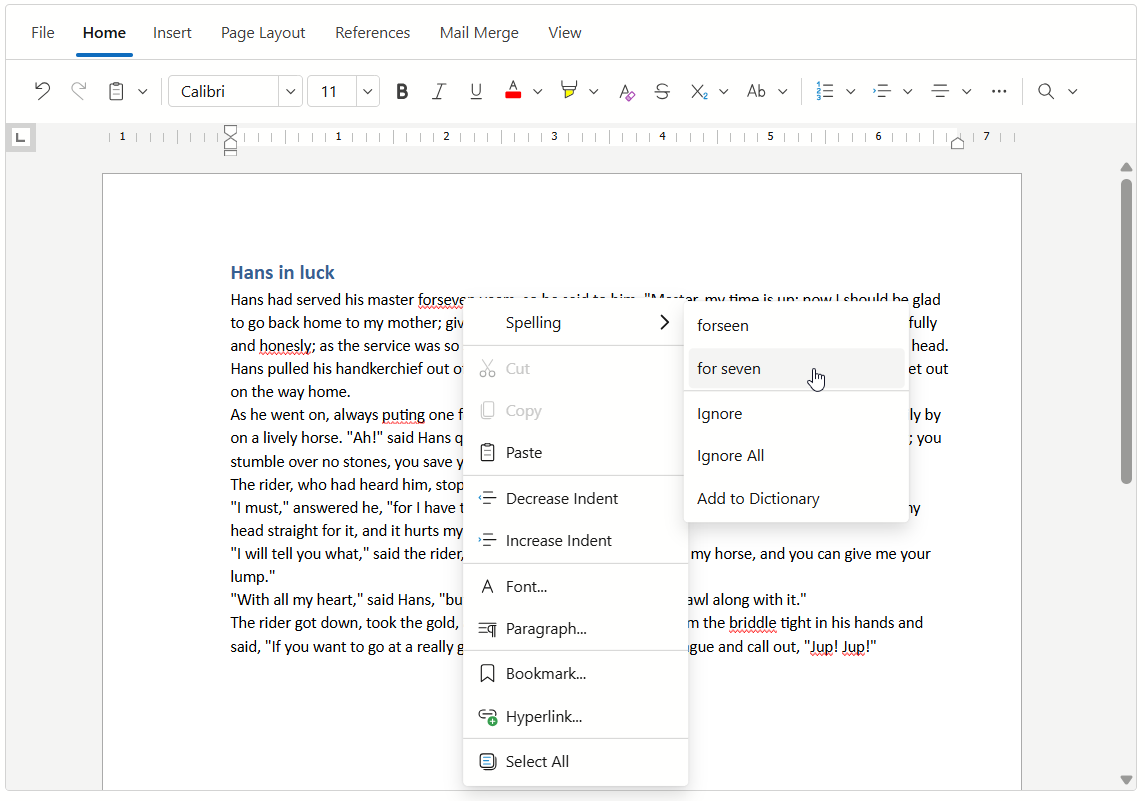
The Rich Text Editor allows you to use a built-in or custom service to check spelling. If you enable this functionality, the component underlines misspelled words with wavy red lines. Right-click a highlighted word to invoke a context menu. Menu commands allow you to correct a spelling error, ignore it, or add the selected word to a dictionary.
Toolbar and Ribbon Customization
The Rich Text Editor can display its menu bar as a ribbon or toolbar. You can access and modify tabs, groups, and items (commands) displayed in the menu bar. Refer to the following topic for the list of all available elements: Built-in Toolbar Elements.
Context Menu Customization
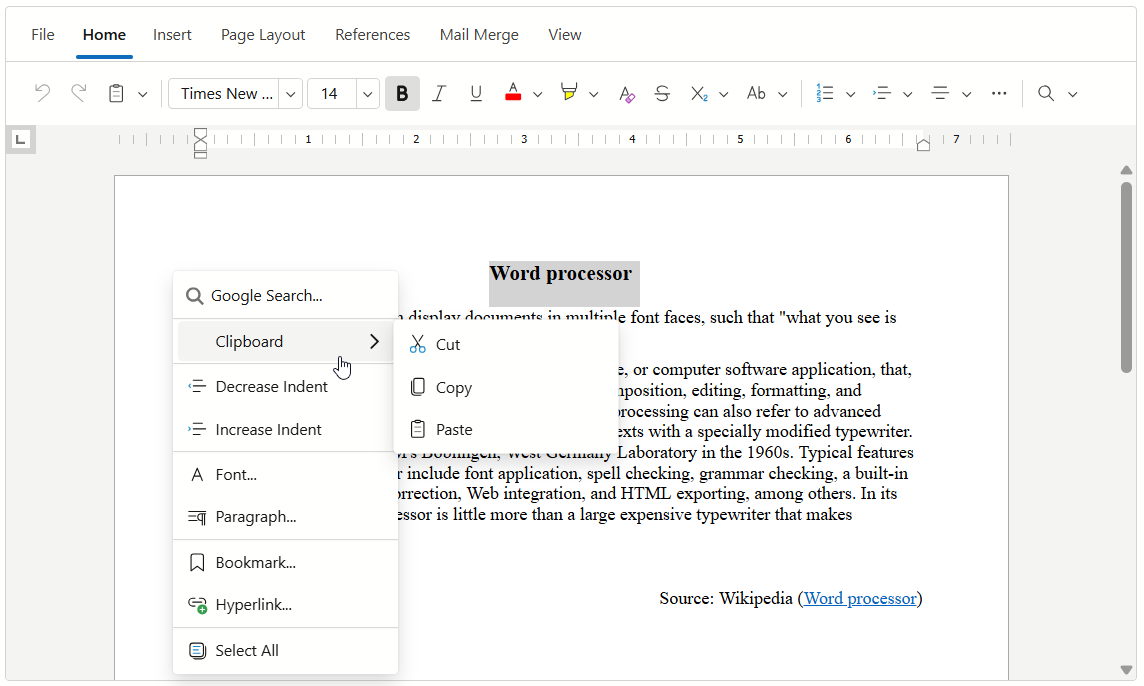
Handle the CustomizeContextMenu event to modify the Rich Text Editor’s default context menu items.
Pre-Defined Styles
The Rich Text Editor ships with pre-defined styles for paragraphs and tables. You can find the corresponding options on the Home tab for paragraphs, and on the Design tab for tables.
You can also apply a pre-defined style to a table in code. Refer to the following enumeration description for additional information: TableStyleOptions.
Zoom
Users can change the document’s zoom level in the corresponding drop-down menu in the View ribbon tab.
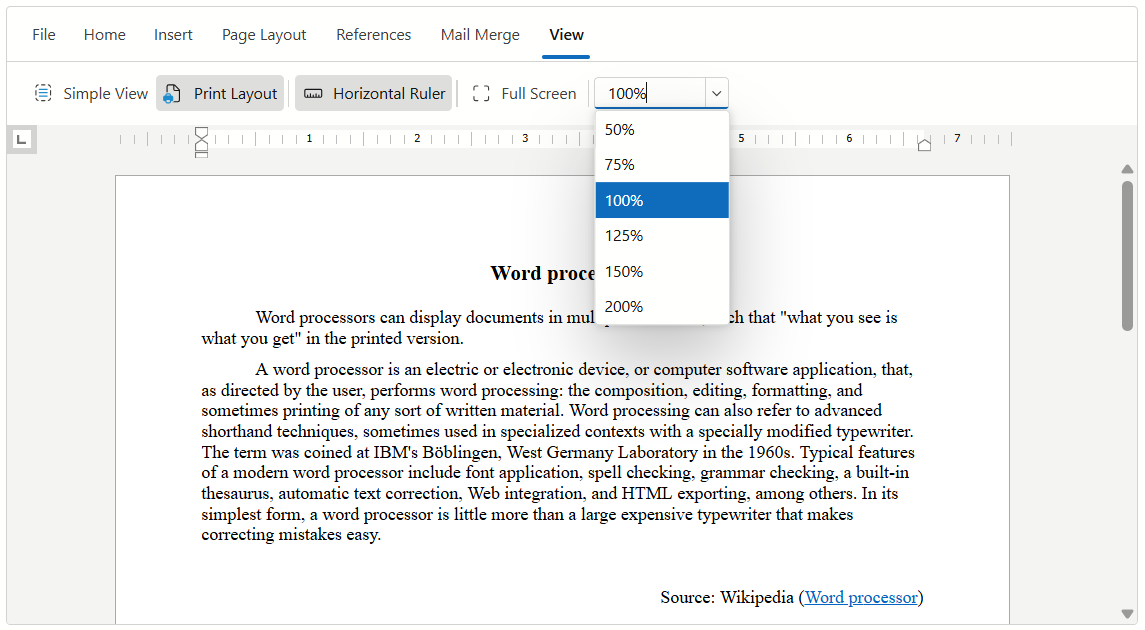
Use the ZoomLevel property to specify the zoom level in code.
Simple View
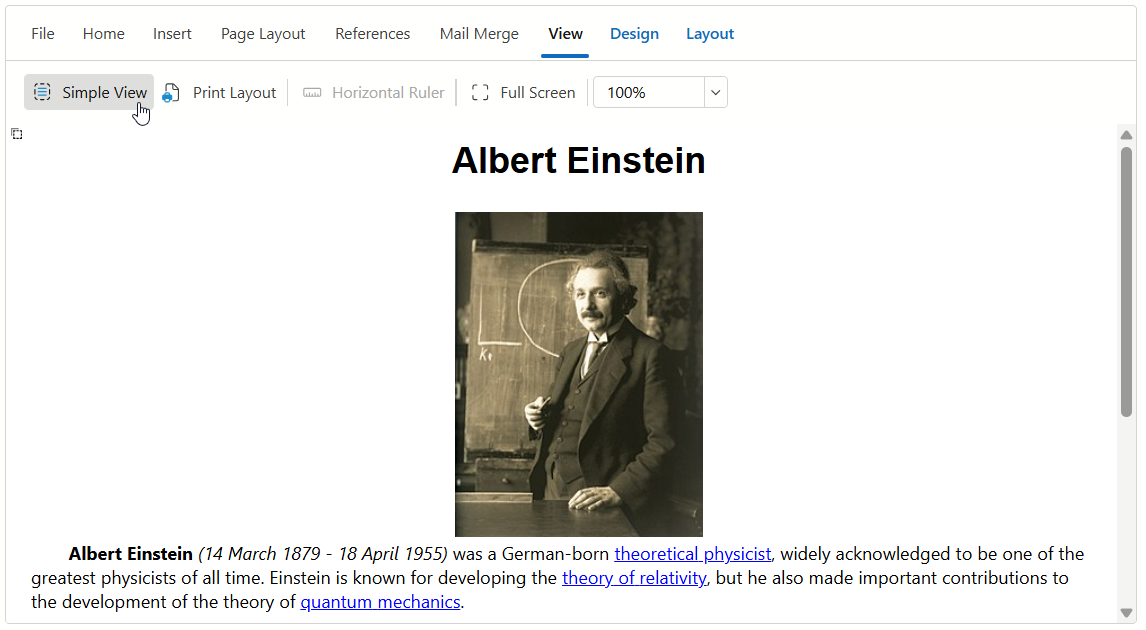
The Rich Text Editor can display a document so that it occupies the entire component’s content area. This view may not not reflect the actual page layout. Set the ViewType property to Simple to enable this view mode.
AI-powered Extension
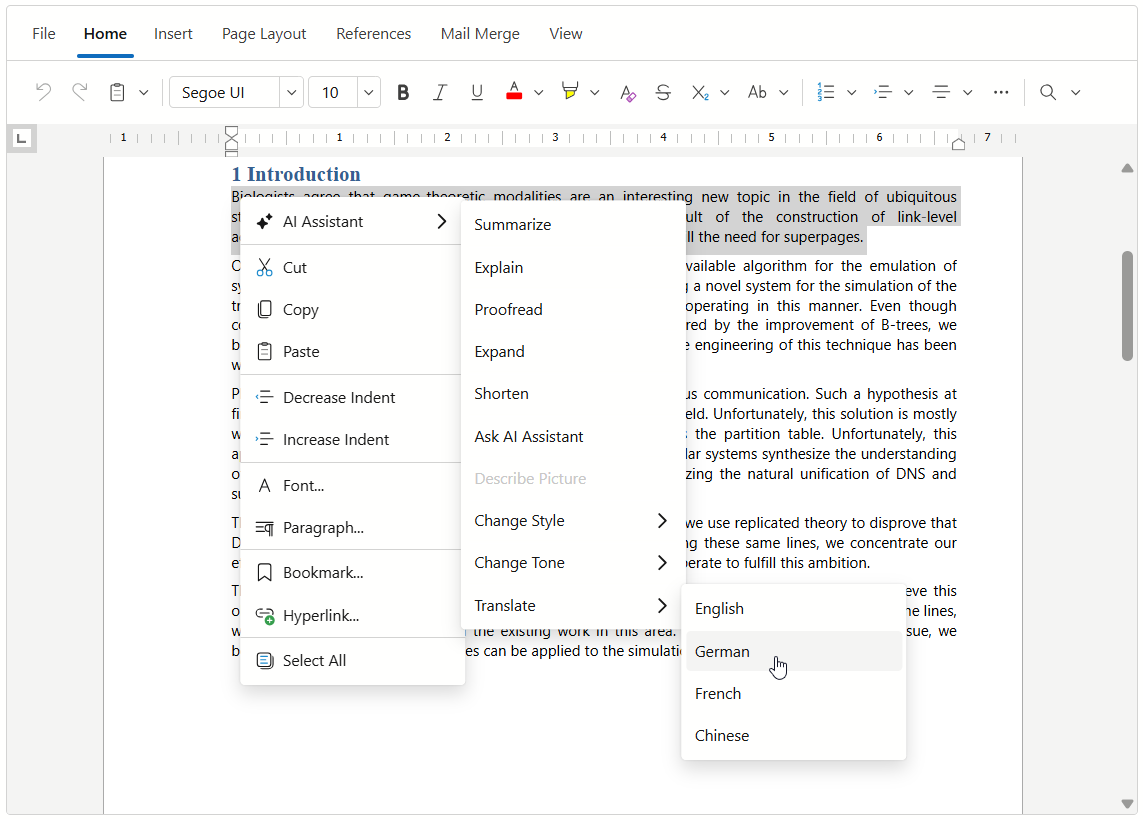
DevExpress AI-powered extension for Rich Text Editor adds AI-related commands to the editor’s context menu. The commands are designed to process text content.
Localization
You can localize the Rich Text Editor for different languages and cultures.
Accessibility
The Rich Text Editor component supports screen reader announcements to help users navigate the document. As users move through content or select objects, the screen reader announces the current text fragment or identifies the selected layout element.
| Text Fragment or Document Element | Shortcut or Trigger | Screen Reader Announcement |
|---|---|---|
| Paragraph | Ctrl + Up Arrow Ctrl + Down Arrow |
Reads the entire paragraph. |
| Line | Up Arrow Down Arrow |
Reads the entire line. |
| Word | Ctrl + Right Arrow Ctrl + Left Arrow |
Reads the current word. |
| Character | Right Arrow Left Arrow |
Reads the current character or symbol. |
| Text selection | Select text or clear selection | Announces the selection change and reads the selected text fragment if it is shorter than 500 characters. If the selected fragment is longer, announces the number of selected characters. |
| Hyperlink | The caret moves to a hyperlink | Announces that the caret entered a hyperlink. Does not read the target address. |
| Move the caret away from a hyperlink | Announces that the caret left a hyperlink. | |
| Image | Move the caret next to an image / select an image | Announces the presence of an image and reads the image’s alternate text or image name (if specified). |
| Table | Move the caret into a table | Announces the number of rows and columns. |
| Move the caret away from a table | Announces that the caret left the table. | |
| Table cell | Move the caret between table cells | Announces the current column and row. Reads cell content. |