PropertyEditorAttribute Class
Registers a custom Property Editor in the Application Model.
Namespace: DevExpress.ExpressApp.Editors
Assembly: DevExpress.ExpressApp.v26.1.dll
NuGet Package: DevExpress.ExpressApp
Declaration
[AttributeUsage(AttributeTargets.Class, Inherited = false, AllowMultiple = true)]
public sealed class PropertyEditorAttribute :
AttributeRemarks
When a XAF application loads, the reflection mechanism locates classes with the PropertyEditor attribute. The Application Model includes these classes into its Property Editor collection. The attribute’s parameter specifies the target object type for the List Editor.
When you register a Property Editor you can specify a class or an interface as the target type. Editors associated with interfaces have higher priority.
Tip
Use the ListEditorAttribute to register and use a custom List Editor.
The PropertyEditor attribute includes the following parameters:
propertyType- Specifies the associated property type. Set this parameter to Object to support properties of any type.
isDefaultEditor- Specify
trueto use this Property Editor as the default choice for specified property types. Otherwise, this Property Editor is available in the Model Editor, but you must explicitly assign it to types or Detail View Items. alias- Sets an alias for the Property Editor.
Use Your Custom Class as the Default Property Editor
You can specify the default Property Editor in the following two ways:
- In code
Apply
PropertyEditorAttributeto your custom Property Editor class. Pass Object andtrueas attribute parameters.// Set the CustomPropertyEditor as default Property Editor [PropertyEditor(typeof(object), true)] public class CustomPropertyEditor : BlazorPropertyEditorBase { /* ... */ }- In the Model Editor
Use
PropertyEditorAttributeto register the custom Property Editor in the Application Model. Pass Object andfalseas attribute parameters.// Register CustomPropertyEditor as an accessible Property Editor for properties of any type [PropertyEditor(typeof(object), false)] public class CustomPropertyEditor : BlazorPropertyEditorBase { /* ... */ }Open the Model Editor and select ViewItems | PropertyEditors. Set the DefaultItemType property to your editor class name.
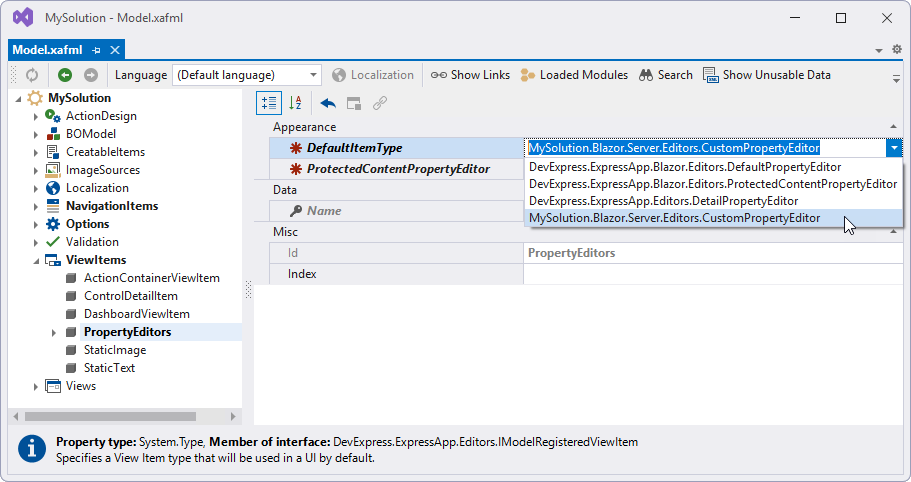
Assign Your Custom Property Editor to Properties of a Specific Type
You can associate a Property Editor with a specific data type using two ways:
- In code
Apply
PropertyEditorAttributeto your editor class. Pass the required data type andtrueas attribute parameters.// Assign CustomDateTimePE to DateTime properties [PropertyEditor(typeof(DateTime), true)] public class CustomDateTimePE : BlazorPropertyEditorBase { /*...*/ }- In the Model Editor
Use
PropertyEditorAttributeto register the custom Property Editor in the Application Model. Pass the required data type andfalseas attribute parameters.// Register CustomDateTimePE as an accessible property editor for DateTime properties [PropertyEditor(typeof(DateTime), false)] // Or Register CustomDateTimePE as an accessible property editor for properties of any type //[PropertyEditor(typeof(object), false)] public class CustomDateTimePE : BlazorPropertyEditorBase { /*...*/ }Open the Model Editor and select ViewItems | PropertyEditors | {Property Type}. Set the EditorType property to your editor class name.
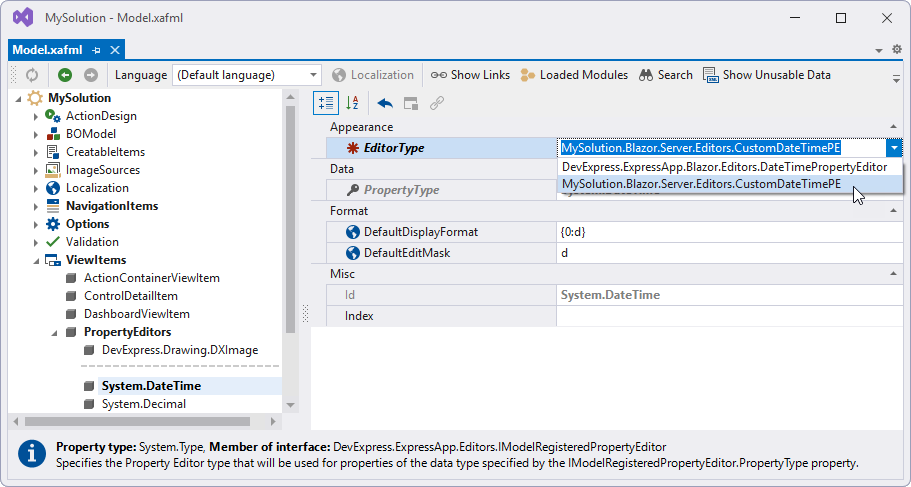
Assign Your Custom Property Editor to a Specific Property
Use PropertyEditorAttribute to register the custom Property Editor in the Application Model. Pass the target data type as the first parameter, and set the second parameter to false.
// Register CustomStringPE as available property editor for string properties
[PropertyEditor(typeof(string), false)]
public class CustomStringPE : BlazorPropertyEditorBase { /*...*/ }
Open the Model Editor and select BOModel | {MySolution}.Module.BusinessObjects | {ClassName} | OwnMembers | {PropertyName}. Set the PropertyEditorType property to your editor class name.
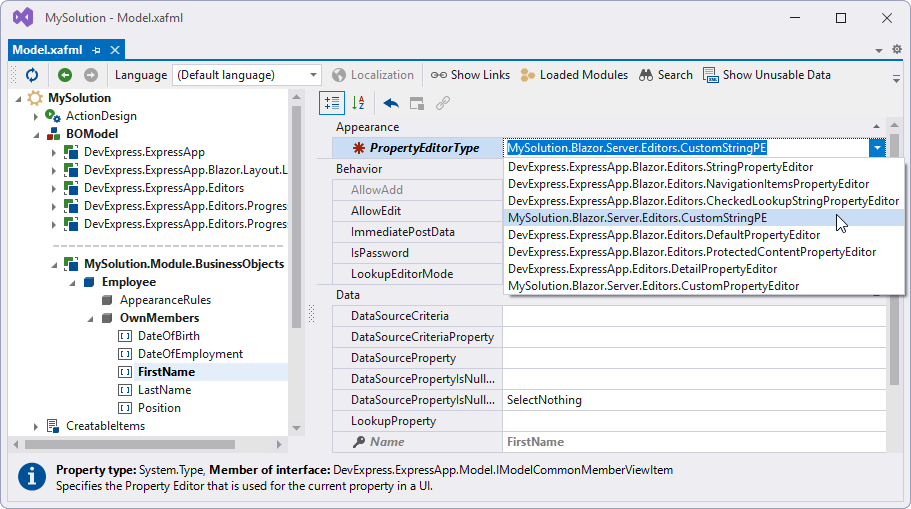
Assign Your Custom Property Editor to a Detail View Item
Register the editor in code as demonstrated in the previous section. In the Model Editor, select Views | {MySolution}.Module.BusinessObjects | {ClassName} | {ClassName}_DetailView | Items | {PropertyName}. Set the PropertyEditorType property to your editor class name.
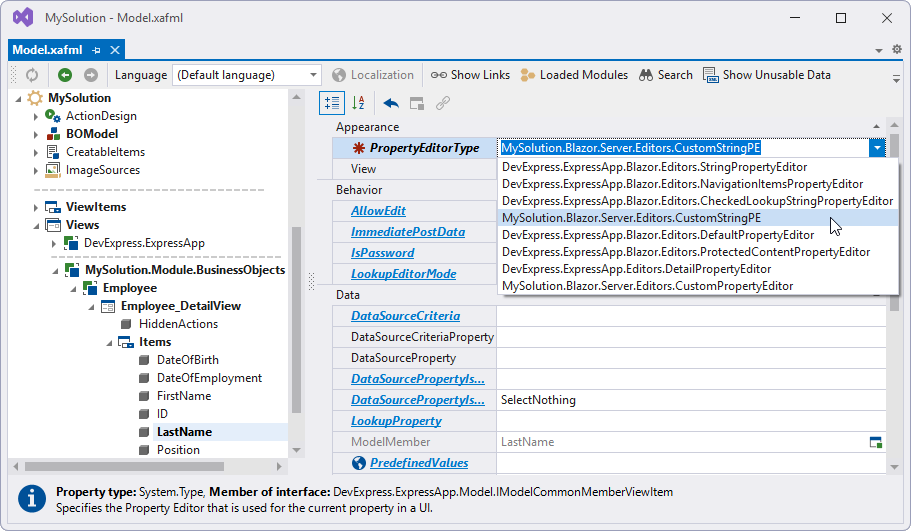
Use Your Custom Property Editor with Protected Properties
To assign a Property Editor to protected properties, implement the IProtectedContentEditor interface in your editor class. In PropertyEditorAttribute, set propertyType to Object and isDefaultEditor to true.
// Assign CustomProtectedContentPE to protected properties
[PropertyEditor(typeof(object), true)]
public class CustomProtectedContentPE : BlazorPropertyEditorBase, IProtectedContentEditor { /* ... */ }
You can set isDefaultEditor to false and use the Model Editor to specify the target type or property. Select ViewItem | PropertyEditors and set the ProtectedContentPropertyEditor property to your editor class name.
Property Editor Alias
Property Editors are usually platform-specific, and you have to register each Property Editor separately for every platform you support.
You can set the same alias for both WinForms and ASP.NET Core Blazor editors, and use this alias to refer to your editor in platform-independent code. The application automatically chooses the correct editor version for the current platform.
Specify the alias parameter in PropertyEditorAttribute:
[PropertyEditor(typeof(string), "CustomStringPEAlias ", false)]
public class CustomBlazorStringPE : BlazorPropertyEditorBase { /* ... */}
Use EditorAliasAttribute to assign the editor alias to a property.
[EditorAlias("CustomStringPEAlias")]
public virtual String FirstName { get; set; }
You can also call the RegisterPropertyEditorAlias method to register your editor’s alias.
Use Your Custom Class as a Lookup Property Editor
The default Lookup Property Editor uses a predefined alias: LookupPropertyEditor. To replace the default editor, use this alias as a PropertyEditorAttribute parameter.
[PropertyEditor(typeof(object), EditorAliases.LookupPropertyEditor, true)]
public class CustomLookupPropertyEditor : BlazorPropertyEditorBase { /* ... */ }
Alternative Property Editor Registration Method (No Attributes)
You can disable the mechanism that locates classes decorated with PropertyEditorAttribute. This change may help you optimize application load time.
To activate manual List Editor registration, override the ModelBase.RegisterEditorDescriptors method. Call the RegisterPropertyEditor method to register required List Editors:
public class CustomStringPE : BlazorPropertyEditorBase { /* ... */ }
using System.ComponentModel;
using DevExpress.ExpressApp;
using DevExpress.ExpressApp.Editors;
using MySolution.Module.BusinessObjects;

namespace MySolution.Blazor.Server {
    public sealed class MySolutionBlazorModule : ModuleBase {
        protected override void RegisterEditorDescriptors(EditorDescriptorsFactory editorDescriptorsFactory) {
            editorDescriptorsFactory.RegisterPropertyEditor(typeof(String), typeof(CustomStringPE), true);
        }
        //...
    }
    // ...
}
Refer to the ModuleBase property description for details.
Examples
- Implement a Property Editor Based on a Custom Component (Blazor)
- Implement a Property Editor Based on a Custom Control (WinForms)