Master-Detail View in Blazor Grid
- 14 minutes to read
The DevExpress Blazor Grid can display additional information for individual data records in detail rows. You can add nested Grids to detail rows to create master-detail layouts and visualize relationships between data tables.
Add Row Preview
Use the DetailRowTemplate property to display a preview section under each data row. The section can display any content: text, tables, data field values.
The following example uses detail rows to display notes about employees:

@inject NwindDataService NwindDataService

<div class="grid-container">
    <DxGrid Data="GridData"
            DetailRowDisplayMode="GridDetailRowDisplayMode.Always"
            CustomizeElement="Grid_CustomizeElement"
            ShowAllRows="true">
        <Columns>
            <DxGridDataColumn FieldName="FirstName" />
            <DxGridDataColumn FieldName="LastName" />
            <DxGridDataColumn FieldName="Title" />
            <DxGridDataColumn FieldName="HireDate" />
        </Columns>
        <DetailRowTemplate>
            @{
                var employee = (Employee)context.DataItem;
                <text>@employee.Notes</text>
            }
        </DetailRowTemplate>
    </DxGrid>
</div>

@code {
    object GridData { get; set; }

    protected override async Task OnInitializedAsync() {
        GridData = await NwindDataService.GetEmployeesAsync();
    }

    void Grid_CustomizeElement(GridCustomizeElementEventArgs e) {
        if(e.ElementType == GridElementType.DetailCell) {
            e.CssClass = "p-2 opacity-75";
        }
    }
}
Add Nested Grids
The Grid component allows you to create master-detail layouts with multiple nested levels. To implement a nested Grid layout, follow the steps below:
- Add a master
DxGridto a page and configure its data source and columns. - Create a separate component for the detail
DxGrid. This structure helps avoid unnecessary redraw operations. - Add the detail Grid component to the master Grid’s DetailRowTemplate.
- Use the template’s context object to filter data in the detail Grid.
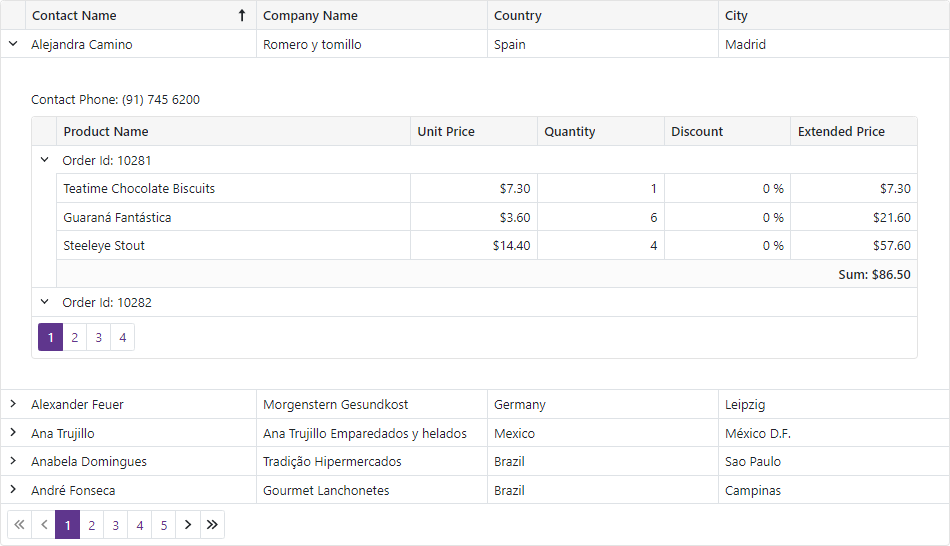
@inject NwindDataService NwindDataService

<DxGrid @ref="Grid" Data="MasterGridData" AutoCollapseDetailRow="true">
    <Columns>
        <DxGridDataColumn FieldName="ContactName" SortIndex="0" />
        <DxGridDataColumn FieldName="CompanyName" />
        <DxGridDataColumn FieldName="Country" />
        <DxGridDataColumn FieldName="City" />
    </Columns>
    <DetailRowTemplate>
        <NestedGrid_DetailContent Customer="(Customer)context.DataItem" />
    </DetailRowTemplate>
</DxGrid>

@code {
    IGrid Grid { get; set; }
    object MasterGridData { get; set; }

    protected override async Task OnInitializedAsync() {
        MasterGridData = await NwindDataService.GetCustomersAsync();
    }
    protected override void OnAfterRender(bool firstRender) {
        if(firstRender) {
            Grid.ExpandDetailRow(0);
        }
    }
}
Implement Partial Data Loading
In previous examples, the entire detail dataset is loaded in memory. Detail data grid applied a filter to display required records. If you work with a large or remote data source, you may choose to load detail data on demand.
You can display a Loading Panel in the detail area while the nested component retrieves records. The following example implements a nested grid layout where the detail grid loads/generates its data on demand and displays an integrated loading panel during that operation:
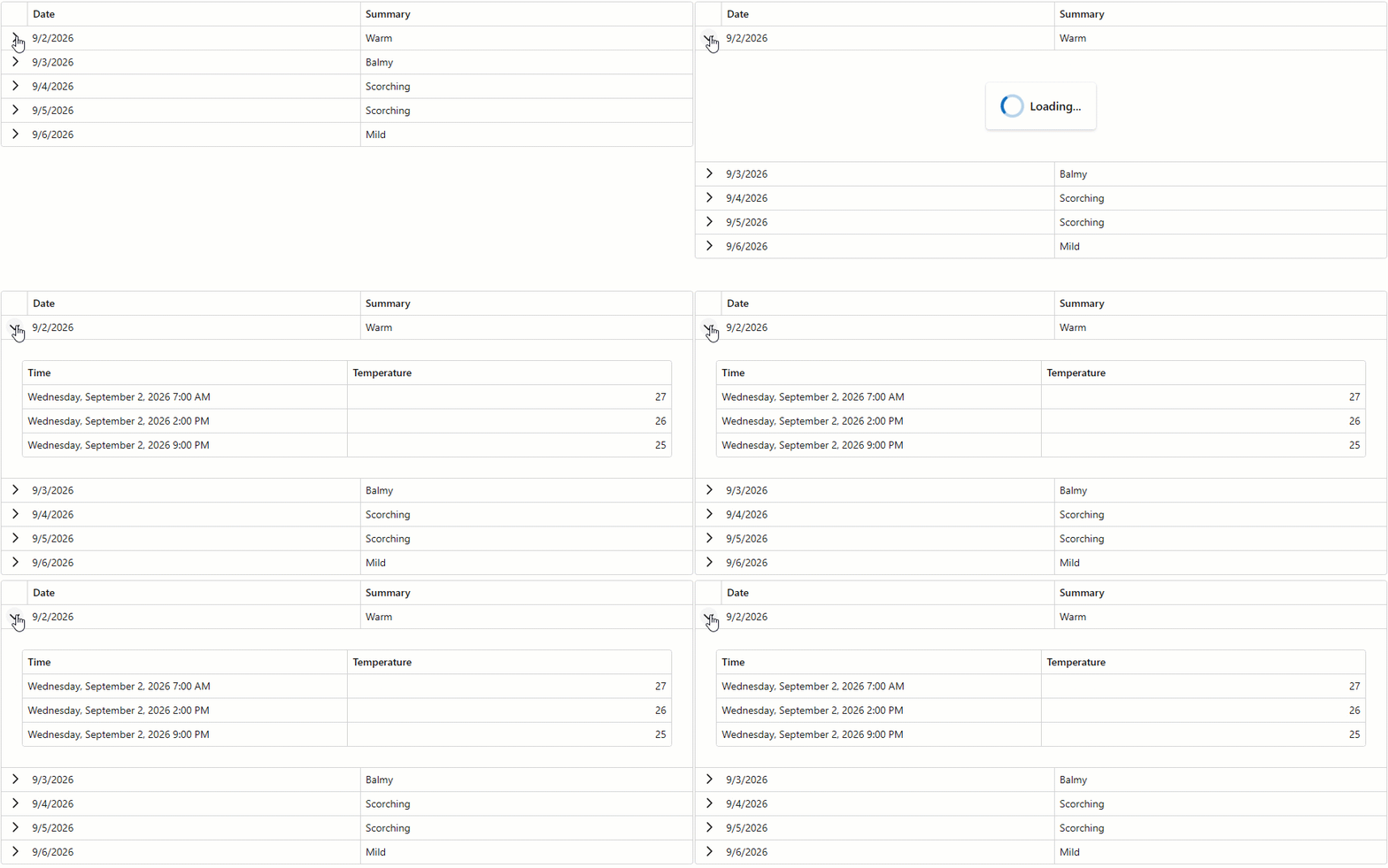
@page "/"

@using GridPartialLoading.Data
@inject WeatherForecastService ForecastService

<h2>DevExpress Grid</h2>

@if(forecasts == null) {
    <p><em>Loading...</em></p>
} else {
    <DxGrid Data="@forecasts"
            AllowSelectRowByClick="true"
            SelectionMode="GridSelectionMode.Single">
        <Columns>
            <DxGridDataColumn FieldName="Date" />
            <DxGridDataColumn FieldName="Summary" />
        </Columns>
        <DetailRowTemplate Context="LineItem">
            @{
                var date = ((WeatherForecast)LineItem.DataItem).Date;
            }
            <DetailContent Date="date" />
        </DetailRowTemplate>
    </DxGrid>
}

@code {
    private WeatherForecast[]? forecasts;

    protected override async Task OnInitializedAsync() {
        forecasts = await ForecastService.GetForecastAsync(DateTime.Today);
    }
}
Export Detail Views
The built-in export engine processes only master view data: column captions, data cell values, and summaries. It does not export template content. To include detail data, use DevExpress Reports to create an intermediate master-detail report, then export the report to a supported file format. Refer to the following topic for additional information: Create a Master-Detail Report.
The following example exports both master and detail views to PDF, CSV, and XLSX files:
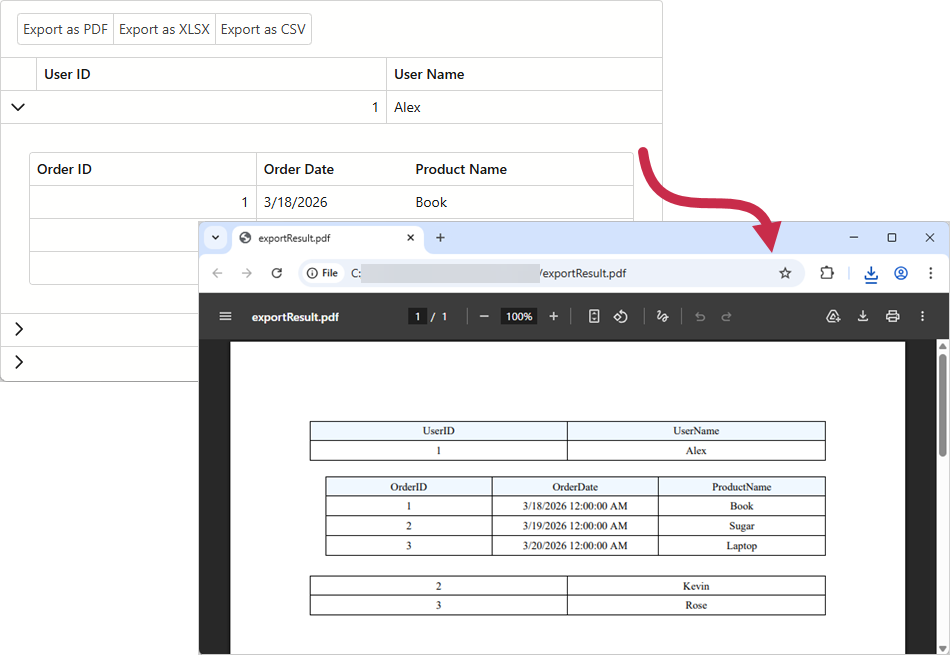
@page "/"
@rendermode InteractiveServer
@inject IJSRuntime JS
@using DevExpress.XtraReports.UI
@using GridMasterDetailExport.Data
@using GridMasterDetailExport.Reports

<DxGrid @ref="MasterGrid"
        AllowColumnReorder="false"
        AllowSort="false"
        Data="DataProvider.GetUsers()"
        KeyFieldName="UserID">
    <ToolbarTemplate Context="ctx">
        <DxToolbar>
            <Items>
                <DxToolbarItem Text="Export as PDF" Click="ExportToPdf" />
                <DxToolbarItem Text="Export as XLSX" Click="ExportToXlsx" />
                <DxToolbarItem Text="Export as CSV" Click="ExportToCsv" />
            </Items>
        </DxToolbar>
    </ToolbarTemplate>
    <Columns>
        <DxGridDataColumn FieldName="UserID" />
        <DxGridDataColumn FieldName="UserName" />
    </Columns>
    <DetailRowTemplate Context="ctx">
        @{
            User user = ctx.DataItem as User ?? new();
            var userOrders =
            DataProvider.GetOrders()
            .Where(o => o.UserID == user.UserID);
        }
        <DxGrid @ref="DetailGrid"
                AllowColumnReorder="false"
                AllowSort="false"
                Data="userOrders"
                KeyFieldName="OrderID">
            <Columns>
                <DxGridDataColumn FieldName="OrderID" />
                <DxGridDataColumn FieldName="OrderDate" />
                <DxGridDataColumn FieldName="ProductName" />
            </Columns>
        </DxGrid>
    </DetailRowTemplate>
</DxGrid>

@code {
    public DxGrid? MasterGrid { get; set; }

    public DxGrid? DetailGrid { get; set; }

    private async Task ExportToPdf() {
        using var report = GetReport();
        using var stream = new MemoryStream();
        await report.ExportToPdfAsync(stream);
        await DownloadStreamAsync(stream, "exportResult.pdf");
    }

    private async Task ExportToXlsx() {
        using var report = GetReport();
        using var stream = new MemoryStream();
        await report.ExportToXlsxAsync(stream);
        await DownloadStreamAsync(stream, "exportResult.xlsx");
    }

    private async Task ExportToCsv() {
        using var report = GetReport();
        using var stream = new MemoryStream();
        await report.ExportToCsvAsync(stream);
        await DownloadStreamAsync(stream, "exportResult.csv");
    }

    private XtraReport GetReport() {
        return ReportGenerationHelpers.GetReportFromDxGrid(
            GetVisibleColumnNames(MasterGrid),
            GetVisibleColumnNames(DetailGrid),
            GetRowsExpandedStates()
        );
    }

    private static string[] GetVisibleColumnNames(IGrid? grid) {
        return grid?.GetVisibleColumns()
                    .OfType<DxGridDataColumn>()
                    .Select(c => c.FieldName ?? c.Name).ToArray() ?? [];
    }

    private Dictionary<string, bool> GetRowsExpandedStates() {
        Dictionary<string, bool> masterRowExpandedStates = new();
        for(int i = 0; i < MasterGrid?.GetVisibleRowCount(); i++) {
            if(MasterGrid.GetDataItem(i) is User user) {
                masterRowExpandedStates[user.UserID.ToString()]
                    = MasterGrid.IsDetailRowExpanded(i);
            }
        }
        return masterRowExpandedStates;
    }

    async Task DownloadStreamAsync(Stream stream, string fileName) {

        stream.Seek(0, SeekOrigin.Begin);

        using var streamRef = new DotNetStreamReference(stream);
        await JS.InvokeVoidAsync("downloadFileFromStream", fileName, streamRef);
    }
}
Expand and Collapse Detail Rows
Set the AutoCollapseDetailRow property to true to automatically collapse an expanded detail row when a user expands another detail row.
Users can click expand/collapse buttons to change a detail row’s expanded state. They can also focus a detail row and press the Left Arrow or Right Arrow key to expand or collapse this row. To change a detail row’s state in code, call the following methods:
- CollapseAllDetailRows
- Collapses all detail rows.
- CollapseDetailRow
- Collapses the specified detail row.
- ExpandDetailRow
- Expands the specified detail row.
To determine a detail row’s expanded state, call the IsDetailRowExpanded method.
Detail Rows and Expand Buttons: Display Modes
Once you specify the DetailRowTemplate property, the Grid component displays expand/collapse buttons. Users can click them to display or hide detail rows. You can use the following properties to change the visibility of these buttons and detail rows:
- DetailExpandButtonDisplayMode
- Set this property to
Neverto hide the built-in expand/collapse buttons. You can still expand or collapse detail rows in code or implement custom buttons. - DetailRowDisplayMode
Use this property to keep detail rows always visible or hidden. The following modes are available:
Always—DxGridhides collapse buttons, displays all detail rows, and prevents you from collapsing them in code.Never—DxGridhides expand buttons, hides all detail rows, and prevents you from expanding them in code.
The following code sample hides expand/collapse buttons. Users can click a row to display its detail data:
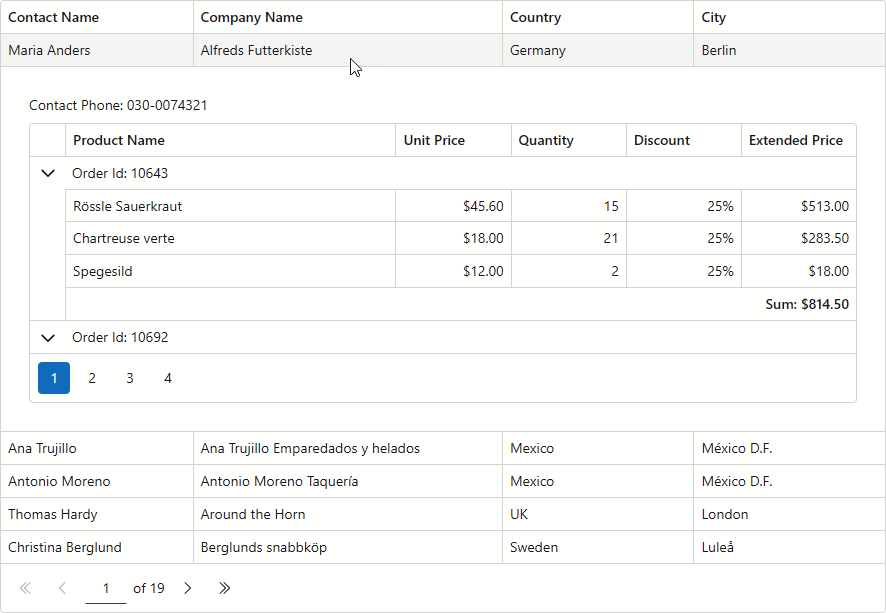
@inject NwindDataService NwindDataService

<DxGrid @ref="Grid"
        Data="MasterGridData"
        AutoCollapseDetailRow="true"
        DetailExpandButtonDisplayMode="GridDetailExpandButtonDisplayMode.Never"
        HighlightRowOnHover="true"
        RowClick="OnRowClick">
    <Columns>
        <DxGridDataColumn FieldName="ContactName" />
        <DxGridDataColumn FieldName="CompanyName" Width="35%" />
        <DxGridDataColumn FieldName="Country" />
        <DxGridDataColumn FieldName="City" />
    </Columns>
    <DetailRowTemplate>
        <NestedGrid_DetailContent Customer="(Customer)context.DataItem" />
    </DetailRowTemplate>
</DxGrid>

@code {
    IGrid Grid { get; set; }
    object MasterGridData { get; set; }

    protected override async Task OnInitializedAsync() {
        MasterGridData = await NwindDataService.GetCustomersAsync();
    }
    protected override void OnAfterRender(bool firstRender) {
        if (firstRender) {
            Grid.ExpandDetailRow(0);
        }
    }
    void OnRowClick(GridRowClickEventArgs e) {
        if (!e.Grid.IsDetailRowExpanded(e.VisibleIndex)) {
            e.Grid.BeginUpdate();
            e.Grid.ExpandDetailRow(e.VisibleIndex);
            e.Grid.EndUpdate();
        }
    }
}