Customize Report and Data Source Wizards
- 14 minutes to read
Use the CustomizeWizard event to modify the Report Wizard and Data Source Wizard in the Blazor Report Designer. You can also use the DxReportDesignerWizardSettings to adjust the wizard settings.
Tip
Use DevExpress AI Skills to integrate, configure, and customize reporting components in Blazor applications with your preferred AI coding assistant, such as GitHub Copilot or Claude Code.
Change the Predefined Wizard Settings
- Handle the CustomizeWizard event.
- Use the event argument’s Type property to identify the wizard type.
- Use the event argument’s Wizard property to access the wizard that should be customized.
- Handle the wizard’s beforeInitialize event and use the argument’s state property to customize the predefined settings.
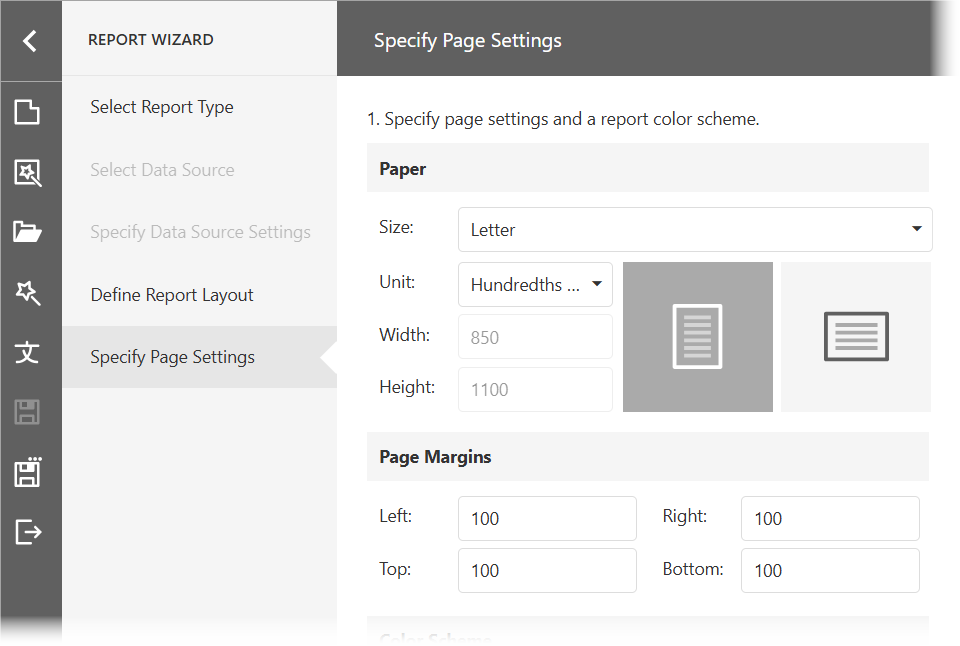
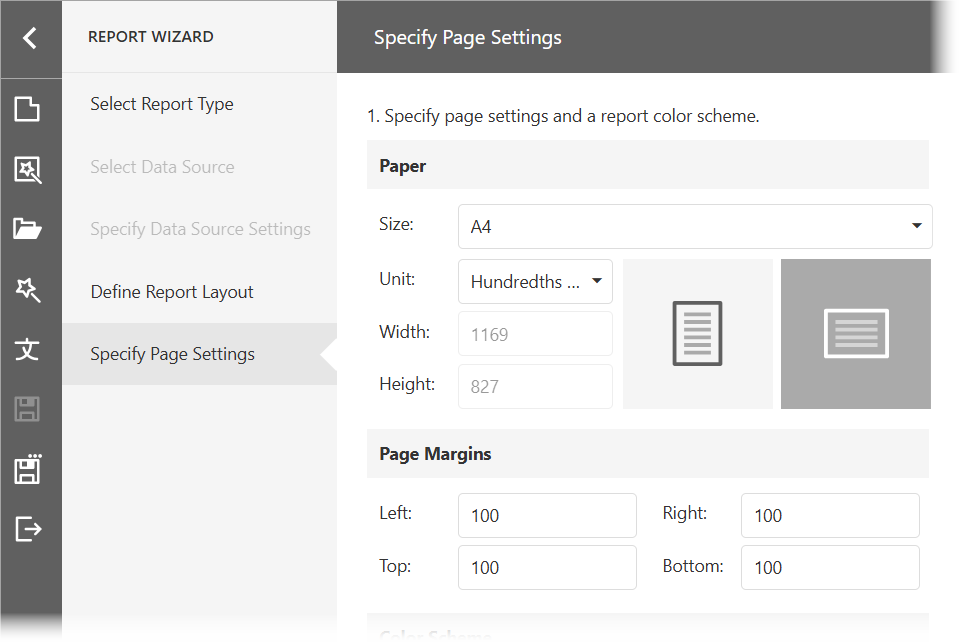
The following code snippet changes the Report Wizard’s default page size and orientation:
window.DesignerCustomization = {
    onCustomizeWizard: function (s, e) {
        if (e.Type === "ReportWizard") {
            e.Wizard.events.addHandler("beforePageInitialize", DesignerCustomization.onBeforePageInit)
        }
    },
    onBeforePageInit: function (args) {
        // Customize the default page size and orientation.
        args.state.pageSetup.paperKind = "A4";
        args.state.pageSetup.landscape = true;
    }
}
The table below shows the original and modified Specify Page Settings page:
| Before | After |
|---|---|
 |
 |
Wizard Structural Elements
The FullscreenReportWizard and FullscreenDataSourceWizard classes implement the functionality for the Report Wizard and Data Source Wizard, respectively.
The wizard architecture includes the following main elements:
Global State
A global state stores all the wizard settings required to create a report/data source. The global state object implements the IReportWizardState/IDataSourceWizardState interface.
When the wizard runs, the FullscreenReportWizard.initialize/FullscreenDataSourceWizard.initialize method initializes the global state with the predefined settings. The wizard’s onFinish method generates a report/data source based on the resulting global state.
Local State
Each wizard page uses a specific subset of the global state (a page’s local state). The page updates its local state based on a user’s input, and then, commits this state to the global state.
State Manager
The StateManager object acts like a mediator between the global state and wizard pages. It processes the global state, extracts a local state for each page, and commits local changes to the global state.
Page Iterator
The FullscreenReportWizardPageIterator/FullscreenDataSourceWizardPageIterator object defines the page sequence. The FullscreenReportWizardPageIterator.getNextPageId/FullscreenDataSourceWizardPageIterator.getNextPageId method returns the next wizard page’s ID based on the current page’s ID passed as the parameter.
The FullscreenReportWizardPageId and FullscreenDataSourceWizardPageId values identify page IDs.
Page Factory
The FullscreenWizardPageFactory object stores metadata for all wizard pages by their IDs. A metadata object implements the IFullscreenWizardPageMetadata interface. The State Manager uses its getState and setState methods to manage a local page state.
Page
Each wizard page implements the IWizardPage interface that defines the appearance, layout, and logic to process a local page state. The initialize method passes a local state to the page. The page processes its state internally and updates it based on a user’s input. The commit method sends the updated local state to the State Manager.
All existing fullscreen pages except the start page consists of sections. They implement the IWizardPage interface as well and define the same logic as the fullscreen pages. Most sections are pages from the pop-up wizard versions.
Refer to Report Wizard Pages and Data Source Wizard Pages for the complete page lists.
Wizard Customization Overview
To customize the Report / Data Source Wizard, handle the client-side CustomizeWizard event. The event’s argument has the following properties:
- Type - identifies the wizard type.
- Wizard - gives access to the wizard that should be customized. Use the Wizard‘s events collection to handle wizard events.
The following table lists wizard events and describes how to use them to customize the wizard:
Wizard Event | Description |
|---|---|
Occurs before the FullscreenReportWizard.initialize/FullscreenDataSourceWizard.initialize method is called. Handle this event to customize the predefined settings for the wizard’s global state. For instance, you can change the default page settings, the default report type, etc. | |
Occurs after the FullscreenReportWizard.initialize/FullscreenDataSourceWizard.initialize method is called. Handle this event to change the page count and / or sequence. For instance, you can remove a specific wizard page or register a new page. | |
Occurs before the page’s initialize method is called. Handle this event to customize the page’s content and state. For instance, you can remove a specific element from the start page or remove a specific section from other pages. | |
Occurs after the page’s initialize method is called. Handle this event to customize the page’s settings to display in the UI. | |
Occurs before the wizard’s onFinish method is called. Handle this event to customize the resulting wizard settings and generate a report/data source based on them. For instance, you can specify your custom report title if a user did not specify it. | |
Occurs after the wizard’s onFinish method is called. Handle this event to customize the generated report. For instance, you can change the report name and display name. |
Each fullscreen page except the start page has its own events listed below.
Page Event | Description |
|---|---|
Occurs before the section’s initialize method is called. Handle this event to customize the section’s content and state. For instance, you can remove a specific element or customize the section’s options. | |
Occurs after the page’s initialize method is called. Handle this event to customize the section’s settings to display in the UI. For instance, you can check a specific option (a data member, field or data connection). |
window.DesignerCustomization = {
    onBeforeSectionInit: function (args) {
        // ...
    },
    onBeforePageInit: function (args) {
        args.page.events.addHandler("beforeSectionInitialize", DesignerCustomization.onBeforeSectionInit);
    },
    onCustomizeWizard: function (s, e) {
        if (e.Type === "ReportWizard") {
            e.Wizard.events.addHandler("beforePageInitialize", DesignerCustomization.onBeforePageInit)
        }
    }
}
The following image illustrates the order in which events are raised:

Report Wizard Pages
The table below lists the Fullscreen Report Wizard’s pages, their IDs, and the corresponding classes.
Page Sections
Each Report Wizard page except the Select Report Type page consists of sections. The tables below list the page sections.
Note
The ‘Specify Data Source Settings’ Page (Object Data Source) page is used only in full screen mode and has private section identifiers.
| Section | ID | Class |
|---|---|---|
| Choose Existing Data Source | FullscreenReportWizardSectionId.ChooseAvailableDataSourcePage | ChooseAvailableDataSourcePage |
| Select Data Source Type | FullscreenReportWizardSectionId.ChooseDataSourceTypePage | ChooseDataSourceTypePage |
| Section | ID | Class |
|---|---|---|
| Choose Data Connection | FullscreenReportWizardSectionId.ChooseSqlConnectionPage | ChooseSqlConnectionPage |
| Choose Queries | FullscreenReportWizardSectionId.ConfigureQueryPage | MultiQueryConfigurePage |
| Configure Master-Detail Relationships | FullscreenReportWizardSectionId.ConfigureMasterDetailRelationshipsPage | ConfigureMasterDetailRelationshipsPage |
| Configure Query Parameters | FullscreenReportWizardSectionId.ConfigureQueryParametersPage | MultiQueryConfigureParametersPage |
| Section | ID | Class |
|---|---|---|
| Specify JSON Data Connection | FullscreenReportWizardSectionId.SpecifyJsonConnectionPage | SpecifyJsonConnectionPage |
| Choose JSON Source | FullscreenReportWizardSectionId.ChooseJsonSourcePage | ChooseJsonSourcePage |
| Select Data Fields | FullscreenReportWizardSectionId.ChooseJsonSchemaPage | ChooseJsonSchemaPage |
| Section | ID | Class |
|---|---|---|
| Select Queries | FullscreenReportWizardSectionId.SelectDataMembersPage_Members | SelectDataMembersPage |
| Select Data Fields | FullscreenReportWizardSectionId.SelectDataMembersPage_Fields | SelectDataMembersPage |
| Add Group Fields | FullscreenReportWizardSectionId.AddGroupFieldsPage | AddGroupFieldsPage |
| Add Summary Fields | FullscreenReportWizardSectionId.AddSummaryFieldsPage | AddSummaryFieldsPage |
| Section | ID | Class |
|---|---|---|
| Page Settings and Color Scheme | FullscreenReportWizardSectionId.ConfigurePageSettingsPage | ConfigurePageSettingsPage |
| Specify Report Title | FullscreenReportWizardSectionId.SpecifyReportTitlePage | SpecifyReportTitlePage |
| Section | ID | Class |
|---|---|---|
| Select Label Type | FullscreenReportWizardSectionId.SelectLabelTypePage | SelectLabelTypePage |
| Customize Label Parameters | FullscreenReportWizardSectionId.CustomizeLabelPage | CustomizeLabelPage |
Data Source Wizard Pages
The following table lists the Fullscreen Data Source Wizard’s pages, their IDs, and the corresponding classes:
Page Sections
The Specify Data Source Settings page contains the sections listed below depending on the selected data source type.
| Section | ID | Class |
|---|---|---|
| Choose Data Connection | FullscreenDataSourceWizardSectionId.ChooseSqlConnectionPage | ChooseSqlConnectionPage |
| Choose Queries | FullscreenDataSourceWizardSectionId.ConfigureQueryPage | MultiQueryConfigurePage |
| Configure Master-Detail Relationships | FullscreenDataSourceWizardSectionId.ConfigureMasterDetailRelationshipsPage | ConfigureMasterDetailRelationshipsPage |
| Configure Query Parameters | FullscreenDataSourceWizardSectionId.ConfigureQueryParametersPage | MultiQueryConfigureParametersPage |
| Section | ID | Class |
|---|---|---|
| Specify JSON Data Connection | FullscreenDataSourceWizardSectionId.SpecifyJsonConnectionPage | SpecifyJsonConnectionPage |
| Choose JSON Source | FullscreenDataSourceWizardSectionId.ChooseJsonSourcePage | ChooseJsonSourcePage |
| Select Data Fields | FullscreenDataSourceWizardSectionId.ChooseJsonSchemaPage | ChooseJsonSchemaPage |
Remove a Page
- Handle the wizard’s afterInitialize event.
- Use the event argument’s wizard property to access the pageFactory object. Call this object’s unregisterMetadata method and pass the corresponding FullscreenReportWizardPageId/FullscreenDataSourceWizardPageId enumeration value as the parameter. This removes the page’s metadata from the factory and hides the page from the navigation panel.
- Use the event argument’s wizard property to access the iterator object and override its getNextPageId method to remove the page from the navigation logic.
- (Optional) Handle the wizard’s beforeInitialize event and use the argument’s state property to update the wizard’s global state. This step is required if you want to create a report/data source with settings that differ from the page’s default settings.
The following code snippet hides the Select Data Source page from the Report Wizard and enables users to create SQL data sources only:
window.DesignerCustomization = {
    beforeInit: function (args) {
        args.state.dataSourceType = 1;
    },
    afterInit: function (args) {
        // Remove the "Select Data Source" page's metadata from the factory.
        args.wizard.pageFactory.unregisterMetadata(DevExpress.Reporting.Designer.Wizard.FullscreenReportWizardPageId.SelectDataSourcePage);
        // Override the navigation logic to skip the "Select Data Source" page.
        var defaultGetNextPageId = args.wizard.iterator.getNextPageId;
        args.wizard.iterator.getNextPageId = function (pageId) {
            if (pageId === DevExpress.Reporting.Designer.Wizard.FullscreenReportWizardPageId.SelectReportTypePage) {
                return DevExpress.Reporting.Designer.Wizard.FullscreenReportWizardPageId.SpecifySqlDataSourceSettingsPage;
            } else {
                return defaultGetNextPageId.apply(this, [pageId]);
            }
        }
    },
    onCustomizeWizard: function (s, e) {
        if (e.Type === "ReportWizard") {
            e.Wizard.events.addHandler("beforeInitialize", DesignerCustomization.beforeInit)
            e.Wizard.events.addHandler("afterInitialize", DesignerCustomization.afterInit)
        }
    }
}
The image below shows the resulting Report Wizard:

Remove a Page Section
- Handle the wizard’s beforePageInitialize event.
- Use the event argument’s pageId property to identify a wizard page. Compare this property value with the FullscreenReportWizardPageId/FullscreenDataSourceWizardPageId enumeration values.
- Use the event argument’s page property to access a page.
- Call the page’s unregisterSection method to hide a specified page section. Pass the corresponding FullscreenReportWizardSectionId/FullscreenDataSourceWizardSectionId value as the method parameter.
- Use the page’s setSectionPosition method to arrange the remaining sections within the page.
- Override the page’s getNextSectionId method to skip the removed section in the navigation logic.
The following code snippet hides the Select Data Source page’s section that displays available data sources:
window.DesignerCustomization = {
    beforeInit: function (args) {
        args.state.dataSourceType = 1;
    },
    afterInit: function (args) {
        // Remove the "Select Data Source" page's metadata from the factory.
        args.wizard.pageFactory.unregisterMetadata(DevExpress.Reporting.Designer.Wizard.FullscreenReportWizardPageId.SelectDataSourcePage);
        // Override the navigation logic to skip the "Select Data Source" page.
        var defaultGetNextPageId = args.wizard.iterator.getNextPageId;
        args.wizard.iterator.getNextPageId = function (pageId) {
            if (pageId === DevExpress.Reporting.Designer.Wizard.FullscreenReportWizardPageId.SelectReportTypePage) {
                return DevExpress.Reporting.Designer.Wizard.FullscreenReportWizardPageId.SpecifySqlDataSourceSettingsPage;
            } else {
                return defaultGetNextPageId.apply(this, [pageId]);
            }
        }
    },
    onCustomizeWizard: function (s, e) {
        if (e.Type === "ReportWizard") {
            e.Wizard.events.addHandler("beforeInitialize", DesignerCustomization.beforeInit)
            e.Wizard.events.addHandler("afterInitialize", DesignerCustomization.afterInit)
        }
    }
}
The resulting Select Data Source page:

Hide Report Types
- Handle the wizard’s beforePageInitialize event.
- Compare the event argument’s pageId property value with the FullscreenReportWizardPageId.SelectReportTypePage value to identify the Select Report Type page.
- Use the target page’s typeItems collection to hide unnecessary report types.
The following code snippet removes the Empty Report and Label Report types:
window.DesignerCustomization = {
    beforePageInit: function (args) {
        if (args.pageId === DevExpress.Reporting.Designer.Wizard.FullscreenReportWizardPageId.SelectReportTypePage) {
            // Remove 'Empty Report' and 'Label Report' types from Report Wizard.
            args.page.typeItems = args.page.typeItems.filter(function(item) {
                return item.type !== DevExpress.Reporting.Designer.Wizard.ReportType.Empty &&
                       item.type !== DevExpress.Reporting.Designer.Wizard.ReportType.Label;
            });
        }
    },
    onCustomizeWizard: function (s, e) {
        if (e.Type === "ReportWizard") {
            e.Wizard.events.addHandler("beforePageInitialize", DesignerCustomization.beforePageInit)
        }
    }
}
The resulting Select Report Type page:

Hide the “No Data” Item
- Handle the wizard’s beforePageInitialize event.
- Compare the event argument’s pageId property value with the FullscreenReportWizardPageId.SelectReportTypePage value to identify the Select Data Source page.
- Handle this page’s beforeSectionInitialize event.
- In the
beforeSectionInitializeevent handler, compare the event argument’s sectionId property value with the FullscreenReportWizardSectionId.ChooseDataSourceTypePage value to identify the section that allows users to select the data source type. - Use the section’s typeItems collection to hide the No Data item.
window.DesignerCustomization = {
    beforeSectionInit: function (args) {
        if (args.sectionId === DevExpress.Reporting.Designer.Wizard.FullscreenReportWizardSectionId.ChooseDataSourceTypePage) {
            args.section.typeItems.pop();
        }
    },
    beforePageInit: function (args) {
        if (args.pageId === DevExpress.Reporting.Designer.Wizard.FullscreenReportWizardPageId.SelectDataSourcePage) {
            args.page.events.addHandler("beforeSectionInitialize", DesignerCustomization.beforeSectionInit);
        }
    },
    onCustomizeWizard: function (s, e) {
        if (e.Type === "ReportWizard") {
            e.Wizard.events.addHandler("beforePageInitialize", DesignerCustomization.beforePageInit)
        }
    }
}
The resulting Select Data Source page is shown below:

Prohibit New Data Source Creation
- Handle the wizard’s afterInitialize event.
- Use the event argument’s wizard property to access the pageFactory object. Call this object’s unregisterMetadata method to remove the Specify Data Source Settings (Database) and Specify Data Source Settings (JSON) pages.
- Use the event argument’s wizard property to access the iterator object and override its getNextPageId method to skip the removed page in the navigation logic.
- Handle the wizard’s beforePageInitialize event.
- Use the event argument’s pageId property to identify the Select Data Source page.
- Use the event argument’s page property to remove the section that allows users to select the data source type and make the remaining section occupy the entire page.
- Handle the beforeSectionInitialize event and disable the remaining section’s canCreateNew option.
window.DesignerCustomization = {
    beforeSectionInit: function (args) {
        // Indentify the section that allows users to select available data sources.
        if (args.sectionId === DevExpress.Reporting.Designer.Wizard.FullscreenReportWizardSectionId.ChooseAvailableDataSourcePage) {
            // Disable the capability to create new data sources (hide the radio group that allows users to create new data sources).
            args.section.canCreateNew(false);
        }
    },

    beforePageInit: function (args) {
        // Identify the "Select Data Source" page.
        if (args.pageId === DevExpress.Reporting.Designer.Wizard.FullscreenReportWizardPageId.SelectDataSourcePage) {
            // Remove the "Select the data source type" section.
            args.page.unregisterSection(DevExpress.Reporting.Designer.Wizard.FullscreenReportWizardSectionId.ChooseDataSourceTypePage);
            // Make the remaining section occupy the entire page.
            args.page.setSectionPosition(DevExpress.Reporting.Designer.Wizard.FullscreenReportWizardSectionId.ChooseAvailableDataSourcePage);
            // Handle the page's beforeSectionInitialize event.
            args.page.events.addHandler("beforeSectionInitialize", DesignerCustomization.beforeSectionInit)
            // // Override the navigation logic to skip the removed section.
            args.page.getNextPageId = function (pageId) {
                if (!pageId) return DevExpress.Reporting.Designer.Wizard.FullscreenReportWizardSectionId.ChooseAvailableDataSourcePage;
            }
        }
    },

    afterInit: function (args) {
        // Remove the "Specify Data Source Settings (Database)" page's metadata from the factory.
        args.wizard.pageFactory.unregisterMetadata(DevExpress.Reporting.Designer.Wizard.FullscreenReportWizardPageId.SpecifySqlDataSourceSettingsPage);
        // Remove the "Specify Data Source Settings (JSON)" page's metadata from the factory.
        args.wizard.pageFactory.unregisterMetadata(DevExpress.Reporting.Designer.Wizard.FullscreenReportWizardPageId.SpecifyJsonDataSourceSettingsPage);
        // Override the navigation logic to skip the removed pages.
        var defaultGetNextPageId = args.wizard.iterator.getNextPageId;
        args.wizard.iterator.getNextPageId = function (pageId) {
            if (pageId === DevExpress.Reporting.Designer.Wizard.FullscreenReportWizardPageId.SelectDataSourcePage) {
                return DevExpress.Reporting.Designer.Wizard.FullscreenReportWizardPageId.DefineReportLayoutPage;
            } else {
                return defaultGetNextPageId.apply(this, [pageId]);
            }
        }
    },

    onCustomizeWizard: function (s, e) {
        if (e.Type === "ReportWizard") {
            e.Wizard.events.addHandler("afterInitialize", DesignerCustomization.afterInit)
            e.Wizard.events.addHandler("beforePageInitialize", DesignerCustomization.beforePageInit)
        }
    }
}
The resulting Report Wizard:

Change the Predefined Page Settings
- Handle the wizard’s afterPageInitialize event.
- Use the event argument’s pageId property to identify the wizard page. Compare this property value with the FullscreenReportWizardPageId/FullscreenDataSourceWizardPageId enumeration values.
- Handle the page’s afterSectionInitialize event.
- In the
afterSectionInitializeevent handler, compare the event argument’s sectionId property value with the FullscreenReportWizardSectionId/FullscreenDataSourceWizardSectionId value. - Use the section’s documented API to customize the page’s predefined settings.
The following code snippet selects all data members and fields on the Define Report Layout page:
window.DesignerCustomization = {

    afterSectionInit: function(args) {
        if (args.sectionId === DevExpress.Reporting.Designer.Wizard.FullscreenReportWizardSectionId.SelectDataMembersPage_Members) {
            args.section.selectAllDataFields();

            // Uncomment these lines to select specific data fields.
            //args.section.selectDataField("Categories.CategoryID")
            //args.section.selectDataField("Categories.CategoryName")

            // Uncomment this line to select the 'Products' table's fields.
            //args.section.selectDataFields("Products")
        }
    },
    afterPageInit: function(args) {
        if (args.pageId === DevExpress.Reporting.Designer.Wizard.FullscreenReportWizardPageId.DefineReportLayoutPage) {
            args.page.events.addHandler("afterSectionInitialize", DesignerCustomization.afterSectionInit);
        }
    },

    onCustomizeWizard: function(s, e) {
        if (e.Type === "ReportWizard") {
            e.Wizard.events.addHandler("afterPageInitialize", DesignerCustomization.afterPageInit)
        }
    }
}
The Define Report Layout page’s initial state:

Customize the Wizard Result
- Handle the wizard’s beforeFinish event.
- Use the event argument’s wizardModel property to customize the resulting wizard settings. These settings are sent to the server side to generate a report/data source.
- Use the event argument’s state property to read specific values that a user entered on wizard pages or to pass the updated wizard settings to the afterFinish event.
- Handle the wizard’s afterFinish event.
- Use the event argument’s wizardResult property to access the generated report and customize its properties.
- Use the event argument’s state property to read values from the global state.
The following example does the following:
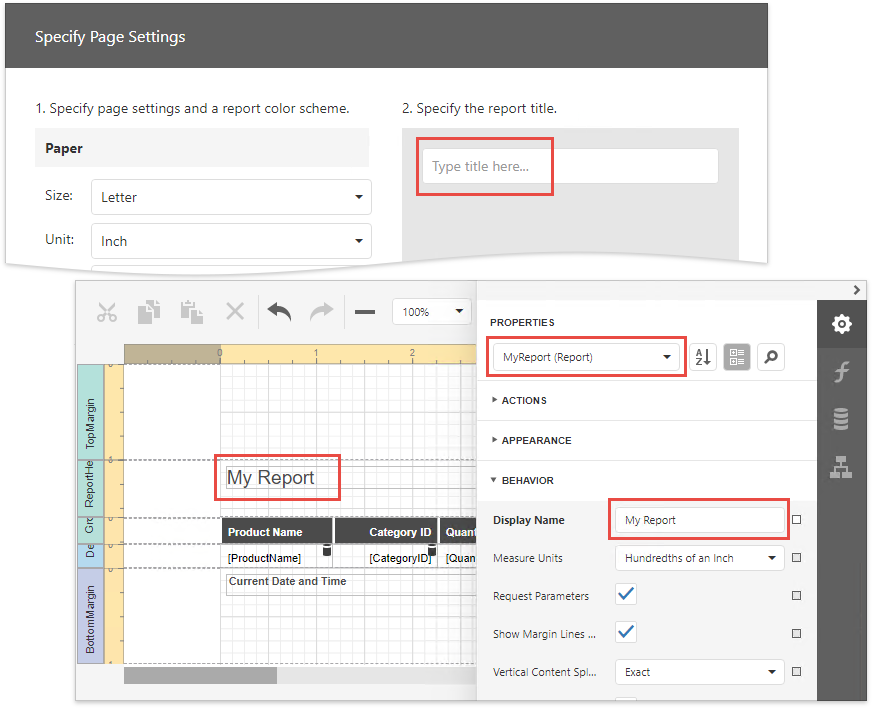
- Specifies a custom report title if a user did not specify it.
- Updates the resulting report’s name and display name based on the report title.
window.DesignerCustomization = {
    beforeFinish: function (s) {
        if (!s.wizardModel.ReportTitle) {
            s.wizardModel.ReportTitle = "My Report"
            s.state.reportTitle = "My Report "
        }
    },
    afterFinish: function(s) {
        s.wizardResult.name(s.state.reportTitle.replace(/ /g, ""))
        s.wizardResult.displayName(s.state.reportTitle)
    },
    onCustomizeWizard: function(s, e) {
        if (e.Type === "ReportWizard") {
            e.Wizard.events.addHandler("beforeFinish", DesignerCustomization.beforeFinish)
            e.Wizard.events.addHandler("afterFinish", DesignerCustomization.afterFinish)
        }
    }
}
The resulting report: