Report Wizard (Fullscreen)
- 2 minutes to read
The Report Wizard enables you to create reports or modify existing reports based on predefined templates.
Run one of the following menu commands to invoke the Report Wizard:
| New via Wizard | Design in Report Wizard |
|---|---|
 |
 |
| Invokes the Report Wizard and creates a new report | Invokes the Report Wizard and modifies the current report |
Select the Report Type
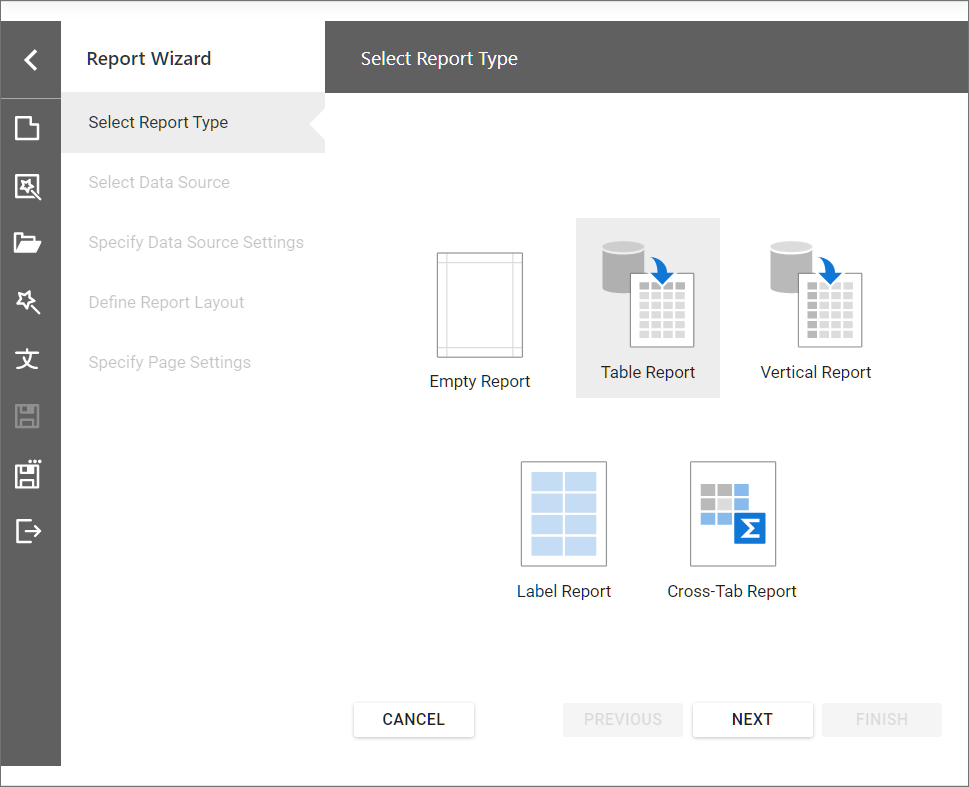
On the start page, choose the report type you want to create.
- Empty Report
- Creates a blank report that is not bound to a data source. Choose this option to design your report from scratch without the wizard.
- Table Report
- Creates a table report and binds it to data.
- Vertical Report
- Creates a vertical report and binds it to data.
- Label Report
- Creates badges, business cards, price tags, and other label types.
- Cross-Tab Report
- Creates a cross-tab report and binds it to data.
Tip
Integrate AI-powered Prompt-to-Report functionality into the Web Report Designer. Once integrated, the AI Prompt-to-Report option appears on the start page. Choose this option to generate reports from prompts.
For more information on the Prompt-to-Report functionality, refer to the following help topic: Generate Reports From Prompts in Web Report Designer.
Customize the Report Wizard
The following help topics describe how you can customize the Report Wizard:
- Customize the Report Wizard and Data Source Wizard (ASP.NET Core)
- Customize the Report Wizard and Data Source Wizard (Blazor)
- Customize the Report Wizard and Data Source Wizard (ASP.NET MVC)
- Customize the Report Wizard and Data Source Wizard (ASP.NET Web Forms)
Report Wizard Customization API
The Report Wizard Customization API allows you to specify a custom template to generate a report, and make adjustments to the generated report (such as report branding, header/footer formatting, font settings) in the Report Wizard.
For this, you should register your own implementation of the ReportWizardCustomizationService class.
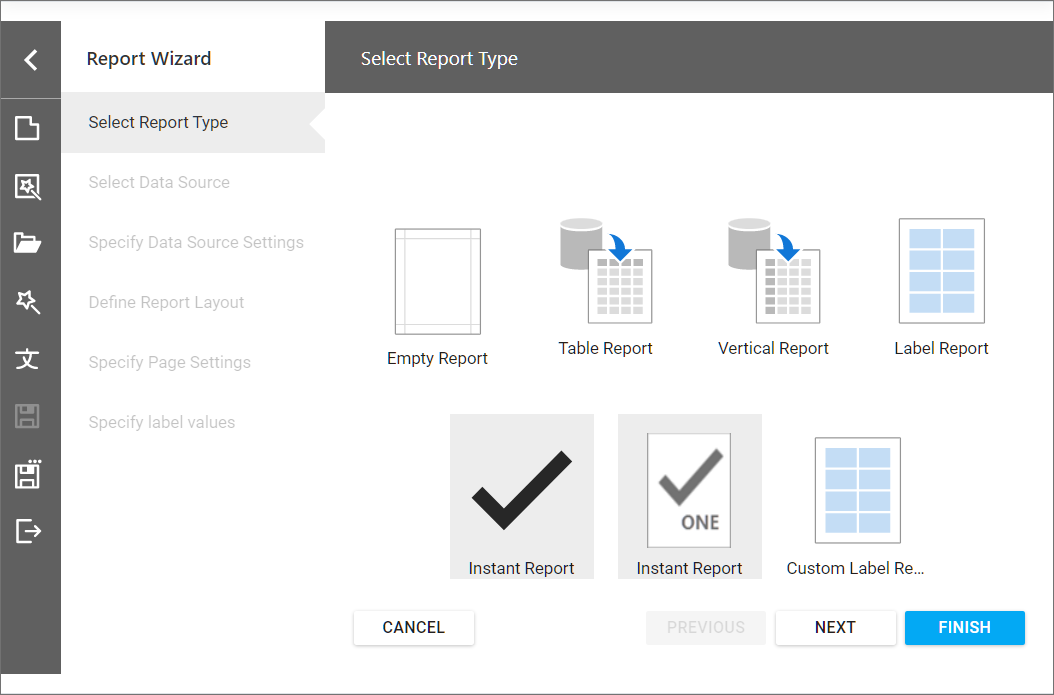
The CustomizeReportTypeList and CustomizeReportTypeListAsync methods allow you to add custom report types and remove existing report types from the Select Report Type wizard page, as the following image illustrates: