Customize Toolbar and Menu
- 3 minutes to read
This document describes how to customize commands in the Report Designer’s toolbar and menu.
Tip
Use DevExpress AI Skills to integrate, configure, and customize reporting components in Blazor applications with your preferred AI coding assistant, such as GitHub Copilot or Claude Code.
Add and Remove Commands
Handle the CustomizeMenuActions event to add new commands or remove existing ones from the Report Designer’s menu and toolbar.
Use the event argument to access the Actions collection that contains all the available Report Designer commands. You can add new commands to the collection and modify the existing commands. To obtain an existing command, call the event argument’s GetById method and pass the corresponding ActionId or ActionId value as a parameter.
Each command exposes the properties listed in the table below.
| Option | Description |
|---|---|
| container | Specify “menu” to display the command in the menu; “toolbar” - to display the command in the main toolbar. |
| disabled | Specifies whether the command is disabled. |
| hasSeparator | Specifies whether the command has a visual separator. |
| hotKey | Specifies the keyboard shortcut to invoke the command. |
| imageClassName imageTemplateName |
Use one of these options to specify the command’s icon: • imageClassName for an icon declared as a CSS class. • imageTemplateName for an icon declared as an HTML template. |
| clickAction | Specifies the client-side action to perform when the command is invoked. |
| text | Specifies the command’s tooltip. |
| visible | Specifies whether the command is visible in the user interface. |
The following example hides the existing Validate Bindings toolbar command, adds a new Refresh command that refreshes the current report tab, and hides the New menu command:
window.DesignerCustomization = {
    onCustomizeActions(s, e) {

        // Get the "New" action and hide it.
        var newReportAction = e.GetById(DevExpress.Reporting.Designer.Actions.ActionId.NewReport);
        if (newReportAction)
            newReportAction.visible = false;

        // Get the "Validate Bindings" action and hide it.
        var validateBindingsAction = e.GetById(DevExpress.Reporting.Designer.Actions.ActionId.ValidateBindings);
        if (validateBindingsAction)
            validateBindingsAction.visible = false;

        // Add the new 'Refresh' action.
        e.Actions.splice(15, 0, {
            container: "toolbar",
            text: "Refresh",
            imageTemplateName: "refresh",
            visible: true,
            disabled: false,
            hasSeparator: false,
            hotKey: { ctrlKey: true, keyCode: "Z".charCodeAt(0) },
            clickAction: function () {
                s.GetCurrentTab().refresh();
            }
        });
    }
}
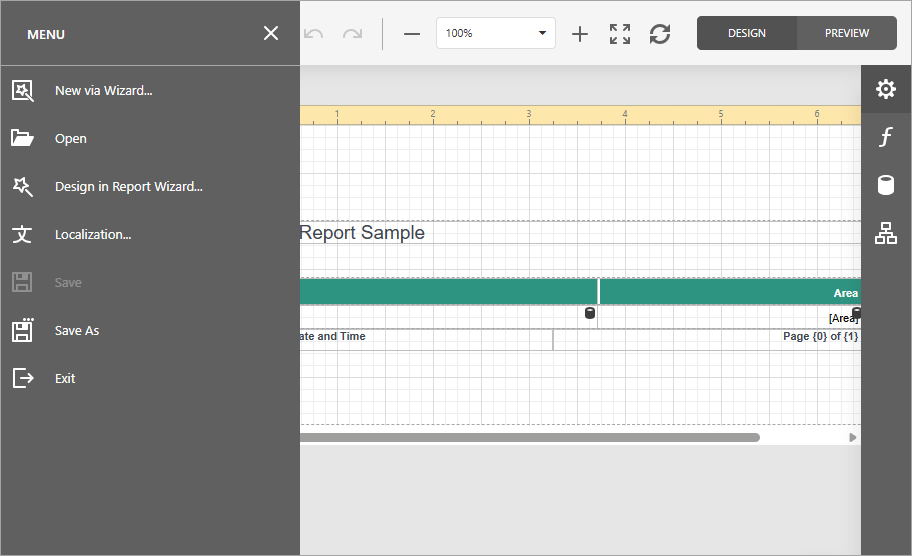
You can also handle the CustomizeElements event to hide, move, or modify UI elements in the Report Designer. The following code sample hides the Toolbar from the Report Designer’s UI:
window.DesignerCustomization = {
       onCustomizeElements: function (s, e) {
        // Remove Toolbar.
        var toolbarPart = e.GetById(DevExpress.Reporting.Designer.Utils.ReportDesignerElements.Toolbar);
        var index = e.Elements.indexOf(toolbarPart);
        e.Elements.splice(index, 1);
    }
}
Customize the Toolbar in the Report Designer Preview
Handle the Preview.CustomizeMenuActions event to customize the toolbar in the Report Designer Preview.
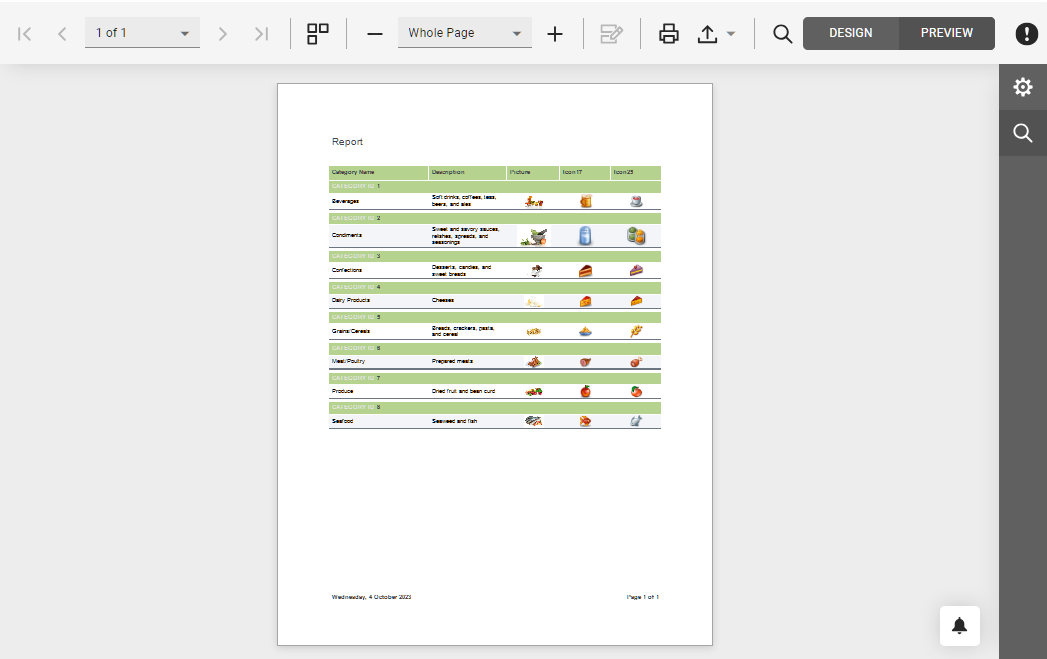
The following code snippet disables an existing PrintPage command and registers a custom command:
window.DesignerCustomization = {
        onPreviewCustomizeMenuActions: function (s, e) {
        var actions = e.Actions;

        // Get the "Print Page" action and hide it.
        var printPageAction = e.GetById(DevExpress.Reporting.Viewer.ActionId.PrintPage);
        if (printPageAction)
            printPageAction.visible = false;

        // Add a new action.
        actions.push({
            text: "Custom Command",
            imageClassName: "customButton",
            imageTemplateName: "dxrd-svg-wizard-warning",
            hasSeparator: false,
            disabled: ko.observable(false),
            visible: true,
            hotKey: { ctrlKey: true, keyCode: "Z".charCodeAt(0) },
            clickAction: function () {
                alert('Clicked.');
            }
        })
    }
}
The image below shows the customized toolbar:
You can also handle the PreviewCustomizeElements event to customize UI elements of the Report Designer Preview.