JavaScript-based Report Designer
- 4 minutes to read
The JavaScript-based Report Designer for Blazor allows you to design, preview, and interact with reports in your Blazor apps. The viewer allows users to specify data parameters, navigate the report, and print or export the resulting document.
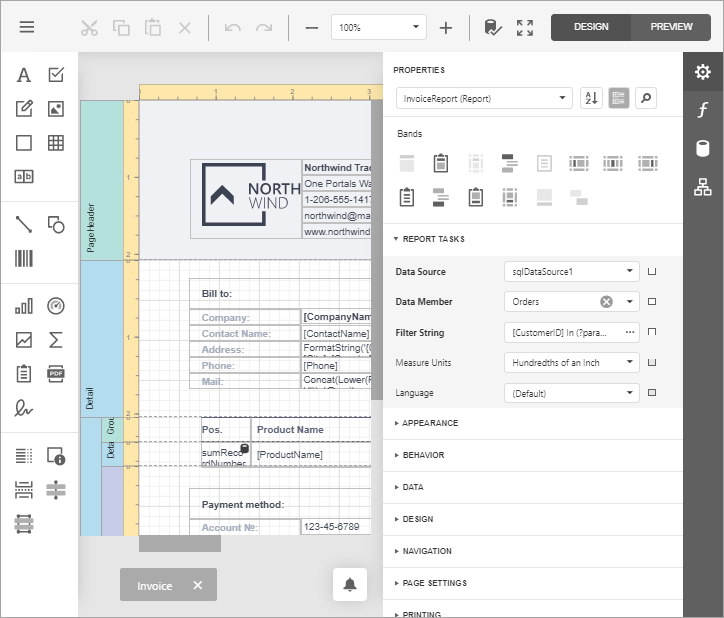
Depending on your application type and requirements, use one of the following components:
| Component | Communication Mechanism | Requires an ASP.NET Core Backend |
|---|---|---|
| DxReportDesigner | SignalR | No |
| DxWasmReportDesigner | fetch | Yes |
For a more comprehensive overview of DevExpress Blazor Reporting components, refer to the following topic: Blazor Reporting Components Overview.
AI-assisted Development
Use the following AI-coding assistant extensions to develop applications with DevExpress Reports more efficiently:
- DevExpress MCP Server
- Connects GitHub Copilot and other AI assistants to DevExpress documentation for accurate code generation without leaving the IDE.
- DevExpress AI Skills
- Provides reusable AI skills for component integration and customization in Blazor applications.
Get Started
The following topics show how to create a Blazor application with the JavaScript-based Report Designer using DevExpress and Microsoft templates:
- Use DevExpress Templates to Create a Blazor Application with a JavaScript-based Report Designer
- Add a JavaScript-Based Report Designer to a Blazor Web App (Interactive Server)
- Add a JavaScript-Based Report Designer to a Blazor WebAssembly Standalone App (Visual Studio)
- Add a JavaScript-Based Report Designer to a Blazor Web App (Interactive WebAssembly) with an ASP.NET Core Backend (Visual Studio)
Demos and Examples
Visit our online demos and learn about key features and capabilities of our JavaScript-based Report Designer:
Search sample projects and learn how to use and customize the DevExpress Blazor Reporting components:
End-User Documentation
For end-user documentation for the JavaScript-based Report Designer, refer to the following topics:
Nested Components
The JavaScript-based Report Designer includes the following nested components:
- DxReportDesignerCallbacks
- Specifies client-side event handler functions for the Report Designer. See DxReportDesignerCallbacks Members for the complete list of events.
- DxReportDesignerClientSideModelSettings
- Contains settings for the Report Designer client-side model.
- DxReportDesignerDataSourceSettings
- Contains settings that configure the user interface related to the data sources in the Report Designer.
- DxReportDesignerWizardSettings
- Provides access to the Report Designer‘s wizard settings.
- DxReportDesignerParameterEditingSettings
- Contains settings that configure user interface elements related to the editing of parameters, parameter groups, and parameter separators in the Web Report Designer.
- DxReportDesignerReportPreviewSettings
- Allows you to specify settings for Report Designer Preview.
In the DxWasmReportDesigner component, the following settings should be placed inside the DxReportDesignerModelSettings component:
- DxReportDesignerDataSourceSettings
- DxReportDesignerWizardSettings
- DxReportDesignerParameterEditingSettings
- DxReportDesignerReportPreviewSettings
The code snippets below illustrate how to use these components:
<DxReportDesigner ReportName="TestReport" Height="calc(100vh - 130px)" Width="100%" AllowMDI="true" DataSources="DataSources">
    <DxReportDesignerParameterEditingSettings AllowEditParameterCollection="false" />
    <DxReportDesignerDataSourceSettings AllowAddDataSource="false" />
    <DxReportDesignerWizardSettings ReportWizardTemplatesSearchBoxVisibility="SearchBoxVisibility.Always" />
    <DxReportDesignerReportPreviewSettings ExportSettings="new ExportSettings { UseSameTab = false, UseAsynchronousExport = false }" />
</DxReportDesigner>
Data Sources
The Use Data Sources section contains information on how to add and configure data sources in the Report Designer for Blazor applications.
Customize the UI and Behavior
The following help topics explain how to customize the Report Designer UI and its behavior:
- Handle Client-Side Events
- Customize Report and Data Source Wizards
- Customize Toolbar and Menu
- Specify Parameter Editing Settings
- Enable Rich Text Editor
- Create and Register Custom Controls in Toolbox
- Add Custom Functions to Expression Editor
AI-powered Extensions
The following help topics describe how to integrate AI-powered functionality into the Report Designer:
- AI-powered Report Generation
- Report Preview with AI-generated Test Data
- AI-powered Report Localization
- AI-powered Expression Generation
Localization
Learn how to localize the Report Designer UI:
Use the CustomizeLocalization event to change specific strings in the Report Designer UI.
WebAssembly Deployment Specifics (no ASP.NET Core Backend)
When you run an application with the Report Designer in a WebAssembly (WASM) environment, keep the following limitations in mind:
- Data Sources
- Only JSON and Object data sources are currently supported.
- Rendering Engine (Skia)
- The Report Viewer uses a Skia-based engine to render content in the browser. Make sure your project references
DevExpress.Drawing.Skia. - Font Management
- WASM applications cannot rely on system fonts. Use DXFontRepository to explicitly load and register all required fonts.
To ensure that a Blazor WebAssembly application runs properly, set the MSBuild WasmBuildNative setting to true.
Troubleshooting
The following help topic lists common issues that can occur in a Web Reporting application and describes solutions: Troubleshooting.
For information on how to identify the cause of an issue, refer to the following topic: Reporting Application Diagnostics.