Find Panel Syntax
- 6 minutes to read
Overview
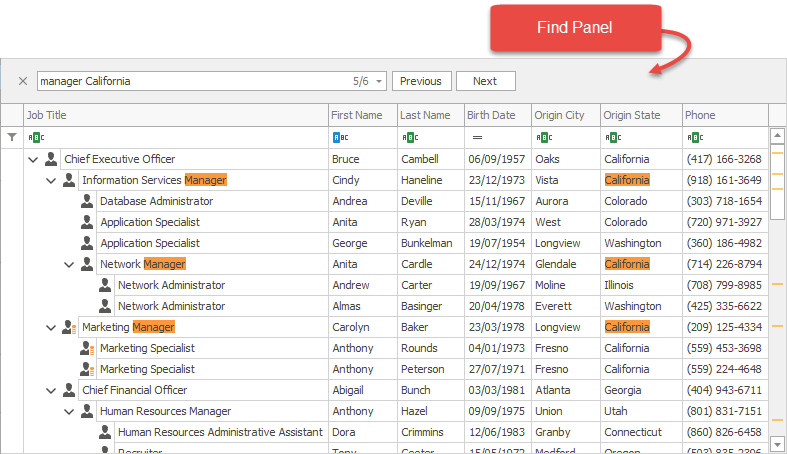
The stand-alone SearchControl and grid, vertical grid and tree list controls can display a find panel that enables users to search for keywords in data.
Note
Run the XtraGrid or XtraTreeList demo to try out the find panel.
Syntax
Use the following syntax to search for keywords. Queries are not case-sensitive.
Single keyword
Type a single keyword.
USA— finds records that contain “USA“ in any column.
The find panel options allow you to specify how words in records should match keywords in the query (start with, contain, etc.). See Comparison Operators below.
Multiple keywords
Type multiple keywords separated by spaces.
Germany Spain— “Germany“ and “Spain“ in any column.
The find panel options allow you to specify whether the resulting records should contain all keywords in the query or any of them. See Parser Modes below.
An exact match of a phrase
Put the phrase in quotes.
"Bottom-Dollar Markets"— selects records that contain the phrase “Bottom-Dollar Markets“ in any column.
In specific columns only
Enter a column name before a keyword followed by a colon (without space).
City:Madrid— selects records that contain “Madrid“ in the “City“ column only.Country:USA Manager— “USA“ in the “Country“ column and “Manager“ anywhere else."Sales Representative" -City:London— searches for “Sales Representative“, but not in “London“.
Users can enter incomplete column names. In this case, the control shows records from the first column whose name matches the entered string.
Ci:Madrid— selects records that contain “Madrid” in the first column whose name starts with “Ci” (“City” in this case).
To specify an exact name or if a name contains multiple words, use quotes or brackets.
"Contact Title":Manager— “Manager” in the “Contact Title” column exactly.[Contact Title]:Manager— “Manager” in the “Contact Title” column exactly.
Note
Brackets are only in effect in Or and And modes. See Parser Modes below.
In Preview rows only
Add the “Preview:” keyword to search only within Row Preview Sections:
"Preview:Revenue", "ID:1 Preview:Sun"
Note that preview-only search is not available in Server Modes.
Include special symbols in a query
To include quotation marks, brackets or keyword modifiers in a query, put the query in single or double quotes.
[Publication Year]:'[Year 1597]' '"Romeo and Juliet"'— searches for records that contain [Year 1597] (with brackets) in the “Publication Year” column and “Romeo and Juliet” (with double quotes) in any column."Publication Year":"[Year 1597]" "'Romeo and Juliet'"— searches for records that contain [Year 1597] (with brackets) in the “Publication Year” column and ‘Romeo and Juliet’ (with single quotes) in any column.
Options and Modifiers
How words in records match with keywords in a query (comparison operators)
You can enable one of the following operators used to compare words in records with keywords in a query:
Operator | Description | Example |
|---|---|---|
Searches for words that contain keywords in the query. | ma - finds “Manager” and “Germany”. | |
Searches for words that start with keywords in the query. | ma - finds “Manager” but not “Germany”. | |
Searches for words that match a pattern. Use the % wildcard to replace one or multiple characters. | ma% - finds “Madrid” and “Marseille”. %ma - finds “Kostroma”. %ma% - finds “Omaha”. | |
Searches for words that equal keywords in the query. | UK - finds “UK” exactly. |
To specify the comparison operator, use the following properties:
- WindowsFormsSettings.FindPanelCondition - for all DevExpress controls in the application.
- GridView.OptionsFind.Condition - for the grid control.
- VGridControl.OptionsFind.Condition - for the vertical grid control.
- TreeList.OptionsFind.Condition - for the tree list control.
Users can override the specified comparison operator for a particular keyword using modifiers.
Modifier | Operator | Example (result may vary depending on the specified operator) |
|---|---|---|
* | Contains. For example, use this modifier if the find panel searches for words that start with keywords, but a particular keyword should not necessarily be in the beginning. | *ma co - finds “Germany” and “Cowes”. |
^ | StartsWith. For example, use this modifier if the find panel searches for words that contain keywords, but a particular keyword should necessarily be in the beginning. | ^ma co - finds “Manager” and “Mexico”. |
~ | Like. | ~%ma co - finds “Kostroma” and “Cowes”. |
= | =UK co - finds “UK” exactly and “Cowes”. |
How to treat multiple keywords in a query (parser modes)
You can enable one of the following query parser modes that specify whether resulting records contain all keywords, any of them, or the exact query:
Parser Mode | Description | Example |
|---|---|---|
Resulting records contain all keywords. | Sales Marketing London - finds records that contain “Sales” and “Marketing” and “London”. | |
Resulting records contain any of the keywords. | Agent Manager London - finds records that contain either “Agent” or “Manager” or “London”. | |
Resulting records contain any of the keywords. Keywords with a specified field name are mandatory. | USA Seattle Portland - finds records that contain “USA” or “Seattle” or “Portland”. | |
Resulting records contain the whole query. | Eastern Connection - finds records that contain “Eastern Connection” exactly. | |
Custom parser based on a dedicated event. |
Use the following properties to specify the parser mode:
- WindowsFormsSettings.FindPanelParserKind - for all DevExpress controls in the application.
- GridView.OptionsFind.ParserKind - for the grid control.
- VGridControl.OptionsFind.ParserKind - for the vertical grid control.
- TreeList.OptionsFind.ParserKind - for the tree list control.
Users can override the specified mode for a particular keyword using the following modifiers:
Modifier | Effect | Example (result may vary depending on the specified parser mode) |
|---|---|---|
? | Optional keyword. Use this modifier if resulting records should contain all keywords, but a particular keyword is optional. | ?Agent ?Manager London - finds “Agent” or “Manager”, but obligatory in “London”. |
+ | Mandatory keyword. Use this modifier if resulting records should contain any of the keywords, but a particular keyword is mandatory. | Agent Manager +London - finds “Agent” or “Manager”, but obligatory in “London”. Agent Manager +*Lo - finds “Agent” or “Manager”, but obligatory in “London”. “Marketing Manager” +”Carine Schmitt” - finds “Carine Schmitt” and “Marketing Manager”. |
- | Exclude keyword. | Manager -Schmitt - finds “Manager”, but not “Schmitt”. |