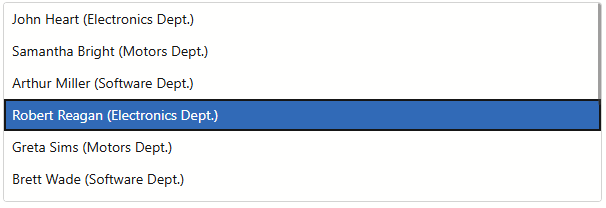
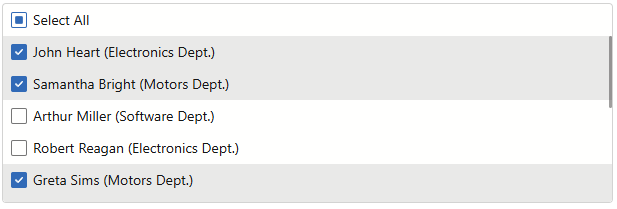
The DevExpress Blazor List Box supports the following selection modes: Single (default), Multiple , or None . Use the SelectionMode property to specify the mode.
Single Selection (Default)
Users can select one List Box item at a time.
Use the Value property to get or set the selected item (you can use two-way data binding ).
Handle the ValueChanged event to respond to selection changes (if you use one-way data binding).
<DxListBox Data="@Staff.DataSource"
           @bind-Value="@Value"
           TextFieldName="@nameof(Person.Text)"/>

@code{
    Person Value;
}
namespace StaffData {
    public static class Staff {
        private static readonly Lazy<List<Person>> dataSource = new Lazy<List<Person>>(() => {
            var dataSource = new List<Person>() {
                new Person() { Id = 0 , FirstName = "John", LastName = "Heart", Department=Department.Electronics },
                new Person() { Id = 1 , FirstName = "Samantha", LastName = "Bright", Department=Department.Motors },
                new Person() { Id = 2 , FirstName = "Arthur", LastName = "Miller", Department=Department.Software },
                new Person() { Id = 3 , FirstName = "Robert", LastName = "Reagan", Department=Department.Electronics },
                new Person() { Id = 4 , FirstName=  "Greta", LastName = "Sims", Department=Department.Motors },
                new Person() { Id = 5 , FirstName = "Brett", LastName = "Wade", Department=Department.Software },
                new Person() { Id = 6 , FirstName = "Sandra", LastName = "Johnson", Department=Department.Electronics },
                new Person() { Id = 7 , FirstName = "Edward", LastName = "Holmes", Department=Department.Motors },
                new Person() { Id = 8 , FirstName = "Barbara", LastName = "Banks", Department=Department.Software },
                new Person() { Id = 9 , FirstName = "Kevin", LastName = "Carter", Department=Department.Electronics },
                new Person() { Id = 10, FirstName = "Cynthia", LastName = "Stanwick", Department=Department.Motors },
                new Person() { Id = 11, FirstName = "Sam", LastName = "Hill", Department=Department.Electronics }};
            return dataSource;
        });
        public static List<Person> DataSource { get { return dataSource.Value; } }
    }

    public class Person {
        public int Id { get; set; }
        public string FirstName { get; set; }
        public string LastName { get; set; }
        public Department Department { get; set; }
        public string Text => $"{FirstName} {LastName} ({Department} Dept.)";
        public override bool Equals(object obj) {
            if (obj is Person typedObj) {
                return (this.Id == typedObj.Id) && (this.FirstName == typedObj.FirstName) && (this.LastName == typedObj.LastName)
                && (this.Department == typedObj.Department);
            }
            return base.Equals(obj);
        }
        public override int GetHashCode() {
            return HashCode.Combine(Id, FirstName, LastName);
        }
    }

    public enum Department { Motors, Electronics, Software }
}
Run Demo: List Box - Overview
VIDEO
Multiple Selection
Users can select multiple items.
The following code enables multiple selection in the List Box, adds checkboxes to items, and shows the Select All checkbox:
@using StaffData

<DxListBox Data="@Staff.DataSource"
           TextFieldName="@nameof(Person.Text)"
           SelectionMode="ListBoxSelectionMode.Multiple"
           ShowCheckboxes="true"
           ShowSelectAllCheckbox="true"
           @bind-Values="@Values">
</DxListBox>

@code {
    IEnumerable<Person> Values { get; set; }
}
namespace StaffData {
    public static class Staff {
        private static readonly Lazy<List<Person>> dataSource = new Lazy<List<Person>>(() => {
            var dataSource = new List<Person>() {
                new Person() { Id = 0 , FirstName = "John", LastName = "Heart", Department=Department.Electronics },
                new Person() { Id = 1 , FirstName = "Samantha", LastName = "Bright", Department=Department.Motors },
                new Person() { Id = 2 , FirstName = "Arthur", LastName = "Miller", Department=Department.Software },
                new Person() { Id = 3 , FirstName = "Robert", LastName = "Reagan", Department=Department.Electronics },
                new Person() { Id = 4 , FirstName=  "Greta", LastName = "Sims", Department=Department.Motors },
                new Person() { Id = 5 , FirstName = "Brett", LastName = "Wade", Department=Department.Software },
                new Person() { Id = 6 , FirstName = "Sandra", LastName = "Johnson", Department=Department.Electronics },
                new Person() { Id = 7 , FirstName = "Edward", LastName = "Holmes", Department=Department.Motors },
                new Person() { Id = 8 , FirstName = "Barbara", LastName = "Banks", Department=Department.Software },
                new Person() { Id = 9 , FirstName = "Kevin", LastName = "Carter", Department=Department.Electronics },
                new Person() { Id = 10, FirstName = "Cynthia", LastName = "Stanwick", Department=Department.Motors },
                new Person() { Id = 11, FirstName = "Sam", LastName = "Hill", Department=Department.Electronics }};
            return dataSource;
        });
        public static List<Person> DataSource { get { return dataSource.Value; } }
    }

    public class Person {
        public int Id { get; set; }
        public string FirstName { get; set; }
        public string LastName { get; set; }
        public Department Department { get; set; }
        public string Text => $"{FirstName} {LastName} ({Department} Dept.)";
        public override bool Equals(object obj) {
            if (obj is Person typedObj) {
                return (this.Id == typedObj.Id) && (this.FirstName == typedObj.FirstName) && (this.LastName == typedObj.LastName)
                && (this.Department == typedObj.Department);
            }
            return base.Equals(obj);
        }
        public override int GetHashCode() {
            return HashCode.Combine(Id, FirstName, LastName);
        }
    }

    public enum Department { Motors, Electronics, Software }
}
Run Demo: List Box - Multiple Selection
VIDEO
Disable Selection
Users cannot select items. Use this mode when you want to display a read-only list of items, handle item clicks without selection state, or create a custom selection behavior.
@using BlazorApp.Data

<DxListBox Data="@Staff.DataSource"
           @bind-Values="@Values"
           TextFieldName="@nameof(Person.Text)"
           SelectionMode="ListBoxSelectionMode.None" >
</DxListBox>

@code {
    IEnumerable<Person> Values { get; set; } = Staff.DataSource.Take(1);
}
namespace StaffData {
    public static class Staff {
        private static readonly Lazy<List<Person>> dataSource = new Lazy<List<Person>>(() => {
            var dataSource = new List<Person>() {
                new Person() { Id = 0 , FirstName = "John", LastName = "Heart", Department=Department.Electronics },
                new Person() { Id = 1 , FirstName = "Samantha", LastName = "Bright", Department=Department.Motors },
                new Person() { Id = 2 , FirstName = "Arthur", LastName = "Miller", Department=Department.Software },
                new Person() { Id = 3 , FirstName = "Robert", LastName = "Reagan", Department=Department.Electronics },
                new Person() { Id = 4 , FirstName=  "Greta", LastName = "Sims", Department=Department.Motors },
                new Person() { Id = 5 , FirstName = "Brett", LastName = "Wade", Department=Department.Software },
                new Person() { Id = 6 , FirstName = "Sandra", LastName = "Johnson", Department=Department.Electronics },
                new Person() { Id = 7 , FirstName = "Edward", LastName = "Holmes", Department=Department.Motors },
                new Person() { Id = 8 , FirstName = "Barbara", LastName = "Banks", Department=Department.Software },
                new Person() { Id = 9 , FirstName = "Kevin", LastName = "Carter", Department=Department.Electronics },
                new Person() { Id = 10, FirstName = "Cynthia", LastName = "Stanwick", Department=Department.Motors },
                new Person() { Id = 11, FirstName = "Sam", LastName = "Hill", Department=Department.Electronics }};
            return dataSource;
        });
        public static List<Person> DataSource { get { return dataSource.Value; } }
    }

    public class Person {
        public int Id { get; set; }
        public string FirstName { get; set; }
        public string LastName { get; set; }
        public Department Department { get; set; }
        public string Text => $"{FirstName} {LastName} ({Department} Dept.)";
        public override bool Equals(object obj) {
            if (obj is Person typedObj) {
                return (this.Id == typedObj.Id) && (this.FirstName == typedObj.FirstName) && (this.LastName == typedObj.LastName)
                && (this.Department == typedObj.Department);
            }
            return base.Equals(obj);
        }
        public override int GetHashCode() {
            return HashCode.Combine(Id, FirstName, LastName);
        }
    }

    public enum Department { Motors, Electronics, Software }
}
Select Items in the UI
Users can select List Box items in the following ways:
Mouse/Touch
In single selection mode, click or tap an item.In multiple selection mode:
Hold Ctrl or Option and click items to select them individually.
Hold Shift to select a range of items.
Click checkboxes next to items (when ShowCheckboxes is true).
Click the Select All checkbox (when both ShowSelectAllCheckbox and ShowCheckboxes are true).
Keyboard
Use ↑ and ↓ arrows to focus an item.
Press Space to select/deselect the focused item.
Press Enter to trigger an item click (requires an ItemClick event handler).
Refer to List Box - Keyboard Support for additional information.