Generate Expressions From Prompts (Web Report Designer)
- 3 minutes to read
Follow the instructions in this help topic to integrate AI-powered Prompt-to-Expression functionality into the Web Report Designer. This tutorial uses Azure OpenAI.
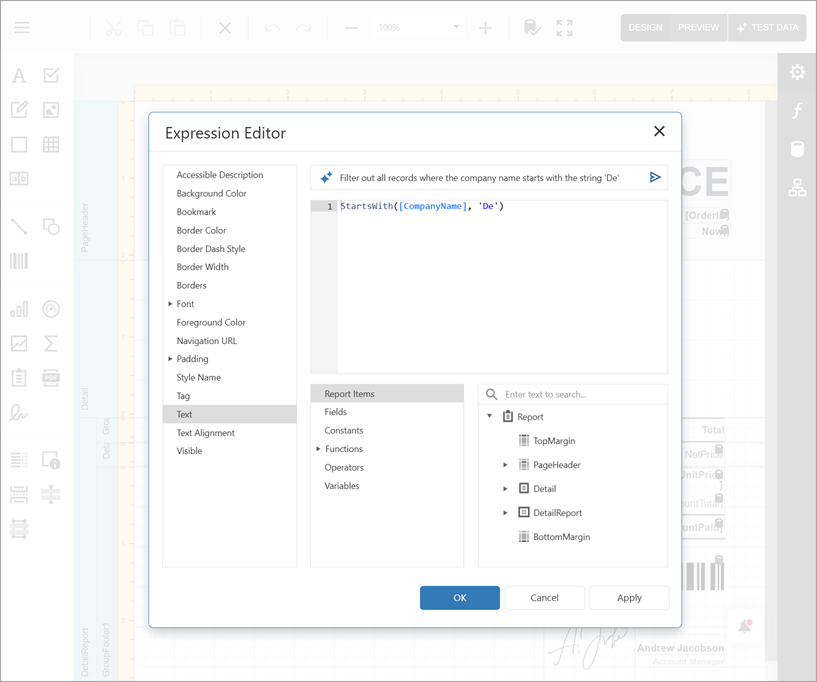
The Expression Editor and Filter Editor display the Prompt-to-Expression field. Specify a prompt in natural language and click the Send button to generate an expression:
Note
This functionality is not supported in the Web Report Designer control for ASP.NET MVC and ASP.NET Web Forms.
Install NuGet Packages
Install the following NuGet packages to use Azure OpenAI:
- DevExpress.AIIntegration.AspNetCore.Reporting
- Microsoft.Extensions.AI (Version=”10.5.1”)
- Microsoft.Extensions.AI.OpenAI (Version=”10.5.1”)
- Azure.AI.OpenAI (Version=”2.3.0-beta.2”)
For the list of supported AI services and their corresponding prerequisites, refer to the Supported AI Services section of the following help topic: AI-powered Extensions for DevExpress Reporting.
Note
DevExpress AI-powered extensions follow the “bring your own key” principle. DevExpress does not offer a REST API and does not ship any built-in LLMs/SLMs. You need an active Azure/Open AI subscription to obtain the REST API endpoint, key, and model deployment name. These variables must be specified at application startup to register AI clients and enable DevExpress AI-powered Extensions in your application.
Register AI Service and Activate Extension
Call the following methods on application startup:
- AddDevExpressAI
- Adds DevExpress AI-related services to the application service collection.
- AddWebReportingAIIntegration
- Adds AI-powered functionality to the Web Document Viewer and Web Report Designer.
- AddPromptToExpressionConverter()
Activates AI-powered Prompt-to-Expression functionality in the Web Report Designer.
Use the following methods to specify test data source options:
-
Specifies the number of additional attempts the LLM makes to regenerate an expression if the previous result is invalid.
-
Specifies output randomness. Lower temperatures yield more predictable and focused outputs, while higher temperatures produce more diverse and creative responses.
-
Specifies additional instructions that modify the prompt before processing.
-
The following snippet registers an Azure OpenAI service and activates the AI-powered Prompt-to-Expression functionality in the Web Report Designer:
using Azure.AI.OpenAI;
using Microsoft.Extensions.AI;
using System;
// ...
string azureOpenAIEndpoint = Environment.GetEnvironmentVariable("AZURE_OPENAI_ENDPOINT");
string azureOpenAIKey = Environment.GetEnvironmentVariable("AZURE_OPENAI_API_KEY");
string deploymentName = "MODEL_NAME"

IChatClient chatClient = new AzureOpenAIClient(new Uri(azureOpenAIEndpoint),
     new System.ClientModel.ApiKeyCredential(azureOpenAIKey))
.GetChatClient(deploymentName).AsIChatClient();

builder.Services.AddSingleton(chatClient);
builder.Services.AddDevExpressAI((config) => {
    config.AddWebReportingAIIntegration(options =>
        options.AddPromptToExpressionConverter());
});
Disable AI-powered Functionality for a Specific Control
AI-powered functionality configured within AIReportingConfigurationBuilder is available for all Report Viewer and Report Designer components in the application. If you need to disable this AI-powered functionality for a specific Web Report Designer control, set the client AIServicesEnabled property to false in the BeforeRender event handler. The following snippet disables AI-powered functionality for a Report Designer in an ASP.NET Core application:
<script type="text/javascript">
    function onBeforeRender(e, s) {
           DevExpress.Reporting.Designer.Settings.AIServicesEnabled(false);
    }
</script>
@{
    var designerRender = Html.DevExpress().ReportDesigner("reportDesigner")
        .Height("100%")
        .ClientSideEvents(configure => configure.BeforeRender("onBeforeRender"))
        .Bind(Model);
    @designerRender.RenderHtml()
}
Generate Expressions from Prompts
Filter Editor and Expression Editor now display the Prompt-to-Expression field. Specify a prompt in natural language and click the Send button to generate an expression:
- Expression Editor
- Filter Editor
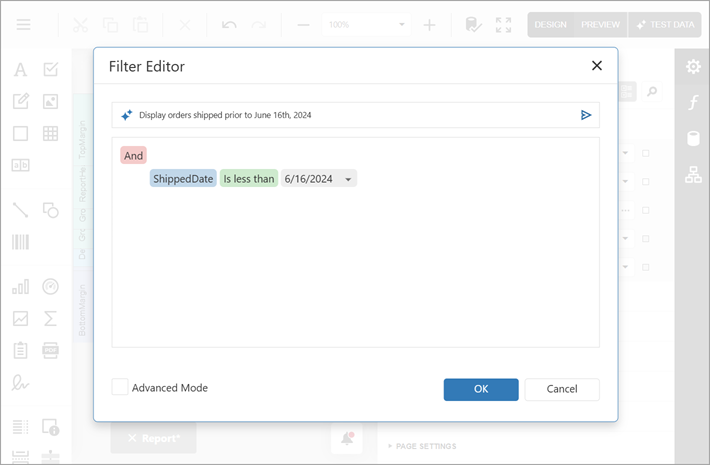
The AI model generates expressions based on the report-specific expression syntax. The model has access to the data source schema, report layout, and any custom functions registered in your application. You can refer to these elements in your prompts. Detailed prompts increase output quality.
Limitations
- This functionality is not available in the Query Builder.