Add a JavaScript-Based Document Viewer to a Blazor Web App (Interactive WebAssembly) with an ASP.NET Core Backend
- 6 minutes to read
This tutorial adds a Document Viewer (DxWasmDocumentViewer) to an application created with the Blazor Web App (Interactive WebAssembly) template.
Create a New Project from a Template
This section describes how to create a new Blazor project. If you wish to start this tutorial using an existing application, go to Step 2.
Click Create a new project on Visual Studio’s start page and select the Blazor Web App template. Select WebAssembly from the Interactive Render Mode drop-down list.
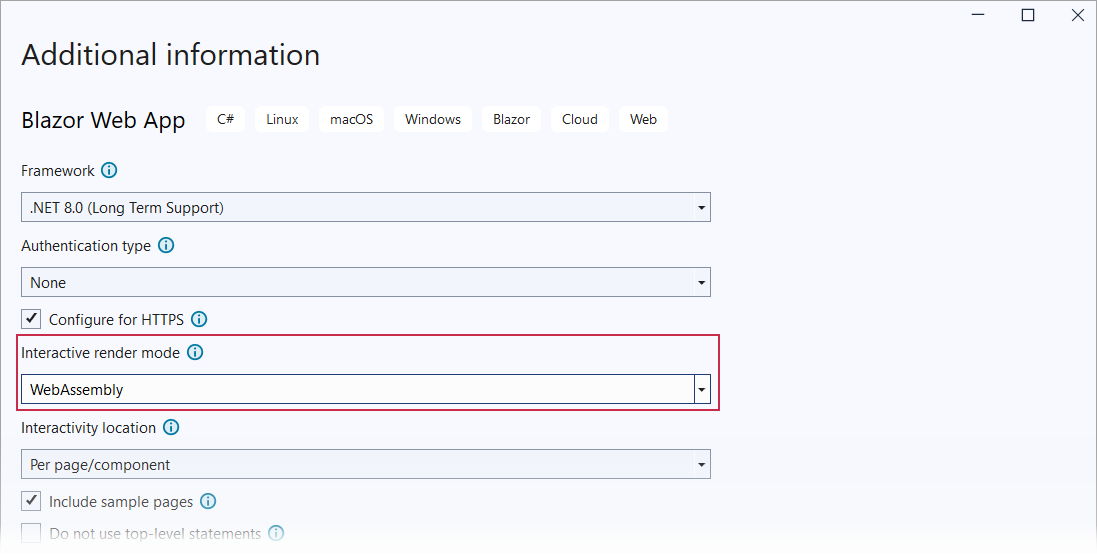
Click Next.
Specify the project name and location, and click Next.
Specify additional options and click Create.
You can use this tutorial to integrate the Standalone Report Parameters Panel into a Blazor WebAssembly Hosted (available in ASP.NET Core 7.0 or earlier) template.
For additional information on available Blazor templates, refer to the following help topic: Tooling for ASP.NET Core Blazor.
Install NuGet Packages
Install the following NuGet packages to the projects:
Project Package BlazorWasmReportingApp DevExpress.AspNetCore.Reporting BlazorWasmReportingApp.Client DevExpress.Blazor.Reporting.JSBasedControls.WebAssembly For more information on how to install NuGet packages for DevExpress components, review the following help topic: How to Install DevExpress Products.
Build the project.
Register DevExpress Resources
In the main project’s Program.cs file, add the following code:
using DevExpress.AspNetCore;
// ...

var builder = WebApplication.CreateBuilder(args);

// Add services to the container.
builder.Services.AddMvc();
builder.Services.AddDevExpressControls();

var app = builder.Build();

// ...
app.MapControllers();
// ...
app.Run();
In the Client project’s _Imports.razor file, register the DevExpress.Blazor.Reporting namespace:
@using System.Net.Http
@using System.Net.Http.Json
@using Microsoft.AspNetCore.Components.Forms
@using Microsoft.AspNetCore.Components.Routing
@using Microsoft.AspNetCore.Components.Web
@using static Microsoft.AspNetCore.Components.Web.RenderMode
@using Microsoft.AspNetCore.Components.Web.Virtualization
@using Microsoft.JSInterop
@using BlazorWasmReportingApp.Client
@using DevExpress.Blazor.Reporting
In the App.razor file, call the RegisterScripts(Action<ResourcesConfigurator>) method to register DevExpress client resources:
<head>
@*...*@
@DxResourceManager.RegisterScripts()
Implement a Document Viewer Controller
- Create a Controllers folder.
In the created folder, add a new ReportingControllers.cs class file with the following content:
using DevExpress.AspNetCore.Reporting.WebDocumentViewer;
using DevExpress.AspNetCore.Reporting.WebDocumentViewer.Native.Services;

namespace BlazorWasmReportingApp.Controllers {
    public class CustomWebDocumentViewerController : WebDocumentViewerController {
        public CustomWebDocumentViewerController(IWebDocumentViewerMvcControllerService controllerService) : base(controllerService) {
        }
    }
}
Create a Sample Report
Note
To perform this step, you should install DevExpress Reporting on your machine. Refer to the following topic for additional information: Run the Installation Wizard - DevExpress Unified Component Installer.
Switch to the BlazorWasmReportingApp project. Select Project -> Add New Item… to invoke the Add New Item dialog. Navigate to the Reporting node and select the DevExpress v.26.1 Report item template.

Name the report TestReport.cs and click Add.
Select Blank in the invoked Report Wizard page and click Finish.

Modify the newly created report in the Visual Studio Report Designer. Add a label and type Hello, World!:

Click the report’s smart tag and select Save…:

In the invoked Save As dialog, specify the Reports project folder, Report XML Files (.repx) file type, and the TestReport.repx file name.
Implement a Report Name Resolution Service
The Document Viewer control loads a report specified by name and needs a service to resolve a report name to a report instance. To create such a service, you must implement and register one of the following services (to resolve report names):
- IReportProvider
- A recommended service for the Document Viewer and Report Designer. The primary advantage of
IReportProviderservice is that it can be attached to reports created at runtime. IReportProviderAsync uses asynchronous operations. - ReportStorageWebExtension
- This service is called when no other report name resolution services are available. It is designed to obtain reports (stored in our REPX format) from external storage (a file or a database). Note that the GetData method returns a serialized report. If you use the GetData method to specify the default parameter value for a loaded report, set the Value property to the parameter value.
In this example, we implement the IReportProvider service. The IReportProvider interface has the GetReport method that gets a report name and returns a report instance. In this tutorial, the GetReport method calls the static ReportFactory class. The ReportFactory class contains the dictionary of report names and report instances.
Add the ReportFactory.cs class file to the server project with the following code:
using BlazorWasmReportingApp.Server;
using DevExpress.XtraReports.UI;
public static class ReportFactory {
    public static Dictionary<string, Func<XtraReport>> Reports = new Dictionary<string, Func<XtraReport>>() {
        ["TestReport"] = () => new TestReport()
    };
}
Add the ReportProvider.cs class file to the server project with the following code:
using DevExpress.XtraReports.Services;
using DevExpress.XtraReports.UI;

namespace BlazorWasmReportingApp.Server {
    public class ReportProvider : IReportProvider {
        XtraReport IReportProvider.GetReport(string id, ReportProviderContext context) {
            if (ReportFactory.Reports.ContainsKey(id)) {
                return ReportFactory.Reports[id]();
            }
            else
                throw new DevExpress.XtraReports.Web.ClientControls.FaultException
                    (string.Format("Could not find report '{0}'.", id));
        }
    }
}
In the Program.cs file, register the
ReportProviderservice:using DevExpress.AspNetCore; using DevExpress.XtraReports.Services; var builder = WebApplication.CreateBuilder(args); // ... builder.Services.AddDevExpressControls(); // Register the name resolution service for the Document Viewer. builder.Services.AddScoped<IReportProvider, ReportProvider>(); //...
Create a Page with the Document Viewer
Create a new Razor page (DocumentViewer.razor) in the Client/Pages folder. Use the code below to generate a page with a Document Viewer component.
Enable interactivity for DevExpress components:
Make sure the required interactive services are registered.
Add an appropriate render mode attribute to a component’s page.
@page "/viewer"

<DxWasmDocumentViewer ReportName="TestReport" Height="700px" Width="100%">
    <DxDocumentViewerExportSettings UseSameTab=false>
    </DxDocumentViewerExportSettings>
    <DxWasmDocumentViewerRequestOptions InvokeAction="DXXRDV">
    </DxWasmDocumentViewerRequestOptions>
</DxWasmDocumentViewer>
The DxWasmDocumentViewer component invokes the default WebDocumentViewerController that processes requests from the Document Viewer and loads the TestReport report.
Add Navigation Links
Modify the NavMenu.razor file to include links to the newly created pages.
Run the Project
Run the project. The Document Viewer loads the TestReport report:

Next Steps
- Restore Data Connections
- Learn how to implement a service that restores data connections for data-aware reports loaded in the Document Viewer.
- Specify Report Parameters
- Learn how to specify report parameters using the built-in Parameters Panel or create custom UI elements and use them to submit parameter values to the report.
- Handle Client-Side Events
- Learn how to handle client-side events raised by the JavaScript-based Document Viewer.
- Customize Parameter Editors
- Learn how to customize built-in parameter editors in the JavaScript-based Document Viewer.
- Customize the Tab Panel
- Learn how to customize the Document Viewer Tab Panel.
- Customize the Toolbar
- Learn how to customize the Document Viewer Toolbar.
- Troubleshooting
- This topic lists common issues that can occur in a Web Reporting application and describes solutions. For information on how to identify the cause of an issue, refer to the following help topic: Reporting Application Diagnostics.