Specify Parameter Values in the Native Blazor Report Viewer
- 2 minutes to read
Use report parameters to control the data displayed in a report. This topic lists ways you can specify parameter values in the DxReportViewer control.
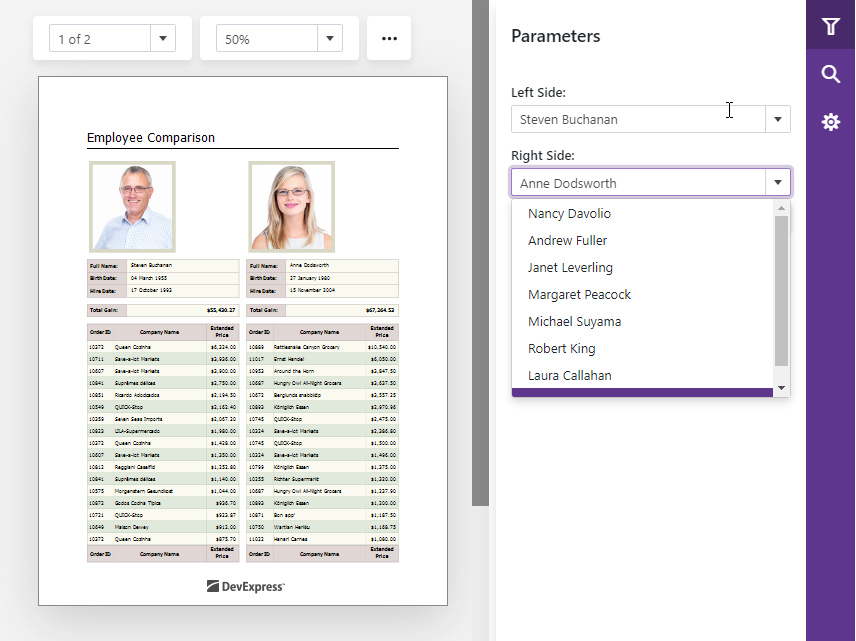
Use the Parameters Panel
Open the Parameters Panel and use its editors to specify parameter values. Click Submit to apply the values to the report and display the document.
Use Custom UI Elements
You can hide the Parameters Panel and create custom UI elements to submit parameter values to the report.
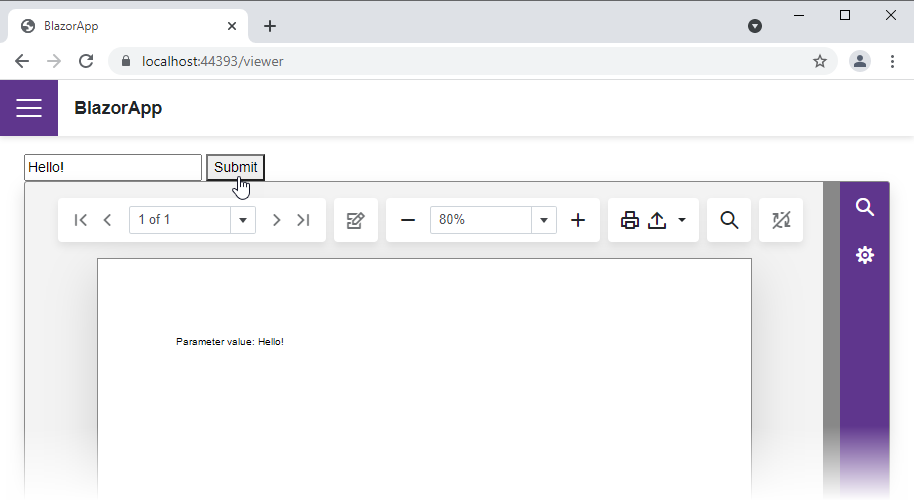
To apply parameter values to the report, implement a method that handles the submitted values as follows:
Create a report instance and apply the parameter values to it. Reference each parameter by name in the report’s Parameters collection and assign the value to the parameter’s Value property.
If you want custom UI elements to be the only way to submit parameter values, hide the Parameters Panel. To do this, disable the Visible property for all report parameters. If you want users to submit parameter values from both the panel and custom UI elements, disable the report’s RequestParameters property.
- Call the viewer’s OpenReportAsync method and pass the report to this method.
The example below does the following:
- Hides the Parameters Panel and adds an editor and a button to the page with
DxReportViewer. - Creates a report instance and assigns a value from the editor to a report parameter’s Value property on a button click.
- Passes the report to the
OpenReportAsyncmethod.
@page "/reportviewer"

@using DevExpress.Blazor.Reporting
@using DevExpress.XtraReports;
@using BlazorApp.Reports;

<input @bind="paramValue" />

<button @onclick="SubmitParameter">Submit</button>

<DxReportViewer @ref="reportViewer" Report="@Report"></DxReportViewer>

@code {
    DxReportViewer reportViewer;
    string paramName = "strParam";
    string paramValue = "0";
    IReport Report;

    protected override void OnAfterRender(bool firstRender)
    {
        if (firstRender)
        {
            var report = new XtraReport1();
            report.Parameters[paramName].Visible = false;
            Report = report;
        }

        base.OnAfterRender(firstRender);
    }

    void SubmitParameter()
    {
        var report = new XtraReport1();
        report.Parameters[paramName].Value = paramValue;
        report.Parameters[paramName].Visible = false;
        report.CreateDocument();
        reportViewer.TabPanelModel.Tabs[0].Visible = false;
        Report = report;
    }

}
Refer to the following topic for more advanced parameter editor customization: Customize Parameter Editor in the Report Viewer.