Customize the Tab Panel
- 3 minutes to read
This topic lists customization scenarios for the Tab Panel in the JavaScript-based Document Viewer for Blazor.
Tip
Use DevExpress AI Skills to integrate, configure, and customize reporting components in Blazor applications with your preferred AI coding assistant, such as GitHub Copilot or Claude Code.
Specify the Tab Panel Width and Position
To specify the Tab Panel’s width and position, use the DxDocumentViewerTabPanelSettings nested property:
<DxDocumentViewer ReportName="TestReport" Height="calc(100vh - 130px)" Width="100%">
    <DxDocumentViewerTabPanelSettings Position=TabPanelPosition.Left Width="400" />
</DxDocumentViewer>
Remove the Tab Panel
Handle the CustomizeElements event, get the Tab Panel element by its PreviewElements ID, and remove the Tab Panel from the collection of UI elements:
window.ViewerCustomization = {
    onCustomizeElements: function(s, e) {
        var panelPart = e.GetById(DevExpress.Reporting.Viewer.PreviewElements.RightPanel);
        var index = e.Elements.indexOf(panelPart);
        e.Elements.splice(index, 1);
    }
}
Hide the Preview Parameters Tab
When you add a parameter to a report, it is visible (its Parameter.Visible property is true) and forces the Document Viewer to display the Preview Parameters panel that prompts users to enter parameter values.
You can set the parameter’s Visible property to false. This removes the parameter from the Preview Parameters panel and assigns a default value to it. If you set the Visible property to false for all report parameters, the Preview Parameters panel is not shown.
To hide the Preview Parameters tab and automatically submit default values to all parameters, set the Parameter.Visible property to false for all report parameters.
For more information on parameters, review the following article: Use Report Parameters.
Hide the Export Tab
Handle the client-side CustomizeExportOptions event and call the HideExportOptionsPanel method:
window.ViewerCustomization = {
    onCustomizeExportOptions: function(s, e) {
        e.HideExportOptionsPanel();
    }
}
Hide the Search Tab
Set the SearchEnabled property to false to hide the Search tab:
<DxDocumentViewer ReportName="TestReport" Height="calc(100vh - 130px)" Width="100%">
    <DxDocumentViewerSearchSettings SearchEnabled="false"></DxDocumentViewerSearchSettings>
</DxDocumentViewer>
Add a New Tab
Create a new tab and add it to the tab collection in the Document Viewer’s View Model. The tab content is defined in a template specified in the tab constructor.
Handle the client-side BeforeRender event. In the event handler, you can access the IPreviewModel object (the sender) and the Document Viewer’s View Model (the argument).
The view model’s tabPanel property allows you to access a tab collection in the Tab Panel. Create a new tab (an instance of the TabInfo<T> class) and add it to the collection.
In the TabInfo constructor, specify the template used to render the tab content and the template used to render the tab image.
The customized tab panel is shown in the image below:
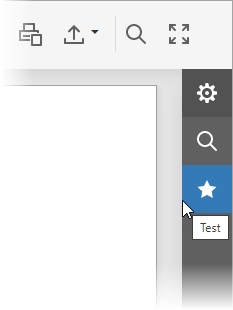
window.ViewerCustomization = {
    onBeforeRender: function(s, e) {
       e.tabPanel.tabs.push(new DevExpress.Analytics.Utils.TabInfo({
            text: "Test",
            template: "my-test-panel",
            imageTemplateName: "fivestar",
            model: null
        }));
    }
}