Coloring in the Web Dashboard
- 9 minutes to read
The Web Dashboard control allows you to manage dashboard item elements’ colors, such as chart series points or pie segments.
Coloring Basics
The following concepts are common to both Desktop and Web Dashboard controls:
- Color Modes
- Color Schemes
- Supported Dashboard Items
- Dashboard Palettes
Refer to the following help topic for more information about common concepts: Coloring Basics.
Color Measures and Dimensions
You can configure color modes as follows:
- A specific data item
To set the color mode for a specific measure/dimension, open the data item menu, go to the Data Shaping section, and use the Coloring option.

- All data items
To set the color mode for all measures/dimensions in a dashboard item, open its Options menu and go to the Coloring section.

For example, the image below shows the Chart dashboard item whose Country dimension is colored by different hues:

And the following Pie dashboard item colors measures by different hues:

Note
If you color multiple dimensions or measures by hue, each combination of values gets a different color from the palette.
Dashboard Item Color Mode Specifics
The following table describes how colors are applied based on the dashboard item’s type.
| Item’s Name | Coloring Specifics |
|---|---|
| Chart | The Chart colors different measures and series dimensions by hue. |
| Scatter Chart | The Scatter Chart does not color its arguments. |
| Pies | If the Pie dashboard item contains measures (the Values section) and series dimensions (the Series section), only values that correspond to different measures are colored by hue. If the Pie dashboard item contains arguments (the Arguments section), different argument values are colored by hue. |
| Choropleth Map | The Choropleth Map automatically selects palette and scale settings to color map shapes. |
| Bubble Map | The Bubble Map automatically selects palette and scale settings used to color bubbles depending on the provided values. |
| Pie Map | The Pie Map allows you to color segments that correspond to various dimension values/measures. |
| Range Filter | The Range Filter colors different measures and series dimensions by hue. |
| Treemap | If the Treemap contains only measures (the Values section), values that correspond to different measures are colored by different hues. If the Treemap contains arguments (the Arguments section), values that correspond to the first argument are colored by different hues. |
To change the default coloring behavior, you can configure color modes.
Conditional Formatting
The DevExpress Dashboard can format dashboard item elements whose values meet a specified condition.
Refer to the following article for more information about conditional formatting: Conditional Formatting.
Predefined Dashboard Palettes
The Web Dashboard includes the following palettes:
| Palette | Description |
|---|---|
| Default | The default palette used to color dashboard item elements. |
| Bright | Bright color accents. Optimized for users with deuteranopia and protanopia. |
| High Contrast | High visual contrast. Suitable for grayscale rendering, monochrome vision, and users with deuteranopia, protanopia, and tritanopia. |
| Warm Gradient | A Yellow-Orange-Brown palette. Optimized for grayscale rendering and users with deuteranopia, protanopia, and tritanopia. |
| Sunset | Warm sunset tones intended for values between two extremes. Optimized for users with deuteranopia and protanopia. |
| Vibrant | Vivid color contrast. Optimized for users with deuteranopia and protanopia. |
Hatch and Line Styles
For each color, you can also specify a hatch pattern and line style to distinguish data serieswithout relying on color:
- Line Styles
Use line styles for Chart and Range Filter dashboard items with line series.
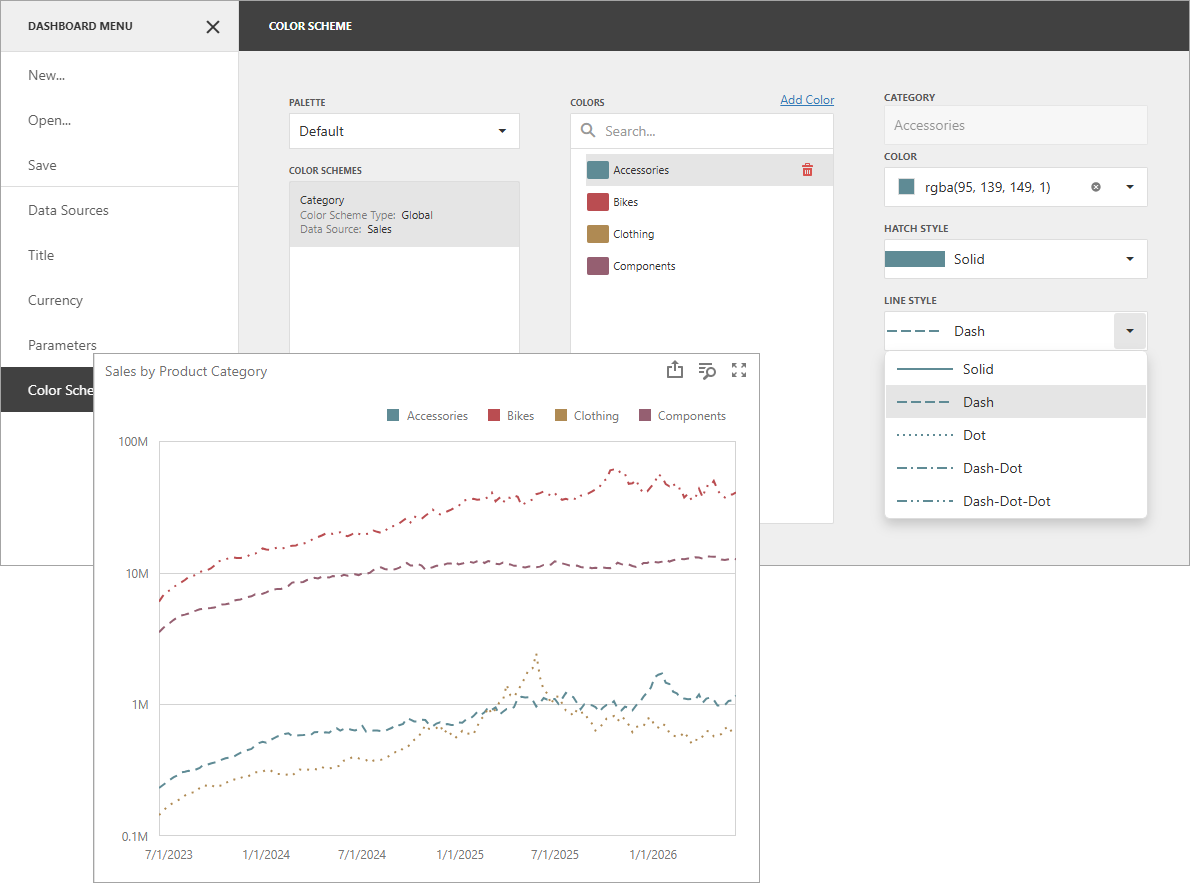
- Fill Styles
Use a solid or hatch fill style for Chart dashboard items with bar and bubble series, Range Filter dashboard items with bar series, Pie, Scatter Chart, and Pie Map dashboard items.
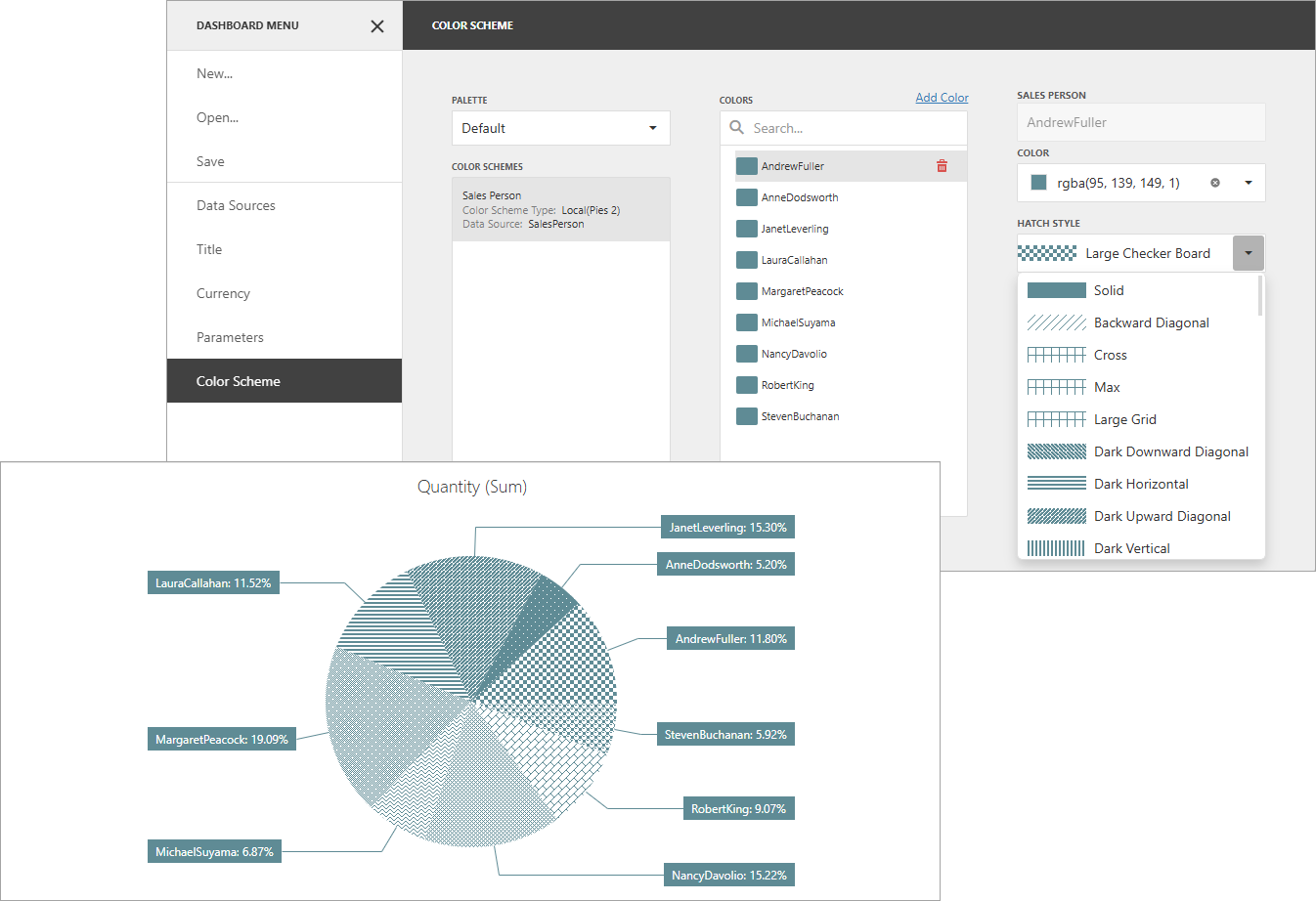
Note
Hatch and line styles apply only to the dashboard items and series types listed above.
Switch between Global and Local Color Schemes
The dashboard supports two ways to color dashboard item elements:
- A Global Color Scheme uses consistent colors and styles for identical values across the dashboard.
- A Local Color Scheme uses an independent set of colors and styles for each dashboard item.
For more information about color schemes, refer to the following topic: Coloring Basics.
To switch between global and local color schemes in the Web Dashboard, open the dashboard item’s Options menu, go to the Color Scheme section, and select the Color Scheme type.

Change Colors in the UI
Customize Color Palettes in the Dashboard Item Menu
Use the Color Scheme section of the dashboard item Options menu to customize colors of the specific palette. To edit the color scheme, click the Edit button of the corresponding color.

Then pick a color in the color picker and select a fill style and line style from the corresponding drop-down lists:
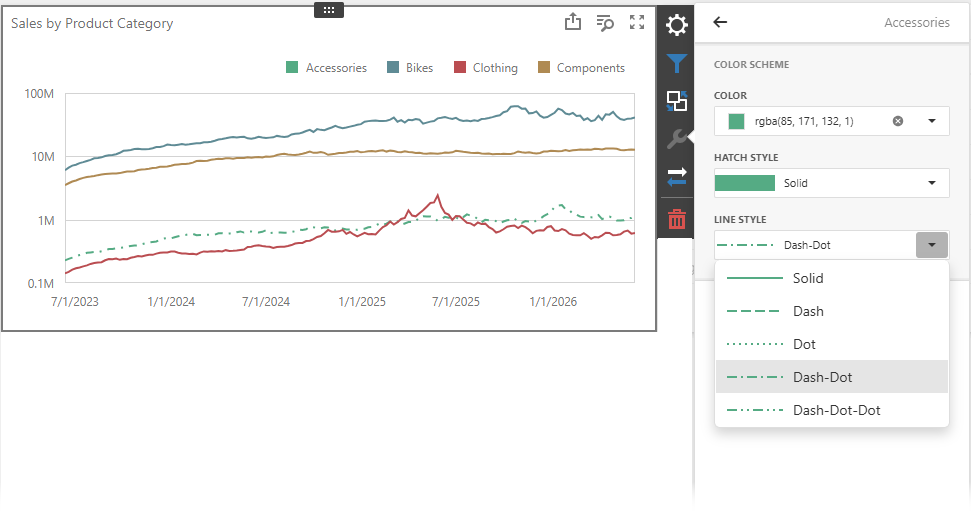
A new color scheme is applied to the dashboard item(s).

Customize Color Palettes in the Color Scheme Page
The Color Scheme page of the dashboard menu allows you to edit and add colors, hatch styles, and line styles to customize color tables.

Edit Color Scheme Entries
You can reassign a color and style in the selected color table. For this, select one of the available schemes in the Color Schemes pane and click the item in the Color Scheme Entries pane.
If you click the Color dropdown button, it invokes a color picker where you can select a new color.

Click OK to change the automatically assigned color for the selected value and update the current color scheme.
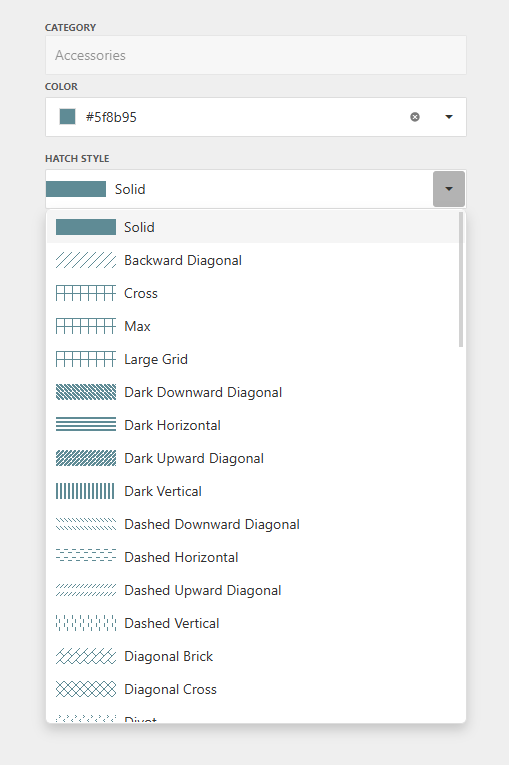
You can also select the fill style (solid or a hatch pattern) for the selected color. To do this, use the Fill Style drop-down list:
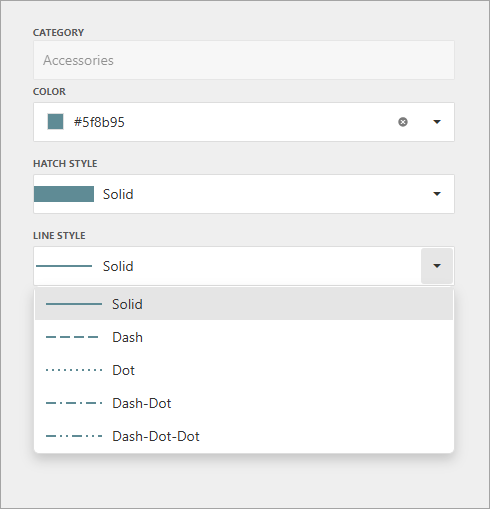
You can also select the line style for the selected color. To do this, use the Line Style drop-down list:
Add Color Scheme Entries
The Color Scheme page allows you to add a new value with the specified color and styles to the selected color scheme. To do this, use the Add New Value button.

Specify the dimension value for the added color, or select the measures. This creates a new value whose color and styles you can specify as described in the Edit Color Scheme Entries section.

Click Remove to remove the color.
Change Colors in Code
Customize the Dashboard Palette on the Server
DevExpress Dashboard uses colors from predefined palettes. Use the DashboardPalette static read-only fields to get predefined dashboard palettes.
On the server, you can use the following events to create your own palette with custom colors:
Custom Palette for a Specific Dashboard
The following example illustrates how to apply a custom palette to a dashboard. Create and initialize the DashboardPalette class instance and assign the resulting object to the e.Palette event parameter:
using DevExpress.DashboardCommon;
using DevExpress.DashboardWeb;
using System.Drawing;

void Default_CustomPalette(object sender, CustomPaletteWebEventArgs e) {
    if (e.DashboardId == "SalesByCategory") {

        // Create a new custom palette.
        List<DashboardPaletteItem> paletteItems = new List<DashboardPaletteItem>();
        paletteItems.Add(new DashboardPaletteItem(Color.LightBlue));
        paletteItems.Add(new DashboardPaletteItem(Color.Aquamarine));
        paletteItems.Add(new DashboardPaletteItem(Color.SkyBlue,DevExpress.Drawing.DXHatchStyle.DiagonalCross));
        paletteItems.Add(new DashboardPaletteItem(Color.LightCoral));
        paletteItems.Add(new DashboardPaletteItem(Color.Tomato));
        paletteItems.Add(new DashboardPaletteItem(Color.IndianRed));
        paletteItems.Add(new DashboardPaletteItem(Color.Violet, DevExpress.Drawing.DXHatchStyle.Sphere, DevExpress.Drawing.DXDashStyle.DashDotDot));
        paletteItems.Add(new DashboardPaletteItem(Color.Plum));
        paletteItems.Add(new DashboardPaletteItem(Color.MediumOrchid));
        // Assign a newly created custom palette to the Web Dashboard.
        e.Palette = new DashboardPalette(paletteItems);
    }
}
The image below displays the resulting palette:
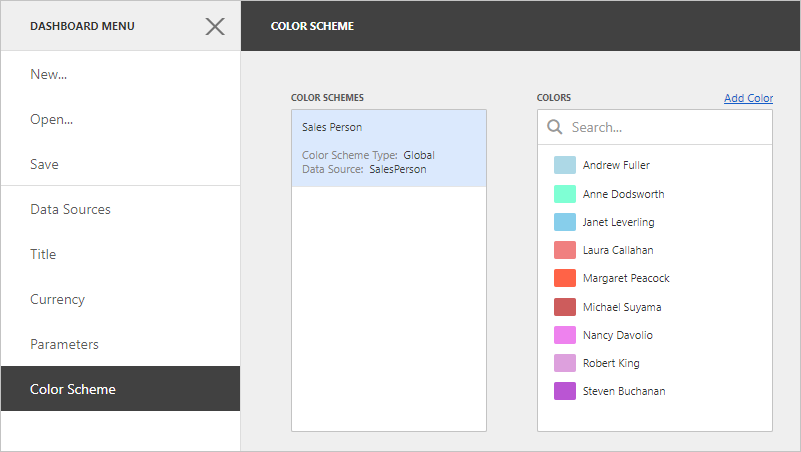
Custom Colors for a Predefined Dashboard Palette
Use the e.PaletteName property to replace the colors of a specific built-in palette.
The following code substitutes the Bright palette colors with a custom set:
using DevExpress.DashboardCommon;
using DevExpress.DashboardWeb;
using System.Drawing;

void Default_CustomPalette(object sender, CustomPaletteWebEventArgs e) {
    if (e.PaletteName == nameof(DashboardPalette.Bright)) {

        // Create a new custom palette.
        List<DashboardPaletteItem> paletteItems = new List<DashboardPaletteItem>();
        paletteItems.Add(new DashboardPaletteItem(Color.LightBlue));
        paletteItems.Add(new DashboardPaletteItem(Color.Aquamarine));
        paletteItems.Add(new DashboardPaletteItem(Color.SkyBlue));
        paletteItems.Add(new DashboardPaletteItem(Color.LightCoral));
        paletteItems.Add(new DashboardPaletteItem(Color.Tomato));
        paletteItems.Add(new DashboardPaletteItem(Color.IndianRed));
        paletteItems.Add(new DashboardPaletteItem(Color.Violet));
        paletteItems.Add(new DashboardPaletteItem(Color.Plum, DevExpress.Drawing.DXHatchStyle.Sphere));
        paletteItems.Add(new DashboardPaletteItem(Color.MediumOrchid));
        // Assign a newly created custom palette to the Web Dashboard.
        e.Palette = new DashboardPalette(paletteItems);
    }
}
The image below displays the result:
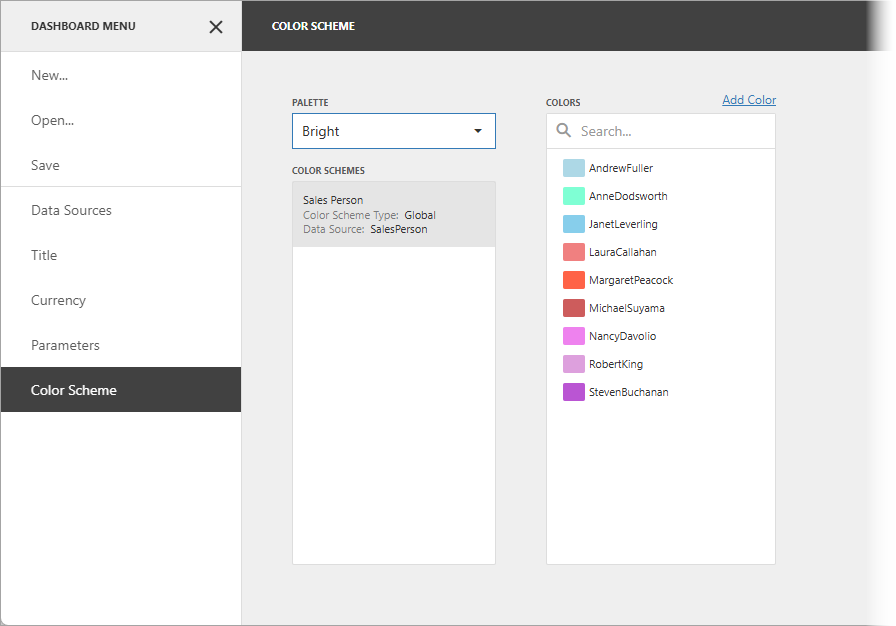
Customize Colors on the Client
The DashboardControl allows you to color chart series points, pie segments, scatter chart points, and other dashboard item elements on the client. To do this, handle the ViewerApiExtensionOptions.onItemElementCustomColor event. Use this approach for scenarios more advanced than conditional formatting, which colors elements based on their values.
The ItemElementCustomColorEventArgs class exposes the following members that allow you to color the element:
- e.dashboardItem
- Gets the instance of the dashboard item for which the event was raised.
- e.itemName
- Gets the component name of the dashboard item for which the event was raised.
- e.getColor
- Gets the color of the current dashboard item element.
- e.getTargetElement
- Gets the axis point tuple that corresponds to the current dashboard item element.
- e.setColor
- Sets the color of the current dashboard item element.
The ViewerApiExtension.getItemData method returns the client data for the specified dashboard item. To create the tuple, call the ItemData.createTuple method. To obtain dashboard item measures, call the ItemData.getMeasures method.
Note that the Chart dashboard item uses the color of the first series point to color lines (or fills areas) for the Line/Area series types. For these lines/areas, the e.getTargetElement method returns a tuple that does not contain the ItemDataAxisPoint on the DashboardDataAxisNames.ChartArgumentAxis.
Tip
For more information about multidimensional data, see the following topic: Obtain Underlying and Displayed Data in Dashboard Control for JavaScript Applications.
The following example shows how to color the dashboard item’s elements on the client. To do this, handle the ViewerApiExtensionOptions.onItemElementCustomColor event, get the item’s multidimensional data, and apply the color to the dashboard item’s element based on the condition.
The image below displays the dashboard items whose values are colored based on their values:
- Chart
- For 2014, values that exceed 30k are colored green, values below 17k are red, and values that fall into the range between 170k and 30k are gray.
- Pies
- Values below 80k are colored yellow.

function onBeforeRender(sender) {
    window['control'] = sender;

    var viewerApiExtension = control.findExtension('viewerApi');

    if (viewerApiExtension)
        viewerApiExtension.on('itemElementCustomColor', setColors);
}

function setColors(args) {

    var argumentAxis = 'Argument',
        seriesAxis = 'Series';

    var viewerApiExtension = control.findExtension('viewerApi');

    var chartClientData = viewerApiExtension.getItemData("chartDashboardItem1"),
        pieClientData = viewerApiExtension.getItemData("pieDashboardItem1");
    var currentElement = args.getTargetElement();

    if (args.itemName === "chartDashboardItem1") {
        var year = currentElement.getAxisPoint(seriesAxis).getValue();
        var value = chartClientData.getSlice(currentElement.getAxisPoint(argumentAxis)).
            getSlice(currentElement.getAxisPoint(seriesAxis)).
            getMeasureValue(chartClientData.getMeasures()[0].id).getValue();
        // For 2015, values that exceed 80k are colored in green, values below 40k are colored in red,
        // and values that fall into the range between 40k and 80k are colored in gray.
        if (year == 2014) {
            if (value > 30000) {
                args.setColor("#336633");
            }
            else if (value < 17000) {
                args.setColor("#993300");
            }
            else if (value >= 17000 && value <= 30000) {
                args.setColor("#999999");
            }
        }
    }

    if (args.itemName === "pieDashboardItem1") {
        var value = pieClientData.getSlice(currentElement.getAxisPoint(argumentAxis)).
            getMeasureValue(pieClientData.getMeasures()[0].id).getValue();
        if (value < 80000)
            args.setColor("#fdb400");
    }
};