Reference (Foreign Key, Complex Type) Properties
- 12 minutes to read
Reference properties are properties of Types that are added to the Application Model (when the property type is a persistent or non-persistent business class). Reference properties (and Collection Properties) allow you to set up relationships between business objects. In XAF, reference properties can be displayed in the following:
- A lookup control.
- A set of editors. Each editor displays an individual referenced object property.
- A Detail Property Editor that is the referenced object’s Detail View.
- A button editor that expands a referenced object Detail View in a separate modal window (typically used for aggregated objects).
Note
Refer to the Property Editors | Reference Properties section in the Feature Center demo installed with XAF to see Reference Property Editors in action. The default location of the application is %PUBLIC%\Documents\DevExpress Demos 25.2\Components\XAF\FeatureCenter.NET.XPO.
Examples
UI-Independent Property Editors for Reference Properties
DetailPropertyEditor
The DetailPropertyEditor creates a Template that serves as a Frame and contains a Detail View. The Detail View is determined automatically according to the object type and displays the object that the reference property specifies. To specify a custom Detail View, use the IModelMemberViewItem.View property in the Model Editor.
The following controls visualize the DetailPropertyEditor:
| Platform | Control |
|---|---|
| WinForms | NestedFrameTemplateV2 |
| ASP.NET Core Blazor | ViewItem.Control returns NestedFrameTemplate. The Blazor component is NestedFrameTemplateComponent. |
ASP.NET Core Blazor
In ASP.NET Core Blazor, the ViewItem.Control property returns an IComponentContentHolder descendant. The following table lists components and IComponentContentHolder descendants for editors:
| Editor | Component Model | Component |
|---|---|---|
| DevExpress.ExpressApp.Blazor.Editors.ObjectPropertyEditor | DevExpress.ExpressApp.Blazor.Components.Models.ObjectComponentModel | DevExpress.ExpressApp.Blazor.Components.ObjectComponent |
| DevExpress.ExpressApp.Blazor.Editors.LookupPropertyEditor | DevExpress.ExpressApp.Blazor.Components.Models.DxComboBoxModel<TData, TValue> | DxComboBox<TData, TValue> |
ObjectPropertyEditor

The ObjectPropertyEditor displays reference properties that are marked with Aggregated and ExpandObjectMembers(ExpandObjectMembers.Never) attributes. Click the editor’s button to invoke the Detail View. You can modify the referenced object in this Detail View and click OK to save changes.
Customize the Pop-up Detail View of ObjectPropertyEditor
ObjectPropertyEditor implements the following methods that allow you to customize the pop-up Detail View before and after its initialization:
CustomCreateDetailVieweventAllows you to make the following customizations before the Detail View is created:
- Create a new object (
CurrentObject) that will be shown in the pop-up Detail View and assigned to the source object’s property. - Specify a custom
ObjectSpacefor the pop-pup Detail View. - Specify a custom
ViewIdfor the pop-up DetailView (see the following example). - Create a custom Detail View.
using DevExpress.ExpressApp; using DevExpress.ExpressApp.Blazor.Editors; using DevExpress.ExpressApp.Editors; using MainDemo.Module.BusinessObjects; namespace DxSample.Blazor.Server.Controllers { public class SetViewIdController : ObjectViewController<DetailView, Resume> { private ObjectPropertyEditor editor; protected override void OnActivated() { base.OnActivated(); View.CustomizeViewItemControl<ObjectPropertyEditor>(this, CustomizeObjectPropertyEditor, nameof(DemoTask.AssignedTo)); } private void CustomizeObjectPropertyEditor(ObjectPropertyEditor editor) { this.editor = editor; editor.CustomCreateDetailView += Editor_OnCustomCreateDetailView; } private void Editor_OnCustomCreateDetailView(object sender, CustomCreateDetailViewEventArgs e) { e.ViewId = "MyTasks_DetailView_Simple"; } protected override void OnDeactivated() { if(editor is not null) { editor.CustomCreateDetailView -= Editor_OnCustomCreateDetailView; } base.OnDeactivated(); } } }- Create a new object (
DetailViewCreatedeventAllows you to customize the pop-up Detail View after it has been created. For instance, you can specify values or interact with the fully initialized View.
The following code sample demonstrates how to access the object to be displayed and change its property before it is shown in the Detail View.
using DevExpress.ExpressApp;
using DevExpress.ExpressApp.Blazor.Editors;
using DevExpress.ExpressApp.Editors;
using DxSample.Module.BusinessObjects;
namespace DxSample.Module.Blazor.Controllers {
    public class ModifyCurrentObjectController : ObjectViewController<DetailView, Resume> {
        private ObjectPropertyEditor editor;
        protected override void OnActivated() {
            base.OnActivated();
            View.CustomizeViewItemControl<ObjectPropertyEditor>(this, CustomizeObjectPropertyEditor, nameof(DemoTask.AssignedTo));
        }
        private void CustomizeObjectPropertyEditor(ObjectPropertyEditor editor) {
            this.editor = editor;
            editor.DetailViewCreated += Editor_OnDetailViewCreated;
        }
        private void Editor_OnDetailViewCreated(object sender, DetailViewCreatedEventArgs e) {
            DetailView detailView = e.View;
            if(detailView.ObjectSpace.IsNewObject(detailView.CurrentObject)) {
                ((PortfolioFileData)detailView.CurrentObject).Description = "Default File Description";
            }
        }
        protected override void OnDeactivated() {
            if(editor is not null) {
                editor.DetailViewCreated -= Editor_OnDetailViewCreated;
            }
            base.OnDeactivated();
        }
    }
}
LookupPropertyEditor

The LookupPropertyEditor displays non-aggregated reference properties and shows a drop-down list with objects. You can choose an object from this list and assign it to the current reference property.
LookupPropertyEditor displays the Clear, New, and Edit buttons. To hide the Clear button, set the AllowClear property to false in the Model Editor. The New button is displayed when the AllowEdit property is set to true and a user has permission to create a new object. The visibility of New and Edit buttons can also be controlled by calling the corresponding methods from the LookupPropertyEditor instance. Refer to the following help topic for details: (xref:403870).
You can filter the LookupPropertyEditor‘s List View. See the following topic for more information: How to: Implement Cascading Filtering for Lookup List Views.
LookupPropertyEditor allows users to select a property value of a simple type (string, integer, enumeration, and so on). For more information, refer to the following help topic: How to: Display and Edit Simple Type Values in a Lookup Property Editor.
To specify multiple columns that are visible in the LookupPropertyEditor, open the corresponding List View’s Columns node in the Model Editor (for example, View | Contact_LookupListView | Columns) and modify the column list. The multicolumn LookupPropertyEditor does not support grouping and sorting.

You can use the IModelCommonMemberViewItem.DisplayFormat property to format the display value. When you set the display value format, you can use format specifiers and property names (for instance, {0:FirstName}, {0:Birthday:MM.yyyy}, or {0:Manager.Birthday}). The underlying DxComboBox<TData, TValue> component’s DisplayFormat and DxComboBox.EditFormat properties depend on the DisplayFormat property value. The DisplayFormat property determines which lookup columns provide data for incremental filtering. In multicolumn mode, the editor cannot filter items if the search value contains the space symbol.
Search in LookupProperty Editor
Search mechanism in LookupPropertyEditor depends on the specified DefaultLookupEditorMode.
Tip
For more information, refer to the following section: Specify Lookup Property Editor’s Mode
- Auto, AllItems
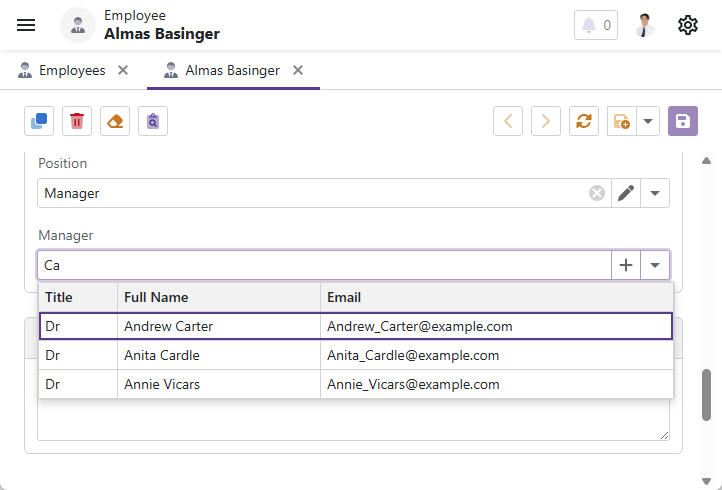
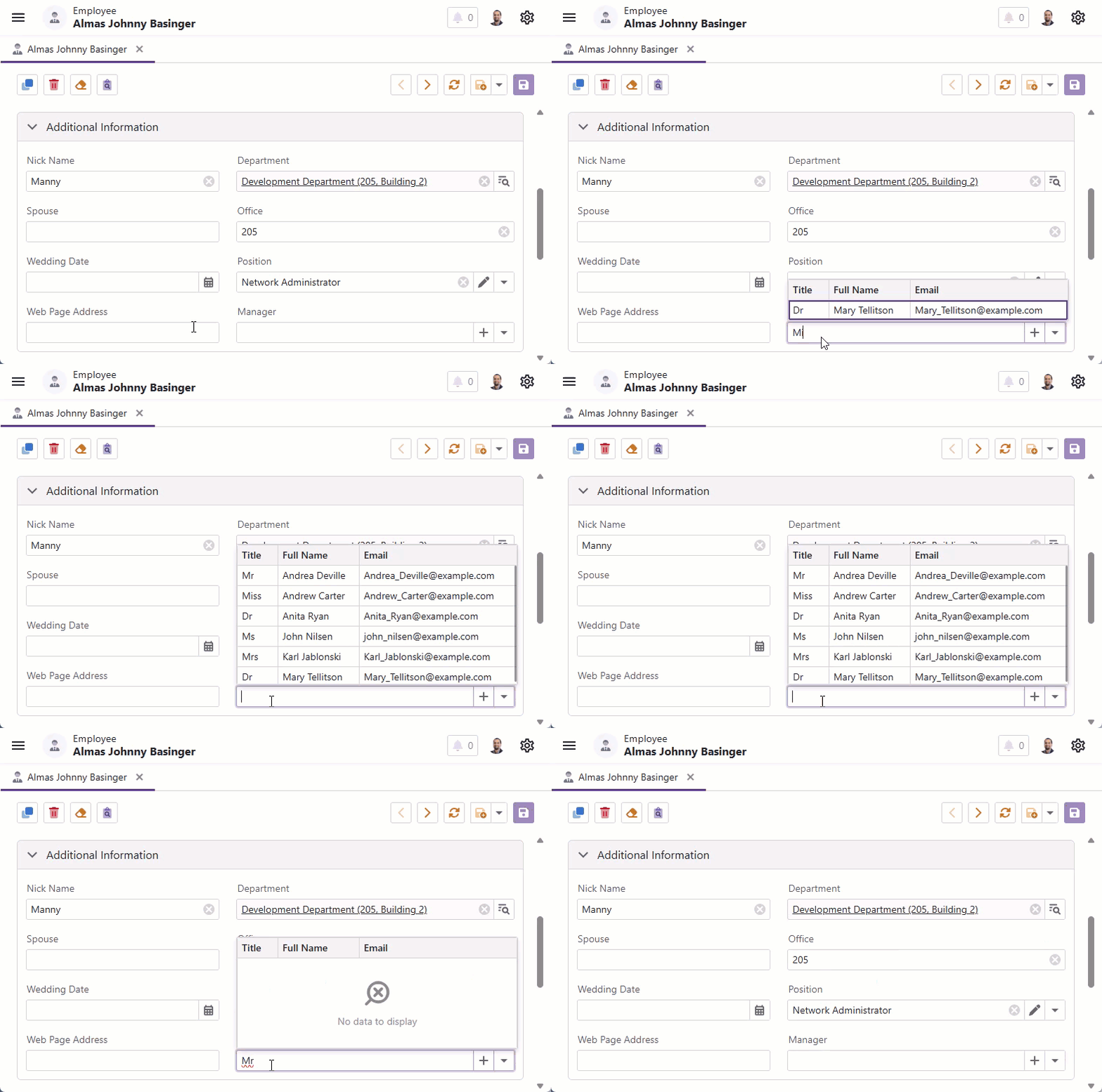
DxComboBox<TData, TValue>‘s native search functionality is available out of the box. Search operations scan all visible columns. You can exclude a specific column in code:
File: CS\YourSolutionName.Blazor.Server\Controllers\CustomizeLookupEditorSearchController.cs
using DevExpress.ExpressApp;
using DevExpress.ExpressApp.Blazor.Editors;
using YourSolutionName.Module.BusinessObjects;

namespace YourSolutionName.Blazor.Server.Controllers;
public class CustomizeLookupEditorSearchController : ObjectViewController<DetailView, Employee> {
    protected override void OnActivated() {
        base.OnActivated();
        View.CustomizeViewItemControl<LookupPropertyEditor>(this, lookup => {
            var column = lookup.ColumnModels.FirstOrDefault(col => col.FieldName == nameof(Employee.TitleOfCourtesy));
            if (column is not null) {
                column.SearchEnabled = false;
            }
        }, nameof(Employee.Manager));
    }
}
- Search, AllItemsWithSearch


To enable the Search functionality, use either of the following techniques:
- Apply the LookupEditorModeAttribute to the required property and specify the
LookupEditorMode.AllItemsWithSearchorLookupEditorMode.Searchmode as the attribute’s parameter. - In the Model Editor, navigate to the Views | <Class> | <Class>_DetailView | Items | <Member> node and set the LookupEditorMode property to
AllItemsWithSearchorSearch.
Actions in the Lookup Search List View that depend on selection (for example, Clone Object Action), affect the current object of the root view.
- Apply the LookupEditorModeAttribute to the required property and specify the
Access the LookupPropertyEditor’s Inner Controls
Create a new Controller in the ASP.NET Core Blazor module project (MySolution.Module.Blazor). If your solution does not contain this project, add this component to the application project (MySolution.Blazor.Server). Override the OnActivated method. Use the CustomizeViewItemControl method to customize the Property Editor’s control. The code below sets the DropDownDirection property for the inner ComboBox control:
using DevExpress.Blazor;
using DevExpress.ExpressApp;
using DevExpress.ExpressApp.Blazor.Components.Models;
using DevExpress.ExpressApp.Blazor.Editors;
using DevExpress.ExpressApp.Blazor.Utils;
using MySolution.Module.BusinessObjects;

namespace MySolution.Blazor.Server.Controllers;
public class CustomizeLookupPropertyEditorController : ObjectViewController<ListView, Employee> {
    protected override void OnActivated() {
        base.OnActivated();
        View.CustomizeViewItemControl<LookupPropertyEditor>(this, editor => {
            if (editor.ComponentModel is DxComboBoxModel comboBoxModel) {
                comboBoxModel.DropDownDirection = DropDownDirection.Up;
            }
        }, nameof(Employee.Manager));
    }
}
You can also use this technique to hide LookupPropertyEditor‘s New and Edit buttons as described in the following help topic: Manage the Visibility of Buttons Inside the Blazor Lookup Property Editor.
Hide Hyperlinks in Lookup Controls
In XAF ASP.NET Core Blazor applications, the Edit button in LookupPropertyEditor and ObjectPropertyEditor acts as a clickable link. To open the referenced object in a new browser tab, use Ctrl + mouse click or click the middle mouse button. XAF also displays referenced objects as clickable links inside a List Editor.
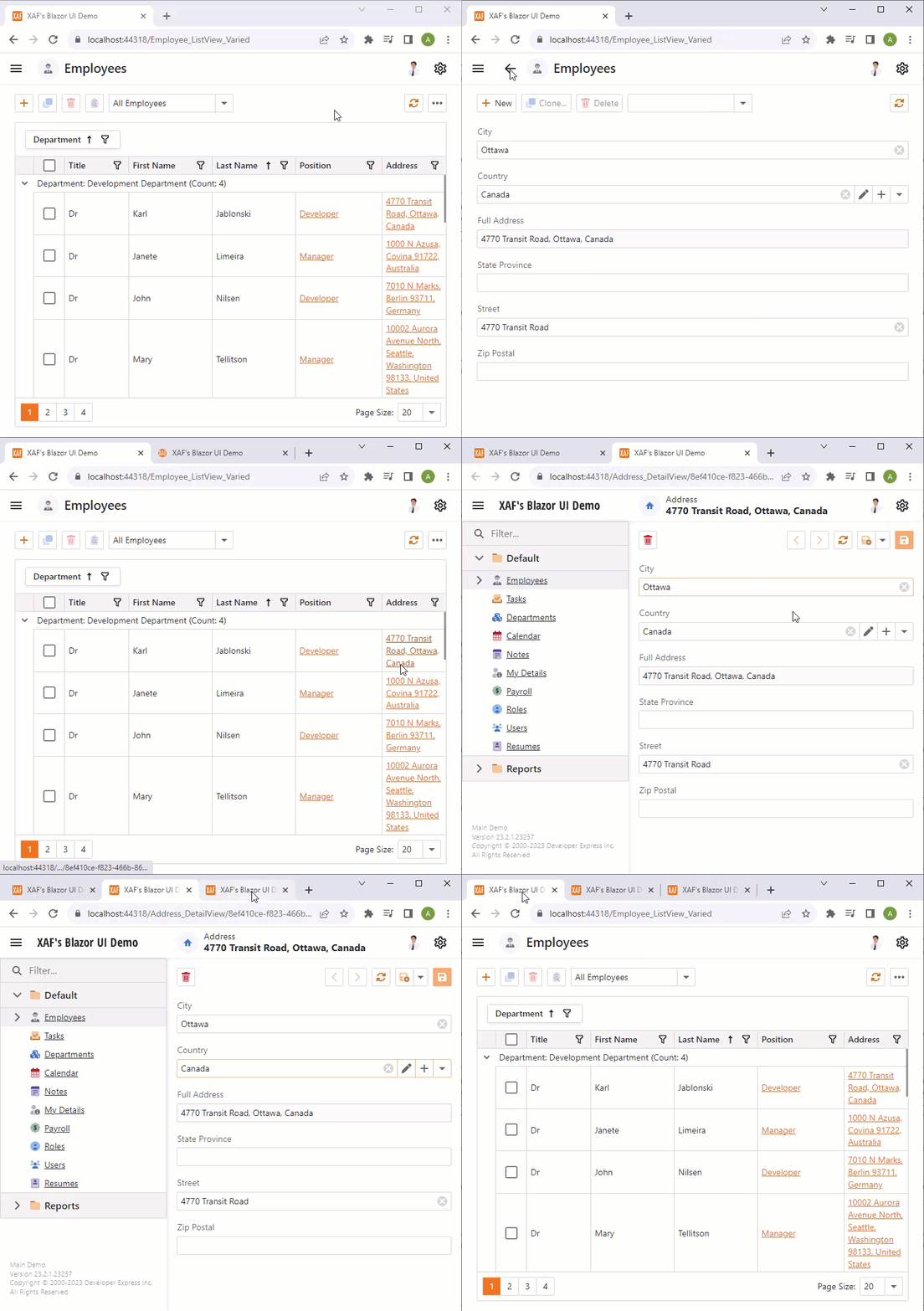
To disable clickable links, add the following controller to your application:
using DevExpress.ExpressApp.Blazor.Editors;
using DevExpress.ExpressApp;

namespace YourApplicationName.Blazor.Server.Controllers {
    public class DisableObjectLinksController : ViewController {
        protected override void OnActivated() {
            base.OnActivated();
            if (View is DetailView detailView) {
                // Disable links in Detail Views.
                DisableLinks(detailView.Items);
            }
        }
        protected override void OnViewControlsCreated() {
            base.OnViewControlsCreated();
            if (View is ListView { Editor: DxGridListEditorbase dxGridListEditor }) {
                // Disable links in List Views.
                DisableLinks(dxGridListEditor.PropertyEditors);
            }
        }
        private void DisableLinks(IEnumerable<ViewItem> viewItems) {
            foreach(var viewItem in viewItems) {
                if(viewItem is LookupPropertyEditor lookupPropertyEditor) {
                    lookupPropertyEditor.ShowLink = false;
                }
                else if(viewItem is ObjectPropertyEditor objectPropertyEditor) {
                    objectPropertyEditor.ShowLink = false;
                }
            }
        }
    }
}
WinForms

Each Windows Forms Property Editor is available in two forms:
- A standalone control (displays property value in a Detail View)
- A repository item (displays property value in a List Editor that supports in-place editing)
| Editor | Control | Repository Item |
|---|---|---|
| ObjectPropertyEditor | ObjectEdit - a ButtonEdit editor descendant the IntegerPropertyEditor uses. | RepositoryItemObjectEdit - a descendant of the XtraEditors Library’s RepositoryItemButtonEdit item. |
| LookupPropertyEditor | LookupEdit - a descendant of the XtraEditors Library’s PopupContainerEdit editor. | RepositoryItemLookupEdit - a descendant of the XtraEditors Library’s RepositoryItemPopupContainerEdit item. |
ObjectPropertyEditor
The ObjectPropertyEditor displays reference properties that are marked with Aggregated and ExpandObjectMembers(ExpandObjectMembers.Never) attributes. To invoke the Detail View, users can click the editor’s button, double-click the editor, or press the SPACEBAR key. You can modify the referenced object in this Detail View and click OK to save changes. Refer to the Add Actions to a Popup Window and Dialog Controller topics for details on how to customize this window.
Tip
You can focus the ObjectPropertyEditor and press the SPACEBAR or ENTER key to invoke the ObjectPropertyEditor‘s Detail View.
Customize the Pop-up Detail View of ObjectPropertyEditor
ObjectPropertyEditor implements the following methods that allow you to customize the pop-up Detail View before and after its initialization:
CustomCreateDetailVieweventAllows you to make the following customizations before the Detail View is created:
- Create a new object (
CurrentObject) that will be shown in the pop-up Detail View and assigned to the source object’s property. - Specify a custom
ObjectSpacefor the pop-pup Detail View. - Specify a custom
ViewIdfor the pop-up DetailView (see the following example). - Create a custom Detail View.
using DevExpress.ExpressApp; using DevExpress.ExpressApp.Editors; using DevExpress.ExpressApp.Win.Editors; using DxSample.Module.BusinessObjects; namespace DxSample.Module.Win.Controllers { public class SetSimpleViewController : ObjectViewController<DetailView, Customer> { private ObjectPropertyEditor editor; protected override void OnActivated() { base.OnActivated(); View.CustomizeViewItemControl<ObjectPropertyEditor>(this, CustomizeObjectPropertyEditor, nameof(Address)); } private void CustomizeObjectPropertyEditor(ObjectPropertyEditor editor) { this.editor = editor; editor.CustomCreateDetailView += Editor_OnCustomCreateDetailView; } private void Editor_OnCustomCreateDetailView(object sender, CustomCreateDetailViewEventArgs e) { e.ViewId = "Address_DetailView_Simple"; } protected override void OnDeactivated() { if(editor is not null) { editor.CustomCreateDetailView -= Editor_OnCustomCreateDetailView; } base.OnDeactivated(); } } }- Create a new object (
DetailViewCreatedeventAllows you to customize the pop-up Detail View after it has been created. For instance, you can specify values or interact with the fully initialized View.
The following code sample demonstrates how to access the object to be displayed and change its property before it is shown in the Detail View.
using DevExpress.ExpressApp;
using DevExpress.ExpressApp.Win.Editors;
using DxSample.Module.BusinessObjects;

namespace DxSample.Module.Win.Controllers {
    public class ModifyCurrentObjectController : ObjectViewController<DetailView, Customer> {
        private ObjectPropertyEditor editor;
        protected override void OnActivated() {
            base.OnActivated();
            View.CustomizeViewItemControl<ObjectPropertyEditor>(this, CustomizeObjectPropertyEditor, nameof(Address));
        }
        private void CustomizeObjectPropertyEditor(ObjectPropertyEditor editor) {
            this.editor = editor;
            editor.DetailViewCreated += Editor_OnDetailViewCreated;
        }
        private void Editor_OnDetailViewCreated(object sender, DetailViewCreatedEventArgs e) {
            DetailView detailView = e.View;
            if(detailView.ObjectSpace.IsNewObject(detailView.CurrentObject)) {
                ((Address)detailView.CurrentObject).CustomerRelatedData = ViewCurrentObject.ContactName;
            }
        }
        protected override void OnDeactivated() {
            if(editor is not null) {
                editor.DetailViewCreated -= Editor_OnDetailViewCreated;
            }
            base.OnDeactivated();
        }
    }
}
LookupPropertyEditor
The LookupPropertyEditor displays non-aggregated reference properties and generates a drop-down list with the LookupControlTemplate Template. You can choose an object from this list and assign it to the current reference property.
Tip
- You can filter the LookupPropertyEditor‘s List View (see How to: Implement Cascading Filtering for Lookup List Views).
- You can also search this List View (see How to: Add a Search Action to Lookup Property Editors and Link Pop-up Windows).
- You can use the Clear button to clear the editor value. To hide this button, set the IModelCommonMemberViewItem.AllowClear property to False in the Model Editor.
- LookupPropertyEditor also allows end users to select a property value of a simple type (string, integer, enumeration, and so on). For more information, refer to the following help topic: How to: Display and Edit Simple Type Values in a Lookup Property Editor.
You can define how the Lookup Property Editor retrieves items from its data source. See the following section for details: Specify Lookup Property Editor’s Mode.
LookupPropertyEditor Hotkeys
| Hotkey | Description |
|---|---|
| ALT+DOWN | Expands the drop-down list. |
| CTRL+SHIFT + Click | Invokes a Detail View for the selected object in the drop-down list. |
Specify Lookup Property Editor’s Mode
You can define how the Lookup Property Editor retrieves items from its data source. The following values are available: Auto, AllItems, Search, and AllItemsWithSearch.
Use the Model properties below to set the editor mode:
- IModelClass.DefaultLookupEditorMode
- Specifies the default mode for all Lookup Property Editors bound to reference properties of the current type (BOModel | <class>).
- IModelCommonMemberViewItem.LookupEditorMode
- Specifies the mode of the current Lookup Property Editor (BOModel | <Class> | <Class>_DetailView | Items | <Item>).
You can also apply the LookupEditorModeAttribute to a reference property to specify the editor mode.
Tip
Use the built-in Lookup Property Editors to display a computed value from several business class properties (FullName, Email, Phone) within a single column. Refer to the following link for details: PropertyEditors.Lookup - How to display information from several columns in a lookup editor when its drop down is closed.
The following links can also be helpful:
- How to: Specify a Display Member for a Lookup Editor, Detail Form Caption, and more
- How to: Implement Cascading Filtering for Lookup List Views
Create Alternative Data Representations for Reference Properties
You can customize the Lookup Property Editor behavior in the Controller code or implement custom Property Editors based on lookup controls. The following topics describe how to customize built-in Property Editors:
- How to use a custom Lookup Property Editor control for reference properties (WinForms)
- How to: Customize a Built-in Property Editor (ASP.NET Core Blazor).