Application Solution Structure
- 3 minutes to read
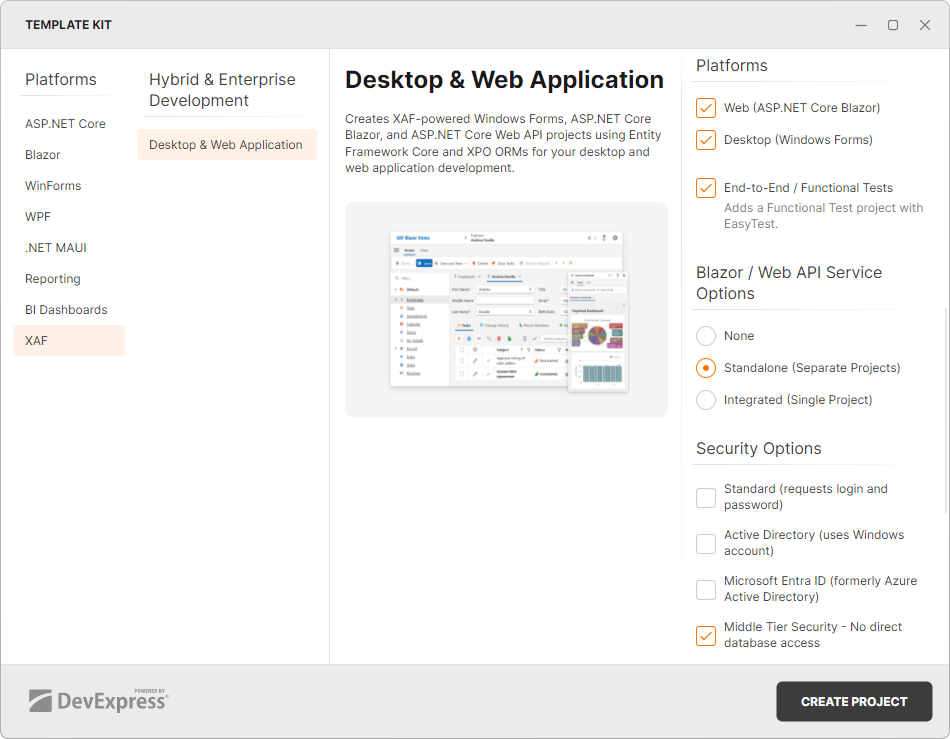
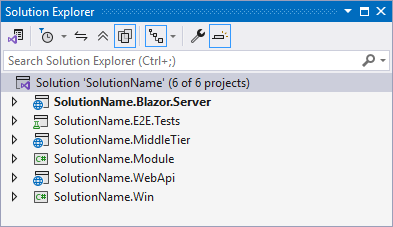
An XAF solution can include multiple projects for various platforms, such as ASP.NET Core Blazor, WinForms, and Web API applications. All projects can share the same business model, logic, and controllers if they use the same modules. If you require only one application type, you can exclude the others from your solution. The Template Kit allows you to select which platforms to include in a new application.
Blazor Application Project (SolutionName.Blazor.Server)
Contains code specific to your application’s ASP.NET Core Blazor version.
How to add the project to a new solution: In the Template Kit, select the Web (ASP.NET Core Blazor) option in the Platforms section, or leave both checkboxes (Web (ASP.NET Core Blazor) and Desktop (Windows Forms)) unchecked.
End-to-End/Functional Test Project (SolutionName.E2E.Tests)
Contains a predefined configuration for end-to-end (functional) tests. In this project, you can write C# functional tests for your XAF applications.
How to add the project to a new solution: Select the End-to-End / Functional Tests option in the Platforms section of the Template Kit.
Middle Tier Project (SolutionName.MiddleTier)
Contains a predefined configuration for the Middle Tier Server, which is an ASP.NET Core service that acts as an intermediary between the client application and the database server. This server filters secured data, and clients cannot access the database server directly. Refer to the following help topics for additional information about the Middle Tier Server:
How to add the project to a new solution: Select the Middle Tier Security option in the Security Options section of the Template Kit.
Main Module Project (SolutionName.Module)
Use this project to implement UI-independent application elements. For instance, you can define a business model and implement UI-independent controllers. Your projects can use the same business model and share controllers from this project.
How to add the project to a new solution: The Template Kit always adds this project to a solution.
Web API Application Project (SolutionName.WebApi)
Contains Web API settings. Refer to the following help topic for additional information on how to add a Web API service to your application: Backend Web API Service / REST API.
How to add the project to a new solution: Select the Standalone (Separate Projects) option in the Blazor / Web API Service Options section of the Template Kit.
WinForms Application Project (SolutionName.Win)
Contains code specific to your application’s WinForms version.
How to add the project to a new solution: Select the Desktop (Windows Forms) option in the Platforms section of the Template Kit.