ASPxClientWebDocumentViewer Class
A client-side equivalent of the ASPxWebDocumentViewer class.
Declaration
declare class ASPxClientWebDocumentViewer extends ASPxClientControlInherited Members
Inheritance
Methods
Cast(obj) Method
Converts the specified object to the current object’s type. This method is effective when you utilize the Client API IntelliSense feature provided by DevExpress.
Declaration
static Cast(
    obj: any
): ASPxClientWebDocumentViewer
Parameters
| Name | Type | Description |
|---|---|---|
| obj | any | The client object to be type cast. Represents an instance of a DevExpress web control’s client object. |
Returns
| Type | Description |
|---|---|
ASPxClientWebDocumentViewer |
An |
Remarks
The Cast method is implemented as a part of the JavaScript IntelliSense support for DevExpress ASP.NET controls and MVC extensions. So, using the Cast method is sensible when you intend to use IntelliSense during writing JavaScript code at design time with the help of the DevExpress client API.
A call to the Cast method (which is a static method) casts the specified client object to the ASPxClientWebDocumentViewer type. As a result, the object’s type is now known and ASPxClientWebDocumentViewer type specific IntelliSense information can be displayed for this client object, facilitating your coding.
The examples of this method application are as follows.
Converting the event source object passed to a client event’s handler:
...
<ClientSideEvents Init="function(s, e) {
    var clientObject = ASPxClientWebDocumentViewer.Cast(s);
}" />
Converting a client object accessed by using the value of the ClientInstanceName (or ID) property. For instance, if a web control’s ClientInstanceName property is set to ‘ASPxClientWebDocumentViewer1’, the object can be type cast in the following manner:
...
var clientObject = ASPxClientWebDocumentViewer.Cast('ASPxClientWebDocumentViewer1');
Close Method
Closes the document that is currently open in the Web Document Viewer.
Declaration
Close(): voidRemarks
The Close method closes the displayed document and leaves the Document Viewer empty. Call this method to release memory allocated on the server (storage and cache) when the user closes the page that contains the Document Viewer control.
The following code calls the Close method when a page (or UI region) window is about to close and unload its resources. The code uses jQuery API and handles the BeforeRender event.
function onBeforeRender(s, e) {
  $(window).on('beforeunload', function(e) {
    s.Close();
});
DrillThrough(customData) Method
Enables navigation between drill-through reports on the client-side.
Declaration
DrillThrough(
    customData: string
): JQueryPromise<any>
Parameters
| Name | Type | Description |
|---|---|---|
| customData | string | Provides access to custom client data associated with a currently previewed report. |
Returns
| Type | Description |
|---|---|
| JQueryPromise<any> | A Deferred Promise object. |
Remarks
Tip
In v23.2, we introduced a new design-time drill-through feature that does not require a custom drill-through processor. For more information, refer to the following help topic: Create Drill-Through Reports.
Use this method to provide drill-through functionality to web reports. The customData parameter specifies the navigation logic.
To process mouse events related to report elements on the client, handle the client-side ASPxClientWebDocumentViewer.PreviewClick event.
On the server side, implement the IWebDocumentViewerDrillThroughProcessor interface and register it by calling the DefaultWebDocumentViewerContainer.RegisterWebDocumentViewerDrillThroughProcessor<T> method at application startup.
ExportTo Method
Exports the document to the specified file format.
Declaration
ExportTo(
    format?: string,
    inlineResult?: boolean
): void
Parameters
| Name | Type | Description |
|---|---|---|
| format | string | A string value that specifies the export format. The DevExpress.Reporting.Viewer.ExportFormatID enumeration lists supported formats. |
| inlineResult | boolean | true, to inform the browser to display a file instead of download; otherwise, false. |
Remarks
The method performs a callback that exports a document to the specified format and sends the resulting file to the client browser.
The first method’s parameter is the DevExpress.Reporting.Viewer.ExportFormatID value. The second parameter (inlineResult) determines whether the browser attempts to display the exported document or the browser downloads the file. If the inlineResult parameter is set to true, but the browser does not handle the specified format, the resulting file is downloaded.
Tip
Handle the CustomizeExportOptions event to specify export options.
The Web Document Viewer can export a document asynchronously (export operations are run in the background). To switch to the asynchronous export mode, set the AsyncExportApproach to true. Asynchronous export action opens a new page with a progress indicator.
The code snippet below demonstrates how to hide the Export Options panel, add a button to export the report to a file in XLSX format, and specify the export options.
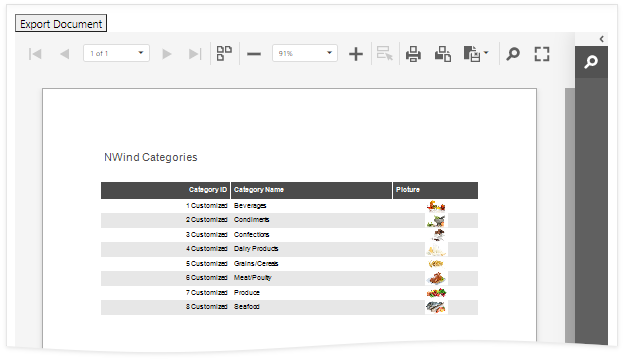
The following code snippet demonstrates how to remove the Export command in the Document Viewer UI, add a button to export the report to a file in XLSX format, and specify the SingleFilePageByPage export mode:
<asp:Content ID="Content" ContentPlaceHolderID="MainContent" runat="server">
    <script type="text/javascript">
        function ExportOnClick(s, e) {
            WebDocumentViewer1.ExportTo('xlsx');
        }
        function ConfigureExportOptions(s, e) {
            e.HideExportOptionsPanel();
            var model = e.GetExportOptionsModel(DevExpress.Reporting.Viewer.ExportFormatID.XLS);
            model.xlsExportMode('SingleFilePageByPage');
        }
</script>
    <dx:ASPxButton ID="ASPxButton1" runat="server" Text="ASPxButton" AutoPostBack="False">
        <ClientSideEvents Click="ExportOnClick" />
    </dx:ASPxButton>
<dx:ASPxWebDocumentViewer ClientInstanceName="WebDocumentViewer1" ID="ASPxWebDocumentViewer1" runat="server">
    <ClientSideEvents CustomizeExportOptions = "ConfigureExportOptions" />
</dx:ASPxWebDocumentViewer>
</asp:Content>
GetCurrentPageIndex Method
Returns the current page’s zero-based index.
Declaration
GetCurrentPageIndex(): numberReturns
| Type | Description |
|---|---|
| number | A zero-based integer value that specifies the index of a current page. |
Remarks
The code snippet below demonstrates how to use the ASPxClientWebDocumentViewer.DocumentReady event to navigate through pages of a ready document. To obtain the current page number and navigate to the next page, use the GetCurrentPageIndex and ASPxClientWebDocumentViewer.GoToPage methods.
<script type="text/javascript" id="script">
    function documentReady(s, e) {
        var goToNextPage = function () {
            var pageIndex = s.GetCurrentPageIndex();
            if (e.PageCount <= pageIndex)
                return;
            s.GoToPage(pageIndex + 1);
            setTimeout(function () { goToNextPage(); }, 3000);
        }
        goToNextPage();
    }
</script>

<dx:ASPxWebDocumentViewer ID="ASPxWebDocumentViewer1" runat="server" ReportSourceId="WebReportDesigner.XtraReport1">
     <ClientSideEvents DocumentReady="documentReady"/>
</dx:ASPxWebDocumentViewer>
GetParametersModel Method
Allows you to obtain report parameters on the client.
Declaration
GetParametersModel(): DevExpress.Reporting.Viewer.Parameters.PreviewParametersViewModelReturns
| Type |
|---|
| PreviewParametersViewModel |
Remarks
The GetParametersModel method returns the parameter model that allows you to modify report parameters on the client before the user submits them.
Example - Obtain Parameter Value
The following code obtains the parameter1 value that the user enters in the parameter editor:
<script type="text/javascript">
function getClientParameter() {
    var parametersModel = documentViewer.GetParametersModel();
    var value = parametersModel['parameter1']();
}
</script>

<dx:ASPxWebDocumentViewer ClientInstanceName="documentViewer"
    ID="ASPxWebDocumentViewer1" runat="server">
</dx:ASPxWebDocumentViewer>
Example - Obtain Parameter Values for a Multi-Value Parameter
The following code obtains values that the user selects in the multi-value parameter editor:
<script type="text/javascript">
function getClientParameter() {
    var parametersModel = documentViewer.GetParametersModel();
    var selectedValuesArray = parametersModel['MyMultiSelectParameterName'].value;
    var firstValue = selectedValuesArray[0];
}
</script>

<dx:ASPxWebDocumentViewer ClientInstanceName="documentViewer"
    ID="ASPxWebDocumentViewer1" runat="server">
</dx:ASPxWebDocumentViewer>
Example - Change Parameter Value When Another Parameter Value Changes
The following code automatically assigns a value to the pDateRange2 parameter when the user specifies a value for the pDateRange1 parameter. The pDateRange2 date range is set one year in the future relative to the pDateRange1. Users can change the pDateRange2 parameter in the Preview Parameters panel.
<script type="text/javascript">
    function onInit(s, e) {
        const parametersModel = event.sender.GetParametersModel();
        const dateRange1 = parametersModel.parameters.find((parameter: any) => parameter.path === "pDateRange1");
        // Get the first parameter and specify a function to execute when its value changes.
        dateRange1.events.on('propertyChanged', (args: any) => {
            if (args.propertyName === 'value') {
                var newValue = args.newValue;
                var fromDate = new Date();
                var toDate = new Date();
                fromDate.setTime(newValue[0].getTime());
                toDate.setTime(newValue[1].getTime());
                //Add one year to the date range.
                fromDate.setFullYear(fromDate.getFullYear() + 1);
                toDate.setFullYear(toDate.getFullYear() + 1);
                //Assign modified values to the second parameter.
                parametersModel.setParameterValue("pDateRange2", ([fromDate, toDate]));
            }
       });
    }
</script>
<dx:ASPxWebDocumentViewer ID="ASPxWebDocumentViewer1" runat="server">
        <ClientSideEvents Init="onInit" />
</dx:ASPxWebDocumentViewer>
GetPreviewModel Method
Provides access to the Document Viewer’s client-side model.
Declaration
GetPreviewModel(): DevExpress.Reporting.Viewer.Utils.IPreviewModelReturns
| Type | Description |
|---|---|
| IPreviewModel | An object that specifies the client-side preview model. |
Remarks
Call the GetPreviewModel method to obtain the Document Viewer’s client-side model and perform the required actions with the Document Viewer UI and the current document.
The code sample below demonstrates how to automatically collapse the Parameters panel after resetting parameter values in the ASPxClientWebDocumentViewer.ParametersReset event handler.
<script type="text/javascript" id="script">
    function parametersReset(s, e) {
        var preview = s.GetPreviewModel();
        if (preview) {
            preview.tabPanel.collapsed(true);
        }
    }
</script>

<dx:ASPxWebDocumentViewer ID="ASPxWebDocumentViewer1" runat="server" ReportSourceId="WebReportDesigner.XtraReport1">
    <ClientSideEvents ParametersReset ="parametersReset"/>
</dx:ASPxWebDocumentViewer>
GetReportPreview Method
Provides access to the report preview.
Declaration
GetReportPreview(): DevExpress.Reporting.Viewer.ReportPreviewReturns
| Type |
|---|
| ReportPreview |
Remarks
The following code snippet sets the zoom level to 25% and enables multi-page mode:
<script type="text/javascript" id="script">
    function onInit(s, e) {
        s.GetReportPreview().zoom = 0.25;
        s.GetReportPreview().showMultipagePreview = true;
    }
</script>

<dx:ASPxWebDocumentViewer ID="ASPxWebDocumentViewer1" runat="server">
     <ClientSideEvents Init="onInit"/>
</dx:ASPxWebDocumentViewer>
GoToPage(pageIndex) Method
Displays the report page with the specified page index.
Declaration
GoToPage(
    pageIndex: number
): void
Parameters
| Name | Type | Description |
|---|---|---|
| pageIndex | number | A zero-based integer value that specifies the index of a page to be displayed. |
Remarks
The code snippet below demonstrates how to use the ASPxClientWebDocumentViewer.DocumentReady event to navigate through pages of a ready document. To obtain the current page number and navigate to the next page, use the ASPxClientWebDocumentViewer.GetCurrentPageIndex and GoToPage methods.
<script type="text/javascript" id="script">
    function documentReady(s, e) {
        var goToNextPage = function () {
            var pageIndex = s.GetCurrentPageIndex();
            if (e.PageCount <= pageIndex)
                return;
            s.GoToPage(pageIndex + 1);
            setTimeout(function () { goToNextPage(); }, 3000);
        }
        goToNextPage();
    }
</script>

<dx:ASPxWebDocumentViewer ID="ASPxWebDocumentViewer1" runat="server" ReportSourceId="WebReportDesigner.XtraReport1">
     <ClientSideEvents DocumentReady="documentReady"/>
</dx:ASPxWebDocumentViewer>
OpenReport(url) Method
Opens the specified report on the Web Document Viewer’s client side. Allows you to refresh preview for the loaded report.
Declaration
OpenReport(
    url: string
): JQueryPromise<any>
Parameters
| Name | Type | Description |
|---|---|---|
| url | string | A string that specifies the report’s URL. |
Returns
| Type | Description |
|---|---|
| JQueryPromise<any> | A Deferred Promise object. |
Remarks
The client-side OpenReport method uses a web report storage to resolve the report identifier passed as the method parameter. The web report storage is a ReportStorageWebExtension class descendant that returns a report instance on demand.
Tip
You can call the OpenReport method to update the displayed report.
The following code creates a button that loads a report with the XtraReport1 identifier:
<asp:Content ID="Content" ContentPlaceHolderID="MainContent" runat="server">
    <script type="text/javascript">
        function OnClick(s, e) {
            WebDocumentViewer1.OpenReport("XtraReport1");
        }
    </script>
    <dx:ASPxButton ID="ASPxButton1" runat="server" Text="Open Report" AutoPostBack="False">
        <ClientSideEvents Click="OnClick" />
    </dx:ASPxButton>
    <dx:ASPxWebDocumentViewer ClientInstanceName="WebDocumentViewer1" ID="ASPxWebDocumentViewer1" runat="server">
    </dx:ASPxWebDocumentViewer>
</asp:Content>
The following example loads a report to Web Document Viewer using the OpenReport method:
PerformCustomDocumentOperation Method
Sends data to the server to execute a custom operation on a currently opened document.
Declaration
PerformCustomDocumentOperation(
    customData?: string,
    hideMessageFromUser?: boolean
): JQueryPromise<DevExpress.Reporting.Viewer.Utils.IDocumentOperationResult>
Parameters
| Name | Type | Description |
|---|---|---|
| customData | string | Custom data required to perform an operation. |
| hideMessageFromUser | boolean | true, to hide a message with the operation result from the user; otherwise, false. |
Returns
| Type | Description |
|---|---|
| JQueryPromise<IDocumentOperationResult> | A Deferred Promise object. |
Remarks
The client-side PerformCustomDocumentOperation method initiates a custom operation on the server with the current report document. The customData parameter contains data passed to the server.
On the sever side, you should implement a DocumentOperationService class descendant, and override its DocumentOperationService.CanPerformOperation and DocumentOperationService.PerformOperation methods. To register the service, call the DefaultWebDocumentViewerContainer.Register<T, TImpl> method at application startup.
Print Method
Prints the entire document or the specified page.
Declaration
Print(
    pageIndex?: number
): void
Parameters
| Name | Type | Description |
|---|---|---|
| pageIndex | number | An index of the page to be printed. If the page index is not specified, the entire document is printed. |
Remarks
The method renders the report in PDF server side and returns PDF data to the Document Viewer, which then passes them to the browser. If the PDF plug-in is installed, the Print dialog displays the following:
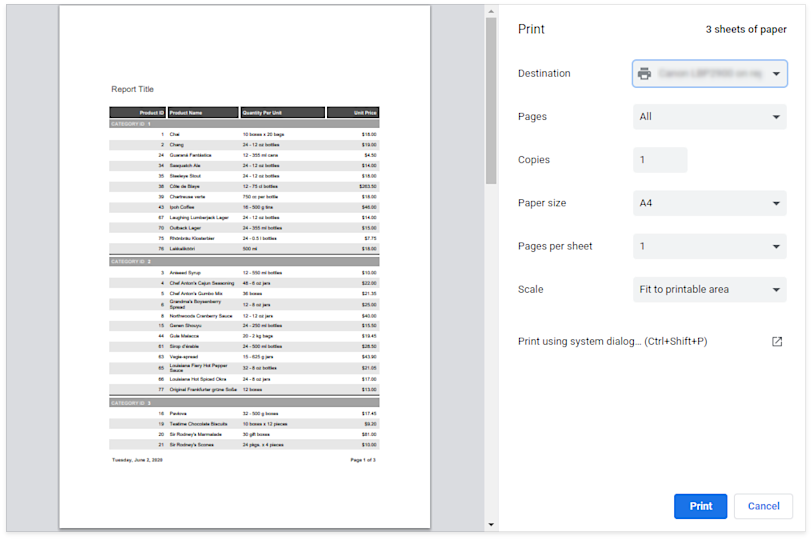
If the PDF plug-in is unavailable, the Document Viewer exports the report document to a PDF file, and initiates the download instead of printing. The resulting PDF file contains a script that starts printing when the PDF viewer opens the file.
The following code demonstrates how to create a button that prints the Document Viewer’s report:
<asp:Content ID="Content" ContentPlaceHolderID="MainContent" runat="server">
    <script type="text/javascript">
        function PrintOnClick(s, e) {
            WebDocumentViewer1.Print();
        }
</script>

<dx:ASPxButton ID="ASPxButton1" runat="server" Text="Print Document" AutoPostBack="False">
    <ClientSideEvents Click="PrintOnClick" />
</dx:ASPxButton>
<dx:ASPxWebDocumentViewer ClientInstanceName="WebDocumentViewer1" ID="ASPxWebDocumentViewer1" runat="server">
</dx:ASPxWebDocumentViewer>
</asp:Content>
ResetParameters Method
Resets the report parameter values to the default values.
Declaration
ResetParameters(): voidRemarks
The method restores the default report parameter values and raises the ASPxClientWebDocumentViewer.ParametersReset event.
The following code creates a button that resets the report parameters. The ParametersReset event handler displays the parameter name and value.
<asp:Content ID="Content" ContentPlaceHolderID="MainContent" runat="server">
<script type="text/javascript">
    function btnOnClick(s, e) {
        WebDocumentViewer1.ResetParameters();
    }
    function onParametersReset(s, e) {
        alert("Parameter " + e.Parameters[0].path + " is reset to " + e.Parameters[0].value);
    }
</script>

<dx:ASPxButton ID="ASPxButton1" runat="server" Text="TEST" AutoPostBack="False">
  <ClientSideEvents Click="btnOnClick" />
</dx:ASPxButton>
<dx:ASPxWebDocumentViewer ClientInstanceName="WebDocumentViewer1" ID="ASPxWebDocumentViewer1" runat="server">
  <ClientSideEvents ParametersReset="onParametersReset"/>
</dx:ASPxWebDocumentViewer>
</asp:Content>
StartBuild Method
Starts building a report document.
Declaration
StartBuild(): voidRemarks
The following code creates a button that passes a parameter to the report and rebuilds the document. When the document is created, the Document Viewer navigates to the last page.
<asp:Content ID="Content" ContentPlaceHolderID="MainContent" runat="server">
    <script type="text/javascript">
        function BuildOnClick(s, e) {
            var parameterValue = 1;
            WebDocumentViewer1.GetParametersModel()["parameter1"](parameterValue);
            WebDocumentViewer1.StartBuild();
        }
        function GoToLastPage(s, e) {
            s.GoToPage(e.PageCount - 1);
        }
    </script>
    <dx:ASPxButton ID="ASPxButton1" runat="server" Text="Print Document" AutoPostBack="False">
        <ClientSideEvents Click="BuildOnClick" />
    </dx:ASPxButton>
    <dx:ASPxWebDocumentViewer ClientInstanceName="WebDocumentViewer1" ID="ASPxWebDocumentViewer1" runat="server">
    </dx:ASPxWebDocumentViewer>
</asp:Content>
UpdateLocalization(localization) Method
Substitutes the specified localizable strings with translations.
Declaration
UpdateLocalization(localization: { [key: string]: string; }): voidParameters
| Name | Type | Description |
|---|---|---|
| localization | {[key: string]: string} | A dictionary that contains localizable strings and translations. |
Remarks
Use the LoadMessages method to load JSON files for ‘xx’ language, obtained from Localization Service:
<script type="text/javascript" id="script">
        function customizeLocalization(s, e) {
            e.LoadMessages($.get("/dx-analytics-core.de.json"));
            e.LoadMessages($.get("/dx-reporting.de.json"));
        }
</script>

<dx:ASPxWebDocumentViewer ID="ASPxWebDocumentViewer1" runat="server">
    <ClientSideEvents CustomizeLocalization="customizeLocalization"/>
</dx:ASPxWebDocumentViewer>
Use the UpdateLocalization method in the client-side ASPxClientWebDocumentViewer.CustomizeLocalization event handler to substitute a particular localization string with the specified text.
Tip
You can use the satellite resource assemblies to translate text strings and then adjust the translation by handling the CustomizeLocalization event.
<script type="text/javascript" id="script">
    function customizeLocalization(s) {
        s.UpdateLocalization({
            'Search': 'Suche',
            'Search result': 'Suchergebnisse',
            'Next Page' : 'Nächste Seite',
            'Export Options' : 'Exportoptionen'
        });
    }
</script>

<dx:ASPxWebDocumentViewer ID="ASPxWebDocumentViewer1" runat="server">
    <ClientSideEvents CustomizeLocalization="customizeLocalization"/>
</dx:ASPxWebDocumentViewer>
Important
Localization strings are case sensitive. A string is translated if you use correct case to specify it.
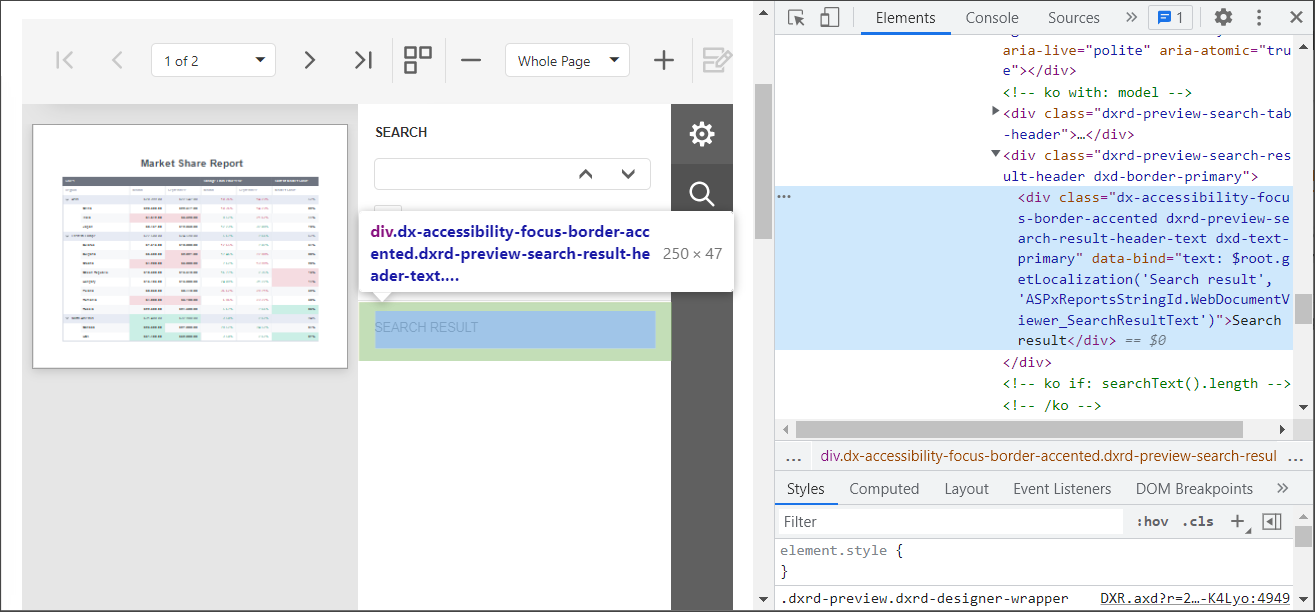
On a web page localized string values may be capitalized differently. For example, the ‘Search result’ string is displayed as ‘SEARCH RESULT’.
To identify the localized string you want to change, locate the UI element in the browser’s Developer Tools, as shown in the following image:
Events
BeforeRender Event
Occurs before the Web Document Viewer UI is initialized.
Declaration
BeforeRender: ASPxClientEvent<ASPxClientWebDocumentViewerBeforeRenderEventHandler<ASPxClientWebDocumentViewer>>Event Data
The BeforeRender event's data class is ASPxClientWebDocumentViewerRenderModelEventArgs.
Remarks
Handle the BeforeRender event to adjust the Web Document Viewer settings before its UI is initialized.
CustomizeElements Event
Allows you to customize the Web Document Viewer’s UI elements.
Declaration
CustomizeElements: ASPxClientEvent<ASPxClientWebDocumentViewerCustomizeElementsEventHandler<ASPxClientWebDocumentViewer>>Event Data
The CustomizeElements event's data class is ASPxClientCustomizeElementsEventArgs. The following properties provide information specific to this event:
| Property | Description |
|---|---|
| Elements | Provides access to the collection of UI elements. |
The event data class exposes the following methods:
| Method | Description |
|---|---|
| GetById(templateId) | Returns UI elements with the specified ID. |
Remarks
The event argument provides access to the ASPxClientCustomizeElementsEventArgs.Elements collection containing all available elements of the Web Document Viewer.
To get access to an element, call the ASPxClientCustomizeElementsEventArgs.GetById method with the PreviewElements enumeration value as a parameter.
The code sample below demonstrates how to use the CustomizeElements event to hide the Document Viewer Toolbar.
<script type="text/javascript" id="script">
    function customizeElements(s, e) {
        var toolbarPart = e.GetById(DevExpress.Reporting.Viewer.PreviewElements.Toolbar);
        var index = e.Elements.indexOf(toolbarPart);
        e.Elements.splice(index, 1);
    }
</script>

<dx:ASPxWebDocumentViewer ID="ASPxWebDocumentViewer1" runat="server" ReportSourceId="WebReportDesigner.XtraReport1">
     <ClientSideEvents CustomizeElements="customizeElements"/>
</dx:ASPxWebDocumentViewer>
CustomizeExportOptions Event
Allows you to hide export formats and specify the default export options.
Declaration
CustomizeExportOptions: ASPxClientEvent<ASPxClientWebDocumentViewerCustomizeExportOptionsEventHandler<ASPxClientWebDocumentViewer>>Event Data
The CustomizeExportOptions event's data class is ASPxClientCustomizeExportOptionsEventArgs.
The event data class exposes the following methods:
| Method | Description |
|---|---|
| GetExportOptionsModel(format) | Returns the export options model for the specified export format. |
| HideExportOptionsPanel | Hides the Export Options panel in the Web Document Viewer. |
| HideFormat(format) | Removes the specified export format from the Export To drop-down list and from the Export Options panel. |
| HideProperties(format, properties) | Hides the specified options for the designated export format from the Export Options panel in the Document Viewer. |
Remarks
The event argument has the following methods:
HideExportOptionsPanel - Hides the Export Options panel.
function customizeExportOptions(s, e) {
    e.HideExportOptionsPanel();
}
HideFormat - Hides the specified export format from the Export To drop-down list and also hides the related category from the Export Options panel.
function customizeExportOptions(s, e) {
    e.HideFormat(DevExpress.Reporting.Viewer.ExportFormatID.XLS);
}
HideProperties - Hides the specified options for the export format in the Export Options panel. To remove all options for a particular export format, specify only the first method parameter.
function customizeExportOptions(s, e) {
    e.HideProperties(DevExpress.Reporting.Viewer.ExportFormatID.XLS, "ExportMode", "PageRange");
    e.HideProperties(DevExpress.Reporting.Viewer.ExportFormatID.XLSX);
}
GetExportOptionsModel - Returns the export options model for the specified export format. Use this model to change the option’s default value.
function customizeExportOptions(s, e) {
    var model = e.GetExportOptionsModel(DevExpress.Reporting.Viewer.ExportFormatID.XLS);
    model.exportHyperlinks(false);
}
<dx:ASPxWebDocumentViewer ID="ASPxWebDocumentViewer1" runat="server">
    <ClientSideEvents CustomizeExportOptions="customizeExportOptions"/>
</dx:ASPxWebDocumentViewer>
To specify a document format in the method’s parameter, use the ExportFormatID enumeration value.
CustomizeLocalization Event
Enables you to customize the Web Document Viewer’s localization strings.
Declaration
CustomizeLocalization: ASPxClientEvent<ASPxClientWebDocumentViewerCustomizeLocalizationEventHandler<ASPxClientWebDocumentViewer>>Event Data
The CustomizeLocalization event's data class is ASPxClientCustomizeLocalizationEventArgs. The following properties provide information specific to this event:
| Property |
|---|
| WidgetLocalization |
The event data class exposes the following methods:
| Method | Description |
|---|---|
| LoadMessages(messages) | Loads the specified localization strings synchronously. |
| SetAvailableCultures(cultures) | Specifies languages available for report localization and displayed in the Language drop-down list. |
Remarks
Use the LoadMessages method to load JSON files for ‘xx’ language, obtained from Localization Service:
<script type="text/javascript" id="script">
        function customizeLocalization(s, e) {
            e.LoadMessages($.get("/dx-analytics-core.de.json"));
            e.LoadMessages($.get("/dx-reporting.de.json"));
        }
</script>

<dx:ASPxWebDocumentViewer ID="ASPxWebDocumentViewer1" runat="server">
    <ClientSideEvents CustomizeLocalization="customizeLocalization"/>
</dx:ASPxWebDocumentViewer>
Use the UpdateLocalization method in the client-side ASPxClientWebDocumentViewer.CustomizeLocalization event handler to substitute a particular localization string with the specified text.
Tip
You can use the satellite resource assemblies to translate text strings and then adjust the translation by handling the CustomizeLocalization event.
<script type="text/javascript" id="script">
    function customizeLocalization(s) {
        s.UpdateLocalization({
            'Search': 'Suche',
            'Search result': 'Suchergebnisse',
            'Next Page' : 'Nächste Seite',
            'Export Options' : 'Exportoptionen'
        });
    }
</script>

<dx:ASPxWebDocumentViewer ID="ASPxWebDocumentViewer1" runat="server">
    <ClientSideEvents CustomizeLocalization="customizeLocalization"/>
</dx:ASPxWebDocumentViewer>
Important
Localization strings are case sensitive. A string is translated if you use correct case to specify it.
On a web page localized string values may be capitalized differently. For example, the ‘Search result’ string is displayed as ‘SEARCH RESULT’.
To identify the localized string you want to change, locate the UI element in the browser’s Developer Tools, as shown in the following image:
CustomizeMenuActions Event
Enables you to customize Web Document Viewer menu actions.
Declaration
CustomizeMenuActions: ASPxClientEvent<ASPxClientWebDocumentViewerCustomizeMenuActionsEventHandler<ASPxClientWebDocumentViewer>>Event Data
The CustomizeMenuActions event's data class is ASPxClientCustomizeMenuActionsEventArgs. The following properties provide information specific to this event:
| Property | Description |
|---|---|
| Actions | Provides access to the collection of actions available in the toolbar and menu. |
The event data class exposes the following methods:
| Method | Description |
|---|---|
| GetById(actionId) | Returns a menu action with the specified ID. |
Remarks
The CustomizeMenuActions event allows you to customize the menu and toolbar commands in the Web Document Viewer UI.
The handler function receives two parameters: the first parameter is the client-side DocumentViewer that exposes the IPreviewModel interface (or the JSReportViewer object), the second is an object with the following properties:
Actions
A collection of Actions in the Web Document Viewer’s toolbar and menu.GetById
A method that obtains an Action by its ID (the ActionId value).
Example: Hide a Command and Add a New Command
The following code disables an existing command and registers a custom command.
function CustomizeMenuActions(s, e) {
    var actions = e.Actions;

    // Get the "Print Page" action and hide it.
    var printPageAction = e.GetById(DevExpress.Reporting.Viewer.ActionId.PrintPage);
    if (printPageAction)
        printPageAction.visible = false;

    // Add a new action.
    actions.push({
        text: "Custom Command",
        imageClassName: "customButton",
        imageTemplateName: "dxrd-svg-wizard-warning",
        hasSeparator: false,
        disabled: ko.observable(false),
        visible: true,
        hotKey: { ctrlKey: true, keyCode: "Z".charCodeAt(0) },
        clickAction: function () {
            alert('Clicked.');
        }
    })
};
Review the following topic for more information: Customize the Document Viewer Toolbar.
Example: Customize Export Commands
The following code performs custom actions when the user exports a document to specific formats (in this example, XLS and XLSX).
function CustomizeMenuActions(s, e) {
    // Get the "Export To" action.
    var actionExportTo = e.GetById(DevExpress.Reporting.Viewer.ActionId.ExportTo);

    if (actionExportTo) {
        actionExportTo.clickAction = function (arg) {
            if (arg.itemData.format === "xls" || arg.itemData.format === "xlsx") {
                // Custom export.
                //...
            }
            else if (arg.itemData.format) {
                s.ExportTo(arg.itemData.format);
            }
        }
    }
};
Note
To use ActionId constants in typescript code, add the following directive:
import { ActionId } from "devexpress-reporting/viewer/constants";
CustomizeParameterEditors Event
Allows you to customize parameter editors in the Parameters panel.
Declaration
CustomizeParameterEditors: ASPxClientEvent<ASPxClientWebDocumentViewerCustomizeParameterEditorsEventHandler<ASPxClientWebDocumentViewer>>Event Data
The CustomizeParameterEditors event's data class is ASPxClientCustomizeParameterEditorsEventArgs. The following properties provide information specific to this event:
| Property | Description |
|---|---|
| info | Provides access to an object that stores information required to serialize a parameter editor. |
| parameter | Provides access to an object that stores information about a parameter. |
Remarks
The client-side CustomizeParameterEditors event allows you to customize parameter editors.
The handler function receives two parameters: the first parameter is the ASPxClientWebDocumentViewer object, the second is the ASPxClientCustomizeParameterEditorsEventArgs instance.
You can use a custom template or modify the editor’s extended options to specify a custom editor.
Example: Use Custom Template
Define a custom HTML template and use the info.editor property to specify a header variable with the template name.
The following example implements a custom dxNumberBox parameter editor with spin buttons limited by minimum and maximum values.
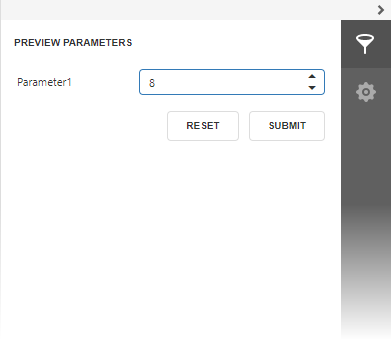
<script type ="text/html" id="categoryID-custom-editor">
    <div data-bind="dxNumberBox: { value: value, showSpinButtons: true, min: 1, max: 8 }"> </div>
</script>

<script type="text/javascript">
    function CustomizeParameterEditors(s, e) {
      if (e.parameter.name == "categoryID") {
          e.info.editor = { header: 'categoryID-custom-editor' };
        }

    }
</script>

<dx:ASPxWebDocumentViewer ID="ASPxWebDocumentViewer1" runat="server">
    <ClientSideEvents CustomizeParameterEditors="CustomizeParameterEditors" />
</dx:ASPxWebDocumentViewer>
See the following topic for more information: Provide Custom Editors for Report Parameters.
Example: Customize Editor Options
Use the info.editor.extendedOptions property to customize the DevExtreme control options.
The following example removes the time part from the calendar editor.

<script type="text/javascript">
    function CustomizeParameterEditors(s, e) {
      if (e.parameter.type === 'System.DateTime') {
          e.info.editor = $.extend({}, e.info.editor);
          e.info.editor.extendedOptions = $.extend(e.info.editor.extendedOptions || {}, { type: 'date' });
      }
    }
</script>

<dx:ASPxWebDocumentViewer ID="ASPxWebDocumentViewer1" runat="server">
    <ClientSideEvents CustomizeParameterEditors="CustomizeParameterEditors" />
</dx:ASPxWebDocumentViewer>
Example: Validate Parameter Values
DevExtreme editors used in the Parameters panel allow you to validate the values that the user enters and make the parameter “required”.

The following code does not allow the user to leave the parameter1 editor blank, and accepts only even numbers.
function onCustomizeParameterEditors(s, e) {
    if (e.parameter.name === 'parameter1') {
        e.info.validationRules = [{
            type: 'custom',
            validationCallback: validateNumber,
            message: 'Only even numbers are allowed!'
        }];
    }
};
function validateNumber(e) {
    return (e.value != '') && (e.value % 2 == 0)
};
For more information on custom validation rules for DevExtreme editors, review the following help topic: CustomRule.
CustomizeParameterLookUpSource Event
Occurs each time a look-up editor is created for a report parameter.
Declaration
CustomizeParameterLookUpSource: ASPxClientEvent<ASPxClientWebDocumentViewerCustomizeParameterLookUpSourceEventHandler<ASPxClientWebDocumentViewer>>Event Data
The CustomizeParameterLookUpSource event's data class is ASPxClientCustomizeParameterLookUpSourceEventArgs. The following properties provide information specific to this event:
| Property | Description |
|---|---|
| dataSource | Specifies the data source that provides look-up values for the parameter editor. |
| items | Provides access to the collection of look-up parameter values. |
| parameter | Provides access to an object that stores information about a parameter. |
Remarks
Handle the CustomizeParameterLookUpSource event to customize lookup parameter values.
Example: Specify Lookup Editor Data Sources
The following code specifies a controller route, a JSON resource, and a simple array as report parameter’s data sources on the client. The CustomizeParameterEditors event is handled to specify the data source fields for the lookup editor.
<script type="text/javascript">
    var products = [
        "HD Video Player",
        "SuperHD Video Player",
        "SuperPlasma 50"
    ].map(function (val) { return { value: val, displayValue: val }; });

    function customParameterLookUpSource(s, e) {
        if (e.parameter.name == "parameter1") {
            e.dataSource = "/Home/GetData";
        };
        if (e.parameter.name == "parameter2") {
            e.dataSource = "https://jsonplaceholder.typicode.com/users";
        };
        if (e.parameter.name == "parameter3") {
            e.dataSource = products;
        }
    }

    function customizeParameterEditors(s, e) {
        if (e.parameter.name == "parameter2") {
            e.info.editor = $.extend({}, e.info.editor);
            e.info.editor.extendedOptions = $.extend(e.info.editor.extendedOptions || {}, {
                valueExpr: 'username',
                displayExpr: 'name'
            });
        }
    }
</script>
<dx:ASPxWebDocumentViewer ClientInstanceName="documentViewer"
    ID="ASPxWebDocumentViewer1" runat="server">
  <ClientSideEvents CustomizeParameterLookUpSource="customParameterLookUpSource"
      CustomizeParameterEditors="customizeParameterEditors" />
</dx:ASPxWebDocumentViewer>
Example: Sort Lookup Values
The following example demonstrates how to sort lookup values of the categoryName parameter based on a custom rule. Declare an array that has category names in a sequence based on the required criterion. Check the parameter property of the event argument to identify the parameter. Access lookup values for that parameter with the items property and sort the values with a custom sorting function. The function compares indexes of categories in the array. Pass the result to the dataSource property to apply changes.
<dx:AspxWebDocumentViewer ID="AspxWebDocumentViewer1" runat="server">
    <ClientSideEvents CustomizeParameterLookUpSource="function(s, e) {
        var sortRule = ['Produce', 'Meat/Poultry', 'Dairy Products',
            'Grains/Cereals', 'Seafood', 'Confections', 'Condiments', 'Beverages'];

        if(e.parameter.name == 'categoryName') {
            e.items.sort(function(a, b) {
                if (sortRule.indexOf(a.value) > sortRule.indexOf(b.value)) {
                    return 1;
                }
                if (sortRule.indexOf(a.value) < sortRule.indexOf(b.value)) {
                    return -1;
                }
                return 0;
            });
            e.dataSource = new DevExpress.data.DataSource({ store: e.items});
        }
    }"/>
</dx:AspxWebDocumentViewer>
DocumentReady Event
Occurs after the Web Document Viewer loads a report document.
Declaration
DocumentReady: ASPxClientEvent<ASPxClientWebDocumentViewerDocumentReadyEventHandler<ASPxClientWebDocumentViewer>>Event Data
The DocumentReady event's data class is ASPxClientWebDocumentViewerDocumentReadyEventArgs. The following properties provide information specific to this event:
| Property | Description |
|---|---|
| DocumentId | Specifies the report document ID. |
| PageCount | Specifies the total number of pages in a report document. |
| ReportId | Specifies the report ID. |
Remarks
Handle the DocumentReady event to respond when a document is loaded to the Web Document Viewer on the client side.
The code snippet below demonstrates how to use this event to automatically navigate pages of a document when it is created. The ASPxClientWebDocumentViewerDocumentReadyEventArgs.PageCount field of an event argument specifies the total number of pages in the loaded document. To obtain the current page number and navigate to the next page, use the ASPxClientWebDocumentViewer.GetCurrentPageIndex and ASPxClientWebDocumentViewer.GoToPage methods.
<script type="text/javascript" id="script">
    function documentReady(s, e) {
        var goToNextPage = function () {
            var pageIndex = s.GetCurrentPageIndex();
            if (e.PageCount <= pageIndex)
                return;
            s.GoToPage(pageIndex + 1);
            setTimeout(function () { goToNextPage(); }, 3000);
        }
        goToNextPage();
    }
</script>

<dx:ASPxWebDocumentViewer ID="ASPxWebDocumentViewer1" runat="server" ReportSourceId="XtraReport1">
     <ClientSideEvents DocumentReady="documentReady"/>
</dx:ASPxWebDocumentViewer>
EditingFieldChanged Event
Occurs each time an editing field’s value changes.
Declaration
EditingFieldChanged: ASPxClientEvent<ASPxClientWebDocumentViewerEditingFieldChangedEventHandler<ASPxClientWebDocumentViewer>>Event Data
The EditingFieldChanged event's data class is ASPxClientWebDocumentViewerEditingFieldChangedEventArgs. The following properties provide information specific to this event:
| Property | Description |
|---|---|
| Field | Gets an editing field whose value has been changed. |
| NewValue | Provides access to a new value of an editing field. |
| OldValue | Provides access to a previous value of an editing field. |
The event data class exposes the following methods:
| Method |
|---|
| GetBrickText |
| GetBrickValue |
Remarks
Each time the current field value changes, the EditingFieldChanged event occurs, allowing you to respond to this action (for instance, validate input data or format the edited value).
The example below demonstrates how to change an editing field’s value to a previous value if a new value does not meet to required conditions.
<script type="text/javascript" id="script">
    function editingFieldChanged(s, e) {
        if ((e.Field.id() === "UnitsInStock") && (e.NewValue > 100))
            e.NewValue = e.OldValue;
    }
</script>

<dx:ASPxWebDocumentViewer ID="ASPxWebDocumentViewer1" runat="server" ReportSourceId="WebReportDesigner.XtraReport1">
     <ClientSideEvents EditingFieldChanged="editingFieldChanged"/>
</dx:ASPxWebDocumentViewer>
OnServerError Event
Raised when a server-side error occurs.
Declaration
OnServerError: ASPxClientEvent<ASPxClientWebDocumentViewerErrorEventHandler<ASPxClientWebDocumentViewer>>Event Data
The OnServerError event's data class is ASPxClientErrorEventArgs. The following properties provide information specific to this event:
| Property | Description |
|---|---|
| Error | Provides access to information about a server-side error. |
Remarks
The client-side OnServerError event is raised when a server-side error occurs. Handle this event to execute custom code when a Fetch request completes with an error.
The handler function receives two parameters. The first parameter is the ASPxClientWebDocumentViewer instance. The second parameter is an object with the Error property that contains information about the error.
The following code snippet logs error details and displays an alert box when a server error occurs:
<script type="text/javascript">
    function onServerError(s, e) {
        console.log(JSON.stringify(e.Error.getRequestDetails()));
        console.log(e.Error.errorThrown);
        let actionKey = e.Error.getRequestDetails().actionKey;
        let error = e.Error.errorThrown;
        alert("Server error" + "\r\nAction: " + actionKey + "\r\nMessage: " + error);
    }
</script>

<dx:ASPxWebDocumentViewer ClientInstanceName="WebDocumentViewer1" ID="ASPxWebDocumentViewer1" runat="server">
  <ClientSideEvents OnServerError="onServerError"/>
</dx:ASPxWebDocumentViewer>
ParametersReset Event
Raised after report parameter values are reset to their default values.
Declaration
ParametersReset: ASPxClientEvent<ASPxClientWebDocumentViewerParametersResetEventHandler<ASPxClientWebDocumentViewer>>Event Data
The ParametersReset event's data class is ASPxClientParametersResetEventArgs. The following properties provide information specific to this event:
| Property | Description |
|---|---|
| Parameters | Provides access to report parameters whose values have been reset. |
| ParametersViewModel | Provides access to a View Model for report parameters. |
Remarks
The ParametersReset event is raised when a user clicks the Reset button in the Preview Parameters panel. The ASPxClientWebDocumentViewer.ResetParameters method also raises the ParametersReset event.
The following code collapses the Parameters panel after parameter values are reset:
<script type="text/javascript" id="script">
    function onParametersReset(s, e) {
        var preview = s.GetPreviewModel();
        if (preview) {
            preview.tabPanel.collapsed(true);
        }
    }
</script>

<dx:ASPxWebDocumentViewer ID="ASPxWebDocumentViewer1" runat="server" ReportSourceId="TestReport">
    <ClientSideEvents ParametersReset ="onParametersReset"/>
</dx:ASPxWebDocumentViewer>
ParametersSubmitted Event
Occurs after a user submits report parameter values.
Declaration
ParametersSubmitted: ASPxClientEvent<ASPxClientWebDocumentViewerParametersSubmittedEventHandler<ASPxClientWebDocumentViewer>>Event Data
The ParametersSubmitted event's data class is ASPxClientParametersSubmittedEventArgs. The following properties provide information specific to this event:
| Property |
|---|
| Parameters |
| ParametersViewModel |
Remarks
The ParametersSubmitted event is raised when a user enters parameter values and clicks the Submit button in the Preview Parameters panel.
You can handle this event to change parameter values passed to the server because Parameter Model values remain unchanged and do not cause errors on the client.
Examples
The following code passes a custom object as a report parameter (MyComplexParameter) to the server. A custom object in this code snippet contains data selected in a custom editor (MyComplexEditor) specified in the CustomizeParameterEditors event:
<script type="text/javascript" id="script">
    function onParametersSubmitted(s, e) {
        e.Parameters.filter(item => item.Key === "MyComplexParameter")[0].Value = JSON.stringify(myComplexEditorModel.value())
    }
</script>

<dx:ASPxWebDocumentViewer ID="ASPxWebDocumentViewer1" runat="server" ReportSourceId="TestReport">
    <ClientSideEvents ParametersSubmitted ="onParametersSubmitted"/>
</dx:ASPxWebDocumentViewer>
The following code collapses the Preview Parameters panel when the user clicks the Submit button:
<script type="text/javascript" id="script">
    function onParametersReset(s, e) {
        var preview = s.GetPreviewModel();
        if (preview) {
            preview.tabPanel.collapsed(true);
        }
    }
</script>

<dx:ASPxWebDocumentViewer ID="ASPxWebDocumentViewer1" runat="server" ReportSourceId="TestReport">
    <ClientSideEvents ParametersReset ="onParametersReset"/>
</dx:ASPxWebDocumentViewer>
PreviewClick Event
Occurs when the left mouse button is clicked on a report document.
Declaration
PreviewClick: ASPxClientEvent<ASPxClientWebDocumentViewerPreviewClickEventHandler<ASPxClientWebDocumentViewer>>Event Data
The PreviewClick event's data class is ASPxClientPreviewClickEventArgs. The following properties provide information specific to this event:
| Property | Description |
|---|---|
| Brick | Provides information on a visual brick representing content of a report control that has been clicked. |
| Handled | Specifies whether or not the event was handled and no default processing is required. |
| PageIndex | Gets a value specifying the zero-based index of the page that has been clicked. |
The event data class exposes the following methods:
| Method | Description |
|---|---|
| DefaultHandler | Specifies the default function used to handle the ASPxClientWebDocumentViewer.PreviewClick event. |
| GetBrickText | Returns the text displayed by the ASPxClientPreviewClickEventArgs.Brick. |
| GetBrickValue | Returns a string providing additional information about the current ASPxClientPreviewClickEventArgs.Brick by the specified key. |
Remarks
Handle the PreviewClick event to perform different actions when an end-user clicks the report document opened in the Web Document Viewer. You can obtain a text displayed by the corresponding report element using the ASPxClientPreviewClickEventArgs.GetBrickText method and additional brick information (the XRControl.Tag property value) using the ASPxClientPreviewClickEventArgs.GetBrickValue method.
The following code snippet demonstrates how to obtain the text of an element that has been clicked.
<script type="text/javascript" id="script">
    function previewClick(s, e) {
        e.Brick && alert(e.Brick.text())
    }
</script>

<dx:ASPxWebDocumentViewer ID="ASPxWebDocumentViewer1" runat="server" ReportSourceId="WebReportDesigner.XtraReport1">
     <ClientSideEvents PreviewClick="previewClick"/>
</dx:ASPxWebDocumentViewer>
The example below illustrates how to ask the user to confirm an operation related to expanding/collapsing data in a drill-down report and navigating to a URL. The IBrickNode.navigation property provides access to a brick’s navigation settings. Use the ASPxClientPreviewClickEventArgs.Handled property to specify whether or not default processing (specified by the ASPxClientPreviewClickEventArgs.DefaultHandler function) is required, depending on the confirmation result.
<script type="text/javascript" id="script">
    function previewClick(s, e) {
        if (!e.Brick)
            return
        var navigation = e.Brick.navigation;
        if (navigation) {
            var ok = true;
            if (navigation.drillDownKey) {
                ok = confirm('Are you sure you want to expand/collapse data?');
            } else if (navigation.url) {
                ok = confirm('Are you sure you want to navigate to the following URL: ' + navigation.url);
            }
            e.Handled = !ok;
        }
    }
</script>

<dx:ASPxWebDocumentViewer ID="ASPxWebDocumentViewer1" runat="server" ReportSourceId="WebReportDesigner.XtraReport1">
     <ClientSideEvents PreviewClick="previewClick"/>
</dx:ASPxWebDocumentViewer>