Use DevExpress Templates to Create Blazor Application with a Report Viewer
- 6 minutes to read
DevExpress Templates help you create ready-to-use applications with a Native Report Viewer for Blazor.
Templates let you select a Blazor Server or Blazor WebAssembly application. Report Viewer shows a pre-built tabular report bound to sample data (SQL, Object, or JSON). The application may also include ready-to-use Docker files for deployment in Linux-based environments.
Project Template Kit (Visual Studio, Visual Studio Code, JetBrains Rider)
Use the Cross-IDE Project Template Kit to create a Blazor Server or Blazor WebAssembly application with the DxReportViewer component.
Tip
You can create and modify reports in the DevExpress Report Designer integrated into Visual Studio Code as an extension. For additional information, refer to the following topic: Report Designer for Visual Studio Code (VS Code).
To create a Blazor application with a Report Viewer, follow the steps below:
Install the DevExpress Project Template Kit extension. Refer to the following sections in the Project Template Kit help topic for instructions depending on the IDE of your choice:
Select Blazor or Reporting in the Platforms list. Select the ASP.NET Core Blazor Reporting Application template:
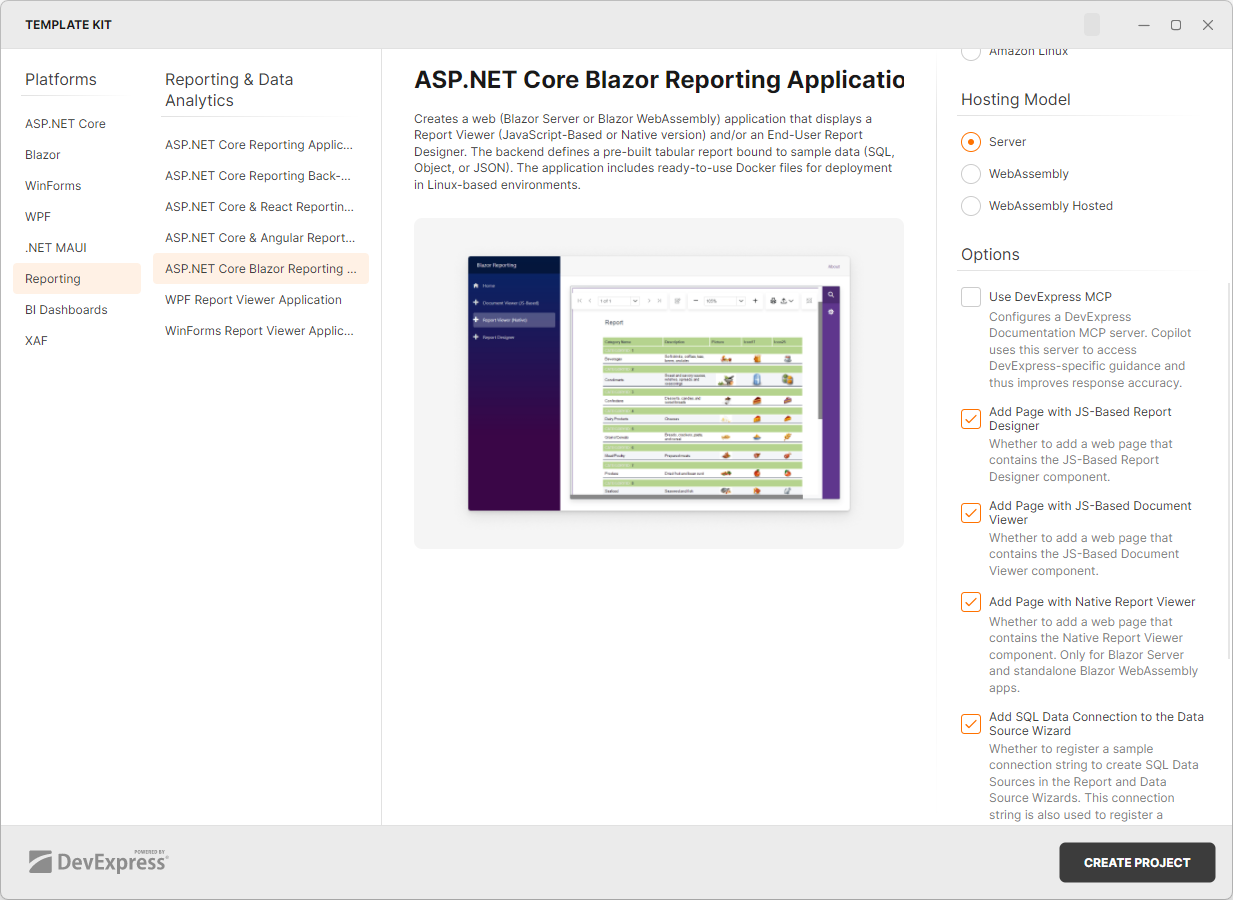
Enable the Add Page with Native Report Viewer checkbox to create an application with the DxReportViewer component.
Specify additional template options. Click Create Project to generate the project.
Template OptionsThe following list contains options you can specify when creating DevExpress ASP.NET Core Blazor Reporting project templates:
CLI Option Template Kit Option Description --framework <TFM>Target Framework Specifies the target framework using a Target Framework Moniker (TFM).
Example:net8.0.-int, --interactivityHosting Model Specifies which hosting platform to use for Blazor Reporting Components.
Default:Server.
Options:
- Server (runs on server)
- WebAssembly (runs in browser via WebAssembly)
- Hosted (WebAssembly with ASP.NET Core backend).-ad, --add-designerAdd Report Designer Page Specifies whether to create a page with the JavaScript-based Report Designer.
Default:true.-adv, --add-document-viewerAdd Document Viewer Page Specifies whether to create a page with the JavaScript-based Document Viewer.
Default:true.-arv, --add-report-viewerAdd Native Report Viewer Page Only for Blazor Server and standalone WebAssembly apps.
Specifies whether to create a page with the Report Viewer (a native Blazor component).
Default:true.-ads, --add-data-sourceRegister SQL Connection Only for Blazor Server and hosted WebAssembly apps.
Specifies whether the application should register a sample connection string. The specified connection allows end users to create SQL Data Sources in the Report Wizard and Data Source Wizard.
Default:true.-ajs, --add-json-data-connection-storageAdd JSON Data Storage Specifies whether the application should create and register a JSON storage. That storage allows users to create JSON Data Sources in the Report Wizard and Data Source Wizard.
Default:false.-ao, --add-data-objectRegister Sample Data Object Only for Blazor Server and hosted WebAssembly apps.
Specifies whether the application code should create and register a sample data object. Data objects allow users to create Object Data Sources in the Report Wizard and Data Source Wizard.
Default:false.-dfb, --DockerfileDockerfile Support Only for Blazor Server and hosted WebAssembly apps.
Creates a Dockerfile based on the selected OS. Review the following online example for more information: How to Use the SkiaSharp-Based DevExpress Drawing Engine. SelectNoneto not enable Docker support.
Available options:
- None (Skip Docker support)
- Debian (Debian-based Dockerfile)
- Alpine (Alpine-based Dockerfile)
- Ubuntu (Ubuntu-based Dockerfile)
- openSUSE (openSUSE-based Dockerfile)
- Amazon Linux (Amazon Linux-based Dockerfile)-prerelease, --use-prerelease-dx-version— Uses a pre-release version of DevExpress packages. --dx-version <version>— Specifies the DevExpress package version (examples: 24.1.3,24.1.*,24.1.*-*).
.NET CLI Templates
Use CLI Project Templates to create a Blazor Server or Blazor WebAssembly application with the DxReportViewer component.
DevExpress Blazor project templates are included in our Unified Component Installer.
You can also install the templates from nuget.org. If you are new to NuGet, visit the following page for additional information about package management prerequisites: An Introduction to NuGet.
Ensure that the nuget.org source is enabled. If it is disabled, you may encounter error NU1101: Unable to find package DevExpress.Blazor.ProjectTemplates. To list sources with their status, run dotnet nuget list source. To enable a source, run dotnet nuget enable source <source name>.
To create a Blazor application with a Report Viewer, follow the steps below:
Run the following command to install DevExpress Blazor project templates from nuget.org:
dotnet new install DevExpress.Blazor.ProjectTemplatesCreate a project with a Report Viewer:
dotnet new dx.blazor.reporting -int Server -ad false -adv falseSpecify additional options, if necessary.
Template OptionsThe following list contains options you can specify when creating DevExpress ASP.NET Core Blazor Reporting project templates:
CLI Option Template Kit Option Description --framework <TFM>Target Framework Specifies the target framework using a Target Framework Moniker (TFM).
Example:net8.0.-int, --interactivityHosting Model Specifies which hosting platform to use for Blazor Reporting Components.
Default:Server.
Options:
- Server (runs on server)
- WebAssembly (runs in browser via WebAssembly)
- Hosted (WebAssembly with ASP.NET Core backend).-ad, --add-designerAdd Report Designer Page Specifies whether to create a page with the JavaScript-based Report Designer.
Default:true.-adv, --add-document-viewerAdd Document Viewer Page Specifies whether to create a page with the JavaScript-based Document Viewer.
Default:true.-arv, --add-report-viewerAdd Native Report Viewer Page Only for Blazor Server and standalone WebAssembly apps.
Specifies whether to create a page with the Report Viewer (a native Blazor component).
Default:true.-ads, --add-data-sourceRegister SQL Connection Only for Blazor Server and hosted WebAssembly apps.
Specifies whether the application should register a sample connection string. The specified connection allows end users to create SQL Data Sources in the Report Wizard and Data Source Wizard.
Default:true.-ajs, --add-json-data-connection-storageAdd JSON Data Storage Specifies whether the application should create and register a JSON storage. That storage allows users to create JSON Data Sources in the Report Wizard and Data Source Wizard.
Default:false.-ao, --add-data-objectRegister Sample Data Object Only for Blazor Server and hosted WebAssembly apps.
Specifies whether the application code should create and register a sample data object. Data objects allow users to create Object Data Sources in the Report Wizard and Data Source Wizard.
Default:false.-dfb, --DockerfileDockerfile Support Only for Blazor Server and hosted WebAssembly apps.
Creates a Dockerfile based on the selected OS. Review the following online example for more information: How to Use the SkiaSharp-Based DevExpress Drawing Engine. SelectNoneto not enable Docker support.
Available options:
- None (Skip Docker support)
- Debian (Debian-based Dockerfile)
- Alpine (Alpine-based Dockerfile)
- Ubuntu (Ubuntu-based Dockerfile)
- openSUSE (openSUSE-based Dockerfile)
- Amazon Linux (Amazon Linux-based Dockerfile)-prerelease, --use-prerelease-dx-version— Uses a pre-release version of DevExpress packages. --dx-version <version>— Specifies the DevExpress package version (examples: 24.1.3,24.1.*,24.1.*-*).