Keyboard Support in Blazor Pivot Table
- 4 minutes to read
The DevExpress Blazor Pivot Table supports keyboard navigation. Users can navigate to different areas/elements and initiate related actions. For example, they can change the sort order or expand/collapse groups.
Note
Keyboard support allows users to interact with application content in cases they cannot use a mouse or they rely on assistive technologies (like screen readers or switch devices). Refer to the Accessibility help topic for information on other accessibility areas that we address.
Navigation Areas and Elements
The Pivot Table component includes the following navigation areas:
- Filter Area
- Data Field Headers
- Column Headers
- Row Headers
- Column Field Values
- Row Field Values, Data Area, Column Totals, Column Grand Totals, Row Totals, Row Grand Totals (treated as a single navigation area for keyboard shortcuts)
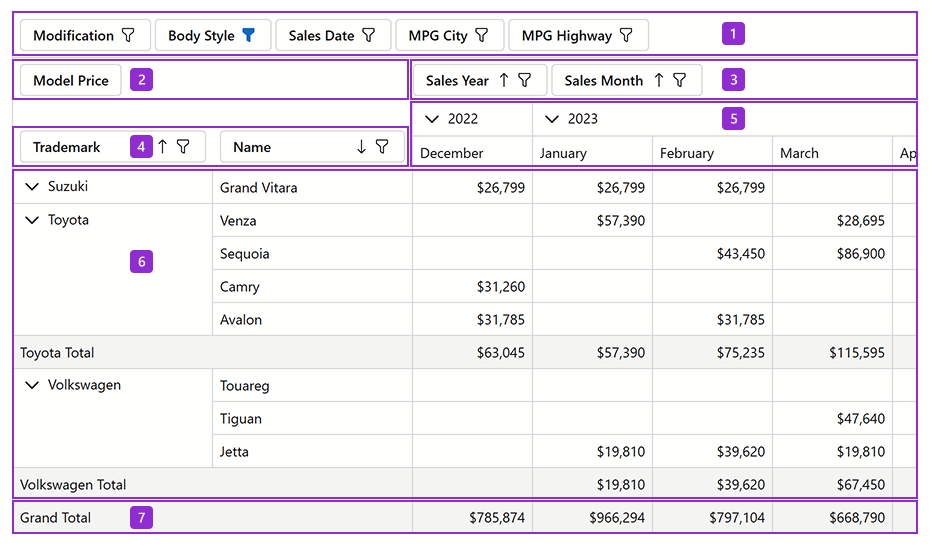
You can use the following shortcuts to navigate between areas and their elements:
PC/Windows Shortcuts | Mac Shortcuts | Description |
|---|---|---|
Ctrl + Arrow Down | Option + Tab | Moves focus to the next navigation area (1-6). If the last navigation area is already focused, focus moves to the next object on the page. |
Ctrl + Arrow Up | Option + Shift + Tab | Moves focus to the previous navigation area (1-6 ). If the first navigation area is already focused, focus moves to the previous object on the page. |
Tab | Tab | Moves focus sequentially through all focusable elements in the Pivot Table. |
Arrow keys | Arrow keys | Navigate between cells within a focused navigation area (that displays cells). When a user reaches the first/last cell of the area, focus moves to the previous/next navigation area that contains cells. |
Home | Fn + Arrow Left | Moves focus to the first cell/element in the current row or navigation area. |
End | Fn + Arrow Right | Moves focus to the last cell/element in the current row or navigation area. |
Shift + scroll wheel | Shift + scroll wheel | Scrolls horizontally. |
Data Sorting Shortcuts
The following shortcuts are available when a column/row field header is focused:
PC/Windows Shortcuts | Mac Shortcuts | Description |
|---|---|---|
Space | Space | Changes the sort order. |
Ctrl + Space | Option + Space | Resets the sort order. |
Filter Menu Shortcuts
The following shortcuts are available when a column/row/filter field header is focused:
PC/Windows Shortcuts | Mac Shortcuts | Description |
|---|---|---|
Alt + Arrow Down | Option + Arrow Down | Opens a filter menu for the focused field header. The filter menu displays unique field values that match the filter criteria applied to other related fields. For example, if you applied a filter to the Trademark field, the Name field filter menu contains values that match the selected Trademark only. |
Shift + Alt + Arrow Down | Shift + Option + Arrow Down | Opens a filter menu for the focused field header. The filter menu displays all unique field values (filter criteria of other fields are not considered). |
Group Shortcuts
The following shortcuts are available when a group is focused in the Row/Column Field Values area:
PC/Windows Shortcuts | Mac Shortcuts | Description |
|---|---|---|
Enter | Enter | Expands/Collapses a focused group. |
Alt + Arrow Right | Option + Arrow Right | Expands a focused group. |
Alt + Arrow Left | Option + Arrow Left | Collapses a focused group. |
Template Shortcuts
PC/Windows Shortcuts | Mac Shortcuts | Description |
|---|---|---|
Enter | Enter | If a focused field contains a template, switches to navigation between nested objects. |
Escape | Escape | Within a focused field, exits nested object navigation. |
Field List Navigation
When the Field List is visible, you can use the following keyboard shortcuts:
PC/Windows Shortcuts | Mac Shortcuts | Description |
|---|---|---|
Tab | Tab | Navigates between field lists, the Defer Layout Update checkbox, and the Update button (if it is active). When the first/last object in the Field List is focused, focus moves to the previous/next object on the page. |
Arrow Up | Arrow Up | Navigate between items within a focused field list. |
Space | Space | Changes the sort order for the focused field. |
Alt + Arrow Down | Option + Arrow Down | Opens a filter menu for the focused field. |
Escape | Escape | Closes the Field List. |
The following image displays the navigation order in the Field List:

Built-in List Box components (1-5) include their own navigation shortcuts. Refer to the following topic for additional information: List Box - Keyboard Support.