Office & PDF File API v26.1 Release Notes
- 29 minutes to read
AI Agent Skills for DevExpress Office & PDF File API
DevExpress AI agent skills give AI coding assistants accurate, built-in knowledge of DevExpress Office & PDF File API features through v26.1. Instead of generic training data that often produces incorrect APIs or outdated code patterns, assistants use product-specific guidance for common document processing scenarios.
The Office & PDF File API skill set covers:
- Word Processing API
- Spreadsheet Document API
- Excel Export
- PDF Document API
- PDF Document API (New, CTP)
- Presentation API
- Barcode Generation API
- AI-powered Document Extensions
- Zip Compression and Archive API
- Unit Conversion
Each skill defines correct APIs, necessary assemblies, configuration steps, and implementation patterns for a specific feature area. AI assistants use this knowledge to generate accurate code for document generation, editing, conversion, export, PDF processing, barcode generation, archive management, unit conversion, and AI-powered document workflows.
All skills follow the Agent Skills standard and work with Claude Code, GitHub Copilot (Visual Studio, VS Code, and JetBrains Rider), and Cursor.
Install skills from the DevExpress Agent Skills GitHub repository.
Security Enhancements
To help improve the security posture DevExpress Office & PDF File API based solutions, we introduced the following breaking changes in our v26.1 release cycle. These changes enforce secure document processing best practices and help mitigate risks associated with untrusted documents.
Secure ZIP Policy
Our new Zip Security Policy (SecureZipPolicy) protects applications from ZIP-related attack vectors using resource limits, hard blocks, and encryption rules. You can configure resource limits globally or for individual operations. The SecureZipPolicy.TrustBoundaryViolation event allows you to log, monitor, and audit TrustBoundary violations.
Breaking Change: New ZIP Security Policy
FIPS (Federal Information Processing Standards) Compliance Enforcement
The DevExpress API now detects operating system-level FIPS enforcement and raises an DevExpress.Utils.OperatingSystemLevelFipsMode.ComplianceViolationException before document processing begins. The exception includes violation details, resolution recommendations, and is raised early in the workflow to prevent non-compliant cryptographic operations.
Breaking Change: FIPS Enforcement for Encrypted DOC, XLS, and PDF Documents
Safer Document (DOCx, XLSx…) Processing
v26.1 adds Safer Document Processing for both the DevExpress Word Processing Document API and Spreadsheet API. Both libraries include a dedicated, configurable security layer for applications that load documents from untrusted sources — user uploads, email attachments, and third-party integrations.
Safe Document Processing address three security-related considerations:
- Security Loading Limits — reject documents that exceed structural thresholds before they are fully parsed
- Dangerous Content Removal — strip active threats such as macros, embedded objects, and dangerous links during load operations
- Privacy Sanitization — remove metadata, revision history, and hidden content before you share/archive a document
These capabilities address document security requirements in regulated industries (GDPR, HIPAA, and SOX).
Security Loading Limits
Use Options.SecurityLoadingLimits to configure document limits. The SecurityLoadingLimitExceeded event fires when a document exceeds a limit. In the event handler, set e.Handled = true to continue loading operation despite violations (useful for log-only scenarios or staged rollouts).
Word Processing API
You can configure thresholds for the following document characteristics:
- Maximum allowed file size in bytes
- Maximum total number of XML elements across all parts of a document
- Maximum nesting depth of any XML element
- Maximum number of paragraphs in the document
- Maximum number of tables
- Maximum number of rows across all tables
- Maximum number of document sections
- Maximum number of sub-documents (headers, footers, text boxes, and similar embedded document elements)
The following code snippet sets security loading limits for the DevExpress Word Processing API:
using DevExpress.XtraRichEdit;

var wordProcessor = new RichEditDocumentServer();

var securityLimits = wordProcessor.Options.SecurityLoadingLimits;
securityLimits.MaxFileSize = 50 * 1024 * 1024; // 50 MB
securityLimits.MaxParagraphCount = 100_000;
securityLimits.MaxTableCount = 1_000;
securityLimits.MaxXmlElementDepth = 128;

wordProcessor.SecurityLoadingLimitExceeded += (sender, e) => {
    Console.WriteLine($"Limit exceeded: {e.PropertyName}");
    e.Handled = false; // abort loading
};

wordProcessor.LoadDocument("incoming.docx");
Spreadsheet Document API
You can configure thresholds for the following workbook characteristics:
- Maximum allowed file size in bytes
- Maximum total number of XML elements across all parts of a workbook
- Maximum nesting depth of any XML element
- Maximum number of worksheets in the workbook
- Maximum number of rows per worksheet
- Maximum number of columns per worksheet
- Maximum number of cells per worksheet
- Maximum number of charts in the workbook
The following code snippet sets security loading limits for the DevExpress Spreadsheet Document API:
using DevExpress.Spreadsheet;

var workbook = new Workbook();
var securityLimits = workbook.Options.SecurityLoadingLimits;

securityLimits.MaxFileSize = 150 * 1024 * 1024; // 150 MB
securityLimits.MaxWorksheetCount = 50;
securityLimits.MaxSheetCellCount = 500_000;
securityLimits.MaxChartCount = 10;

workbook.SecurityLoadingLimitExceeded += (_, e) => {
    Console.WriteLine($"Limit exceeded: {e.PropertyName}");
    e.Handled = false; // abort loading
};

workbook.LoadDocument("upload.xlsx");
Dangerous Content Removal
You can automatically remove dangerous content when loading documents using Options.SecurityLoadingOptions. Each option targets a specific threat category and fires a SecurityLoadingOptionsViolation event when matching content is detected. Set e.Handled = false in the event handler to remove detected content.
Word Processing Document API
The following content types can be removed:
- Hyperlinks with dangerous URL protocols (
javascript:,vbscript:,file://(direct local file system access), and UNC paths (network share paths such as\\server\share)). You can apply the same protocol safety rules to inline hyperlinks and links within floating objects and images. - Image references that use restricted protocols such as
file:// - OLE (Object Linking and Embedding) objects
- ActiveX controls
- Macros
INCLUDEPICTUREand DDE (Dynamic Data Exchange) fields.- Custom XML
The following code snippet removes potentially dangerous content when using the DevExpress Word Processing API:
using DevExpress.XtraRichEdit;

var wordProcessor = new RichEditDocumentServer();
var securityOptions = wordProcessor.Options.SecurityLoadingOptions;

securityOptions.RestrictedHyperlinkRemovalMode = RestrictedHyperlinkRemovalMode.Full;
securityOptions.RemoveRestrictedLinks = true;
securityOptions.RemoveExternalImages = true;
securityOptions.RemoveOleObjects = true;
securityOptions.RemoveActiveXContent = true;
securityOptions.RemoveMacros = true;
securityOptions.RemoveDDEFields = true;
securityOptions.RemoveIncludePictureFields = true;
securityOptions.RemoveCustomXMLParts = true;

wordProcessor.SecurityLoadingOptionsViolation += (sender, e) => {
    Console.WriteLine($"Dangerous content found: {e.PropertyName}");
    e.Handled = false; // false = remove the content
};

wordProcessor.LoadDocument("external_submission.docm");
Spreadsheet Document API
The following content types can be removed:
- OLE objects
- ActiveX controls
- Macros
- Custom XML parts
- Restricted formulas
- External workbooks
- Pivot caches
- External data connections stored in the workbook (ODBC connections, web queries, etc)
The following code snippet removes potentially dangerous content when using the DevExpress Spreadsheet Document API:
using DevExpress.Spreadsheet;

var workbook = new Workbook();
var securityOptions = workbook.Options.SecurityLoadingOptions;

securityOptions.RemoveMacros = true;
securityOptions.RemoveActiveXContent = true;
securityOptions.RemoveOleObjects = true;
securityOptions.RemoveRestrictedFormulas = true;
securityOptions.RemoveExternalWorkbooks = true;
securityOptions.RemoveExternalConnections = true;
securityOptions.RemovePivotCaches = true;
securityOptions.RemoveCustomXMLParts = true;

workbook.SecurityLoadingOptionsViolation += (_, e) => {
    Console.WriteLine($"Dangerous content found: {e.PropertyName}");
    e.Handled = false; // false = remove the content
};

workbook.LoadDocument("financial_model.xlsm");
Privacy Sanitization
v26.1 includes RichEditDocumentServer.Sanitize(WordProcessingSanitizeOptions) for our Word Processing Document API and Workbook.Sanitize(WorkbookSanitizeOptions) for our Spreadsheet API. Call these methods to strip personal data and internal organizational information from documents before you share, publish, or archive documents/files.
Both methods return structured sanitization results that include detected content types and applied actions (WordProcessingSanitizeResult and WorkbookSanitizeResult).
Sanitization APIs cover the following content categories:
- Metadata — document properties (Author, Title, Company, and custom fields)
- Revision history — tracked changes, comments, and other revision data
- Hidden content — hidden text/rows/columns
The following code snippet sanitizes a Word document before export:
using DevExpress.XtraRichEdit;

var wordProcessor = new RichEditDocumentServer();
wordProcessor.LoadDocument("contract_draft.docx");

var options = new WordProcessingSanitizeOptions();
options.TrackChanges = TrackChangesSanitizeMode.Accept;
options.Metadata = MetadataRemovalScope.All;
options.RemoveCustomXmlParts = true;
options.RemoveMacros = true;
options.HiddenText = HiddenContentSanitizeMode.MakeVisible;
options.RemoveActiveXContent = true;
options.RemoveComments = true;
options.InvisibleText = InvisibleContentSanitizeMode.Remove;
options.RemoveOleObjects = true;

var findings = wordProcessor.Sanitize(options);

foreach (var f in findings)
    Console.WriteLine($"{f.Type}: {f.Action}");

wordProcessor.SaveDocument("contract_for_distribution.docx", DocumentFormat.OpenXml);
The following code snippet sanitizes a spreadsheet before export:
using DevExpress.Spreadsheet;

var workbook = new Workbook();
workbook.LoadDocument("financial_model.xlsm");

var options = new WorkbookSanitizeOptions {
    Metadata = MetadataRemovalScope.All,
    HiddenSheets = HiddenContentSanitizeMode.MakeVisible,
    HiddenRows = HiddenContentSanitizeMode.Remove,
    HiddenColumns = HiddenContentSanitizeMode.Remove,
    InvisibleCellText = WhiteOnWhiteContentSanitizeMode.Remove,
    RemoveComments = true,
    RemoveThreadedComments = true,
    RemoveSharedWorkbookHistory = true
};
var findings = workbook.Sanitize(options);

foreach (var f in findings)
    Console.WriteLine($"{f.Type}: {f.Action}");

workbook.SaveDocument("financial_model_clean.xlsm", DocumentFormat.Xlsx);
Inspect Document Content Before Sanitization
Before sanitization, inspect a document/workbook to identify content types. Our new RichEditDocumentServer.Inspect(WordProcessingInspectOptions) and Workbook.Inspect(WorkbookInspectOptions) methods scan a loaded file and return the detected set.
Call one of the following methods to create sanitize options based on detected content types:
- WordProcessingInspectResult.CreateSanitizeOptions()
- WorkbookInspectResult.CreateSanitizeOptions()
- WordProcessingSanitizeOptions.FromInspectResult(WordProcessingInspectResultInfo)
- WorkbookSanitizeOptions.FromInspectResult(WorkbookInspectResultInfo)
Pass these options to RichEditDocumentServer.Sanitize or Workbook.Sanitize to remove private content.
The following code snippet inspects a Word document for content before sanitization:
using DevExpress.XtraRichEdit;

var wordProcessor = new RichEditDocumentServer();
wordProcessor.LoadDocument("submission.docm");

// Inspect first — discover what is present without modifying anything
WordProcessingInspectResult inspectResult =
    wordProcessor.Inspect(WordProcessingInspectOptions.All);

Console.WriteLine($"Detected: {string.Join(", ", inspectResult.ContentTypes)}");

// Build sanitize options targeting only what was found
WordProcessingSanitizeOptions sanitizeOptions = inspectResult.CreateSanitizeOptions();
var findings = wordProcessor.Sanitize(sanitizeOptions);

Console.WriteLine($"{findings.Count} finding(s) removed.");
wordProcessor.SaveDocument("submission_clean.docx", DocumentFormat.OpenXml);
The following code snippet inspects a spreadsheet for content before sanitization:
using DevExpress.Spreadsheet;

var workbook = new Workbook();
workbook.LoadDocument("financial_model.xlsm");

// Inspect first — discover what is present without modifying anything
var inspectResult = workbook.Inspect(WorkbookInspectOptions.All);
Console.WriteLine($"Detected: {string.Join(", ", inspectResult.ContentTypes)}");

// Build sanitize options targeting only what was found
var sanitizeOptions = inspectResult.CreateSanitizeOptions();
var findings = workbook.Sanitize(sanitizeOptions);
Console.WriteLine($"{findings.Count} finding(s) removed.");
workbook.SaveDocument("financial_model_clean.xlsm", DocumentFormat.Xlsx);
New PDF Processing API
DevExpress PDF Document API v26.1 introduces a new DevExpress.Docs.Pdf .NET library. It allows you to create, load, modify, secure, and analyze PDF documents using an object-oriented approach.
Our new PDF Document API offers a strongly typed document object model (DOM) and allows you access/modify all parts of a document — pages, content fragments, annotations, form fields, metadata, attachments, and logical structure elements.
Important
The new DevExpress PDF Document API Library is currently available as a Community Technology Preview (CTP). Note: We do not recommend that you integrate pre-release libraries into mission-critical software applications. Please explore the capabilities of this new library and share your feedback so that we can make necessary adjustments before official release. To start a conversation, submit a ticket via the DevExpress Support Center — we’d love to hear from you.
Core Document Model
Use the new PdfDocument class to access the document model and key PDF processing APIs:
- PdfDocument.Pages — a mutable
Pageobject collection - Page.Fragments — a
FragmentCollectionthat exposes all visual page content - Page.Annotations — a strongly typed annotation collection
- PdfDocument.Fields — a
FormFieldCollectionfor interactive forms - PdfDocument.Metadata — document info and structured XMP metadata
- PdfDocument.StructureTree — the logical structure tree used for tagged PDFs
- PdfDocument.Attachments — embedded file collection
- PdfDocument.Encrypt / PdfDocument.RemoveEncryption — document security management
- PdfDocument.AppendDocument — document composition and merging
Get Started
Run the following console command to install the DevExpress.Docs.Pdf NuGet package:
dotnet add package DevExpress.Docs.Pdf
Use this package to work with PDF documents. The following code snippet creates a new PDF document:
using DevExpress.Docs.Pdf;

using var document = new PdfDocument();

// Create and add a page
Page page = new Page();
document.Pages.Add(page);

// Add text content
page.AddTextFragment("Hello PDF", 72, 720);

// Save document
using (var stream = new FileStream("output.pdf", FileMode.Create))
{
    document.Save(stream);
}
Key Features
Fragment-Based Page Content Model
The fragment-based model exposes page content as structured typed elements. It allows you to inspect, modify, reorder, or remove fragments without manipulating raw PDF content streams. This structure simplifies complex content transformations such as branding, localization, content normalization, and dynamic document assembly.
Use the FragmentCollection to access page content. The following fragment types are available:
- TextFragment — text content
- ImageFragment — raster and vector images
- PathFragment — shapes and drawing primitives
- FormFragment — reusable content blocks
Each TextFragment offers detailed control over typography and layout:
- Font settings: Font, FontSize
- Text decoration: Underline, Strikeout
- Layout properties: CharacterSpacing, HorizontalScaling, TextLeading
- Appearance: ForegroundFill
The following example applies the same formatting to all text fragments on a page:
foreach (TextFragment fragment in page.Fragments.OfType<TextFragment>())
{
    fragment.Font = new TextFont("Arial", TextFontStyle.Bold);
    fragment.ForegroundFill = SolidFill.DarkBlue;
}
Fluent Text Search and Editing
This new API ships with a structured search mechanism. Use the PdfDocument.FindText method to locate text and retrieve positional and structural information for each match:
- TextSearchInfo — encapsulates results per page
- TextMatchInfo — describes exact match locations
- TextMatchGroup — contains a group of TextFragment objects for multiple matches
You can pass search results to the PdfDocument.RemoveText method to remove all matches simultaneously.
The following example removes all occurrences of the word “Confidential” from a document:
using DevExpress.Docs.Pdf;
using System.Collections.Generic;
using System.IO;

using (PdfDocument pdfDocument = new PdfDocument(
    new FileStream(@"Document.pdf",
        FileMode.OpenOrCreate, FileAccess.ReadWrite)))
{
    IEnumerable<TextSearchInfo> results =
        pdfDocument.FindText("Confidential",
            new TextSearchOptions(true, true), 0, 2);

    // Remove found text string.
    pdfDocument.RemoveText(results);

    using (FileStream outputStream = new FileStream(
        "Result.pdf",
        FileMode.Create, FileAccess.Write))  {
        pdfDocument.Save(outputStream);
    }
}
Full Annotation Object Model
Document workflows often rely on annotations for review, collaboration, and interaction. Our new API exposes annotations as typed objects, so that you can create and manage them with full control over behavior and appearance.
Annotations are available through the Page.Annotations collection and include:
- TextAnnotation
- FreeTextAnnotation
- LinkAnnotation
- InkAnnotation
- RubberStampAnnotation
- LineAnnotation
- PolygonAnnotation
- SquareAnnotation, CircleAnnotation
- RedactionAnnotation
- and more
All annotations are inherited from the BaseAnnotation class (contains behavior and appearance properties).
The following example creates a free text annotation with custom appearance and border settings:
page.Annotations.Add(new FreeTextAnnotation(new RectangleF(100, 100, 200, 50))
{
    Content = "Reviewed",
    Title = "Reviewer",
    Color = PdfColor.Yellow,
    Border = new AnnotationBorder { Width = 1 }
});
Redaction API & Content Clearing
Our new PDF library introduces APIs to create and manage redaction annotations. With this capability, you can hide/remove sensitive or private content from your documents and add a colored text overlay across redacted areas.
The RedactionAnnotation class defines redaction annotations and support:
- Rectangular and quadrilateral redaction regions
- Custom appearance (FillColor, OverlayText)
- Repeating overlay text
- Optional replacement content
The following example creates a redaction annotation that covers a page area, fills it with black, and overlays “REDACTED” across the region:
var redaction = new RedactionAnnotation(new RectangleF(50, 50, 200, 40))
{
    FillColor = PdfColor.Black,
    OverlayText = "REDACTED",
    RepeatText = true
};

page.Annotations.Add(redaction);
document.ApplyRedaction(0, redaction);
Call the PdfDocument.ApplyRedaction method to apply redactions and permanently remove underlying content from the document.
In addition, the PdfDocument.ClearContent method allows you to remove/replace content in specific regions without affecting the rest of the document. You can selectively remove text, images, graphics, and annotations based on associated coordinates.
You can selectively remove text, images, graphics, and annotations.
The following example removes all content from a specific area on the first page:
document.ClearContent(
    pageIndex: 0,
    regions: new List<OrientedRectangle>()
    {
        new OrientedRectangle(new Point(0, 0), 300, 200)
    },
    clearText: true,
    clearImages: true,
    clearGraphics: true,
    clearAnnotations: true);
Page Management & Transformations
The PdfDocument.Pages collection allows you to create, insert, delete, reorder, and clone pages. You can also duplicate pages (with full content) to reuse layouts/templates across documents.
Page newPage = new Page();
document.Pages.Add(newPage);

// Clone an existing page
Page cloned = document.Pages[0].Clone();
document.Pages.Add(cloned);

// Remove a page
document.Pages.RemoveAt(1);
In addition to structural operations, the API supports content transformations. These operations adjust layout, normalize page size, and align content:
- Page.ScaleContent(Double, Double)
- Page.OffsetContent(Double, Double)
- Page.RotateContent(Double, Double, Double)
- Page.Resize(RectangleF, HorizontalAlignment, VerticalAlignment)
Interactive Form Fields
Forms are a key component of many document workflows. The API exposes all form fields as strongly typed objects. You can create, edit, fill, and remove fields as needed. It is also possible to adjust field appearance using its WidgetAnnotation
Supported field types include:
The following example finds form fields by name and sets associated values:
var nameField = (TextBoxField)document.Fields.FindByName("Name");
nameField.Value = "John Smith";

var checkBox = (CheckBoxField)document.Fields.FindByName("AcceptTerms");
checkBox.Checked = true;
Form data can be imported and exported in multiple formats:
- FDF
- XFDF
- XML
- TXT
document.ImportFormData(stream, ExportDataFormat.Xfdf);
document.ExportFormData(stream, ExportDataFormat.Xml);
Document Security
The DevExpress PDF Processing API includes a complete security lifecycle model. The model allows you to inspect, modify, preserve, and remove document encryption.
You can access document encryption settings, including associated algorithm (AES-128 or AES-256), password configuration, and permission flags. Use them to enforce security policies before processing.
Use the PdfDocument.Encrypt(EncryptionOptions) method with EncryptionOptions to define both the algorithm used and allowed user actions:
document.Encrypt(new EncryptionOptions
{
    Algorithm = EncryptionAlgorithm.AES256,
    PrintPermissions = PrintPermissions.None,
    ModificationPermissions = ModificationPermissions.None,
    DataExtractionPermissions = DataExtractionPermissions.None
});
During save operations, the API automatically preserves encryption settings (unless you change them explicitly).
If required, call the PdfDocument.RemoveEncryption() method to remove encryption:
XMP Metadata & Document Info
Metadata plays a critical role in document indexing, searching, and compliance. Our PDF API offers full access to both traditional PDF metadata and structured XMP metadata via a unified interface.
The metadata model includes:
- DocumentInfo - standard fields such as Title, Author, Subject, Keywords
- XmpMetadata - structured metadata with multiple schemas:
To ensure consistency between PDF and XML metadata, use one of the following synchronization strategies:
- Synchronize metadata when opening a document. Specify LoadOptions.SyncMetadata and LoadOptions.MetadataSyncMode properties and pass the
LoadOptionsobject as aPdfDocumentconstructor parameter. - Enforce consistency on save. Specify SaveOptions.SyncMetadata and SaveOptions.MetadataSyncMode properties and pass the
SaveOptionsobject as thePdfDocument.Savemethod parameter. - Manually synchronize at any point. Call the DocumentMetadata.Synchronize method.
PDF Structure Tree (Tagged PDF / PDF/UA)
The DevExpress PDF API exposes the logical structure of a PDF document through PdfDocument.StructureTree allowing you to build, inspect, and validate tagged PDFs.
Use the Structure Tree API to generate fully tagged PDFs, ensure compliance with PDF/UA standards, and integrate accessibility into automated document generation pipelines. You can also enhance or repair structure in existing documents.
The structure model is based on a hierarchical StructureElement tree with support for PDF 1.7 and PDF 2.0 structure types:
var root = pdfDocument.StructureTree.AddChildElement(Pdf20StructureTypeDescriptor.Document);

var section = root.AddChildElement(Pdf20StructureTypeDescriptor.Sect);
section.Title = "Section Title";

var paragraph = section.AddChildElement(Pdf20StructureTypeDescriptor.P);
paragraph.ActualText = "Accessible paragraph content";
File Attachments
Our new PDF API allows you to embed and manage attachments directly within PDF documents. Each attachment includes metadata such as MIME type, file name, and timestamps.
Use the PdfDocument.Attachments collection to add, remove, and enumerate attachments:
pdfDocument.Attachments.Add(new Attachment
{
    FileName = "data.xml",
    MimeType = "application/xml",
    Data = File.ReadAllBytes("data.xml"),
    ModificationDate = DateTime.Now
});
ZUGFeRD Electronic Invoices
You can create and process ZUGFeRD-based hybrid PDF/XML invoices (useful for financial and enterprise-related usage scenarios). Our API supports:
- ZUGFeRD 1.0 / 2.0 / 2.1+
- Multiple conformance levels
ZUGFeRD integration can combine human-readable PDF content with machine-readable XML data, compliant with European e-invoicing standards. Call the PdfDocument.AttachZugferdInvoice method to attach ZUGFeRD XML data to a PDF document:
pdfDocument.AttachZugferdInvoice(
    xmlStream,
    ZugferdVersion.Version2_3_2,
    ZugferdConformanceLevel.EN16931);
Merge Documents
The DevExpress PDF API allows you to copy individual pages between documents and append entire PDF files. All pages, annotations, form fields, and metadata are preserved.
Use the PdfDocument.AppendDocument method to append a PDF file to the end of the current document:
Integration & Round-Trip Support
Our PDF API ensures full round-trip fidelity:
- Preserves document elements
- Maintains metadata and structure
- Retains embedded resources and content streams
New Barcode Generation API
DevExpress Office & PDF File API v26.1 introduces a new standalone Barcode Generation library (DevExpress.Docs.Barcode) for modern .NET applications. It uses strongly typed configuration objects, supports async export/cross-platform rendering, and can generate both 1D and 2D barcodes across multiple formats.
Key Features
- 30+ supported barcode symbologies for 1D and 2D barcodes.
- Unified BarcodeGenerator class — A single, reusable object for all symbology and output formats.
- Fluent-style configuration via object initializers — BarcodeOptions allow you to declare all appearance, layout, and symbology settings in one expression (without intermediate setup steps).
- Multiple export targets — Raster and vector images (PNG, JPEG, BMP, SVG, EMF/WMF), in-memory DXImage objects, and PDF.
- Async API — ExportAsync and ExportToImageAsync overloads for non-blocking generation in web and desktop applications.
- Direct print support — Send a barcode directly to a printer using Print API and PrintOptions
- Binary-data overloads — Use raw byte arrays to encode non-textual payloads (GS1 DataMatrix, PDF417 binary segments).
- Human-readable text control — Configure text visibility, font, alignment, word-wrap, and right-to-left direction independent of the barcode symbol itself.
- Cross-platform rendering — Runs on Windows and Linux/macOS using the Skia rendering engine.
- Runtime options swapping — Update BarcodeGenerator.Options at runtime to reuse a single generator instance with different configurations.
- Add Barcodes to Documents — Insert barcodes directly into Word, Excel, PowerPoint, and PDF documents using the DevExpress Office & PDF File APIs.
Supported Symbology
- 1D Barcodes: Codabar, Code 11 (USD-8), Code 128, Code 39 (USD-3), Code 39 Extended, Code 93, Code 93 Extended, EAN 8, EAN 13, EAN-128 (UCC), Industrial 2 of 5, Interleaved 2 of 5, Matrix 2 of 5, MSI - Plessey, PostNet, SSCC-18, UPC Supplemental 2, UPC Supplemental 5, UPC-A, UPC-E0, UPC-E1, GS1 DataBar, UPC Shipping Container Symbol (ITF-14)
- 2D Barcodes: Aztec Code, Data Matrix (ECC200), EPC QR Code, Micro QR Code, GS1 - Data Matrix, Intelligent Mail, PDF417, QR Code, GS1 - QR Code
Get Started with Barcode Generation API
Install the DevExpress.Docs.Barcode NuGet package
dotnet add package DevExpress.Docs.Barcode
Example 1 — Create a Databar and Save to PNG
using DevExpress.Docs.Barcode;
using DevExpress.Drawing;
using System.Drawing;

var databarOptions = new DataBarOptions();
databarOptions.ShowText = false;
databarOptions.Padding = new Padding(5);
databarOptions.BorderWidth = 1;

using var databarOptionsStream = new FileStream("databar.png", FileMode.Create);
using var databarOptionsGenerator = new BarcodeGenerator(databarOptions);
databarOptionsGenerator.Export("(01)09521234543213", databarOptionsStream, DXImageFormat.Png);
Example 2 — Create a QR Code and Save to PNG (Fluent)
using DevExpress.Docs.Barcode;
using DevExpress.Drawing;
using System.Drawing;

using var logoStream = new FileStream("logo.png", FileMode.Open);
var qrcode = QRCodeOptionsBuilder.Create()
    .WithErrorCorrectionLevel(QRCodeErrorCorrectionLevel.H)
    .WithCompactionMode(QRCodeCompactionMode.Auto)
    .WithIncludeQuietZone(true)
    .WithLogo(DXImage.FromStream(logoStream))
    .WithVersion(QRCodeVersion.Version10)
    .WithModuleSize(40)
    .WithBackColor(Color.LightGray)
    .WithShowText(false)
    .WithPadding(5)
    .WithBorderWidth(1)
    .WithBorderColor(Color.Blue)
    .Build();

using var stream = new FileStream("qrcode.png", FileMode.Create);
using var generator = new BarcodeGenerator(qrcode);
generator.Export("https://www.devexpress.com", stream, DXImageFormat.Png);
Migrate to Our new Barcode Generation API - DevExpress.Docs.Barcode
To migrate from DevExpress.BarCodes to the new DevExpress.Docs.Barcode, you must:
Install the DevExpress.Docs.Barcode NuGet package.
dotnet add package DevExpress.Docs.BarcodeIf you do not use any Office File API libraries other than barcodes, remove the
DevExpress.Document.ProcessorNuGet package from your app.Replace
DevExpress.BarCodeswith theDevExpress.Docs.Barcodenamespace and update type names.// using DevExpress.BarCodes; using DevExpress.Docs.Barcode;Replace legacy types with new counterparts (review the complete member list in our documentation).
- Verify barcode output in a sample set (scan results, module size, quiet zones, and checksum behavior).
Migration Example
Legacy Barcode Generation API - DevExpress.BarCodes
using DevExpress.BarCodes;
using DevExpress.Drawing;

// Create an Aztec Code
BarCode barCode = new BarCode();
barCode.Symbology = Symbology.AztecCode;
barCode.CodeText = "0123-456789";
barCode.Options.AztecCode.ErrorLevel = AztecCodeErrorLevel.Level1;
barCode.Options.AztecCode.Version = AztecCodeVersion.Version45x45;
// Save the barcode as an image
barCode.Save("BarCodeImage.png", DXImageFormat.Png);
New Barcode Generation API - DevExpress.Docs.Barcode
using DevExpress.Docs.Barcode;
using DevExpress.Drawing;

// Create an Aztec Code
var aztecOptions = new AztecCodeOptions();
aztecOptions.CompactionMode = AztecCodeCompactionMode.Text;
aztecOptions.ErrorCorrectionLevel = AztecCodeErrorCorrectionLevel.Level1;
aztecOptions.Version = AztecCodeVersion.Version45x45;

using var aztecOptionsStream = new FileStream("BarCodeImage.png", FileMode.Create);
using var aztecOptionsGenerator = new BarcodeGenerator(aztecOptions);
aztecOptionsGenerator.Export("0123-456789", aztecOptionsStream, DXImageFormat.Png);
Accessibility Enhancements
PDF/UA-2 Format Support
Our PDF export engine now supports the PDF/UA-2 format (for enhanced accessibility compliance). You can specify PDF/UA-2 conformance for exported documents to meet the latest accessibility standards. The new PDF/UA-2 option is available for the following products:
- Word Processing API
- Spreadsheet API
Set the PdfExportOptions.PdfUACompatibility property to PdfUA2 to specify PDF/UA-2 conformance for exported Word and Excel documents.
Presentation API
Chart API
The DevExpress Presentation API v26.1 introduces a comprehensive Chart API that allows you to programmatically create, modify, and style charts within PowerPoint presentations.
Chart API supports standard OpenXML and modern Microsoft Office 2016+ chart types via two dedicated classes:
You can create both simple data visualizations and advanced analytical charts directly in code.
Standard Chart Types
The Chart class allows you to create the following chart types:
- Bar / Bar3D
- Line / Line3D
- Pie / Pie3D
- Area / Area3D
- Surface / Surface3D
- Scatter
- Radar
- Stock
- Doughnut
- Bubble
- Pie-of-Pie / Bar-of-Pie
Microsoft Office 2016+ Chart Types
The ChartEx class supports the following modern chart types:
- Waterfall
- Funnel
- Histogram
- Pareto
- Box-and-Whisker
- Sunburst
- Treemap
- Map
Typed Series & Views
Chart and ChartEx use organize series differently:
Chart: Series are associated with typed views (for example,
BarSeriesandBarChartView). Each view defines settings that apply to all series. TheChart.Viewscollection stores views, whileChart.Seriescontains all series. When you add a series toChart.Series, the API automatically places it into the appropriate view based on series type. If the required view does not exist, the API creates it automatically.ChartEx: Uses a simplified model where series (for example,
WaterfallSeriesorFunnelSeries) are added toChartEx.Seriesand do not have associated views.
Both Chart and ChartEx series expose unique settings relevant only to that type (for instance, Explosion for pie-based series or BubbleSize for BubbleSeries).
Supply Data
Our Chart API supports two ways to supply series data:
- Bind chart series to spreadsheet ranges in an embedded workbook.
- Assign inline data arrays directly to series properties.
Use Chart.Data to access and edit the embedded workbook associated with a chart. Workbook data is compatible with the Office Open XML chart data model and can be edited in PowerPoint.
Use the Values and Arguments properties to supply data for a series. These properties accept the following data sources:
ChartDataReference— Uses spreadsheet ranges (such asA1:B5) as a data source for series values/arguments.ChartNumericData— Stores an inlinedouble[]array for numeric values or sizes.ChartStringData— Stores an inlinestring[]array for category labels or arguments.
Inline data arrays are stored directly in chart markup and are useful when you do not need PowerPoint spreadsheet editing for chart data.
Customize Chart Elements
The Chart API supports a broad range of real-world usage scenarios, including generating dynamic reports, embedding analytics into presentations, and building dashboards with rich data visualizations. Developers can fully control the following chart elements and appearance settings:
- Titles and Legends
- Axes (primary and secondary)
- Chart Views and Series
- Data Points and Labels
- Data Tables
- Trendlines and Error Bars
- Chart area and plot area appearance (
Fill,OutlineStyle,PlotArea) - Default font settings for all chart text:
TextProperties - Styles (
ChartStyle/ChartExStyle) - Themed color palettes (
ChartColorPalette) - 3D view settings (
View3DOptions)
Combine Multiple Charts
You can combine multiple chart types within a single Chart using multiple views. Each series specifies its axis via the AxisGroup property (Primary or Secondary). Secondary axes (SecondaryArgumentAxis, SecondaryValueAxis) are fully customizable.
Integration with the Presentation Model
Both Chart and ChartEx derive from the ShapeBase class. You can call the Slide.Shapes.Add method to add charts to PowerPoint slides.
Charts loaded from existing PPTX files are fully round-tripped — all workbook data, styles, user shapes, and unrecognized content are preserved on save. When exporting to PDF, charts are rendered as images, consistent with Presentation API behaviors.
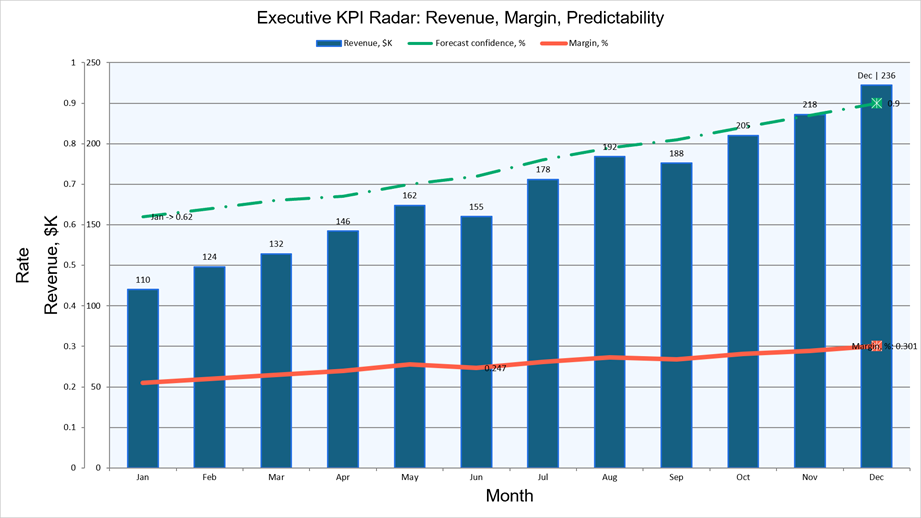
Example - Combine Bars and Line in a Single Chart
using DevExpress.Docs.Presentation;
using DevExpress.Docs.Office;
using System.IO;

using Presentation presentation = new Presentation();
presentation.Slides.Clear();

Slide slide = new Slide(SlideLayoutType.Blank);
presentation.Slides.Add(slide);

Chart chart = new Chart(x: 50, y: 50, width: 2100, height: 1260);

BarSeries revenueSeries = new BarSeries
{
    Arguments = new ChartStringData(new[] { "Jan", "Feb", "Mar", "Apr" }),
    Values = new ChartNumericData(new double[] { 400, 520, 480, 610 }),
    AxisGroup = ChartAxisGroupType.Primary
};
chart.Series.Add(revenueSeries);
(chart.Views[0] as BarChartView).BarGrouping = BarChartGrouping.Stacked;

LineSeries targetSeries = new LineSeries
{
    Arguments = new ChartStringData(new[] { "Jan", "Feb", "Mar", "Apr" }),
    Values = new ChartNumericData(new double[] { 450, 450, 500, 600 }),
    AxisGroup = ChartAxisGroupType.Primary
};
chart.Series.Add(targetSeries);

chart.Title = new ChartTitle("Revenue vs. Target");
chart.Legend = new Legend() { Position = LegendPositionType.Bottom };

slide.Shapes.Add(chart);

presentation.SaveDocument(new FileStream("output.pptx", FileMode.Create), DocumentFormat.Pptx);
Example - Create a Waterfall Chart (ChartEx)
using DevExpress.Docs.Presentation;
using DevExpress.Docs.Office;
using System.IO;

using Presentation presentation = new Presentation();
presentation.Slides.Clear();

Slide slide = new Slide(SlideLayoutType.Blank);
presentation.Slides.Add(slide);

ChartEx chart = new ChartEx(x: 50, y: 50, width: 2720, height: 1680)
{
    Style = ChartExStyle.Style2,
    ColorPalette = ChartColorPalette.Colorful3
};

WaterfallSeries series = new WaterfallSeries
{
    Arguments = new ChartStringData(
        new[] { "Start", "Revenue", "COGS", "OpEx", "Tax", "Net Profit" }),
    Values = new ChartNumericData(
        new double[] { 0, 500, -200, -120, -40, 0 })
};
chart.Series.Add(series);

chart.Title = new ChartTitleEx("Profit Waterfall - FY 2025");
chart.Legend = new LegendEx() { Position = LegendPositionType.Right };

slide.Shapes.Add(chart);

presentation.SaveDocument(new FileStream("output.pptx", FileMode.Create), DocumentFormat.Pptx);
Export Slides to Images
The DevExpress PowerPoint Presentation API allows you to export an entire presentation or a subset of slides directly to DXImage objects. Save these objects in raster or vector image formats (PNG, BMP, JPEG, EMF, SVG, and more) and generate presentation previews/thumbnails with full visual fidelity (preserving backgrounds, themes, layouts, and shape types).
Use the Presentation.ExportToImages method to export all/specific slides to a collection of DXImage objects. The ImageExportOptions class allows you to set up output resolution and choose between raster and vector rendering modes.
using DevExpress.Docs.Presentation;
using DevExpress.Drawing;
using System.IO;

using var presentation = new Presentation(File.ReadAllBytes("Presentation.pptx"));

DXImage[] images = presentation.ExportToImages();

for (int i = 0; i < images.Length; i++)
    images[i].Save($"Slide_{i + 1}.png", DXImageFormat.Png);
Encrypt and Protect Presentations (v26.1.4+)
The DevExpress PowerPoint Presentation API now offers the following security-related options:
- Password-based encryption for presentations
- Ability to specify load settings for encrypted files
- Ability to apply write protection using hashed credentials
- Ability to remove encryption/protection settings
Resize Slides and Adjust Content (v26.1.4+)
You can use the Presentation.ResizeSlides method to resize all slides within a presentation. This method realigns slide content and scales shapes/fonts across the presentation (including text used within regular shapes, tables, and chart elements). It allows you to specify target slide size and apply the desired resize mode (Stretch, EnsureFill, EnsureFit, or Center).
Use this method to prepare presentations for a specific display format or before merging presentations with different slide sizes.
Online Demo: Merge Presentations
Excel Spreadsheet API
New Excel Functions
The DevExpress Spreadsheet Document API v26.1 supports 6 new dynamic array-based Excel functions:
- XLOOKUP
- XMATCH
- SORT
- SORTBY
- FILTER
- UNIQUE
These functions simplify common data analysis tasks, reduce the need for complex formulas, and align calculation behaviors more closely with Microsoft Excel. To insert and evaluate new functions, assign a formula to the CellRange.DynamicArrayFormula property and call the Workbook.Evaluate(String) method.
using DevExpress.Spreadsheet;

// Use XLOOKUP to find product "P1003" by ID and return associated row data
using var workbook = new Workbook();
Worksheet worksheet = workbook.Worksheets[0];
worksheet.Import(new object[,]
{
    {"Product ID", "Product Name", "Category", "Price" },
    {"P1001", "Wireless Mouse", "Accessories", 25.99 },
    {"P1002", "USB-C Hub", "Accessories", 45.00 },
    {"P1003", "27'' Monitor", "Displays", 299.99 },
}, 0, 0);

worksheet["A7"].Value = "Product P1003";
worksheet["A8"].DynamicArrayFormula = @"XLOOKUP(""P1003"", A2:A5, A2:D5)";

workbook.Calculate();
workbook.SaveDocument(new FileStream("result.xlsx", FileMode.Create), DocumentFormat.Xlsx);