DevExpress PDF Document API - Form Fields
- 20 minutes to read
A PDF document can contain interactive forms (AcroForms) with fillable fields such as text boxes, list boxes, checkboxes, and so on.
DevExpress PDF Document API allows you to create, populate, flatten, and delete fillable PDF forms. You can import or export AcroForm data to various formats.

The DevExpress PDF Document API library allow you to work with the following form field types:
Data Field Basics
A form field is a non-visual element that stores the field’s name, value, and other settings. A form field can be bound to one or more widgets (annotations) that display the field on a PDF page.
Use the PdfDocument.Fields collection to access all fields in a PDF document. Iterate through the Fields collection to get field values or find a specific field by name. You can also add or remove fields from this collection.
To make a field read-only, set the field’s ReadOnly property to true.
Coordinate System and Units
When adding content to a PDF page, specify location and size. The table below describes the coordinate system and units used by the DevExpress PDF Document API library:
| Parameter | Value |
|---|---|
| Coordinate System Type | Page |
| Coordinate System Origin | Bottom-left corner of the page |
| Units | Points (1 inch = 72 points) |
| Rotation Angle | Degrees (positive values indicate clockwise rotation) |
Create a Form
Add a Text Field
Add a TextBoxField to a PDF document’s PdfDocument.Fields collection. Specify the field name in the field’s constructor.
Optionally, set the field’s Value property to specify the default value of the text field.
Bind the field to a text widget. Create a TextBoxWidgetAnnotation object. Pass the field in the widget’s constructor.
Add the widget to a page’s Annotations collection.
The following code snippet adds a text field to a PDF document and binds it to a text widget:

using DevExpress.Docs.Pdf;
using DevExpress.Drawing.Printing;
using System.Drawing;

namespace ConsoleApp1;

public class Program {
    public static async Task Main(string[] _) {
        using (PdfDocument pdfDocument = new()) {
            // Add an A4 page to the document.
            Page page = pdfDocument.Pages.Add(DXPaperKind.A4);

            TextFont textFont = new("SegoeUI", TextFontStyle.Regular);

            float y = 750;
            float step = 30;
            float textHeight = 14f;

            // Create a label for the text field.
            TextFragment loginLabel = new() {
                Text = "Login:",
                Location = new PointF(50, y - textHeight / 2),
                Font = textFont
            };
            page.Fragments.Add(loginLabel);

            // Create a text field and add it to the field collection.
            TextBoxField loginField = new("Login");
            pdfDocument.Fields.Add(loginField);

            // Bind the text field to a widget and place it on the page.
            RectangleF loginBounds = new(120, y - textHeight + 4, 220, textHeight);
            TextBoxWidgetAnnotation loginWidget = new(loginField, loginBounds);
            loginWidget.FontSize = 14;
            page.Annotations.Add(loginWidget);
            y -= step;

        }
    }
}
Add a Checkbox Field
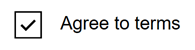
Add a CheckBoxField to a PDF document’s PdfDocument.Fields collection. Specify the field name in the field’s constructor.
Bind the field to a checkbox widget. Create a CheckBoxWidgetAnnotation object. Pass the field in the widget’s constructor.
Add the widget to a page’s Annotations collection.
The following code snippet adds a checkbox field to a PDF document and binds it to a checkbox widget:
using DevExpress.Docs.Pdf;
using DevExpress.Drawing.Printing;
using System.Drawing;

namespace ConsoleApp1;

public class Program {
    public static async Task Main(string[] _) {
        using (PdfDocument pdfDocument = new()) {
            // Add an A4 page to the document.
            Page page = pdfDocument.Pages.Add(DXPaperKind.A4);

            float y = 750;
            float step = 30;
            float textHeight = 14f;

            // Create a checkbox field and add it to the field collection.
            CheckBoxField agreeField = new("AgreeToTerms");
            pdfDocument.Fields.Add(agreeField);

            // Bind the checkbox field to a widget and place it on the page.
            RectangleF agreeBounds = new(50, y - textHeight + 6, 18, 18);
            CheckBoxWidgetAnnotation agreeWidget = new(agreeField, agreeBounds);
            page.Annotations.Add(agreeWidget);
            y -= step;

            // Add a label for the checkbox field.
            TextFragment labelAgreeField = new() { Text = "Agree to terms", Location = new PointF(agreeBounds.X + 30, agreeBounds.Y + 6) };
            page.Fragments.Add(labelAgreeField);
        }
    }
}
Add a Radio Button Group
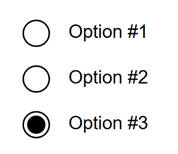
Add a RadioGroupField to a PDF document’s PdfDocument.Fields collection. Specify the field name in the field’s constructor.
Bind the field to a radio group widget. Create a RadioGroupItemWidgetAnnotation object and pass the field in the widget’s constructor.
Add the widget to a page’s Annotations collection.
The following code snippet adds a radio button group with three options to a PDF document:
using DevExpress.Docs.Pdf;
using DevExpress.Drawing.Printing;
using System.Drawing;

namespace ConsoleApp1;

public class Program {
    public static async Task Main(string[] _) {
        using (PdfDocument pdfDocument = new()) {
            // Add an A4 page to the document.
            Page page = pdfDocument.Pages.Add(DXPaperKind.A4);

            float y = 750;
            float step = 30;
            float textHeight = 14f;

            // Create a radio group field and add it to the field collection.
            RadioGroupField radioGroupField = new("radioGroup");
            pdfDocument.Fields.Add(radioGroupField);

            // Add the first radio button widget and its label.
            RectangleF radioBounds1 = new(50, y - textHeight + 6, 18, 18);
            RadioGroupItemWidgetAnnotation radioGroupItem1 = new(radioGroupField, "Option1", radioBounds1);
            y -= step;
            page.Annotations.Add(radioGroupItem1);

            TextFragment label1 = new() { Text = "Option #1", Location = new PointF(radioBounds1.X + 30, radioBounds1.Y + 6) };
            page.Fragments.Add(label1);

            // Add the second radio button widget and its label.
            RectangleF radioBounds2 = new(50, y - textHeight + 6, 18, 18);
            RadioGroupItemWidgetAnnotation radioGroupItem2 = new(radioGroupField, "Option2", radioBounds2);
            page.Annotations.Add(radioGroupItem2);
            y -= step;

            TextFragment label2 = new() { Text = "Option #2", Location = new PointF(radioBounds2.X + 30, radioBounds2.Y + 6) };
            page.Fragments.Add(label2);


            // Add the third radio button widget and its label.
            RectangleF radioBounds3 = new(50, y - textHeight + 6, 18, 18);
            RadioGroupItemWidgetAnnotation radioGroupItem3 = new(radioGroupField, "Option3", radioBounds3);
            page.Annotations.Add(radioGroupItem3);
            y -= step;

            // Set the default selected value.
            radioGroupField.Value = "Option3";

            TextFragment label3 = new() { Text = "Option #3", Location = new PointF(radioBounds3.X + 30, radioBounds3.Y + 6) };
            page.Fragments.Add(label3);

            // Save the document to a file.
            FileStream outputStream = new FileStream(@"D:\doc.pdf", FileMode.Create);
            pdfDocument.Save(outputStream);
            outputStream.Dispose();
        }
    }
}
Add a List Box Field
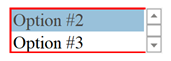
Add a ListBoxField to a PDF document’s PdfDocument.Fields collection. Specify the field name in the field’s constructor.
Call the Add method to add items to the list box field’s Items collection.
Bind the field to a list box widget. Create a ListBoxWidgetAnnotation object. Pass the field in the widget’s constructor.
Add the widget to a page’s Annotations collection.
The following code snippet adds a list box field with three options to a PDF document and binds it to a list box widget:
using DevExpress.Docs.Pdf;
using DevExpress.Drawing.Printing;
using System.Drawing;

namespace ConsoleApp1;

public class Program {
    public static async Task Main(string[] _) {
        using (PdfDocument pdfDocument = new()) {
            // Add an A4 page to the document.
            Page page = pdfDocument.Pages.Add(DXPaperKind.A4);

            // Create a list box field.
            ListBoxField listBoxField = new("listBox");

            // Add items to the list box field.
            listBoxField.Items.Add(new ChoiceFieldItem("Option #1"));
            listBoxField.Items.Add(new ChoiceFieldItem("Option #2"));
            listBoxField.Items.Add(new ChoiceFieldItem("Option #3"));

            // Add the list box field to the field collection.
            pdfDocument.Fields.Add(listBoxField);

            // Bind the list box field to a widget and set widget colors.
            ListBoxWidgetAnnotation listBoxWidget = new(listBoxField, bounds: new RectangleF(20, 620, 100, 30));
            listBoxWidget.BackgroundColor = PdfColor.White;
            listBoxWidget.OutlineColor = PdfColor.Red;

            page.Annotations.Add(listBoxWidget);
        }
    }
}
Use the ListBoxField.SelectedValues property to get the selected values. Call the ListBoxField.SelectValue method to select a value in the list box field. Call the ListBoxField.SetSelected method to set the selection state of an item.
Add a Combo Box Field
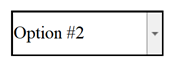
Add a ComboBoxField to a PDF document’s PdfDocument.Fields collection. Specify the field name in the field’s constructor.
Call the Add method to add items to the combo box field’s Items collection.
Bind the field to a combo box widget. Create a ComboBoxWidgetAnnotation object. Pass the field in the widget’s constructor.
Add the widget to a page’s Annotations collection.
The following code snippet adds a combo box field with three options to a PDF document and binds it to a combo box widget:
using DevExpress.Docs.Pdf;
using DevExpress.Drawing.Printing;
using System.Drawing;

namespace ConsoleApp1;

public class Program {
    public static async Task Main(string[] _) {
        using (PdfDocument pdfDocument = new()) {
            // Add an A4 page to the document.
            Page page = pdfDocument.Pages.Add(DXPaperKind.A4);

            // Create a combo box field.
            ComboBoxField comboBoxField = new("comboBox");

            // Add items to the combo box field.
            comboBoxField.Items.Add(new ChoiceFieldItem("Option #1"));
            comboBoxField.Items.Add(new ChoiceFieldItem("Option #2"));
            comboBoxField.Items.Add(new ChoiceFieldItem("Option #3"));

            // Add the combo box field to the field collection.
            pdfDocument.Fields.Add(comboBoxField);

            // Set the default selected value.
            comboBoxField.Value = "Option #2";

            // Bind the combo box field to a widget and place it on the page.
            ComboBoxWidgetAnnotation comboBoxWidget = new(comboBoxField, bounds: new RectangleF(20, 700, 100, 30));
            page.Annotations.Add(comboBoxWidget);
        }
    }
}
Add a Signature Field
Add a SignatureField to a PDF document’s PdfDocument.Fields collection. Specify the field name in the field’s constructor.
Bind the field to a signature widget. Create a SignatureWidgetAnnotation object. Pass the field in the widget’s constructor.
Add the widget to a page’s Annotations collection.
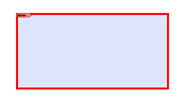
The following code snippet adds a signature field to a PDF document and binds it to a signature widget:
using DevExpress.Docs.Pdf;
using DevExpress.Drawing.Printing;
using System.Drawing;

namespace ConsoleApp1;

public class Program {
    public static async Task Main(string[] _) {
        using (PdfDocument pdfDocument = new()) {
            // Add an A4 page to the document.
            Page page = pdfDocument.Pages.Add(DXPaperKind.A4);

            // Create a signature field and add it to the field collection.
            SignatureField signatureField = new("signature");
            signatureField.ShowDate = true;
            pdfDocument.Fields.Add(signatureField);

            // Bind the signature field to a widget and set widget colors.
            SignatureWidgetAnnotation signatureWidget = new SignatureWidgetAnnotation(signatureField, bounds: new RectangleF(20, 400, 100, 50));
            signatureWidget.OutlineColor = PdfColor.Red;

            page.Annotations.Add(signatureWidget);
        }
    }
}
Use the SignatureField.Text property to get or set the text hint displayed in the signature field.
The following SignatureField properties allow you to receive information about the signature:
Use the following properties to specify whether the signature field displays the corresponding information:
Fill and Read Form Data
Fill an Individual Form Field
Use Find methods (see the Search for Form Fields section) to find a specific form field and set its value.
using DevExpress.Docs.Pdf;
    FormField field1 = pdfDocument.Fields.FindByName("FirstName");
    ((TextBoxField)field1).Value = "Alice";
Import and Export Form Field Data
You can import and export AcroForm data to the following formats: FDF, XFDF, XML, and TXT.
Call the ImportFormData method to import form field data from a file. Pass the file stream and the data format as method parameters:
using DevExpress.Docs.Pdf;
using DevExpress.Drawing.Printing;

namespace ConsoleApp1;

public class Program {
    public static async Task Main(string[] _) {
        using (PdfDocument pdfDocument = new(new FileStream(@"..\..\..\EmptyForm.pdf", FileMode.Open, FileAccess.Read))) {

            pdfDocument.ImportFormData(new FileStream(@"..\..\..\InteractiveForm.xml", FileMode.Open, FileAccess.Read), ExportDataFormat.Xml);

            FileStream outputStream = new FileStream(@"D:\doc.pdf", FileMode.Create);
            pdfDocument.Save(outputStream);
            outputStream.Dispose();
        }
    }
}
Call the ExportFormData method to export form field data to a file. Pass the file stream and the data format as method parameters:
using DevExpress.Docs.Pdf;

pdfDocument.ExportFormData(new FileStream(@"..\..\..\ExportedFormData.xml", FileMode.OpenOrCreate), ExportDataFormat.Xml);
Format New Values in Text and Combo Box Fields
Use the following properties to format new values in text and combo box fields:
To specify the format, call one of the following methods in the FormFieldValueFormat class and assign the returned object to the field’s ValueFormat property:
The following code snippet specifies the date format for text field values that a user sets in the date picker:
using DevExpress.Docs.Pdf;

dateField.ValueFormat = FormFieldValueFormat.CreateDateTimeFormat("mmmm/dd/yyyy")
You can also specify the JavaScript code to format new values in text and combo box fields. Use the following properties to specify the JavaScript code:
- FormatScript
- Specifies a script that is executed before the field is formatted.
- KeystrokeScript
- Specifies a script that is executed when the user modifies a character in a form field.
- ValidateScript
- Specifies a script that is executed to recalculate the value of this field when that of another field changes.
- CalculateScript
- Specifies a script that is executed when the field’s value is changed.
Note
The scripts are in effect for PDF viewers that support JavaScript.
The following code snippet executes a script that allows you to enter only numbers in the “x-x-x” format:

using DevExpress.Docs.Pdf;

TextBoxField textField = new("TextField");
pdfDocument.Fields.Add(textField);

textField.ValueFormat = new FormFieldValueFormat {
    FormatScript = "if (event.value != \"\") {" +
                   "var value = event.value;    " +
                   "event.value = \"\";    " +
                   "for(var i = 0; i<value.length - 1; i++)" +
                   "   event.value += value.charAt(i) + \"-\";" +
                   "event.value += value.charAt(value.length - 1);}",
    KeystrokeScript = "var re = /^[0-9]+$/;" +
                      "if (event.value != \"\") {" +
                      "   event.rc = re.test(event.value);" +
                      "}"
};
Flatten the Collection of Form Fields
Call the ToFlatEnumerable method to flatten the form field collection and return all form fields in a single enumerable sequence.
Group Form Fields
You can group form fields in a PDF document. Groups organize fields logically. They are not visualized in the document.
To group form fields, create a GroupField object and add the fields to its Kids collection.
using DevExpress.Docs.Pdf;
using DevExpress.Drawing.Printing;

using System.Drawing;

namespace ConsoleApp1;

public class Program {
    public static async Task Main(string[] _) {
        using (PdfDocument pdfDocument = new()) {
            // Add an A4 page to the document.
            Page page = pdfDocument.Pages.Add(DXPaperKind.A4);

            // Create a font for field labels.
            TextFont textFont = new("Arial", TextFontStyle.Regular);

            float y = 750;
            float step = 30;
            float textHeight = 20f;

            // Create a label for the first name field.
            TextFragment firstNLabel = new() {
                Text = "First name:",
                Location = new PointF(50, y - textHeight / 2),
                Font = textFont
            };
            page.Fragments.Add(firstNLabel);

            // Create the first name field and bind it to a text widget.
            TextBoxField firstNField = new("FirstName");
            RectangleF firstNBounds = new(120, y - textHeight + 4, 220, textHeight);
            TextBoxWidgetAnnotation firstNWidget = new(firstNField, firstNBounds);
            firstNWidget.FontSize = 12;
            page.Annotations.Add(firstNWidget);
            y -= step;

            // Create a label for the last name field.
            TextFragment lastNLabel = new() {
                Text = "Last name:",
                Location = new PointF(50, y - textHeight / 2),
                Font = textFont
            };
            page.Fragments.Add(lastNLabel);

            // Create the last name field and bind it to a text widget.
            TextBoxField lastNField = new("LastName");
            RectangleF lastNBounds = new(120, y - textHeight + 4, 220, textHeight);
            TextBoxWidgetAnnotation lastNWidget = new(lastNField, lastNBounds);
            lastNWidget.FontSize = 12;
            page.Annotations.Add(lastNWidget);
            y -= step;

            // Create a group field and add both text fields to the group.
            GroupField groupField = new GroupField("Group");
            groupField.Kids.Add(firstNField);
            groupField.Kids.Add(lastNField);
            pdfDocument.Fields.Add(groupField);
        }
    }
}
You can call the FormFieldCollection.FindParent method to search for the parent group to which a field belongs.
Search for Form Fields
Use the following methods to search for form fields in a PDF document:
using DevExpress.Docs.Pdf;

    FormField field = pdfDocument.Fields.Find(field => field.Name.StartsWith("First"));
    List<FormField> fields = pdfDocument.Fields.FindAll(field => field.Name.Contains("Name"));
    FormField field1 = pdfDocument.Fields.FindByName("Login");
Remove Form Fields
Call the following methods to remove form fields from a PDF document:
- Remove - Removes a form field from the collection.
- RemoveAt - Removes a form field at the specified index from the collection.
The following code snippet removes a form field with a name that starts with “First” and removes the field at index 2 from the Fields collection.
using DevExpress.Docs.Pdf;

using (PdfDocument pdfDocument =
    new PdfDocument(File.OpenRead(@"Document.pdf")))
{
    // Find the field with a name that starts with "First" and remove it.
    FormField field = pdfDocument.Fields.Find(field => field.Name.StartsWith("First"));
    pdfDocument.Fields.Remove(field);

    // Remove the field at index 2.
    pdfDocument.Fields.RemoveAt(2);

    // Save the updated document.
    pdfDocument.Save(File.OpenWrite(@"DocumentWithWatermark.pdf"));
}