Add DevExpress Components to an Existing App
- 3 minutes to read
The DevExpress Template Kit is the fastest way to create new Blazor apps with DevExpress UI. However, the Template Kit cannot integrate DevExpress components into an existing Blazor project. This help topic explains how to install packages, register services and static resources, and add a DevExpress Blazor component to your existing app.
Create a Blank Blazor App
Note
This tutorial uses the default Visual Studio Code Blazor Web App template as the starting project. If you already have a Blazor project, skip to the next section.
- Open Visual Studio Code and switch to the Explorer view.
- Click the Create .NET Project button.
- Select the Blazor Web App template.
- Select a project location and click the Select Folder button.
- Specify the solution name and press Enter.
- Select the solution file format.
- Click Create project and wait for the project to open in Visual Studio Code.
Add the DevExpress Blazor Package
- Open the VS Code’s integrated terminal.
- Use the
cdcommand in the terminal to navigate to your project’s directory. Execute the following command to add the DevExpress.Blazor package.
dotnet add package DevExpress.Blazor
Register DevExpress Blazor Resources
Register internal DevExpress Blazor services in the Program.cs file.
using MyBlazorApp.Components;
using DevExpress.Blazor;

var builder = WebApplication.CreateBuilder(args);
builder.Services.AddRazorComponents()
    .AddInteractiveServerComponents();
builder.Services.AddDevExpressBlazor();
var app = builder.Build();
/* ... */
app.Run();
Register the
DevExpress.Blazornamespace in the Components\_Imports.razor file:@using System.Net.Http @using System.Net.Http.Json @using Microsoft.AspNetCore.Components.Forms @using Microsoft.AspNetCore.Components.Routing @using Microsoft.AspNetCore.Components.Web @using static Microsoft.AspNetCore.Components.Web.RenderMode @using Microsoft.AspNetCore.Components.Web.Virtualization @using Microsoft.JSInterop @using MyBlazorApp @using MyBlazorApp.Components @using DevExpress.BlazorApply the application-wide DevExpress Blazor theme and add client scripts in the Components\App.razor file.
<!DOCTYPE html>
<html lang="en">
<head>
    <meta charset="utf-8" />
    <meta name="viewport" content="width=device-width, initial-scale=1.0" />
    <base href="/" />
    @DxResourceManager.RegisterTheme(Themes.Fluent)
    @DxResourceManager.RegisterScripts()
    <link rel="stylesheet" href="@Assets["lib/bootstrap/dist/css/bootstrap.min.css"]" />
    <link rel="stylesheet" href="@Assets["app.css"]" />
    <link rel="stylesheet" href="@Assets["MyBlazorApp.styles.css"]" />
    <ImportMap />
    <link rel="icon" type="image/png" href="favicon.png" />
    <HeadOutlet />
</head>
<body>
    <Routes />
    <script src="_framework/blazor.web.js"></script>
</body>
</html>
Note
In a Blazor WebAssembly app, register the DevExpress Blazor theme in the
HeadContentblock ofApp.razor:<HeadContent> @DxResourceManager.RegisterTheme(Themes.Fluent) </HeadContent>
Add a DevExpress Blazor Component to the App
To get familiar with the project structure, add a simple DevExpress Blazor component (Calendar) to the application’s home page to see how it works:
- Open the Components\Pages\Home.razor file.
Most DevExpress Blazor components do not support static render mode. Enable interactivity with the following directive:
@rendermode InteractiveServerTip
In a Blazor Web App that uses client-side interactivity, use the following directive instead:
@rendermode InteractiveWebAssemblyIn a standalone Blazor WebAssembly App, omit the
@rendermodedirective because components are interactive by default.Add the DxCalendar component to the page. Bind the component to the
SelectedDatevariable to test interactivity.<DxCalendar @bind-SelectedDate="@SelectedDate" /> <p><b>Selected date:</b> @SelectedDate.ToLongDateString()</p> @code { DateTime SelectedDate { get; set; } = DateTime.Now; }Press F5 to run your application.
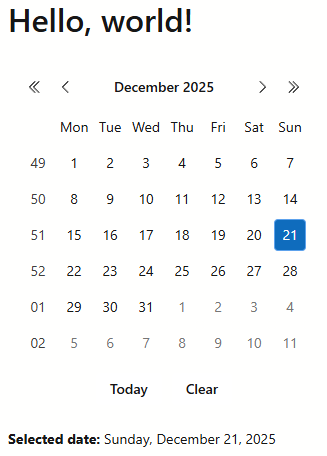
Full code:
@page "/"
@rendermode InteractiveServer
<PageTitle>Home</PageTitle>
<h1>Hello, world!</h1>
<DxCalendar @bind-SelectedDate="@SelectedDate" />

<p><b>Selected date:</b> @SelectedDate.ToLongDateString()</p>

@code {
    DateTime SelectedDate { get; set; } = DateTime.Now;
}