Install UI Components & Templates in VS Code
Install DevExpress Blazor components and templates to create and run Blazor projects in Visual Studio Code.
Install DevExpress Blazor Components
- Install the required DevExpress Blazor packages from the NuGet Library.
- Ensure that a valid license key is registered. If you build a project that includes unlicensed DevExpress products, the build process displays a warning or throws an error.
Refer to the following help topic to learn how to install, update, and remove NuGet packages in Visual Studio Code: NuGet in Visual Studio Code.
Install the DevExpress Template Kit
The DevExpress Template Kit allows you to create DevExpress Blazor projects in Visual Studio Code. It adds project templates with preconfigured DevExpress package references so you can start development immediately.
The Template Kit extension for Visual Studio Code works under both Microsoft Windows and macOS.
To install the extension:
- In Visual Studio Code, open the Extensions view.
Search for “DevExpress Template Kit for VS Code”.
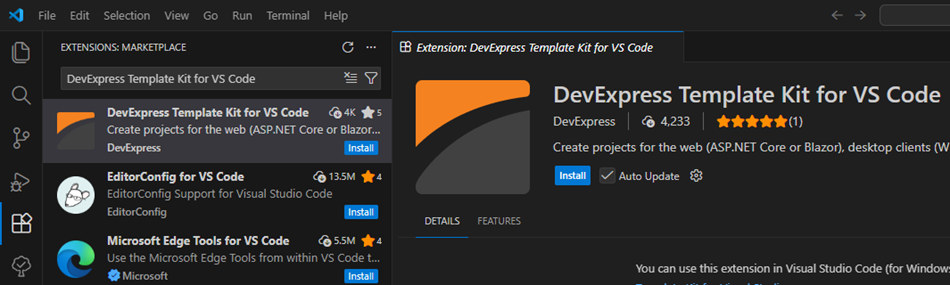
Click the Install button.
Allow Code Execution
To enable build and debug in Visual Studio Code, install the C# Dev Kit for Visual Studio Code extension:
- In Visual Studio Code, open the Extensions view.
- Search for “C# Dev Kit” from the publisher Microsoft.
- Click the Install button.