What's Installed
- 2 minutes to read
The Unified Installer registers DevExpress Controls and Libraries into Visual Studio, and installs DevExpress utility tools, demo applications, and IDE add-ons.
DevExpress Controls in Visual Studio Toolbox
The installer automatically registers DevExpress WinForms UI Controls in the Visual Studio Toolbox. These controls have category names that start with “DX + version number”.

DevExpress Menu in Visual Studio
The Unified Installer adds the DevExpress Visual Studio menu. With it, you can invoke DevExpress wizards, run utility tools, access technical support, licensing/registration info, and learning materials.

Read the following topic for detailed information: Menu Entries.
Demo Applications
You can run DevExpress WinForms Demos from the Windows Start menu or DevExpress menu in Visual Studio.
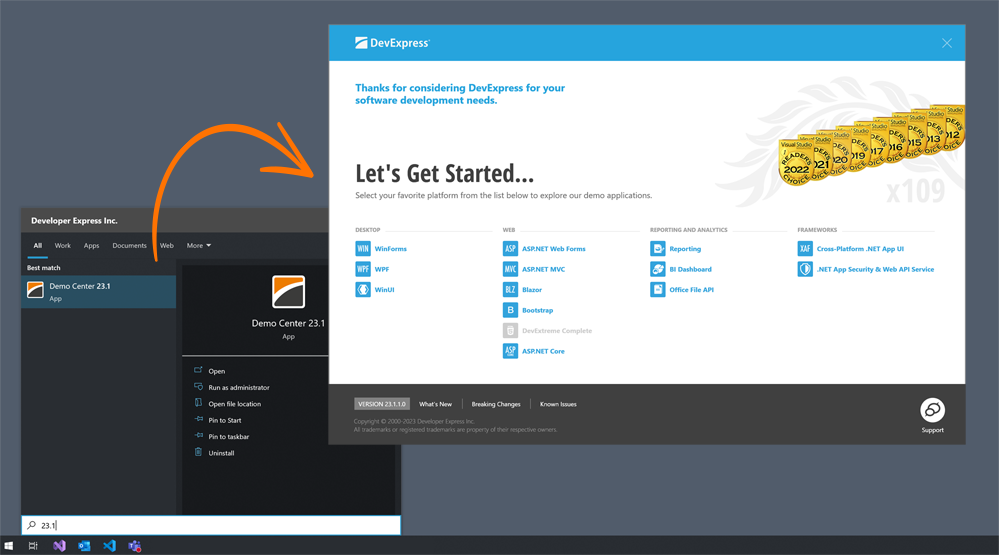
Read the following topic for detailed information: DevExpress WinForms Demo Apps.
Template Gallery
When starting a new project or adding a new item, use the DevExpress Template Galleries, which are automatically integrated into the corresponding Visual Studio dialog windows.

Read the following topic for detailed information: Template Gallery.
Tip
You can also use the Template Kit for WinForms to quickly create projects that target .NET 8+. New project templates support hybrid app development and cover a broader range of usage scenarios when compared to the Template Gallery for .NET Framework.
Project Settings
This page allows you to instantly apply project-wide settings (for example, specify the default control font or apply a DevExpress skin).

Read the following topic for detailed information: Project Settings Page.
Instant Layout Assistant
Starting with an empty form or user control, the Instant Layout Assistant extension will help you create a layout, populate sections with controls, and enable DevExpress technologies such as animated transitions.
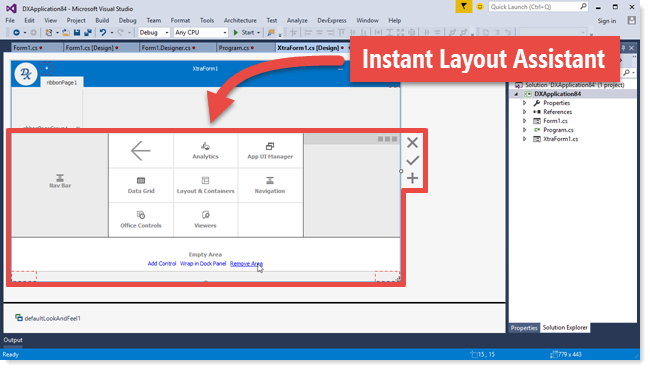
Read the following topic for detailed information: Layout Assistant Extension.
DevExpress Icon Library
The DevExpress WinForms Subscription includes an extensive Icon Library, which is available within Visual Studio when you specify property values that require glyphs.

Read the following topic for detailed information: Image Gallery and Context-Dependent Images.
Getting Help on API
You can get help on a specific DevExpress WinForms control/component or any of its properties by pressing the F1 shortcut in the Visual Studio Designer or when writing code.
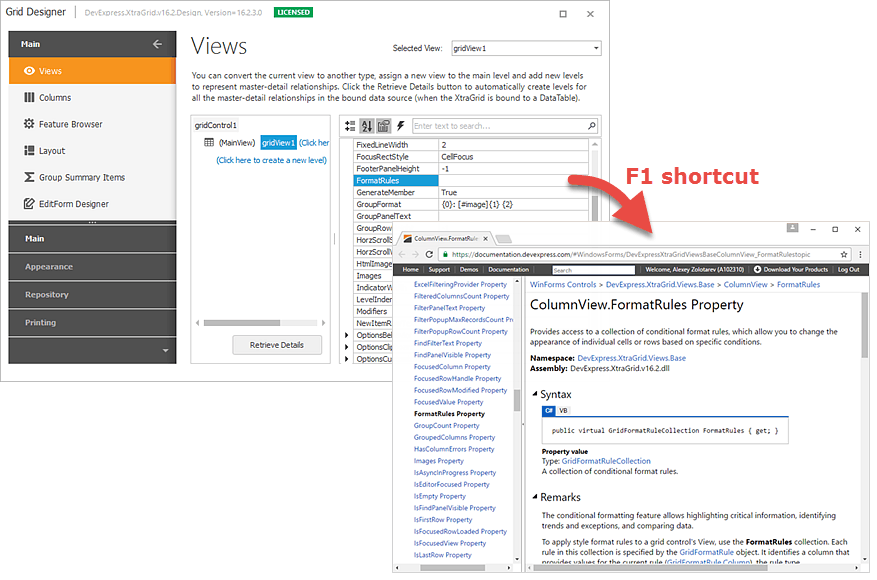
Read the following topic for detailed information: Getting Help on API.