Manage Markup Annotations with New DevExpress PDF Document API
- 8 minutes to read
Markup annotations in PDF files allow users to add comments, highlights, and other visual elements to a document. The PDF Document API supports the following markup annotation types: text, drawing, stamp, and redaction.
The DevExpress PDF Document API allows you to create and delete annotations, edit their content, and add related comments and reviews. Use Page.Annotations to access all annotations on a page, and PdfDocument.Pages to obtain the corresponding Page instance.
This topic describes markup annotations. Refer to the following help topics for information about other annotation types:
- Annotations in PDF Documents - lists all annotation types and their common features.
- Redaction Annotations - describes redaction annotations.
- Link Annotations - describes link annotations.
Create Text Markup Annotations
Text markup annotations include the following types:
The following code snippet creates two annotations - a text highlight and a free text annotation:
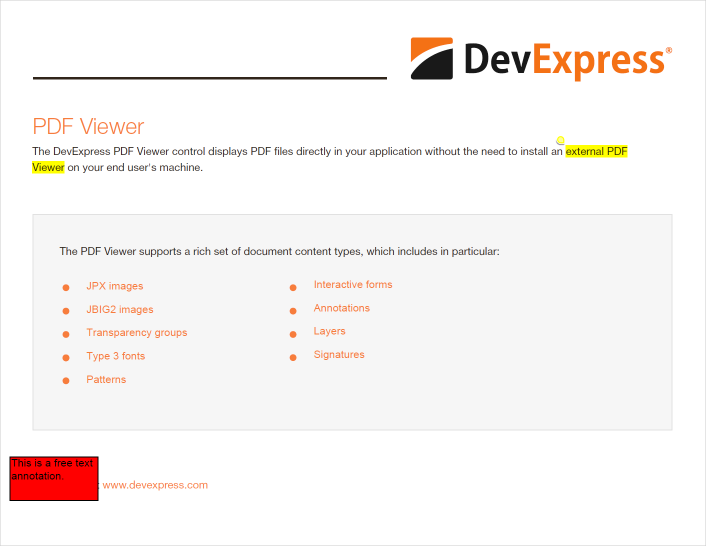
FileStream fs = File.OpenRead("Demo.pdf");
var options = new LoadOptions();
PdfDocument document = new PdfDocument(fs, options);

List<TextSearchInfo> results = document.FindText("external PDF Viewer").ToList();

foreach (var match in results.SelectMany(x => x.Matches)) {
    var rects = match.MatchFragments
        .Select(x => x.Rectangle)
        .ToList();

    TextMarkupAnnotation textMarkupAnnotationCommon = new(rects) {
        Color = PdfColor.Yellow,
        Title = "Brian Zetc",
        Content = "This is a highlight annotation.",
        Type = TextMarkupAnnotationType.Highlight
    };

    document.Pages[match.PageIndex].Annotations.Add(textMarkupAnnotationCommon);

    document.Pages[match.PageIndex].Annotations.Add(new FreeTextAnnotation(new RectangleF(10, 50, 100, 50)) {
        Color = PdfColor.Red,
        Title = "Brian Zetc",
        Content = "This is a free text annotation."
    });
}
document.Save(new FileStream("Demo2.pdf", FileMode.Create, FileAccess.Write));
Create Drawing Annotations
The following drawing annotation types are available:
The following code snippet creates two annotations - circle and ink:
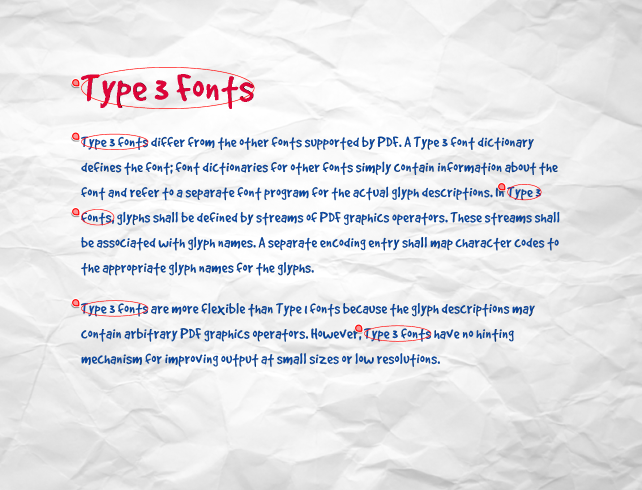
FileStream fs = File.OpenRead("Demo.pdf");
var options = new LoadOptions();
PdfDocument document = new PdfDocument(fs, options);

List<TextSearchInfo> results = document.FindText("Type 3 Fonts").ToList();

foreach (var match in results.SelectMany(x => x.Matches)) {
    var rects = match.MatchFragments
        .Select(x => x.Rectangle)
        .ToList();
    foreach (var rect in rects) {
        CircleAnnotation circleAnnotation = new CircleAnnotation(rect.BoundingBox)
        {
            Color = PdfColor.Red,
            Title = "Brian Zetc",
            Content = "This is a circle annotation."
        };
        document.Pages[match.PageIndex].Annotations.Add(circleAnnotation);
    }

}
document.Save(new FileStream("Demo2.pdf", FileMode.Create, FileAccess.Write));
Create Rubber Stamp Annotations
RubberStampAnnotation usually indicates document progress or review status, such as “Approved,” “Draft”, “Confidential”, or “Rejected”. The DevExpress PDF Document API supports three stamp annotation types: static, dynamic, and custom.
Create Simple Rubber Stamp Annotations
Pass one of the RubberStampAnnotationIconName class fields to the RubberStampAnnotation.IconName property to define a built-in static icon for rubber stamp.
The following code snippet creates a Top Secret rubber stamp:
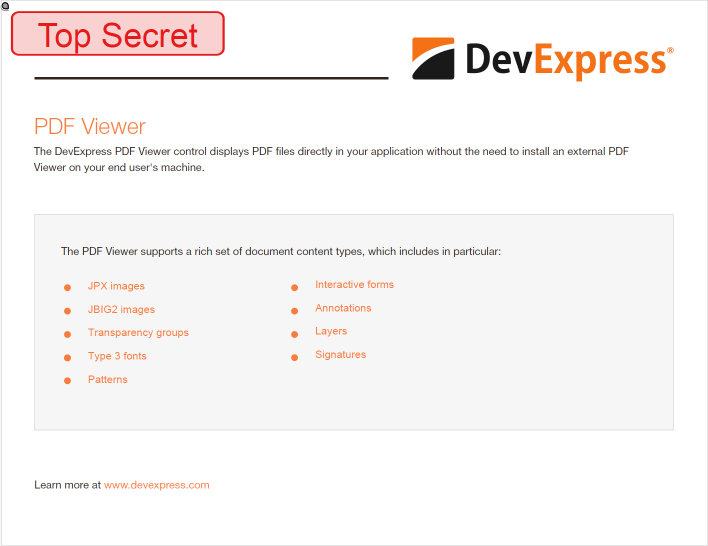
FileStream fs = File.OpenRead("Demo.pdf");
var options = new LoadOptions();
PdfDocument document = new PdfDocument(fs, options);

RubberStampAnnotation rubberStampAnnotation = new RubberStampAnnotation(new RectangleF(10, 550, 240, 50), RubberStampAnnotationIconName.TopSecret) {
    Title = "Jesse Faden",
    CreationDate = DateTime.Now,
    Subject = "Approval",
    Content = "This document has been approved."
};
document.Pages[0].Annotations.Add(rubberStampAnnotation);

document.Save(new FileStream("Demo2.pdf", FileMode.Create, FileAccess.Write));
Create Dynamic Rubber Stamp Annotations
To create a dynamic rubber stamp, set RubberStampAnnotation.IconName to one of the following values:
| Icon Name | Rubber Stamp |
|---|---|
| DReviewed |  |
| DRevised |  |
| DApproved |  |
| DConfidential |  |
| DReceived |  |
Use the Title and CreationDate properties to display additional information.
The following code snippet creates a Reviewed dynamic stamp:
FileStream fs = File.OpenRead("Demo.pdf");
var options = new LoadOptions();
PdfDocument document = new PdfDocument(fs, options);

RubberStampAnnotation rubberStampAnnotation = new RubberStampAnnotation(new RectangleF(10, 550, 240, 50), RubberStampAnnotationIconName.DReviewed)
{
    Title = "Jesse Faden",
    CreationDate = DateTime.Now,
    Subject = "Approval",
    Content = "This document is reviewed."
};
document.Pages[0].Annotations.Add(rubberStampAnnotation);

document.Save(new FileStream("Demo2.pdf", FileMode.Create, FileAccess.Write));
Create an Annotation with a Custom Stamp
You can generate a stamp that displays another document’s page. Pass the a file and a page number as the RubberStampAnnotation.SetCustomIcon method parameters to create a custom stamp.
The following code snippet generates a custom stamp from another document:
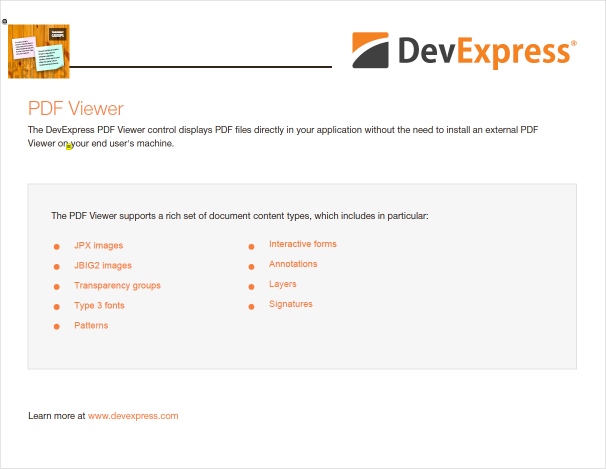
using System;
using System.Drawing;
using System.IO;
using DevExpress.Docs.Pdf;

using FileStream inputStream = File.OpenRead("Document.pdf");
using FileStream stampStream = File.OpenRead("Stamp.pdf");
using PdfDocument document = new PdfDocument(inputStream);

RubberStampAnnotation rubberStampAnnotation = new RubberStampAnnotation(new RectangleF(10, 550, 240, 50), RubberStampAnnotationIconName.Approved) {
    Title = "Jesse Faden",
    CreationDate = DateTime.Now,
    Subject = "Approval"
};
rubberStampAnnotation.SetCustomIcon(stampStream, 3);
document.Pages[0].Annotations.Add(rubberStampAnnotation);

Directory.CreateDirectory("output");
using FileStream outputStream = File.Create(Path.Combine("output", "Document.pdf"));
document.Save(outputStream);
Add Comments
Call the AddReply(Page, String, String) method to add a comment to a markup annotation.
The following code snippet adds a nested comment to a TextAnnotation:
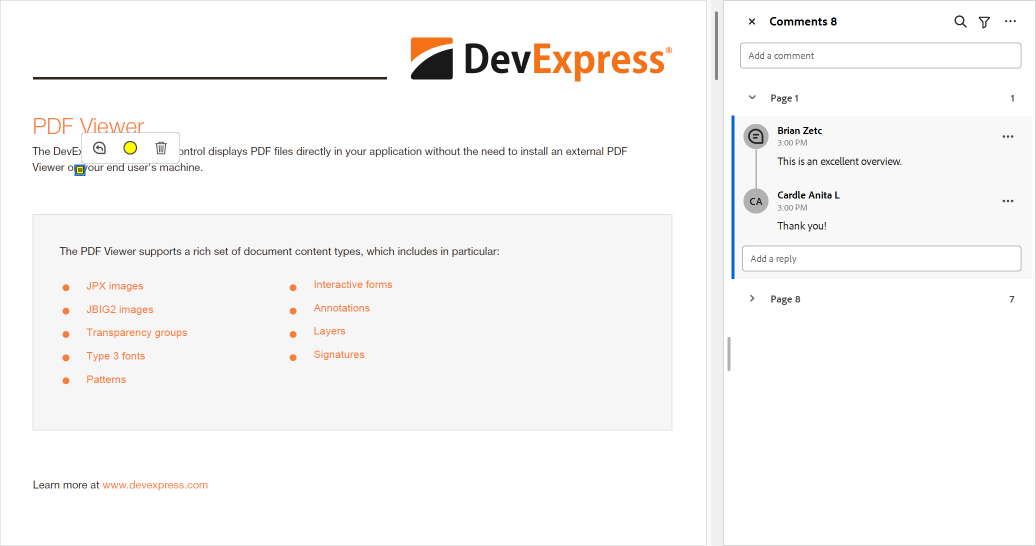
static void Main(string[] args) {
    FileStream fs = File.OpenRead("Invoice.pdf");
    var options = new LoadOptions();
    PdfDocument document = new PdfDocument(fs, options);

    List<TextAnnotation> textAnnotations = FindTextAnnotations(document, "Brian Zetc");
    TextAnnotation comment = textAnnotations[0];
    comment.AddReply(document.Pages[0], "Cardle Anita L", "Thank you!");

    document.Save(new FileStream("Invoice2.pdf", FileMode.Create, FileAccess.Write));
}

static List<TextAnnotation> FindTextAnnotations(PdfDocument document, string searchText) {
    var result = new List<TextAnnotation>();
    foreach (var page in document.Pages) {
        foreach (var annotation in page.Annotations) {
            if (annotation is TextAnnotation textAnnotation) {
                bool matchByTitle =
                    !string.IsNullOrEmpty(textAnnotation.Title) &&
                    textAnnotation.Title.IndexOf(searchText, StringComparison.OrdinalIgnoreCase) >= 0;

                bool matchByContent =
                    !string.IsNullOrEmpty(textAnnotation.Content) &&
                    textAnnotation.Content.IndexOf(searchText, StringComparison.OrdinalIgnoreCase) >= 0;

                if (matchByTitle || matchByContent)
                    result.Add(textAnnotation);
            }
        }
    }
    return result;
}
Add Reviews
Call the MarkupAnnotation.AddReview method to add a review to a markup annotation. The MarkupAnnotation.GetReviewHistory method returns all annotation reviews.
To remove all reviews, call the MarkupAnnotation.ClearReviews method.
The following code snippet adds reviews to annotations made by a specific author:
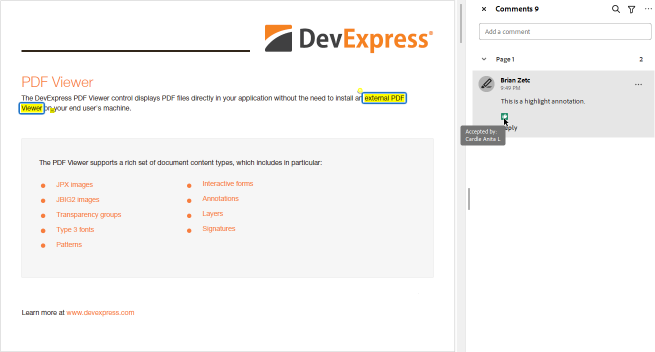
FileStream fs = File.OpenRead("Demo.pdf");
var options = new LoadOptions();
PdfDocument document = new PdfDocument(fs, options);

 var annotationsToReply = document.Pages[0].Annotations
      .OfType<TextMarkupAnnotation>()
      .Where(a => a.Content == "This is a highlight annotation.")
      .ToList();

 foreach (var annotation in annotationsToReply) {
     annotation.AddReview(document.Pages[0], "Cardle Anita L", ReviewStatus.Accepted);
 }

document.Save(new FileStream("Demo2.pdf", FileMode.Create, FileAccess.Write));