Get Started with Blazor PDF Viewer
- 3 minutes to read
This topic describes how to create a new project or configure an existing project to use a DevExpress Blazor PDF Viewer component.
Create a New Project (DevExpress Template Kit)
Follow this tutorial to create a Blazor application using the DevExpress Template Kit. To add a PDF Viewer to the application, choose the corresponding option in the Kit.
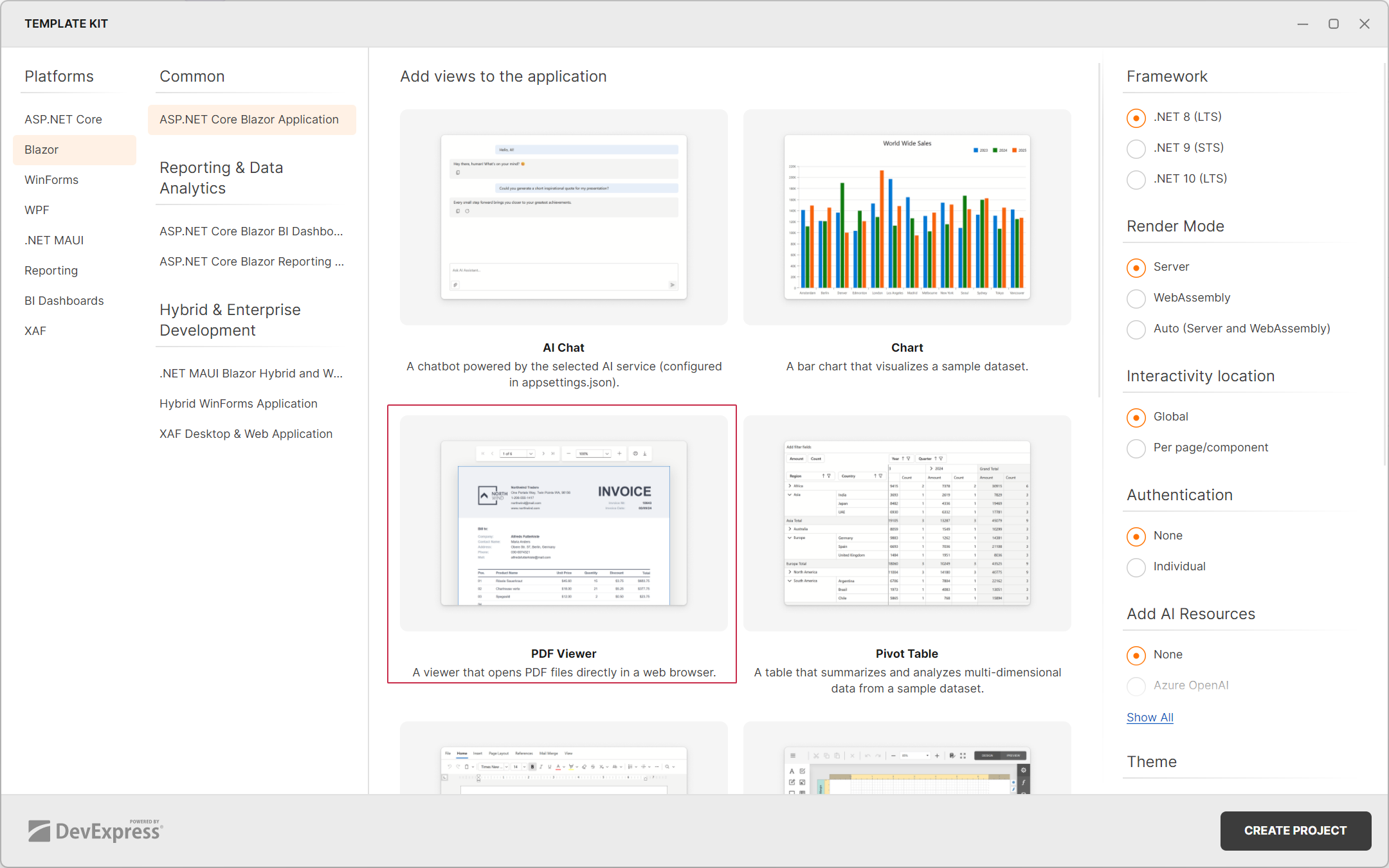
Configure an Existing Project
Follow the steps below to incorporate a PDF Viewer into an existing Blazor app.
Register Common DevExpress Resources
Create an application as described in the following topic: Get Started With DevExpress Components for Blazor.
Register PDF Viewer Resources
Install the
DevExpress.Blazor.PdfViewerNuGet package.Register the DevExpress.Blazor.PdfViewer namespace in the _Imports.razor file:
@using DevExpress.Blazor.PdfViewerRegister the DevExpress.Blazor.Reporting.Models namespace to access and modify toolbar settings.
Register the PDF Viewer-related services in the Program.cs file:
var builder = WebApplication.CreateBuilder(args); // ... builder.Services.AddDevExpressServerSideBlazorPdfViewer(); // ... var app = builder.Build();For Blazor Web applications that include server and client projects, register component resources in both Program.cs files.
Note that PdfViewer styles are added automatically once you apply a theme.
WebAssembly Specifics
To use the DevExpress Blazor PDF Viewer in WebAssembly and .NET MAUI Blazor Hybrid applications, complete the following steps:
- Set the PdfPrintingOptions.RenderingEngine property to Skia.
- Install WebAssembly Build Tools workloads for each .NET SDK that you plan to target.
- Install the following NuGet packages:
Non-Windows Environment Specifics
For non-Windows environments (Linux, macOS, and Azure/AWS cloud platforms), install the DevExpress.Pdf.SkiaRenderer NuGet package. For additional information, refer to Use Reporting on Linux and macOS.
On Linux, you must also install the following font libraries:
sudo apt-get install -y libc6 libicu-dev libfontconfig1
For applications on Windows Azure, set the PdfPrintingOptions.RenderingEngine property to Skia (see XRPdfContent Control Specifics).
Add a PDF Viewer Component
Follow the steps below to add a PDF Viewer Component:
- Add the following markup to a
.razorfile:<DxPdfViewer>…</DxPdfViewer>. - Enable interactive render mode. Refer to Static Render Mode Specifics.
- Specify a document to open.
- Configure the component as your needs dictate. For additional information, refer to the DxPdfViewer class description.
<DxPdfViewer DocumentContent="DocumentContent"
             ZoomLevel="1" />

@code {
    byte[]? DocumentContent { get; set; }

    protected override async Task OnInitializedAsync() {
        await base.OnInitializedAsync();

        await using Stream stream =
            System.Reflection.Assembly.GetExecutingAssembly()
            .GetManifestResourceStream("PDFViewerServer.Documents.Invoice.pdf")
            ?? throw new InvalidOperationException("Resource not found.");
        using MemoryStream ms = new();
        await stream.CopyToAsync(ms);
        DocumentContent = ms.ToArray();
    }
}
