v26.1 Release Notes
- 9 minutes to read
Tip
Visit our website to explore new features/capabilities available across the entire DevExpress product line: What’s New in Our Latest Update.
Accessibility
PDF/UA-2 Format Support
Our PDF export engine now supports the PDF/UA-2 format (for enhanced accessibility compliance). You can specify PDF/UA-2 conformance for exported documents to meet the latest accessibility standards. Set the PdfExportOptions.PdfUACompatibility property to PdfUA2 to specify PDF/UA-2 conformance for exported documents.
PDF/UA Export Enhancements
We improved PDF/UA export for report controls and screen reader interpretation. You can now define semantic roles for XRPageInfo, XRRichText, and XRPanel elements and supply accessible descriptions for digital signatures.
Set PdfExportOptions.PdfUACompatibility to PdfUA1 or PdfUA2 to apply roles and descriptions.
XRPageInfo
Use the AccessibleRole property to define how screen readers interpret XRPageInfo content.
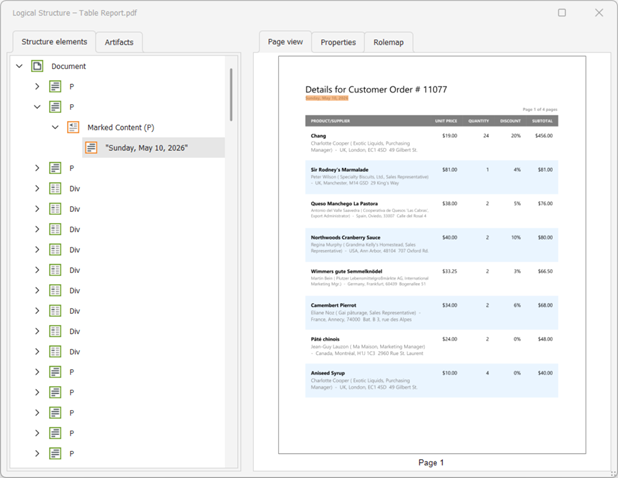
By default, XRPageInfo is exported as an artifact. If the content is meaningful (for example, a date or page number), set AccessibleRole to Paragraph to include it in the document structure.
XRPanel
You can reduce unnecessary noise in the accessibility tree with the AccessibleRole property.
If the panel is used only for layout or visual grouping, set AccessibleRole to Decorative. In this instance, the panel is exported as an artifact and ignored by screen readers.
If the panel conveys meaningful content, retain the default role so it is included in the document structure.
This approach helps assistive technologies focus on meaningful content.
XRRichText
XRRichText content can now be exported as accessible (tagged) PDFs. The export process preserves semantic structure and reading order and improves compatibility with screen readers.
Our export engine maps content to semantic roles:
- Headings →
H1,H2,H3 - Paragraphs →
P - Lists →
L,LI,LBody - Images →
Figure - Tables →
Table,TR,TH,TD
Content is added to the logical structure in the same order as it appears in the document.
Digital Signature — Accessible Description
You can specify accessible descriptions for the XRPdfSignature control when it is used as a digital signature or as a placeholder.
- Document Signature
If SignatureOptions.DisplayDocumentSignature is enabled, use
PdfSignatureOptions.AccessibleDescription.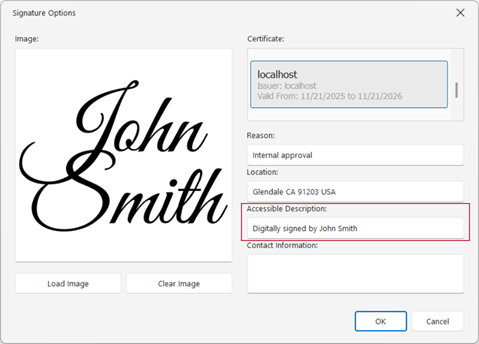
- Signature Placeholder
If SignatureOptions.DisplayDocumentSignature is disabled, use
XRControl.AccessibleDescription.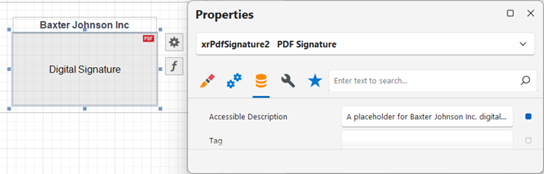
The following image displays results:
- The first
XRPdfSignatureusesPdfSignatureOptions.AccessibleDescription. - The second uses
XRControl.AccessibleDescription.
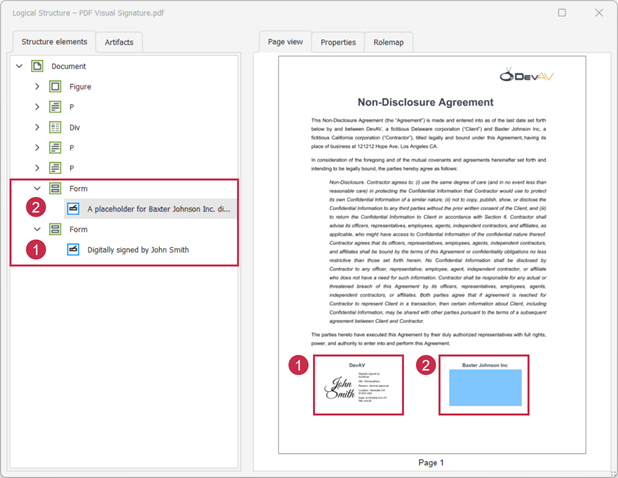
If AccessibleDescription is not specified, default text is used (“Digital signature” / “Digital signature placeholder”) in accessible PDFs. No description is added during standard PDF export.
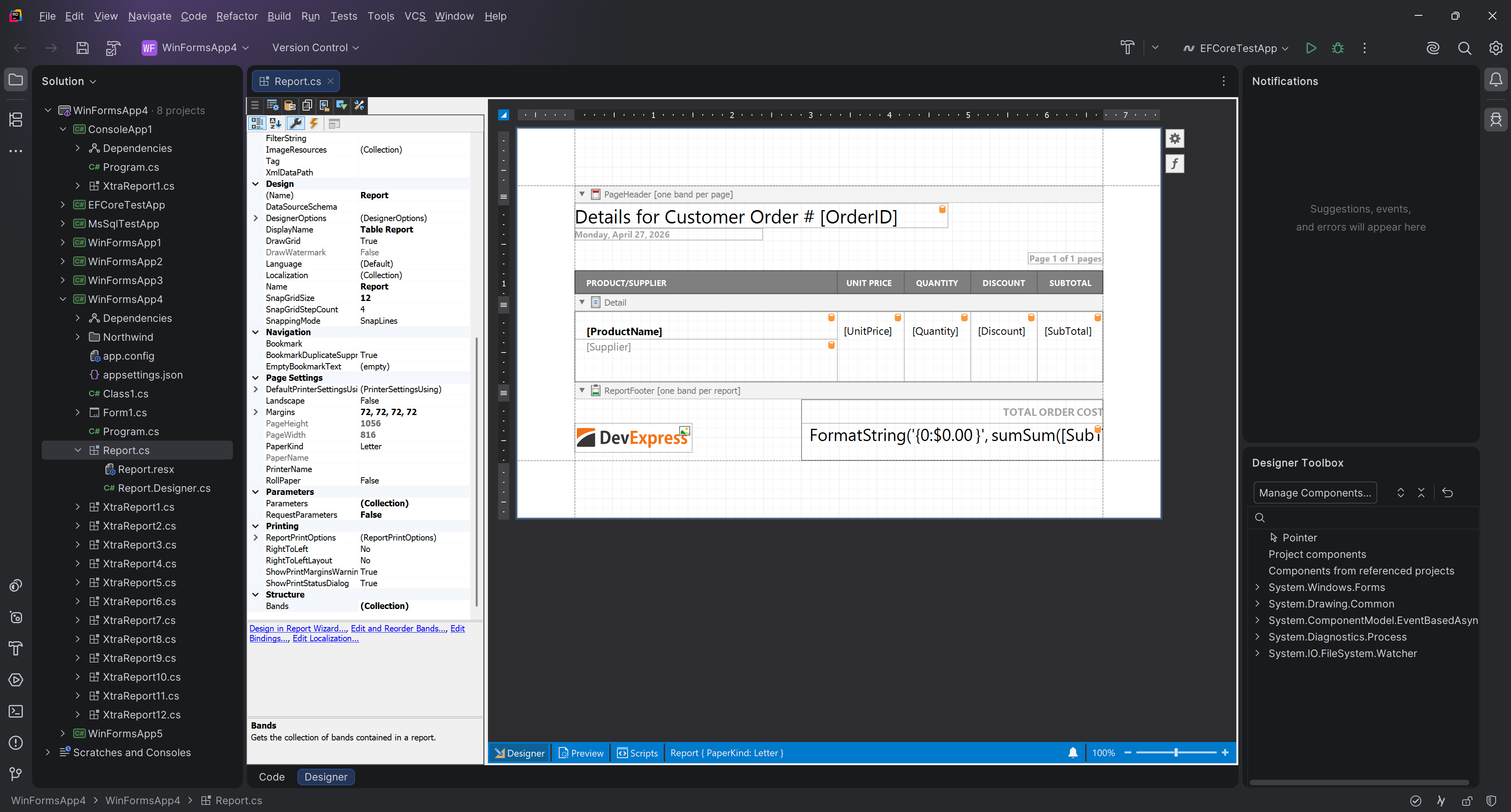
DevExpress Report Designer for JetBrains Rider — .NET Projects Support
In v25.2, we introduced the DevExpress Report Designer for JetBrains Rider with .NET Framework support. With v26.1, we extended this integration to .NET-based projects and added property reset in the Properties panel, along with light/dark theme support to match the JetBrains Rider IDE.
AI-powered Extensions
Report Designer for WPF — Create Expressions with Natural Language
The WPF Report Designer allows users to generate AI-powered Criteria Language expressions within both the DevExpress Expression Editor and Filter String Editor. Users can describe the desired logic in plain text instead of writing complex expressions.

AI Prompt-to-Report Wizard — Optimized Report Generation
We implemented a multi-agent system for the AI Report Wizard (introduced in v25.1) to optimize report generation. This architecture improves result quality, consistency, and predictability, reduces token usage, and scales better for high-volume scenarios.
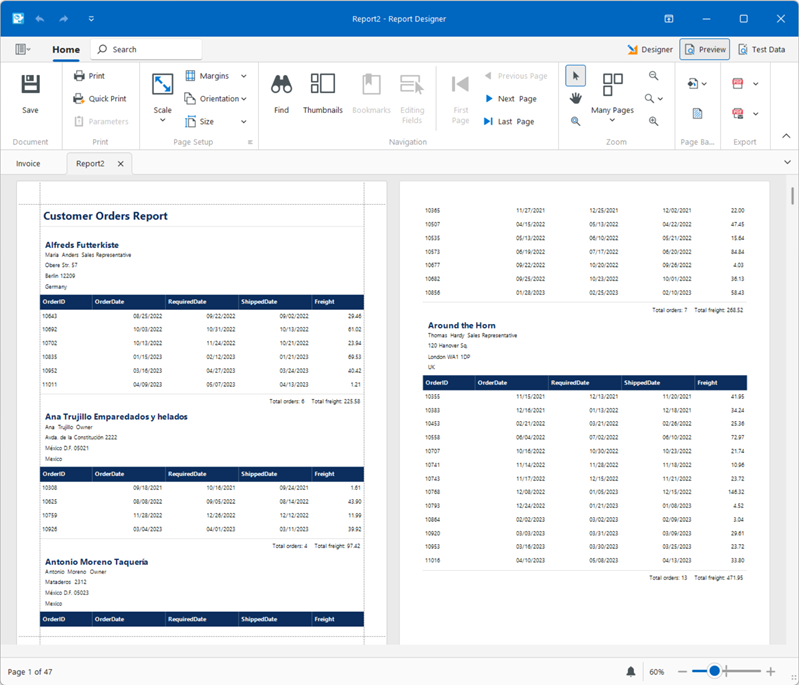
The Report Wizard can generate complete reports from natural language prompts without detailed descriptions of report structure, controls, bindings, or calculations.
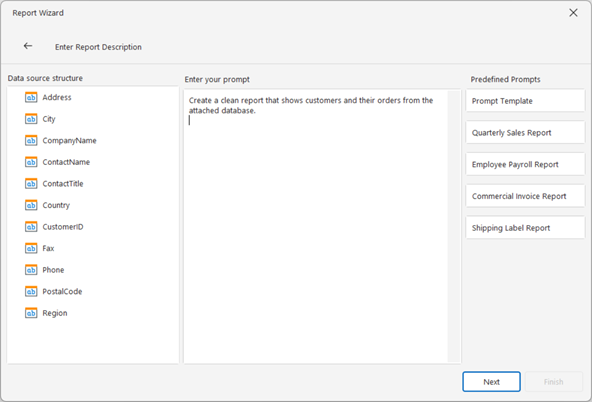
The prompt may now look as follows:
Create a clean report that shows customers and their orders from the attached database.
If input is incomplete or ambiguous, the system may request additional information about the report structure, such as:
- “What should the report title be?”
- “Would you like to introduce customer address details in the report: yes/no?”
- “Please specify the page size and orientation for this report. For example, A4, portrait, letter landscape, or custom dimensions.”
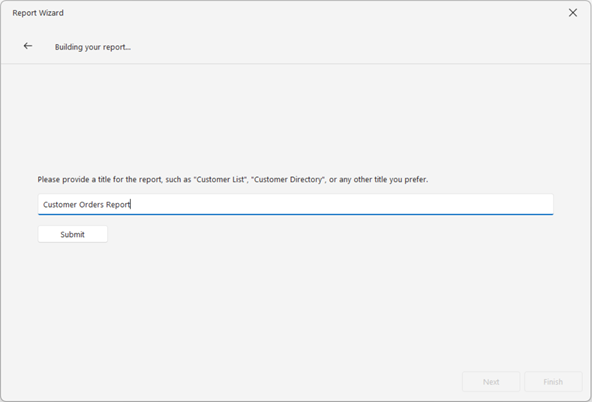
Generation resumes automatically after the user supplies an answer.
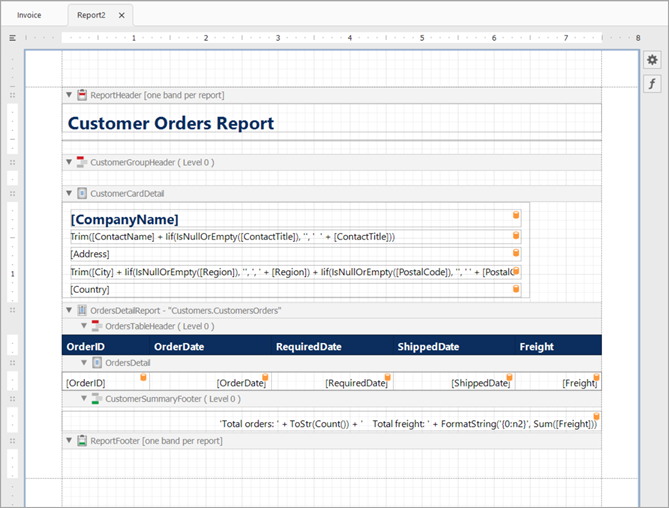
The following image illustrates the resulting report layout:
The following image displays the generated report preview:
Documentation: WinForms | WPF | ASP.NET Core & Blazor | Visual Studio
AI Prompt-to-Report Cross-Platform API
Our new APIs allow you to incorporate AI-powered report generation engine to agentic workflows. Use it across desktop, web, and service applications and integrate with any AI provider via IChatClient.
- PromptToReportRequest
- Describes a “prompt-to-report” operation (user prompt, optional data-source schema, and an optional existing report to update). You can also attach a host to enable interactive generation.
- IAIReportGenerationHost
- Defines methods that allow a report generation workflow to request prompt clarifications and publish progress updates.
- PromptClarificationQuestion
- Stores a clarification question that the AI workflow asks before it continues report generation.
- PromptClarificationAnswer
- Stores the result of a prompt clarification request.
To implement report generation in your application:
Create an
IChatClientfor your AI provider.Create an AI extensions container and register reporting capabilities.
Implement and supply a host for interactive workflows. Create a class that implements IAIReportGenerationHost to handle clarification questions and to surface progress/notifications.
Generate the report from a prompt. Create a PromptToReportRequest with the user prompt and assign the host, then call AIReportingIntegration.GeneratePromptToReportAsync to get an XtraReport.
This example integrates multi-agent report generation to a .NET 8 console application using Azure OpenAI.
Prerequisites
- .NET 8 SDK
- Azure OpenAI
- The
DevExpress.AIIntegration.Reporting.CommonNuGet package
The following code initializes an AI client, creates a report request, and generates a report based on a user prompt:
using Azure.AI.OpenAI;
using DevExpress.AIIntegration.Reporting;
using DevExpress.XtraReports.UI;
using Microsoft.Extensions.AI;
using System.ClientModel;

// Retrieve the Azure OpenAI endpoint, key, and model from user environment variables.
string endpoint = Environment.GetEnvironmentVariable("AZURE_OPENAI_ENDPOINT", EnvironmentVariableTarget.User)
    ?? throw new InvalidOperationException("AZURE_OPENAI_ENDPOINT is not set.");
string apiKey = Environment.GetEnvironmentVariable("AZURE_OPENAI_API_KEY", EnvironmentVariableTarget.User)
    ?? throw new InvalidOperationException("AZURE_OPENAI_API_KEY is not set.");
string deploymentName = Environment.GetEnvironmentVariable("AZURE_OPENAI_DEPLOYMENT", EnvironmentVariableTarget.User)
    ?? "gpt-5-mini";
// Create an Azure OpenAI client for working with the chat agent.
IChatClient chatClient = new AzureOpenAIClient(new Uri(endpoint), new ApiKeyCredential(apiKey))
    .GetChatClient(deploymentName)
    .AsIChatClient();
// Create an AI extension container and enable reporting extensions.
AIExtensionsContainerDefault container = AIExtensionsContainerConsole.CreateDefaultAIExtensionContainer(chatClient);
container.RegisterReportingExtensions();
// Ask the user for a report description in natural language.
Console.WriteLine("Input a prompt for report generation:");
string prompt = Console.ReadLine();
try {
    // Enable interactive clarification questions and progress notifications.
    ConsoleAIReportGenerationHost host = new ConsoleAIReportGenerationHost();

    // Build a generation request from the user prompt.
    PromptToReportRequest generationRequest = new PromptToReportRequest(userPrompt: prompt, dataSourceSchema: null, report: null) {
        ReportGenerationHost = host
    };

    // Generate a report layout and save it to a REPX file.
    XtraReport report = await container.GeneratePromptToReportAsync(generationRequest, default);
    report.SaveLayoutToXml("generatedReport.repx");
}
catch(Exception ex) {
    Console.WriteLine(ex.Message);
}
// Keep the console window open.
Console.ReadLine();
The host implementation receives generation progress and handles clarification questions:
using DevExpress.AIIntegration.Reporting;

namespace Reporting.Generation.Console {
    public class ConsoleAIReportGenerationHost : IAIReportGenerationHost {
        private string lastStatus = string.Empty;

        public Task<PromptClarificationAnswer> ClarifyPromptAsync(PromptClarificationQuestion request) {
            // Render the request in your UI (request.Text and request.Choices),
            // then return PromptClarificationAnswer.FromValue(selectedChoice).

            // Return PromptClarificationAnswer.Canceled()
            // if the user cancels the operation.
        }

        public void NotifyAsync(string status, string reasoning) {
            bool isNewStatus = lastStatus != status;
            lastStatus = status;

            // Surface progress to users (console, logger, status bar, web socket, etc.).
            // Update the status when isNewStatus is true;
            // otherwise refresh the reasoning only.
        }
    }
}
AI-assisted Development
Custom GitHub Copilot Agent — DevExpress Report Designer
We created an *.agent.md file that gives GitHub Copilot in Visual Studio and JetBrains Rider DevExpress Reports-specific context. The file includes API patterns, expression syntax rules, common report design examples, troubleshooting guidance, and best practices. Developers who use GitHub Copilot in Visual Studio can get more accurate, context-aware answers when they work with DevExpress Reports.
AI Agent Skills for DevExpress Reports
DevExpress AI Agent Skills equip AI coding assistants with accurate, built-in knowledge of DevExpress Reports features up to v26.1. Instead of relying on general training data that produces incorrect APIs or outdated patterns, your assistant receives authoritative, scenario-focused guidance for reporting stack areas you use most.
- Runtime Report Generation — Covers cross-platform DevExpress Reports runtime APIs for report generation in code. Includes band and control configuration, Criteria Language expressions, data-binding patterns,
SqlDataSourceandObjectDataSourcesetup, and export workflows. - Visual Studio and JetBrains Rider Report Designer — Covers
*.Designer.csauthoring and the fullInitializeComponentserialization contract required by the DevExpress Report Designer, so your AI coding assistant generates code that the Visual Studio and JetBrains Rider Report Designers can open. Covers band hierarchy, tabular layout withXRTable,ExpressionBindingdata binding, styles, master-detail relationships, range parameters, and error troubleshooting. - ASP.NET Core Integration — Covers the complete lifecycle when embedding the DevExpress Report Viewer and Report Designer into an ASP.NET Core-powered application. Addresses service registration, middleware configuration, report storage and resolution, export/print flows, and customization hooks.
- Blazor Integration — Covers native Blazor and JS-based Report Viewer/Designer component setup, backend service wiring, report resolution strategies, and component customization. Handles specifics associated with the Blazor hosting model, so your assistant generates integration code that works correctly across Server, WebAssembly, and hybrid configurations.
All skills follow the Agent Skills standard and work with Claude Code, GitHub Copilot (Visual Studio, VS Code, JetBrains Rider), and Cursor.
Install skills from our DevExpress Agent Skills GitHub repository.
Reporting for Web
Supported Frameworks
Added support for jQuery 4 and Angular 22.
Blazor Report Viewer
Automatic Style Registration
With v26.1, you no longer need to register the DxReportViewer stylesheet in the Components/App.razor file – the DxResourceManager.RegisterTheme method adds styles for Report Viewer automatically.
The following v25.2 code snippet…
<head>
    @DxResourceManager.RegisterTheme(Themes.Fluent)
    <link href=@AppendVersion("_content/DevExpress.Blazor.Reporting.Viewer/css/dx-blazor-reporting-components.fluent.css") rel="stylesheet" />
    @* ... *@
</head>
… can now be replaced with a method call only:
<head>
    @DxResourceManager.RegisterTheme(Themes.Fluent)
    @* ... *@
</head>
This change also allows you to switch themes at runtime using the theme change service (IThemeChangeService).
Performance
WinForms End-User Report Designer — Startup Optimization
We optimized the DevExpress WinForms End-User Report Designer’s startup sequence to deliver a responsive launch experience. Dock panels and UI elements appear quicker and smoother on initial load, and transitions between Design and Preview tabs produce seamless panel rendering.