Add a Table of Contents (TOC)
- 2 minutes to read
This tutorial adds a table of contents (TOC) to a report. You start with a master-detail report, specify bookmarks for report controls, add an XRTableOfContents control to the form, specify its title, and apply custom formatting to TOC entries at different nesting levels.
Overview
A table of contents displays page numbers for bookmarked report elements.
The following image displays a table of contents in a report designer and in a published document:
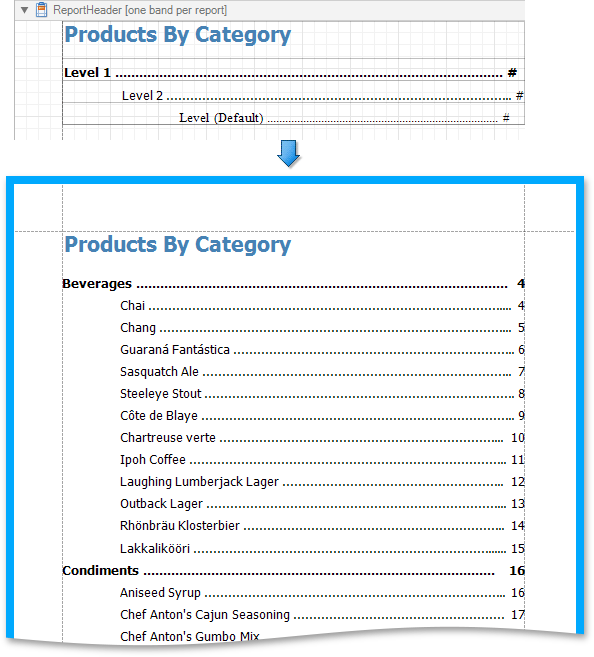
A table of contents contains the following elements:
- Title
- The XRTableOfContentsTitle class defines the TOC title text and formatting. Use the XRTableOfContents.LevelTitle property to access the TOC title.
- Levels
You can define one or more levels. The XRTableOfContentsLevel class specifies formatting for nodes in the document map tree.
To access the collection of levels, use the XRTableOfContents.Levels property.
The table of contents initially includes one default level. It applies common settings to document map elements without a specific level assignment.
Tip
Accessibility
Exporting a report to a tagged PDF (PDF/UA-compliant) automatically converts the table of contents into <TOCI> tags. Screen readers and accessibility tools use these tags to interpret the document structure.
Create a Table of Contents at Design Time
Create a master-detail report with the following layout:

- Assign bookmarks to report elements to include them in the table of contents.
Select the XRTableOfContents control in the Toolbox and drop it onto the report surface. The Table of Contents control appears on the Report Header band. DevExpress creates this band automatically if it does not exist.

Customize the TOC’s title. Use the XRTableOfContents.LevelTitle property.

If report bookmarks have a hierarchy (XRControl.BookmarkParent), the TOC automatically displays nesting levels. Use the XRTableOfContents.Levels property to customize levels.
Open the smart tag menu and click the ellipsis button.

In the collection editor, click Add to add a new level and customize its settings.

Use the XRTableOfContents.MaxNestingLevel property to limit the number of levels.
The XRTableOfContents.LevelDefault property specifies formatting for levels that do not have custom settings:

The following image shows the result in Print Preview:
