Add DevExpress Documentation MCP Server
- 2 minutes to read
The DevExpress Documentation MCP Server connects Visual Studio GitHub Copilot to our latest help topics and allows Visual Studio GitHub Copilot to access API reference, best practices, troubleshooting, and code snippets.
Add MCP Server: Use DevExpress Template Kit
To configure the DevExpress Documentation MCP Server at the solution level:
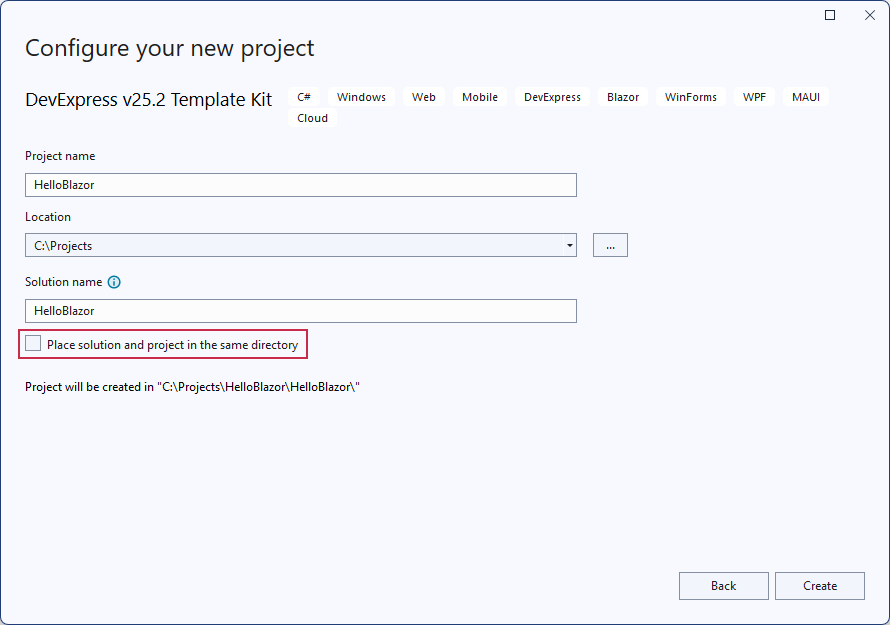
- Create a Blazor App with DevExpress Template Kit.
Template Kit requires a dedicated solution folder to properly configure the MCP Server. Make sure the Place solution and project in the same directory project option is not selected.
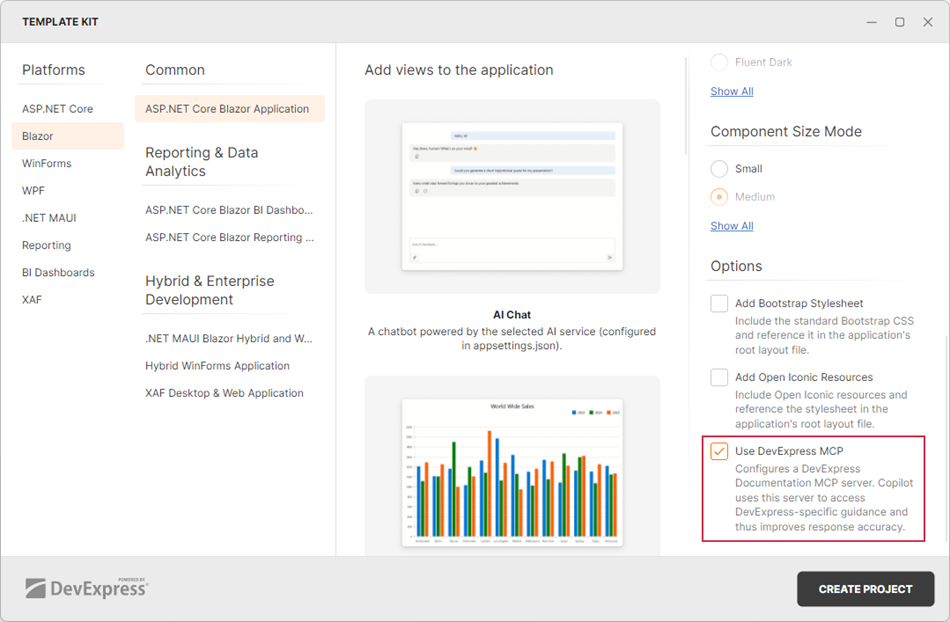
Select the Use DevExpress MCP option.
Visual Studio security policies require manual approval of MCP server integration after a solution is created. To complete the solution configuration, perform the following steps:
- Switch GitHub Copilot to Agent mode.
From the Copilot chat window, open Tools and select the following MCP resources:
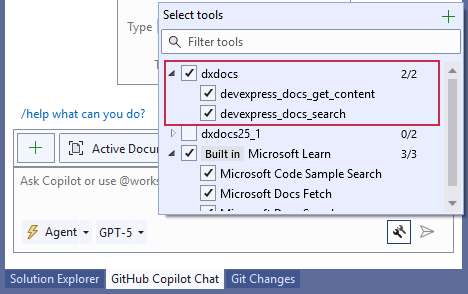
- dxdocs → devexpress_docs_search: Searches across the DevExpress documentation for relevant help topics.
- dxdocs → devexpress_docs_get_content: Retrieves the full content of a specific help topic, including API syntax and code examples.
When prompted, approve and trust the DevExpress MCP server integration.
Add MCP Server: Manual Configuration
To add the DevExpress Documentation MCP Server to Visual Studio:
- Open Visual Studio options.
- Navigate to GitHub → Copilot.
- Select Enable MCP server integration in agent mode. Save changes.
- Switch GitHub Copilot to Agent mode.
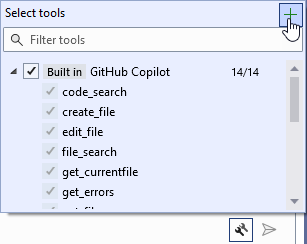
In the Copilot chat, open Tools and click the plus button.
In the Configure MCP server dialog:
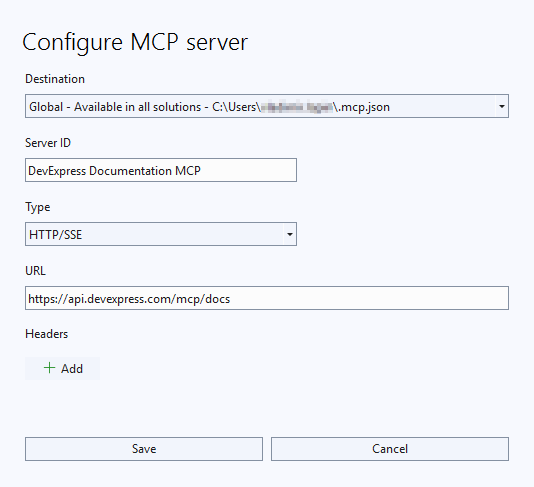
- Use the Destination dropdown to select “Global - Available in all solutions“.
- Specify a descriptive server name in the Server ID field. This name appears in Copilot Tools, logs, and tool output.
- Select HTTP/SSE from the Type dropdown.
- In the URL field, specify
https://api.devexpress.com/mcp/docs.
Click the Save button.
In the Copilot chat window, open Tools and select the following MCP resources:
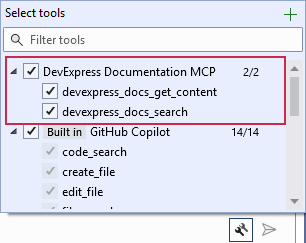
- devexpress_docs_search: Searches across the DevExpress documentation for relevant help topics.
- devexpress_docs_get_content: Retrieves the full content of a specific help topic, including API syntax and code examples.
When prompted, approve and trust the DevExpress MCP server integration.