AI-powered Features in XAF (CTP)
- 4 minutes to read
The XAF AI Integration Module connects DevExpress AI-powered extensions to your XAF applications. End users of XAF applications can generate filter criteria from natural language prompts, and use AI writing assistance directly inside property editors.
Note
This feature is available as a Community Technology Preview (CTP) in our v26.1 release cycle.
Available Features
- Generate Filter Criteria from a Natural Language Prompt (Prompt to Expression)
- AI Assistant Extensions in Memo and Rich Text Editors
- AI-powered Extensions in Report Viewer, Report Designer, and Report Wizard
- Smart Paste in Detail View and Split View
Install AI Integration Module In a New Application
Use Template Kit to add AI Integration module when you create an application.
For more information, refer to the following help topic: Register a Built-in XAF Module.
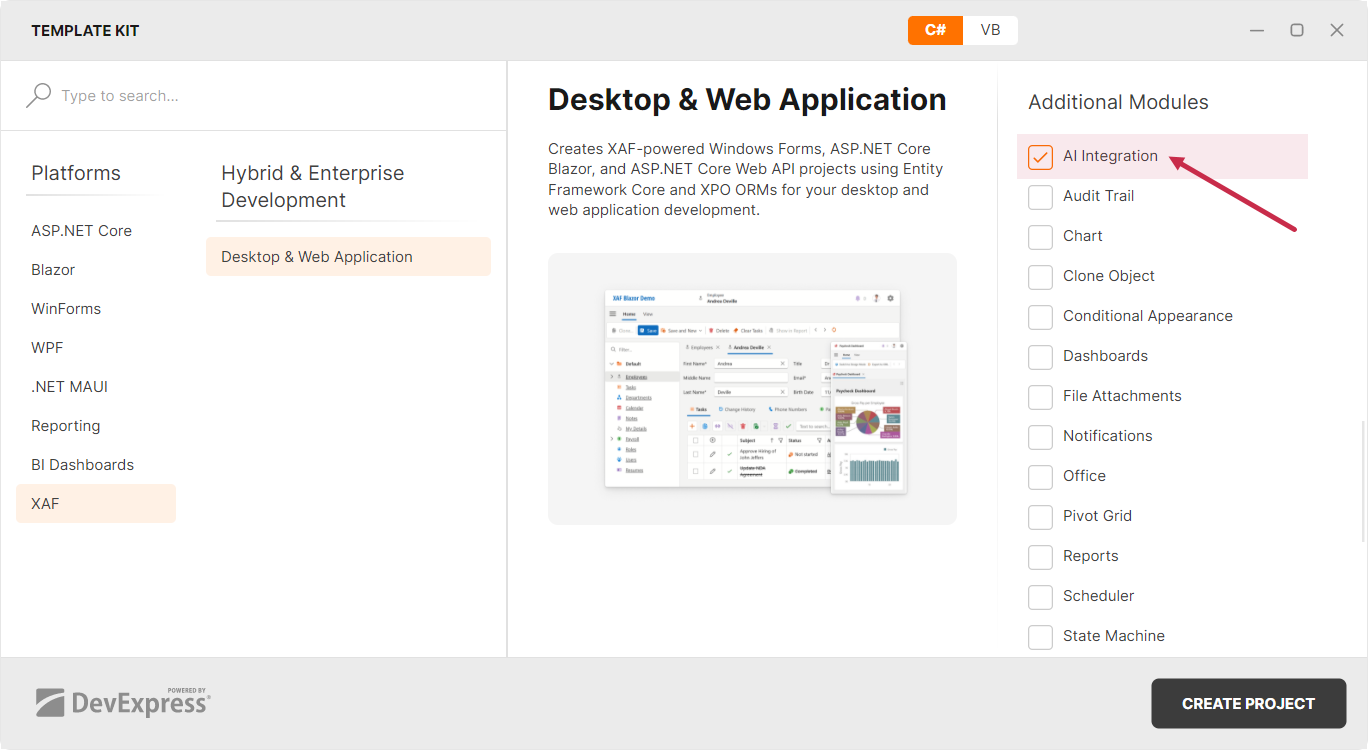
If you use the Template Kit, XAF automatically registers all selected modules in the following files:
- ASP.NET Core Blazor
- SolutionName.Blazor.Server/Startup.cs
- Windows Forms:
- SolutionName.Win/Startup.cs
The AI Chat Client region in this code contains information on how to register your AI credentials.
DevExpress AI-powered extensions operate on a “bring your own key” (BYOK) model. We do not provide a proprietary REST API or bundled language models (LLMs/SLMs).
You can either deploy a self-hosted model or connect to a cloud AI provider and obtain necessary connection parameters (endpoint, API key, language model identifier, and so on). These parameters must be configured at application startup to register an AI client and enable extension functionality.
Install and Configure the AI Integration Module in an Existing Application (ASP.NET Core Blazor)
Step 1: Add NuGet Packages
Add the DevExpress.ExpressApp.AI.Blazor NuGet package to the SolutionName.Blazor.Server application project.
Step 2: Register the AI Client
DevExpress AI-powered extensions operate on a “bring your own key” (BYOK) model. We do not provide a proprietary REST API or bundled language models (LLMs/SLMs).
You can either deploy a self-hosted model or connect to a cloud AI provider and obtain necessary connection parameters (endpoint, API key, language model identifier, and so on). These parameters must be configured at application startup to register an AI client and enable extension functionality.
Step 3: Register the Module
Register the AI module inside the AddXaf builder call and configure AI features available in the Report Designer and Report Viewer.
Note
AI Module must be registered after both Reports V2 Module and Office Module, otherwise, the corresponding AI features will not be available.
File: SolutionName.Blazor.Server/Startup.cs
using Azure.AI.OpenAI;
using DevExpress.AIIntegration;
using Microsoft.Extensions.AI;
// ...
services.AddXaf(Configuration, builder => {
    builder.Modules
        // register other modules here
        .AddAI((options, aiConfig) => {
        aiConfig.AddBlazorReportingAIIntegration(cfg =>
                cfg.AddSummarization(summarizeOptions =>
                    summarizeOptions.SetSummarizationMode(SummarizationMode.Abstractive)
                    .SetTemperature(0.1f))
                .AddTranslation(translateOptions =>
                        translateOptions.SetLanguages(options.Languages)
                            .EnableTranslation()
                            .EnableInlineTranslation())
                );
        aiConfig.AddWebReportingAIIntegration(reportingCfg => {
            reportingCfg
                .AddPromptToReportConverter()
                .AddPromptToExpressionConverter()
                .AddLocalization()
                .AddSummarization(configure => configure.SetSummarizationMode(SummarizationMode.Abstractive))
                .AddTranslation(translationCfg => {
                    translationCfg
                        .EnableTranslation()
                        .EnableInlineTranslation()
                        .SetLanguages(options.Languages);
                });
        });
      })
})
Optional: Configure Translation Languages
To enable the Translate AI action in the Rich Text editor, specify the supported languages in the XAF application builder call:
File: SolutionName.Blazor.Server/Startup.cs
using Azure.AI.OpenAI;
using DevExpress.AIIntegration;
using Microsoft.Extensions.AI;
// ...
services.AddXaf(Configuration, builder => {
    builder.Modules
                .AddAI((options, aiConfig) => {
                    options.Languages.Add(new() {
                        Id = "ja-JA",
                        Text = "Japanese"
                    });
                })
})
Install and Configure AI Integration Module in an Existing Application (WinForms)
Step 1: Add NuGet Packages
Add the DevExpress.ExpressApp.AI.Win NuGet package to the SolutionName.Win application project.
Step 2: Register the AI Client
DevExpress AI-powered extensions operate on a “bring your own key” (BYOK) model. We do not provide a proprietary REST API or bundled language models (LLMs/SLMs).
You can either deploy a self-hosted model or connect to a cloud AI provider and obtain necessary connection parameters (endpoint, API key, language model identifier, and so on). These parameters must be configured at application startup to register an AI client and enable extension functionality.
Step 3: Register the Module
Register the AI module in your application’s builder file:
File: SolutionName.Win/ApplicationBuilder.cs
using Azure.AI.OpenAI;
using DevExpress.AIIntegration;
using Microsoft.Extensions.AI;
using System.Configuration;

namespace SolutionName.Win;

public class ApplicationBuilder : IDesignTimeApplicationFactory {
    public static WinApplication BuildApplication() {
        var builder = WinApplication.CreateBuilder();
        builder.Modules
            // other modules
            .AddAI();
    }
}
Note
AI Module must be registered after both Reports V2 Module and Office Module, otherwise, the corresponding AI features will not be available.
Optional: Configure Translation Languages
To configure available translation languages, specify them in the AddAI registration call.
File: SolutionName.Win\ApplicationBuilder.cs
using Azure.AI.OpenAI;
using DevExpress.AIIntegration;
using DevExpress.ExpressApp.ApplicationBuilder;
using DevExpress.ExpressApp.Win.ApplicationBuilder;
using Microsoft.Extensions.AI;

namespace SolutionName.Win;

public class ApplicationBuilder : IDesignTimeApplicationFactory {
    public static WinApplication BuildApplication() {
        var builder = WinApplication.CreateBuilder();
        builder.Modules
            .AddAI(options => {
                options.Languages = new() {
                    new("ja-JA")
                };
            })
    }
}