AI-powered Extensions in Report Viewer, Report Designer, and Report Wizard
- 4 minutes to read
The XAF AI Integration Module extends DevExpress Reporting components with AI capabilities. End users can summarize and translate documents in the Report Viewer, generate complete report layouts from natural language descriptions in the Report Wizard, and use AI assistance to build expressions and localize content in the Report Designer.
Note
This feature is available as a Community Technology Preview (CTP) in our v26.1 release cycle.
Prerequisites
Install and configure the XAF AI Integration Module as described in the following help topic: AI-powered Features in XAF (CTP).
AI in the Report Viewer
Report Viewer AI extensions allow end users to summarize and translate report documents without leaving the Report Viewer. No additional developer setup is required beyond module installation and startup registration.
ASP.NET Core Blazor
The DxReportViewer displays an AI button on the right side of the report document. The button opens a context menu with the following actions:
| Action | Description |
|---|---|
| Summarize | Generates a plain-language summary of the document’s content. |
| Translate | Replaces the document text with a translation in the selected language. |
| Translate Inline | Displays the translation alongside the original text. You can select either the entire document or the current page. |
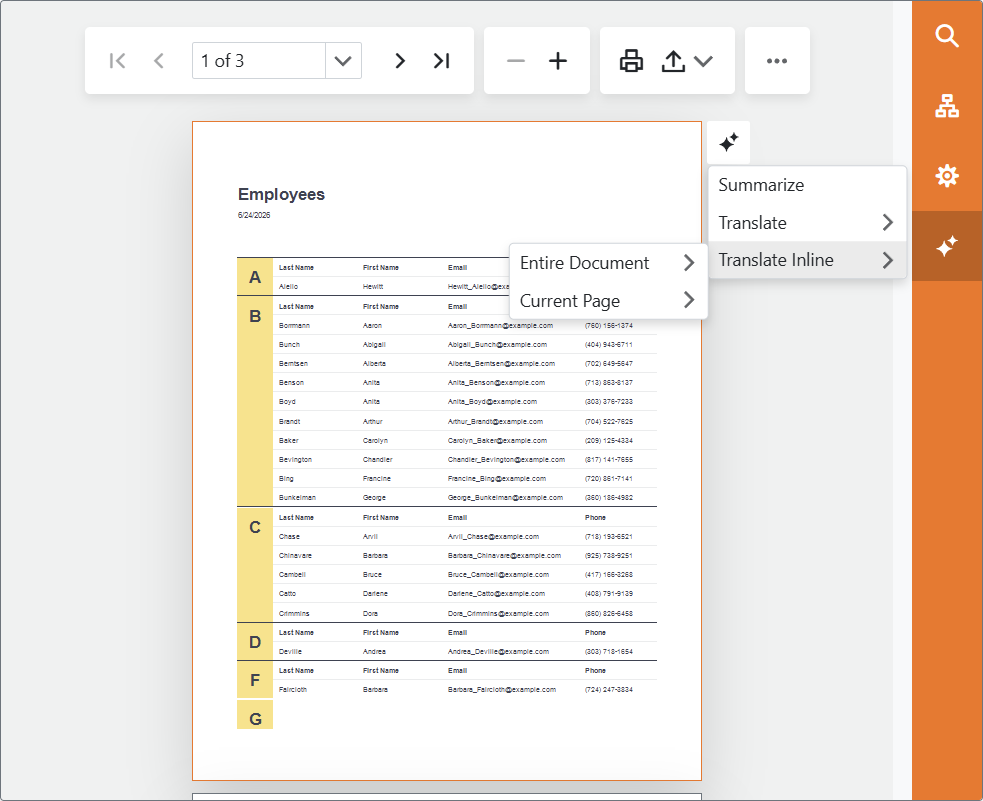
You can access the same commands from the toolbar on the right side of the Report Viewer.
You can configure available translation languages. See instructions in the following help topic: AI-powered Features in XAF (CTP).
WinForms
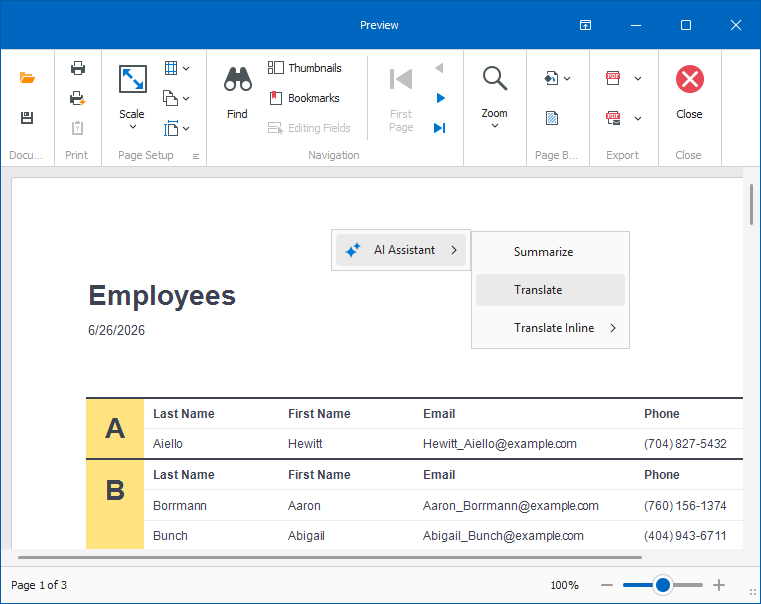
Right-click the report document to open a context menu with the following actions:
| Action | Description |
|---|---|
| Summarize | Generates a plain-language summary of the document’s content. |
| Translate | Replaces the document text with a translation in the selected language. |
| Translate Inline | Displays the translation alongside the original text. You can select either the entire document or the current page. |
AI in the Report Wizard (Prompt to Report)
The Prompt to Report feature allows end users to describe the report they need in plain language. AI generates the corresponding report layout and opens it in a new designer window.
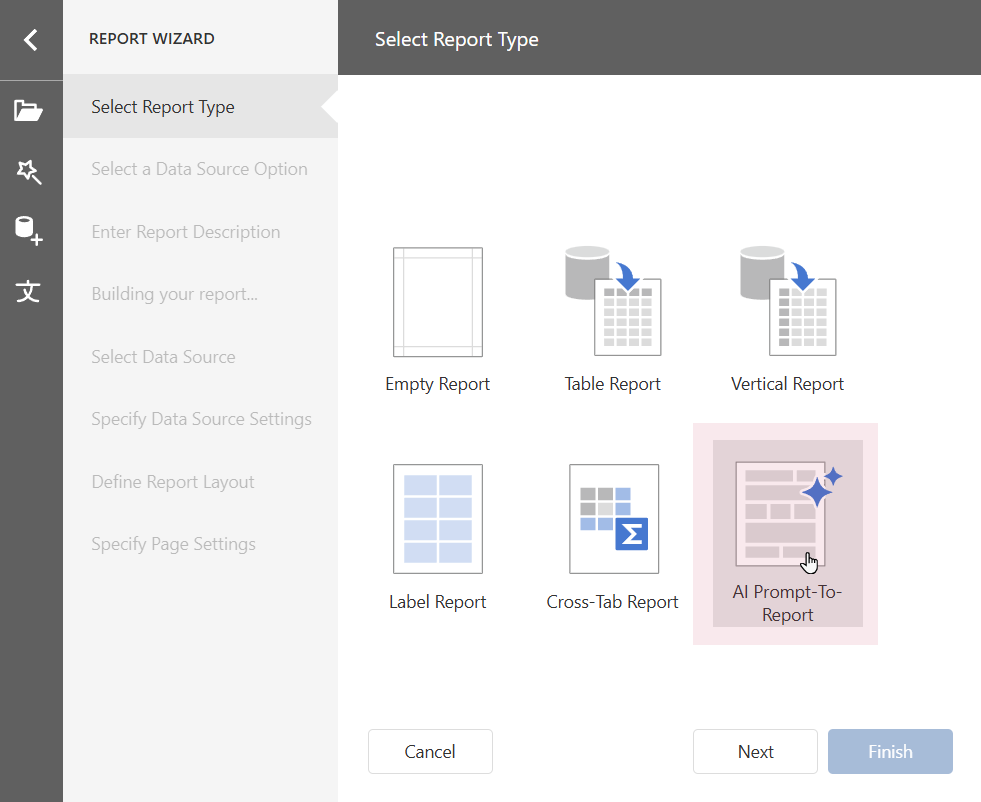
The workflow is the same for WinForms and ASP.NET Core Blazor:
- Open the Reports List View and click New.
- In the Report Wizard, select a data type and click Create.
- Select AI Prompt-to-Report as the report type and click Next.
- Optionally, add a data source and click Next.
- In the prompt panel, type the report description. You can select a predefined prompt and use it as a template. The left column shows the data source structure to help you compose the prompt.
- Submit your prompt. The wizard builds the report layout and opens it in a new Report Designer window.
AI in the Report Designer
ASP.NET Core Blazor
The DxReportDesigner implements the following AI capabilities:
- Prompt to Expression — In the Expression Editor, an AI input field accepts a natural language description and generates the corresponding expression string.
- Localization — The Localization panel (accessible from the hamburger menu) displays a Localize with AI button next to the language selector. AI translates all report text strings into the selected language.
- Test Data — A Test Data button in the toolbar fills the report preview with AI-generated sample data that matches field names and data types.
WinForms
The WinForms Report Designer implements the following AI capabilities:
- AI Assistant — A chat panel in the designer window. Users can ask the assistant questions about the report, data fields, and expressions, and receive AI-generated answers.
- Prompt to Expression — In the Expression Editor, users describe an expression in the natural language and AI generates the corresponding expression string.
- Localization — AI-assisted translation of report text strings.
- Test Data — AI fills the report preview with sample data matched to field names and data types.
Customize AI Reporting Extensions in Code
ASP.NET Core Blazor
AI behaviors for Blazor reports are configured through startup registration options described in AI-powered Features in XAF (CTP).
To change individual behaviors, modify the AddBlazorReportingAIIntegration or AddWebReportingAIIntegration options in SolutionName.Blazor.Server/Startup.cs.
For available configuration options, refer to the DevExpress Reporting AI documentation.
WinForms
To customize Report Viewer AI behavior, handle the WinAIExtensionsController.CustomizeExtension event:
File: SolutionName.Win\Controllers\ReportAICustomizationController.cs
using DevExpress.AIIntegration;
using DevExpress.AIIntegration.WinForms;
using DevExpress.ExpressApp;
using DevExpress.ExpressApp.AI.Controllers;

namespace SolutionName.Win.Controllers {
    public class ReportAICustomizationController : ViewController {
        protected override void OnActivated() {
            base.OnActivated();
            Frame.GetController<AIExtensionsController>().CustomizeExtension +=
            ReportAICustomizationController_CustomizeExtension;
        }
        protected override void OnDeactivated() {
            Frame.GetController<AIExtensionsController>().CustomizeExtension -=
            ReportAICustomizationController_CustomizeExtension;
            base.OnDeactivated();
        }
        private void ReportAICustomizationController_CustomizeExtension(object sender, CustomizeExtensionEventArgs e) {
            // Fine-tune the AI behaviors attached to the report document viewer.
            if (e.Extension is SummarizeBehaviorProperties summarizeProperties) {
                summarizeProperties.SummarizationMode = SummarizationMode.Abstractive;
            }
        }
    }
}