Create and View Reports in an ASP.NET Core Blazor Application
- 3 minutes to read
This topic describes how to create and view a report at runtime in an ASP.NET Core Blazor application.
Copy a Predefined Report
- Select a predefined report in the Reports List View.
Click the Copy Predefined Report button.
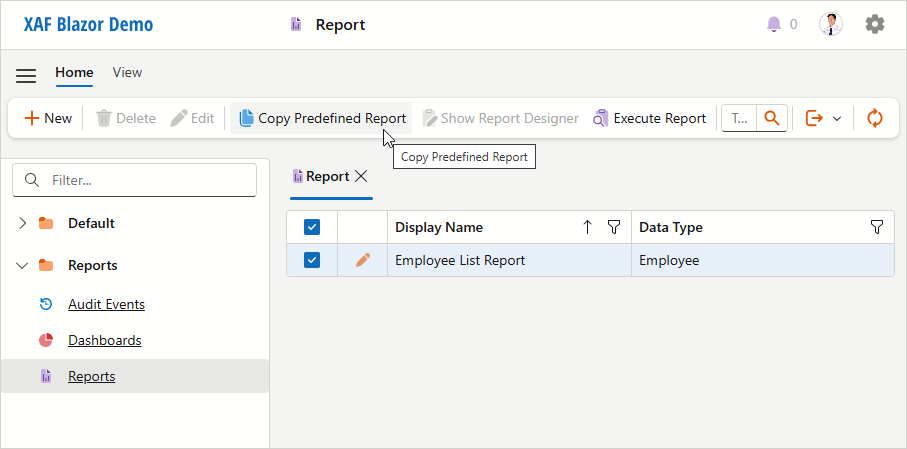
- Select the created copy and modify the report.
Create a New Report from Scratch
To create a report at runtime, follow these steps:
- Choose the Reports item in the Navigation.
- Click New.
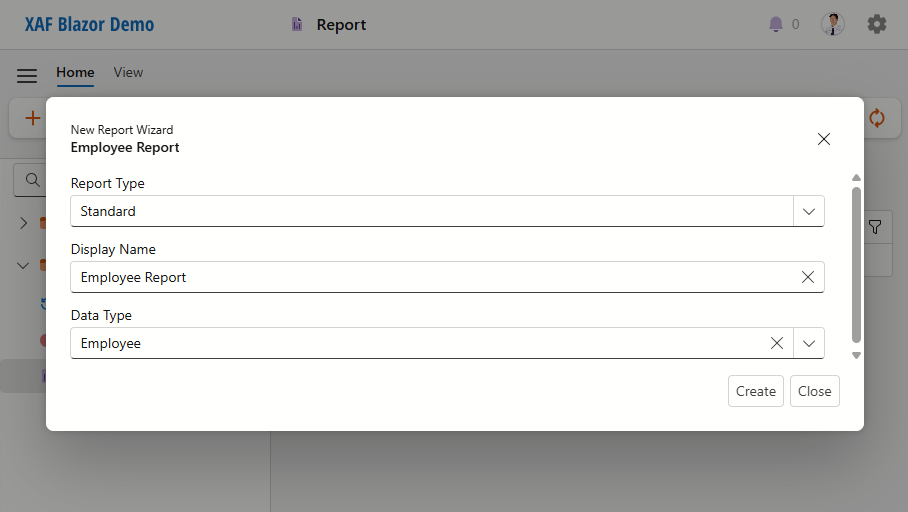
In the Report Wizard dialog that opens, specify the following and click Next.
- Display Name - the report’s name.
- Data Type - the business object type to be used in the report. Only the types that have the DefaultClassOptionsAttribute or VisibleInReportsAttribute attribute applied can be selected.
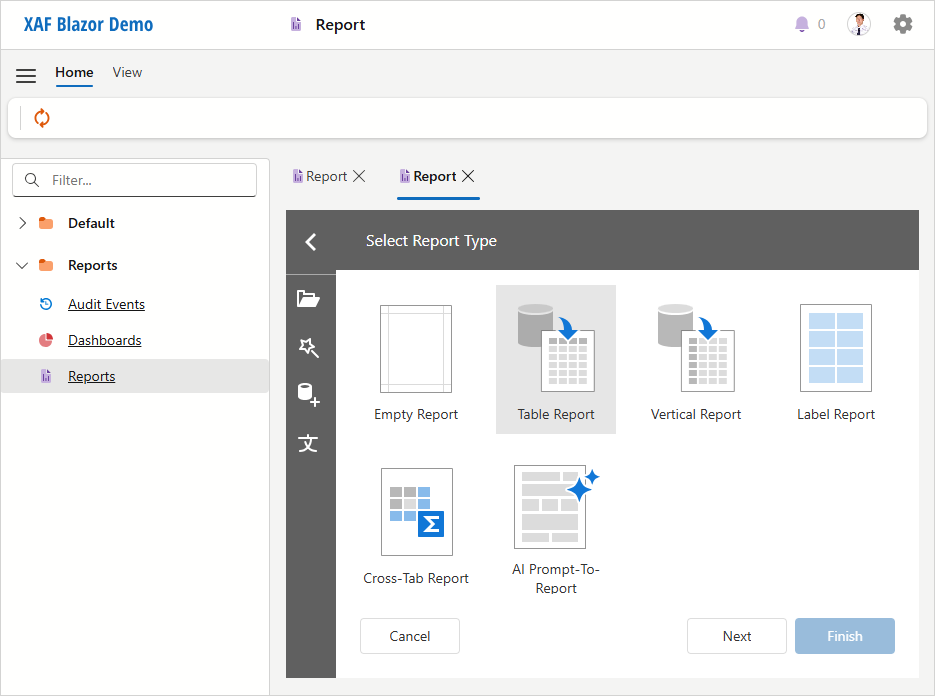
Select the report type.
Follow the wizard’s prompts to specify report columns and other settings.
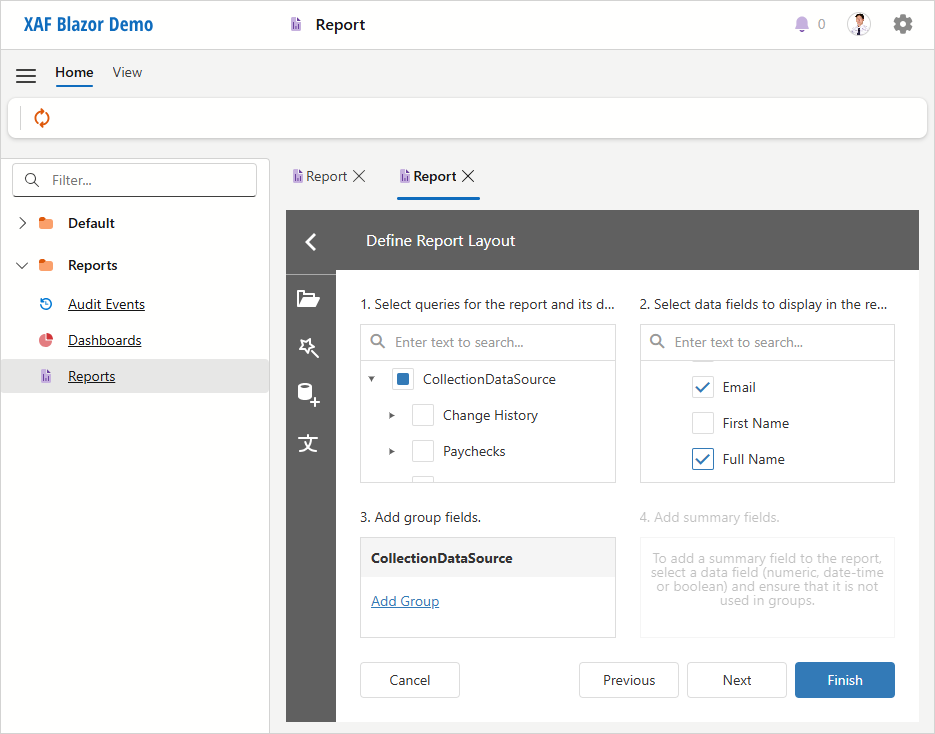
Click Finish to display the new report in the Report Designer, where you can access advanced report layout customization options.
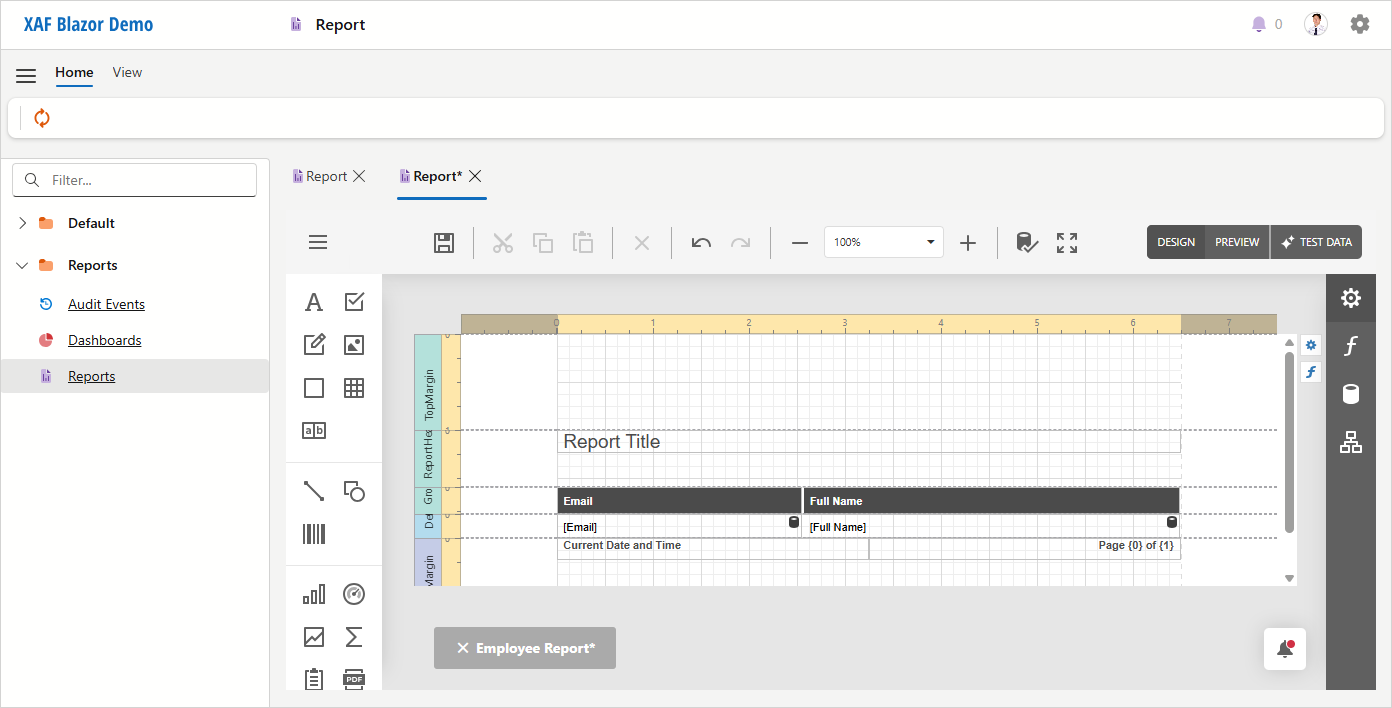
As a result, the wizard creates a report with a CollectionDataSource and sets its ObjectTypeName property to the business object type selected on the first page of the Report Wizard.
When applied to a business class property, the VisibleInReports attribute specifies whether the property is visible in the Report Designer field list. In the Report Designer, you can modify the existing field layout and add more fields.
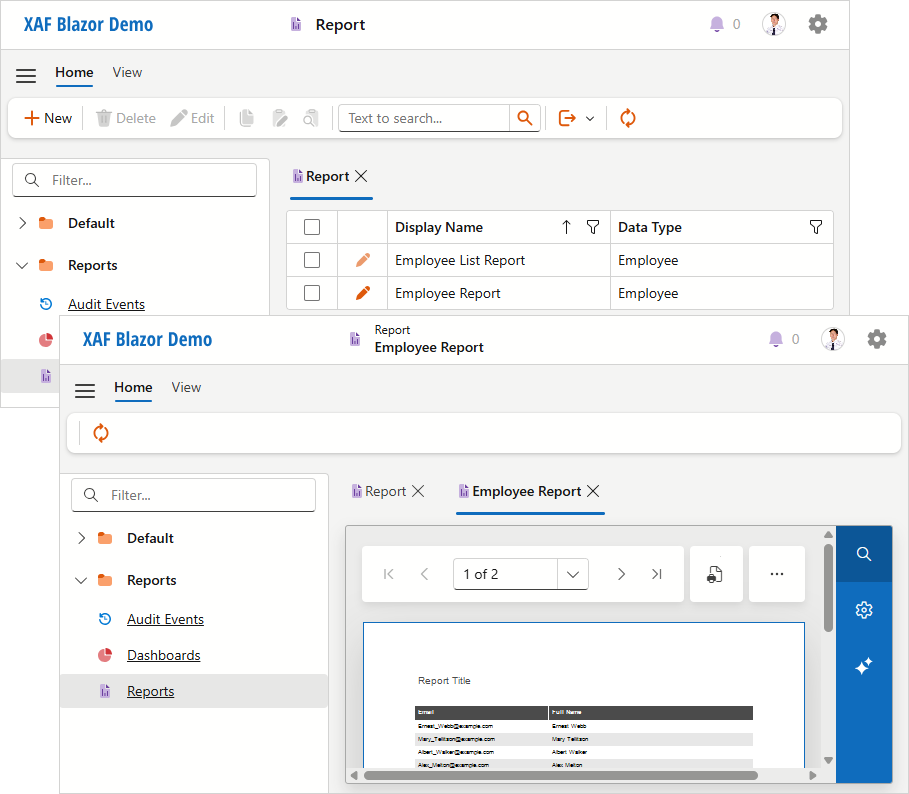
After you save a report in the designer, it is added to the Reports List View. You can click a report to preview it.
Add a New Data Source
You can add a new data source in the Report Wizard.
- In the Report Wizard, select Add Data Source from the side menu.
Select the
CollectionDataSourcetype and click Next.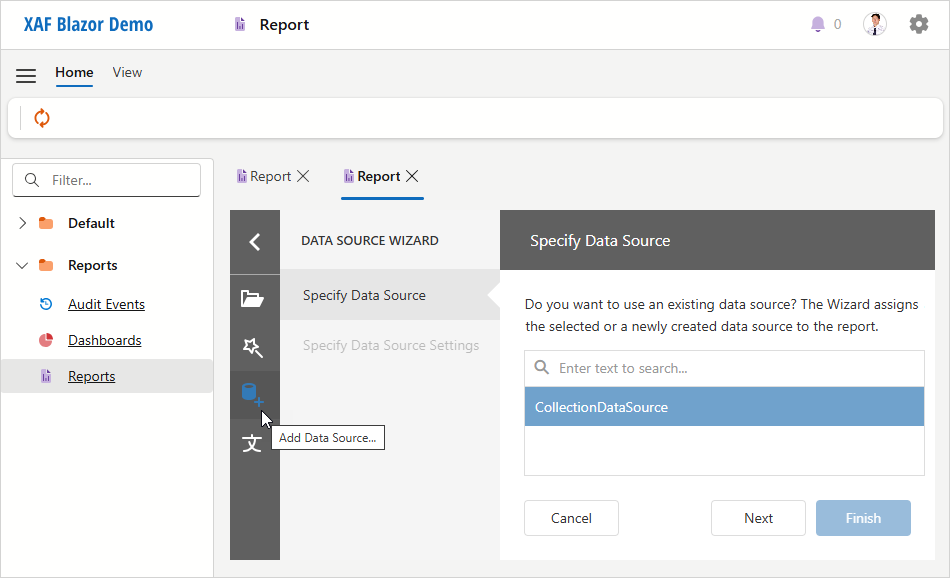
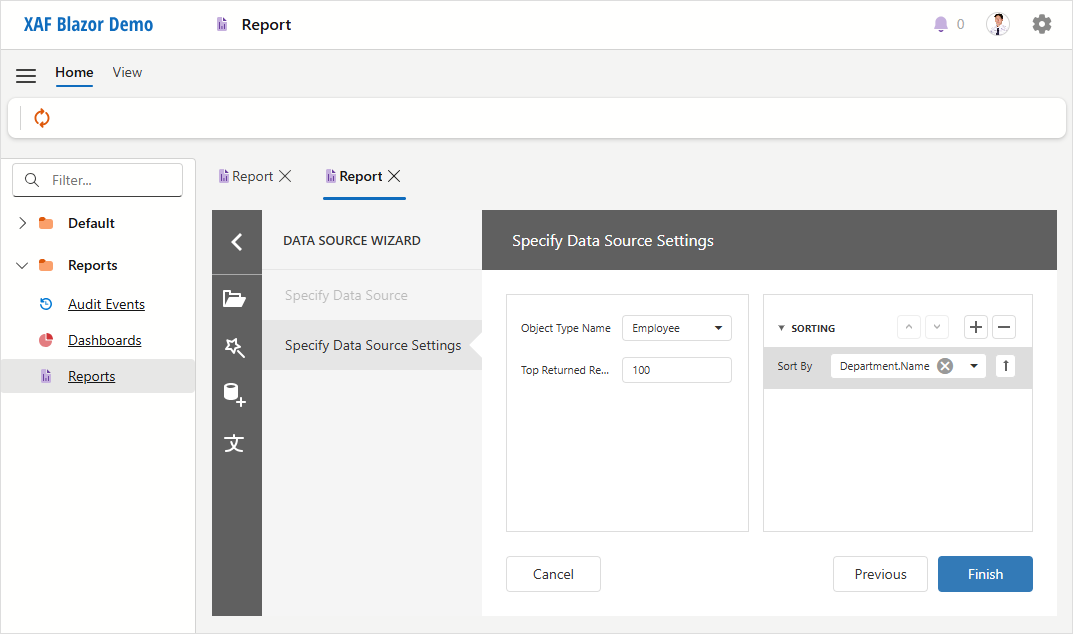
Select an existing business class for this Collection Data Source and configure other settings as needed. Click Finish to open the report in the Report Designer.
Alternatively, you can add a new data source in the Report Designer. This option is available from the Field List menu.
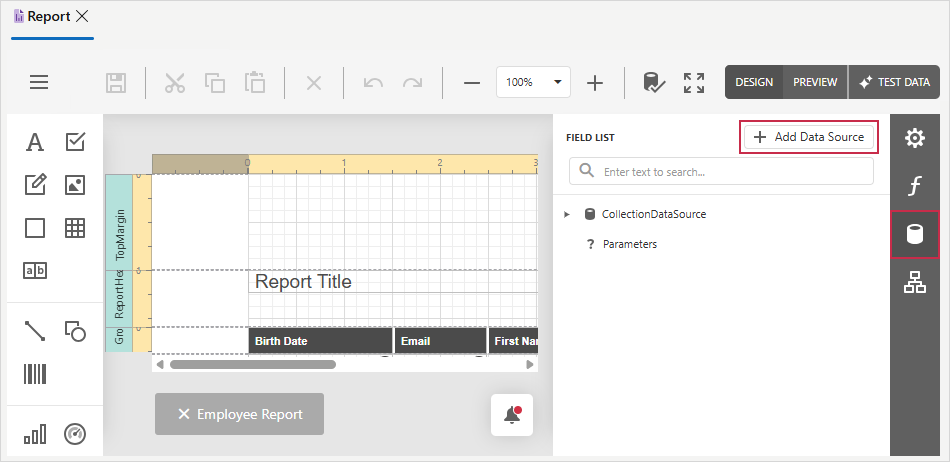
Modify Data Source
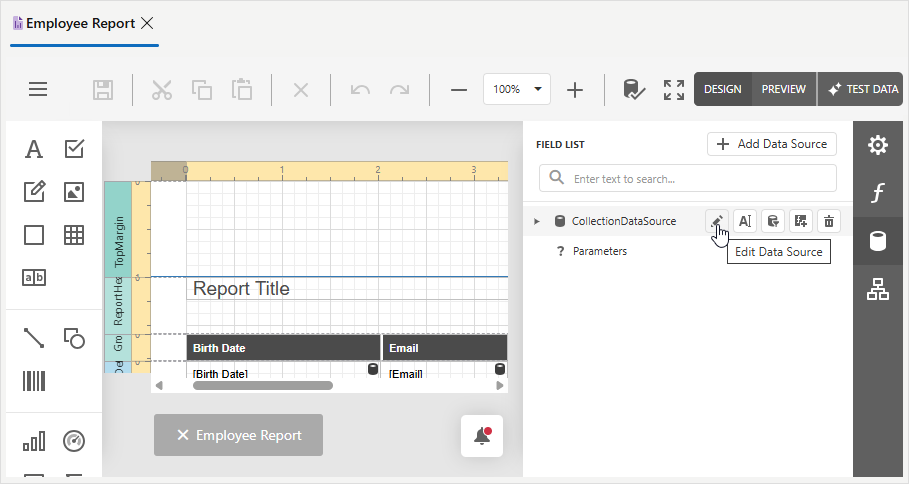
To modify Data Source settings, click Edit Data Source in the Field List menu.
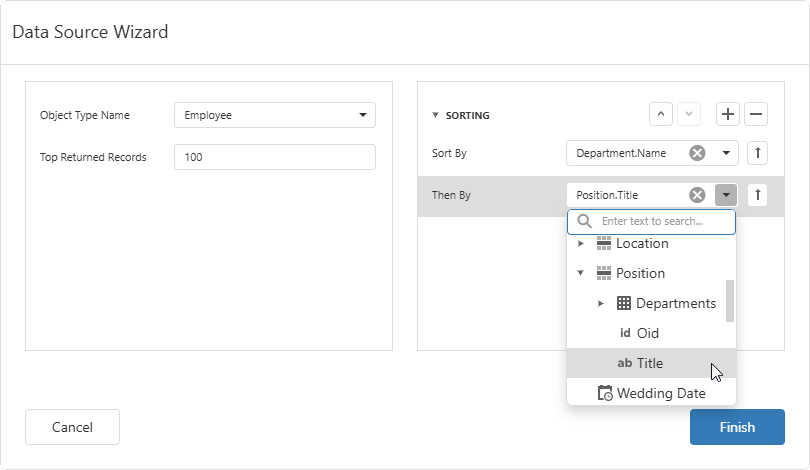
The Data Source Wizard opens. Use it to change the Data Source object type, limit the number of records, and configure sorting settings.
Display a Report in a Popup Window
XAF Blazor ReportsV2 module displays the Report Designer and the Report Preview window in the root Detail View. Set the ReportsBlazorModuleV2.DesignAndPreviewDisplayMode property to Popup if you want to keep the current view visible while designing/previewing reports.
File: SolutionName.Blazor.Server/Startup.cs
using DevExpress.ExpressApp.ApplicationBuilder;
using DevExpress.ExpressApp.Blazor.ApplicationBuilder;
using DevExpress.ExpressApp.Blazor.Services;
using DevExpress.ExpressApp.ReportsV2.Blazor;

namespace SolutionName.Blazor.Server;

public class Startup {
    // ...
    public void ConfigureServices(IServiceCollection services) {
        // ...
        services.AddXaf(Configuration, builder => {
            // ...
            builder.Modules
                // ...
                .AddReports(options => {
                    options.DesignAndPreviewDisplayMode = DesignAndPreviewDisplayModes.Popup;
                    options.EnableInplaceReports = true;
                    options.ReportDataType = typeof(DevExpress.Persistent.BaseImpl.EF.ReportDataV2);
                    options.ReportStoreMode = DevExpress.ExpressApp.ReportsV2.ReportStoreModes.XML;
                });
            // ...
        });
        // ...
    }
}
By design, XAF ASP.NET Core Blazor ReportsV2 module shows In-Place Reports from a nested list view in a popup.
ASP.NET Core Blazor Report Designer Limitations
- Only desktop browsers are supported.
- New reports use CollectionDataSource. You cannot create reports with ViewDataSource.