Designers Troubleshooting Guide
- 5 minutes to read
If the Model Editor or another Visual Studio designer fails to open or does not function correctly, follow the troubleshooting workflow in this topic. It combines common solutions with detailed diagnostic procedures to help you identify the root cause before contacting DevExpress Support.
Main Troubleshooting Workflow
Before investigating a specific error:
- Close all open designers and Visual Studio.
- Delete the bin, obj, and .vs folders.
- Start Visual Studio as Administrator.
- Rebuild the solution and verify that it builds successfully.
- Open the designer again.
If the issue persists, determine which category best matches your symptoms and follow the corresponding section below.
Collect Diagnostic Information
Most designer issues can be diagnosed from log files that are stored in the following directory: %USERPROFILE%\AppData\Roaming\eXpressAppFramework. To collect relevant diagnostic information, follow these steps:
- Clear the %USERPROFILE%\AppData\Roaming\eXpressAppFramework folder.
- Try to open the Model Editor.
- Research logs in the %USERPROFILE%\AppData\Roaming\eXpressAppFramework folder to identify the problem or archive folder content and submit it with your support ticket.
Identify the Type of Issue
The Model Editor consists of two components: Visual Studio extension and Model Editor server process. Model Editor problems generally fall into one of three categories:
| Category | Typical Symptoms |
|---|---|
| Visual Studio extension | Package Load Failure, Model Editor does not open, the XML editor opens instead of the Model Editor. |
| Model Editor server | Server crashes, exceptions while opening .xafml files. |
| Solution or project | Application cannot be created at design time, missing modules, assembly loading failures. |
Determining the category first usually leads to the fastest resolution.
Visual Studio Extension Issues
Symptoms
- Model files open in the XML editor instead of Model Editor.
- Visual Studio shows an exception when you open an .xafml file.
- Visual Studio reports that the XAF package failed to load.
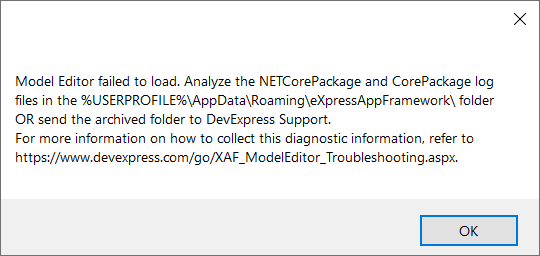
Package Load Failure appears (Model Editor failed to load exception).
Diagnosis
Collect diagnostic information and review the NETCorePackageXXX.log file for more detailed information about the causes of the exception.
Possible Cause 1: Required Extension is Disabled
Ensure the DevExpress.ExpressApp.Design.NetCorePackage extension is installed and enabled. Click the Extensions | Manage extensions menu item. In the invoked window, click the Enable button (if the extension is disabled). Restart Visual Studio.

Possible Cause 2: Corrupted Visual Studio Caches
If you receive the “Package Load Failure“ error when you load a designer, close Visual Studio and navigate to the folder where its executable (devenv.exe) is located:
- VS 2026: %ProgramFiles%\Microsoft Visual Studio\18\Professional\Common7\IDE\
- VS 2022: %ProgramFiles%\Microsoft Visual Studio\2022\Professional\Common7\IDE\
After that, execute the following command in the command prompt:
devenv /ResetSkipPkgs
It is also possible that extensions do not load because the Visual Studio component’s cache is corrupted. Clear the cache as described in the following articles:
These actions resolve many Package Load Failure issues.
Possible Cause 3: Corrupted Installation
If the required extension is missing or the logs do not contain expected initialization messages:
- Repair or reinstall DevExpress.
- Update Visual Studio to the latest supported version.
Possible Cause 4: Version Mismatch
Verify that:
- All DevExpress assemblies referenced by the solution use the same version.
- The installed DevExpress version matches the version referenced by the project.
Mixed versions commonly prevent the Model Editor from loading.
Model Editor Server Issues
Symptoms
Visual Studio displays exceptions while opening a .xafml file, or the Model Editor closes unexpectedly.
Diagnosis
Collect diagnostic information and review the ModelEditorServerXXX.log file for more detailed information about the causes of the exception.
If the log file was not created, update Visual Studio and install the required .NET runtime or SDK. The server process may fail to start if its runtime is unavailable.
If the server log contains no exceptions, use the Process Monitor tool to get more info about what causes the crash.
Solution-Specific Issues
Symptoms
Typical error messages include:
- Unable to create an instance…
- Could not find the ModuleBase descendant…
- Unable to load DLL…
- Cannot create an application instance.
These errors indicate that the Model Editor cannot initialize the application at design time.
Diagnosis
Collect diagnostic information and review ModelEditorServerXXX.log and ModelEditorClientXXX.log files for more detailed information about the causes of the exception.
Possible Cause 1: Runtime-Only Code Executes During Design Time
If application startup accesses configuration files, databases, or other runtime resources, guard such code with a design-mode check:
if (!DevExpress.ExpressApp.ModuleHelper.IsDesignMode) {
    // Runtime-only code
}
Possible Cause 2: Version Mismatch
Ensure that installed DevExpress components correspond to package versions referenced by the solution.
Common Model Editor and Designer Issues
Model Opens as Plain XML
If Model files open in the XML editor:
- Verify that the appropriate DevExpress Visual Studio extension is enabled.
- Reset skipped packages if necessary.
- Update Visual Studio.
- Repair the DevExpress installation if the issue persists.
Model Changes Are Not Applied
If changes are saved to the .xafml file but are ignored by the application:
Verify that the model file’s Build Action is set to EmbeddedResource;

Ensure higher-level model layers override your changes. For instance, if you customized the Model in a platform-agnostic module (MySolution.Module/Model.DesignedDiffs.xafml), check the Model.xafml files of your platform-dependent module and project, respectively.
A Designer Throws the “Dictionary already contains class info” Exception
Use project-to-project references instead of file assembly references for projects in an XAF solution. Microsoft recommends project-to-project references for managing dependencies within a solution, and our Model Editor relies on them to collect accurate dependency information. For more information, see Microsoft documentation on project-to-project references.
Other Issues
If the issue is not specific to the Model Editor:
- Collect a design-time exception call stack.
- Gather the Visual Studio Activity Log.
- Close Visual Studio and rerun the DevExpress Unified Component Installer in Repair mode.
If the problem continues after these steps, submit a support ticket with the collected diagnostic information as well as screenshots showing the exact steps to reproduce the actual and expected results, your Visual Studio “About” information, and the CSPROJ of the projects you tested. Optionally, attach a small debuggable sample where this behavior can be reproduced in a stable manner.