Localization - ASP.NET Web Forms Document Viewer
- 3 minutes to read
To localize the Web Document Viewer, use the built-in localization mechanisms and substitute localization strings.
For information on how to localize the DevExpress Web Forms controls, review the following help topic: Localization.
You can use any approach described below or both approaches simultaneously.
Use Satellite Resource Assemblies
You can localize the Web Document Viewer with the Satellite Resource Assemblies (libraries that contain translated resources).
For more information, review the following help topic: Localize ASP.NET Controls with Satellite Resource Assemblies.
Substitute Localization Strings
Use the LoadMessages method to load JSON files for ‘xx’ language, obtained from Localization Service:
<script type="text/javascript" id="script">
        function customizeLocalization(s, e) {
            e.LoadMessages($.get("/dx-analytics-core.de.json"));
            e.LoadMessages($.get("/dx-reporting.de.json"));
        }
</script>

<dx:ASPxWebDocumentViewer ID="ASPxWebDocumentViewer1" runat="server">
    <ClientSideEvents CustomizeLocalization="customizeLocalization"/>
</dx:ASPxWebDocumentViewer>
Use the UpdateLocalization method in the client-side ASPxClientWebDocumentViewer.CustomizeLocalization event handler to substitute a particular localization string with the specified text.
Tip
You can use the satellite resource assemblies to translate text strings and then adjust the translation by handling the CustomizeLocalization event.
<script type="text/javascript" id="script">
    function customizeLocalization(s) {
        s.UpdateLocalization({
            'Search': 'Suche',
            'Search result': 'Suchergebnisse',
            'Next Page' : 'Nächste Seite',
            'Export Options' : 'Exportoptionen'
        });
    }
</script>

<dx:ASPxWebDocumentViewer ID="ASPxWebDocumentViewer1" runat="server">
    <ClientSideEvents CustomizeLocalization="customizeLocalization"/>
</dx:ASPxWebDocumentViewer>
Important
Localization strings are case sensitive. A string is translated if you use correct case to specify it.
On a web page localized string values may be capitalized differently. For example, the ‘Search result’ string is displayed as ‘SEARCH RESULT’.
To identify the localized string you want to change, locate the UI element in the browser’s Developer Tools, as shown in the following image:
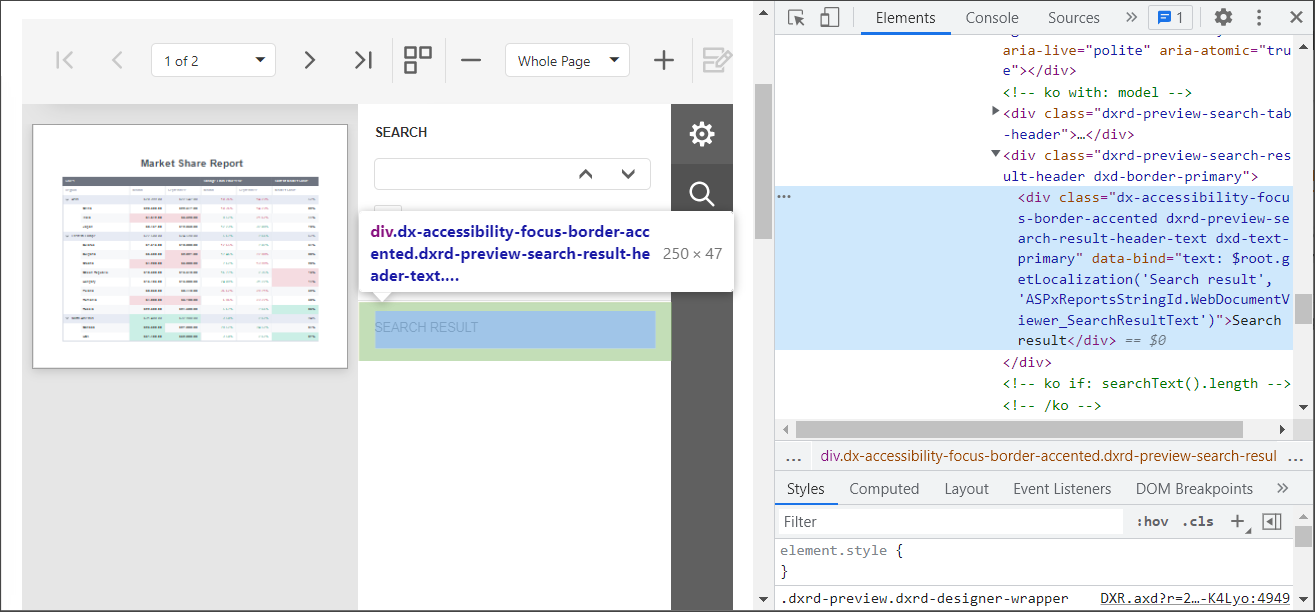
Use UI Localization Client
The UI Localization Client is a cross-platform utility that helps you identify non-translated strings in DevExpress UI controls and translate them during a debug session. The utility generates RESX files with translated resources and adds them to the project. The UI Localization Client loads all Web Reporting resource strings after the controls are rendered and does not reflect later UI interactions.
For more information refer to the following topic: UI Localization Client.
The resource strings for the Web Reporting Controls (Web Document Viewer and Web Report Designer) are located in the following localization containers in the UI Localization Client window:
- DevExpress.XtraReports.Web.Localization.LocalizationContainer
- Contains localization strings specific only to the Web Reporting Controls.
- DevExpress.Utils.Localization.CoreLibraryResources
- Contains cross-platform localization strings used in the Web Reporting Controls.
- DevExpress.Web.Resources.Localization.LocalizationContainer
- Contains localization strings common to DevExpress Web Components used in the Web Reporting Controls.
Troubleshooting
If you followed the instructions in the UI Localization Client topic and the resource string are still not visible, try clearing browser cache.
Identify Non-Translated Strings
- Use our UI Localization Client tool shipped as part of your DevExpress subscription. This tool streamlines the entire localization process. You can quickly find non-translated strings and translate them during a debug session.
- Handle the XtraLocalizer.QueryLocalizedStringNonTranslated event to collect non-localized resource strings for further translation. The event allows you to focus on strings that require translation in your application.