Install UI Components & Templates in Rider
Install DevExpress Blazor components and templates to create and run Blazor projects in JetBrains Rider.
Install DevExpress Blazor Components
- Install the required DevExpress Blazor packages from the NuGet Library.
- Ensure that a valid license key is registered. If you build a project that includes unlicensed DevExpress products, the build process displays a warning or throws an error.
Refer to the following help topic to learn how to install, update, and remove NuGet packages in Rider: Consume NuGet packages.
Install DevExpress Template Kit
The DevExpress Template Kit is the fastest way to create DevExpress Blazor projects in Rider. It adds ready-made project templates with recommended settings and preconfigured DevExpress package references so you can start development immediately.
Download the DevExpress Template Kit plugin for Rider.
Note
Do not extract the downloaded plugin archive.
Open JetBrains Rider settings and navigate to Plugins.
On the Plugins page, click the gear button and then click Install Plugin from Disk.
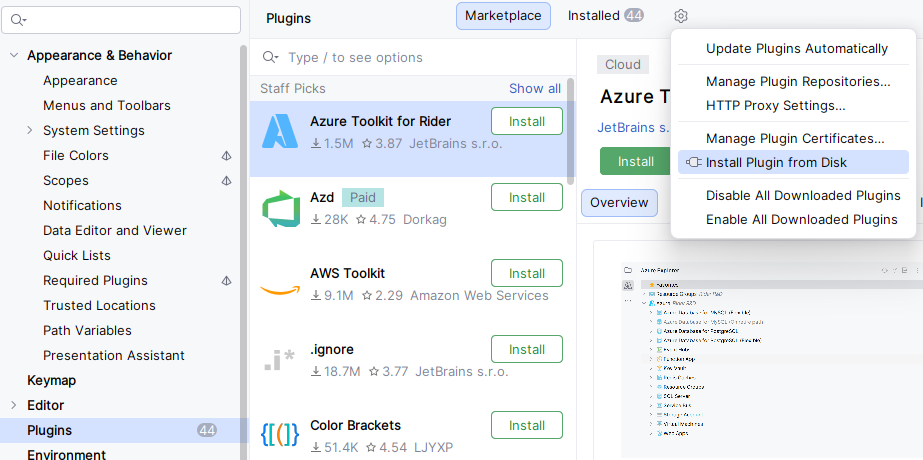
Select the plugin file.
- Restart JetBrains Rider to apply changes.