Collection Properties
- 5 minutes to read
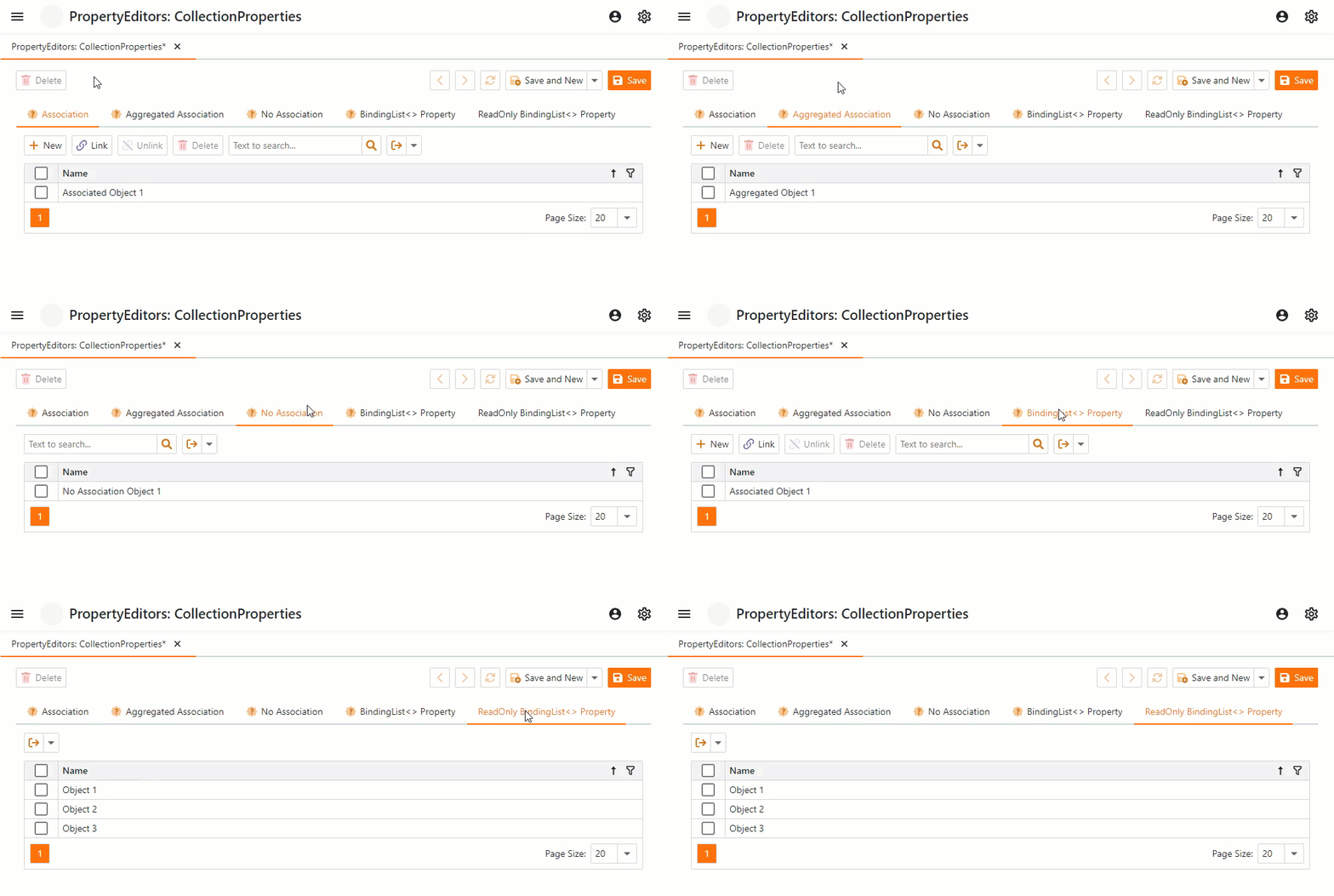
XAF applications display collection properties as nested List Views or as Tag Box editors.
Refer to the following topics for information on relationships between entities in code and UI:
- Relationships Between Persistent Objects in Code and UI (XPO)
- Relationships Between Entities in Code and UI (EF Core)
Note
Refer to the Property Editors | Collection Properties section in the Feature Center demo installed with XAF to see Collection Property Editors in action. The default location of the application is %PUBLIC%\Documents\DevExpress Demos 25.2\Components\XAF\FeatureCenter.NET.XPO.
Examples
- Collection Properties in XPO
- Collection Properties in EF Core
- XAF - How to display a collection property as a checked list box
ListPropertyEditor
- ASP.NET Core Blazor
- Windows Forms
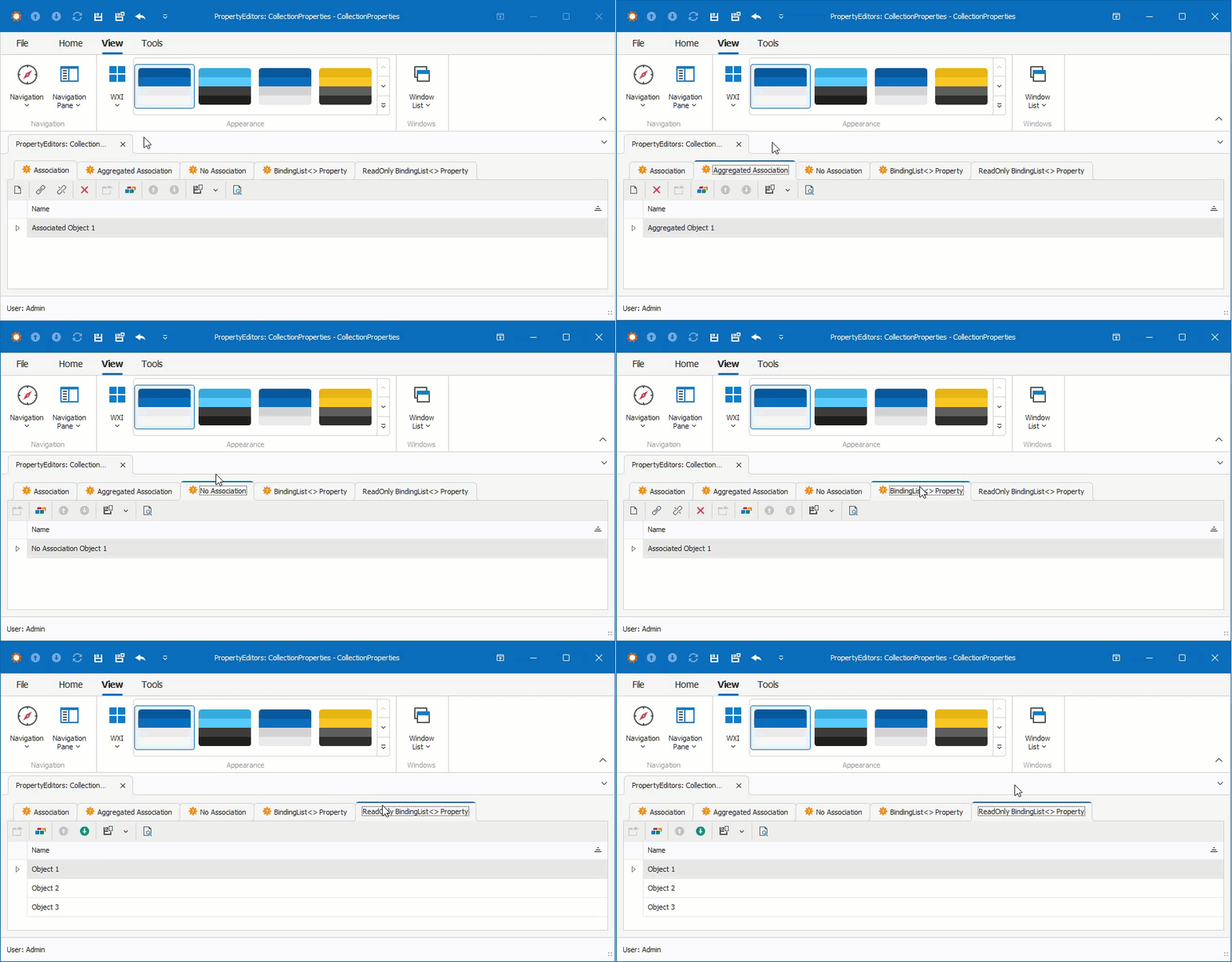
The platform-agnostic ListPropertyEditor creates a Template and Frame that contain a List View. This List View uses the ListView.CollectionSource of the PropertyCollectionSource type.
For more information on Templates, Frames, and Views, refer to the UI Element Overview topic.
In the Model Editor, set the IModelMemberViewItem.View property to a custom List View to use this View instead of the default one.
You can hide New, Delete, Link, or Unlink Actions associated with the Property Editor. In the Model Editor, set the List View’s AllowNew, AllowDelete, AllowLink, or AllowUnlink property to false to hide these Actions.
TagBoxListPropertyEditor
ASP.NET Core Blazor
Component Model:
DevExpress.ExpressApp.Blazor.Components.Models.DxButtonModelDevExpress.ExpressApp.Blazor.Editors.DxTagBoxListModel
Component: DevExpress.ExpressApp.Blazor.Components.TagBoxListComponent – a wrapper that contains the DxTagBox<TData, TValue> editor and DxButton control shipped with the DevExpress ASP.NET Core Blazor Library.
Description:
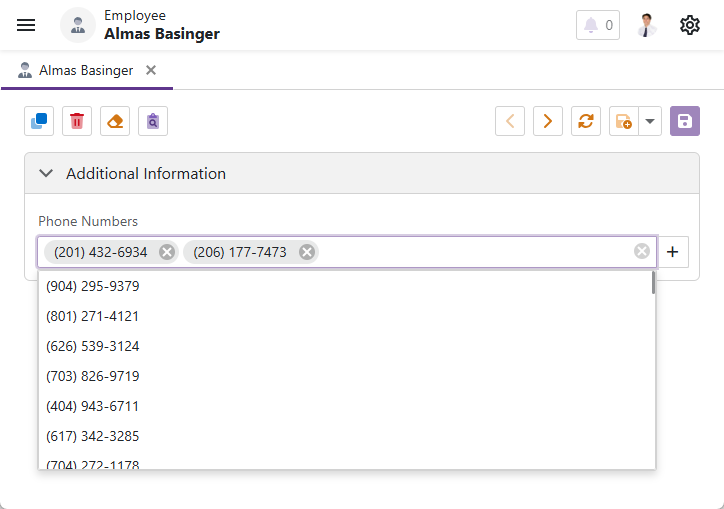
TagBoxListPropertyEditor allows users to select multiple items from its drop-down list. Use this editor as an alternative for large data grids when you want to save space in Detail Forms for collection data. The editor supports CRUD operations, Security System, Application Model options such as AllowEdit or AllowClear, DataSourceXXX filtering attributes, ImmediatePostData, and other standard XAF features.
To edit an item in a pop-up window, users can double-click the tag in the editor. In TabbedMDI mode, users can hold Alt and double-click on the tag to edit it in a new window.
To access and customize a TagBoxListPropertyEditor in XAF applications, create a ViewController that accesses a TagBoxListPropertyEditor object and modifies the underlying DxTagBox<TData, TValue> control. For more information about Property Editor customization in Detail Views, refer to the following topic: Access the Settings of a Property Editor in a Detail View.
Windows Forms
Control: TagBoxListEdit – a descendant of the BaseEdit editor shipped with the XtraEditors Library.
Repository Item: RepositoryItemTokenEdit – a descendant of the XtraEditors Library’s RepositoryItemTokenEdit.
Description:
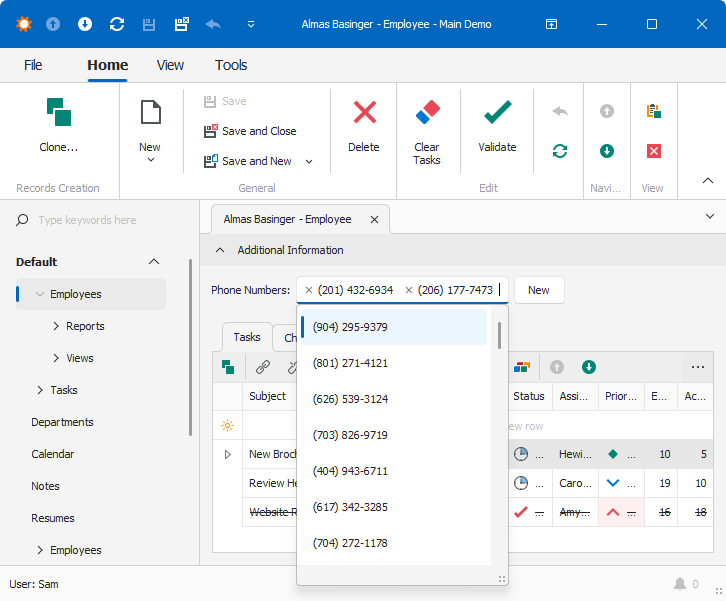
TagBoxListPropertyEditor allows users to select multiple items from its drop-down list. Use this editor as an alternative for large data grids when you want to save space in Detail Forms for collection data. The editor supports CRUD operations, Security System, Application Model options such as AllowEdit or AllowClear, DataSourceXXX filtering attributes, ImmediatePostData, and other standard XAF features.
To edit an item in a pop-up window, users can double-click the tag in the editor. In TabbedMDI mode, users can hold Ctrl + Shift and double-click on the tag to edit it in a new window.
Users can click the New button to create a new collection item. To clear the editor (remove all selected tags), users can press the Ctrl+Delete key combination. To delete selected tags or delete the last added tag, users can press Backspace. For more information about the available shortcuts, refer to the following topic: Token Edit Control.
ComboBoxListPropertyEditor
ASP.NET Core Blazor
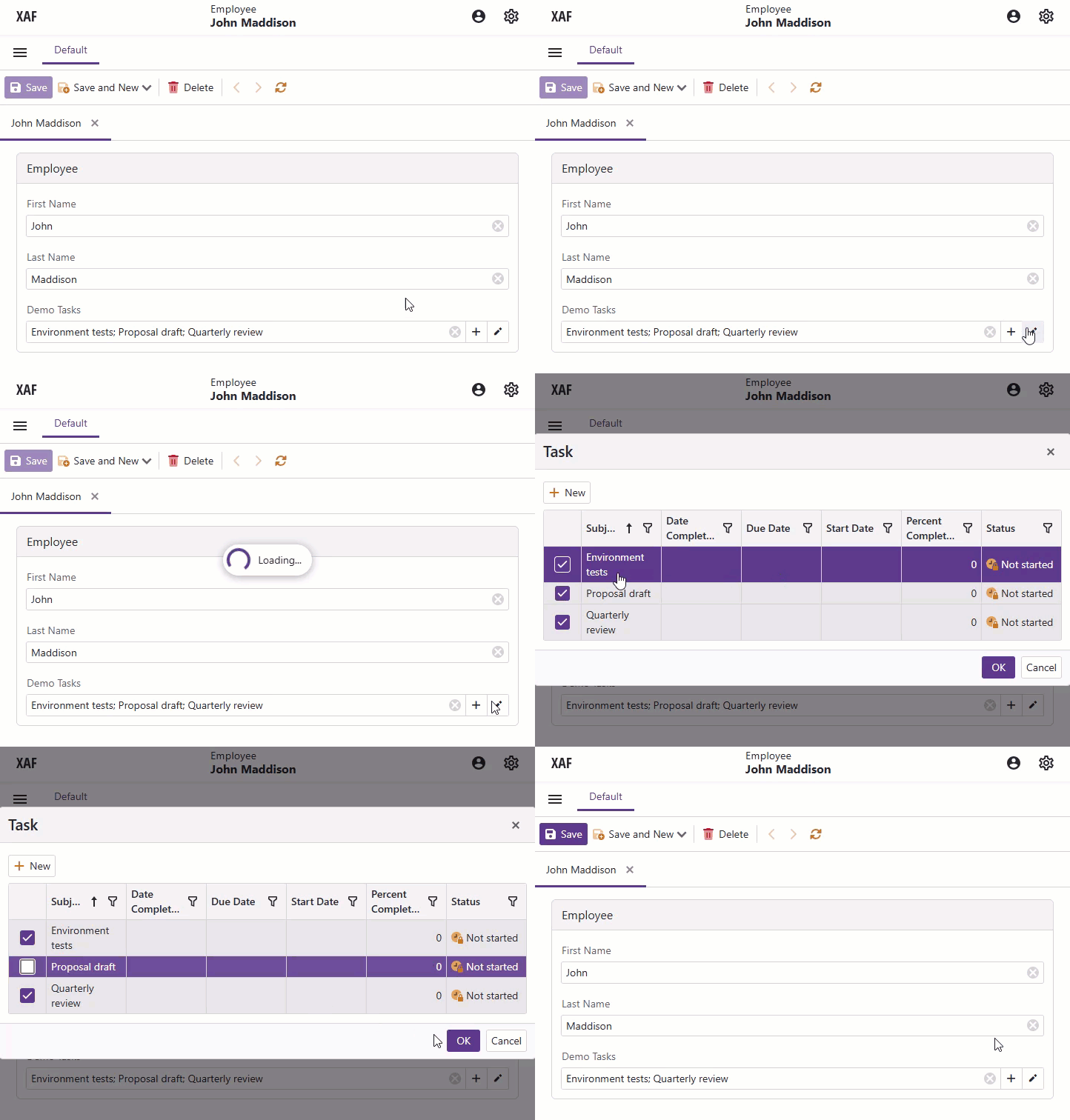
DevExpress.ExpressApp.Blazor.Editors.ComboBoxListPropertyEditor allows users to perform CRUD operations on collection properties in a pop-up Detail View. Use this editor as a space-saving alternative to data grids in Detail Forms. The editor supports standard XAF features, including:
- Security System
- Application Model options such as
AllowEditorAllowClear DataSourceXXXfilter attributesImmediatePostData
To edit an item in a pop-up window, users can click an item in the editor.
Users can press the New button or Ctrl+Shift+A to create a new collection item. When the checkbox column is focused, Enter inverts the current selection. Ctrl+Shift+Enter saves the selection and closes the pop-up window.
To access and customize a ComboBoxListPropertyEditor in XAF applications, create a ViewController that accesses a ComboBoxListPropertyEditor object. For more information about Property Editor customization in Detail Views, refer to the following topic: Access the Settings of a Property Editor in a Detail View.
The following code snippet specifies a value list separator in the ComboBoxListPropertyEditor in a Detail View:
using DevExpress.ExpressApp;
using DevExpress.ExpressApp.Blazor.Editors;

namespace MySolution.Blazor.Server.Controllers;

public partial class ComboBoxListPropertyEditorController : ViewController<DetailView> {
    protected override void OnActivated() {
        base.OnActivated();
        View.CustomizeViewItemControl<ComboBoxListPropertyEditor>(this, e => {
            e.Separator = ',';
        });
    }
}
Windows Forms
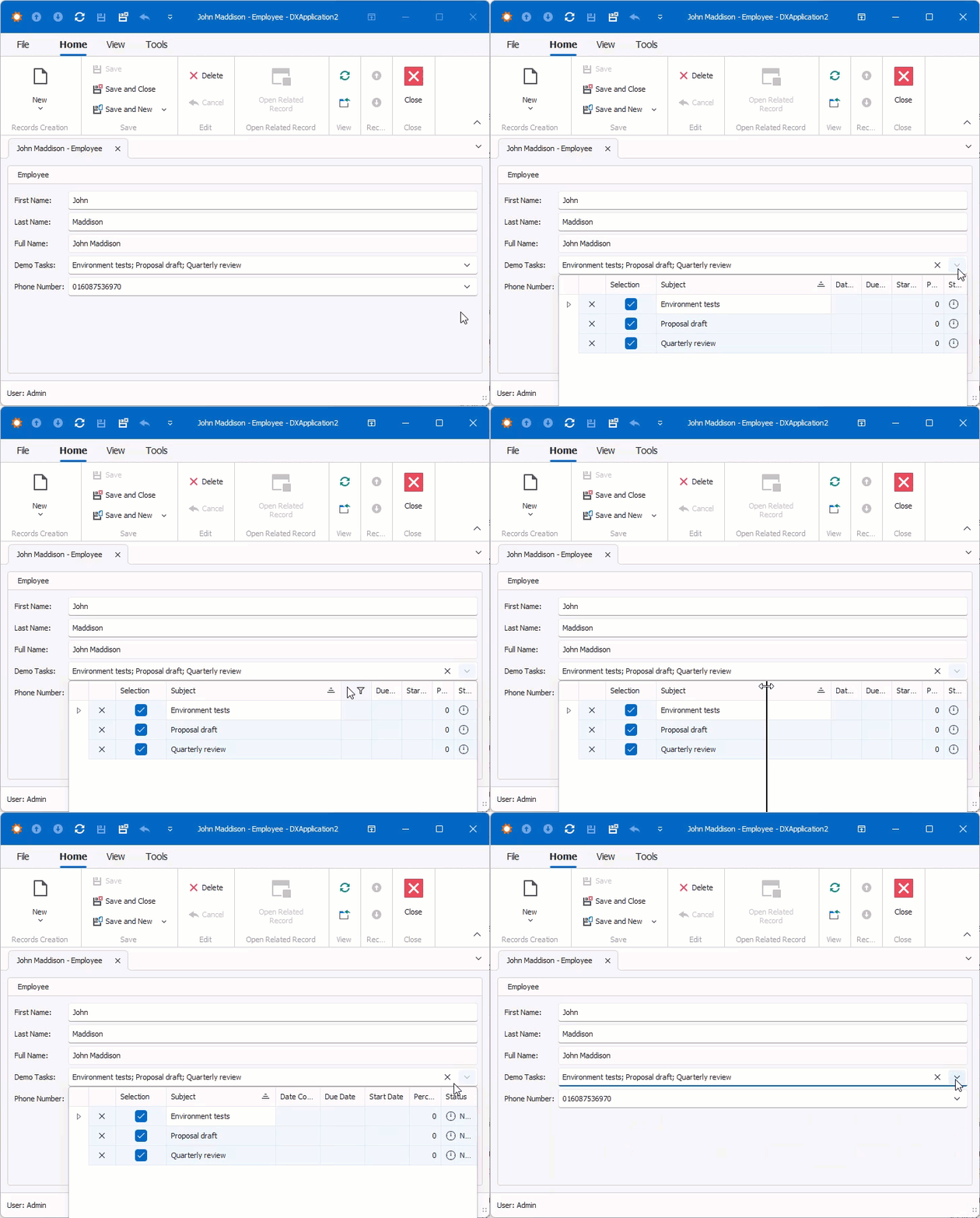
Control: ComboBoxLookupEdit – a descendant of BaseEdit from the DevExpress WinForms Data Editors library.
Repository Item: ComboBoxRepositoryItemLookupEdit.
DevExpress.ExpressApp.Blazor.Editors.ComboBoxListPropertyEditor allows users to perform CRUD operations on collection properties in a pop-up Detail View. Use this editor as a space-saving alternative to data grids in Detail Forms. The editor supports standard XAF features, including:
- Security System
- Application Model options such as
AllowEditorAllowClear DataSourceXXXfilter attributesImmediatePostData
To edit an item in a pop-up window, users can double-click an item in the editor.
Users can use the New button or Ctrl+N to create a new collection item. Shift+Enter selects or deselects the current focused item.