Criteria Properties
- 5 minutes to read
When you build an XAF application, you may need a property that stores filter criteria (an expression that follows Criteria Language Syntax). You can display such properties using the following editors:
- A Filter Builder control
- An editor that allows users to type criteria and display a Filter Builder in a popup (refer to the sections below)
Note
To see an example of how to use Criteria Property Editors, refer to the following topic: How to: Use Criteria Property Editors.
To see Criteria Property Editors in action, refer to the Property Editors | Criteria Properties section in the Feature Center demo installed with XAF. The default location of the application is %PUBLIC%\Documents\DevExpress Demos 25.2\Components\XAF\FeatureCenter.NET.XPO.
Examples
ASP.NET Core Blazor
XAF’s ASP.NET Core Blazor UI supports multiple Property Editors that work with filter criteria.
Note
Apply CriteriaOptionsAttribute to properties that store filter criteria. XAF generates FilterPropertyEditor controls for such properties. If necessary, you can change the editor type. See available options below.
In ASP.NET Core Blazor, BlazorPropertyEditorBase.ComponentModel returns an IComponentModel descendant that wraps properties and events of a corresponding ASP.NET Core Blazor Editor.
FilterPropertyEditor
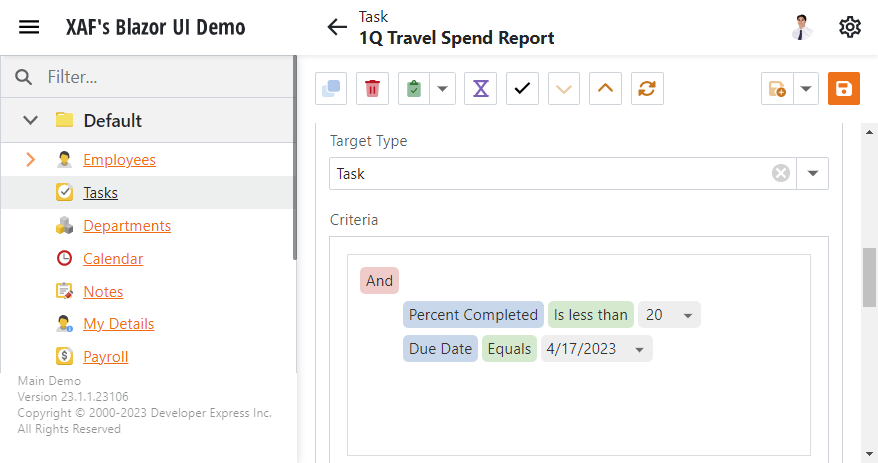
Component Model: DevExpress.ExpressApp.Blazor.Components.Models.FilterEditorModel.
Component: DevExpress.ExpressApp.Blazor.Components.FilterEditor. This internal component initializes and configures the JavaScript Filter Editor. It does not have public API.
The default Property Editor with tree-like and text-based criteria construction.
PopupFilterPropertyEditor
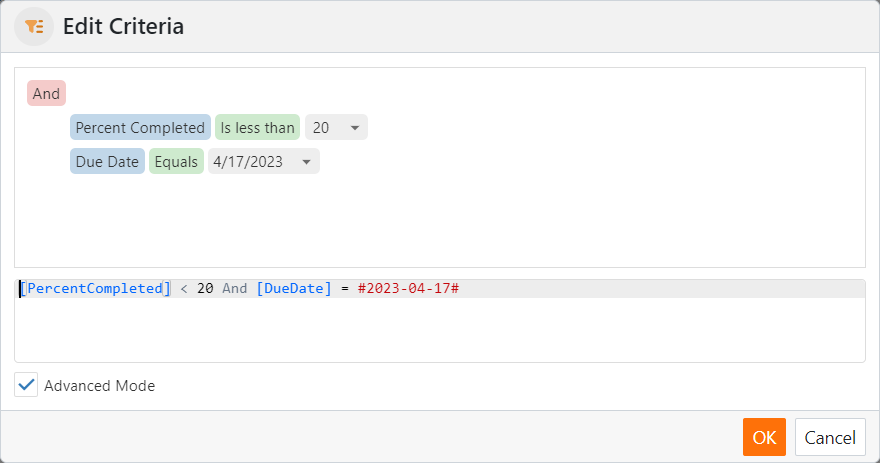
Component Model: DevExpress.ExpressApp.Blazor.Components.Models.DxTextBoxModel.
Component: DxTextBox shipped with the DevExpress ASP.NET Core Blazor Library.
A Property Editor for string properties that store filter criteria. It creates a pop-up Detail View with a FilterPropertyEditor item.
To access the FilterPropertyEditor in the pop-up Detail View, implement a View Controller for the DevExpress.ExpressApp.Editors.CriteriaProvider type. For more information on how to access a Property Editor in a Detail View, refer to the following topic: Access the Settings of a Property Editor in a Detail View.
To enable this Property Editor, use either of the following techniques:
- In the Model Editor
- Specify it in the
PropertyEditorTypeproperty of the required BOModel | <Class> | OwnMembers | <Member> node or Views | <DetailView> | Items | <PropertyEditor> node. - In code
- Decorate the property with EditorAliasAttribute and pass
EditorAliases.PopupCriteriaPropertyEditoras the attribute’s parameter.
CriteriaPropertyEditor
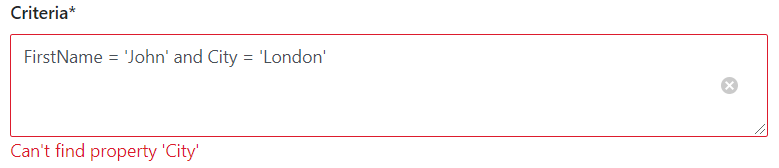
Class: DevExpress.ExpressApp.Blazor.Editors.CriteriaPropertyEditor.
CriteriaPropertyEditor displays a text box and supports expression validation. Knowledge of Criteria Language Syntax is required to work with this Property Editor.
For information on how to enable this editor in your application, refer to the following topic: How to specify an XAF Property Editor for properties and types.
![IMPORTANT] CriteriaPropertyEditor based on DxFilterBuilder is currently available in a Community Technology Preview (CTP).
Property Visibility Customization in Filter Editors
You can use the FilterEditorModel.CustomizePropertyVisibility delegate to control property visibility in filter editors. The following example hides key members in Filter Editors. The change applies to grids and PopupFilterPropertyEditor controls:
using DevExpress.ExpressApp;
using DevExpress.ExpressApp.Blazor.Components;
using DevExpress.ExpressApp.Blazor.Editors;
using DevExpress.ExpressApp.Editors;
using Microsoft.AspNetCore.Components;

namespace YourSolutionName.Blazor.Server.Controllers {
    public class KeyPropertyInFilterEditorController : ObjectViewController<DetailView, CriteriaProvider> {
        protected override void OnActivated() {
            base.OnActivated();
            View.CustomizeViewItemControl<FilterPropertyEditor>(this, editor => {
                editor.ComponentModel.CustomizePropertyVisibility =
                EventCallback.Factory.Create<CustomizePropertyVisibilityEventArgs>(this, (e) => {
                    if (e.MemberInfo.Owner.KeyMember == e.MemberInfo) {
                        e.Visible = false;
                    }
                });
            });
        }
    }
}
Windows Forms
XAF’s Windows Forms UI supports multiple Property Editors that work with filter criteria.
Note
Apply CriteriaOptionsAttribute to properties that store filter criteria. XAF generates FilterPropertyEditor controls for such properties. If necessary, you can change the editor type. See available options below.
Each Windows Forms Property Editor is available in two forms:
- A standalone control (displays property value in a Detail View)
- A repository item (displays property value in a List Editor that supports in-place editing)
AdvancedCriteriaPropertyEditor
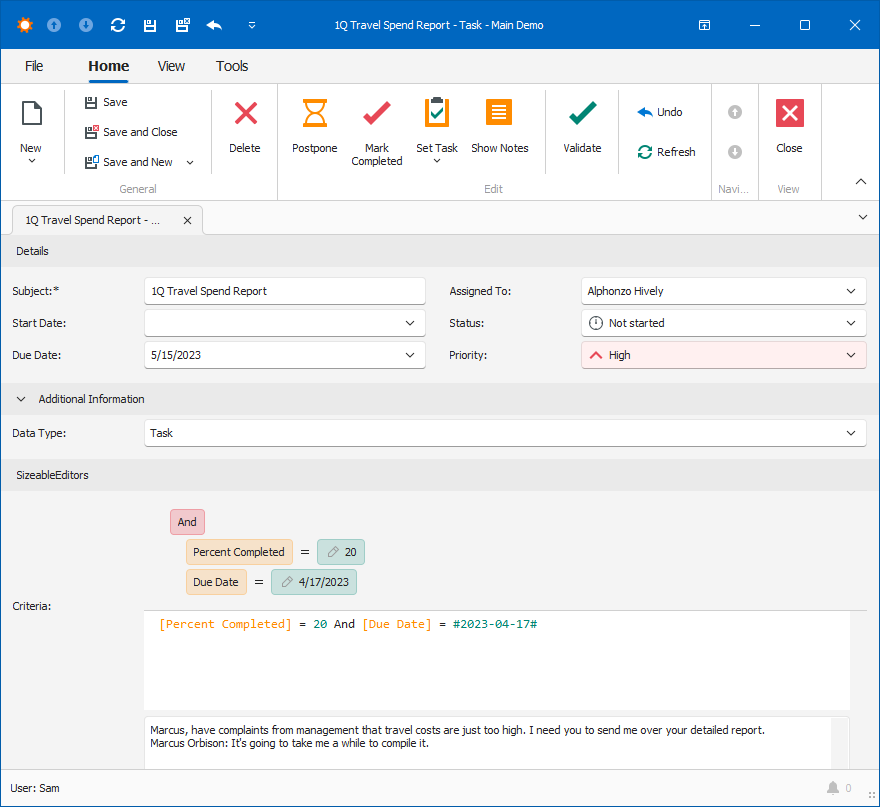
Control: DevExpress.DataAccess.UI.FilterEditorControl.
Repository Item: None.
The default Property Editor with tree-like and text-based criteria construction.
To display AdvancedCriteriaPropertyEditor for criteria properties, set the static UseAdvancedFilterEditorControl property value to True or Default.
CriteriaPropertyEditor
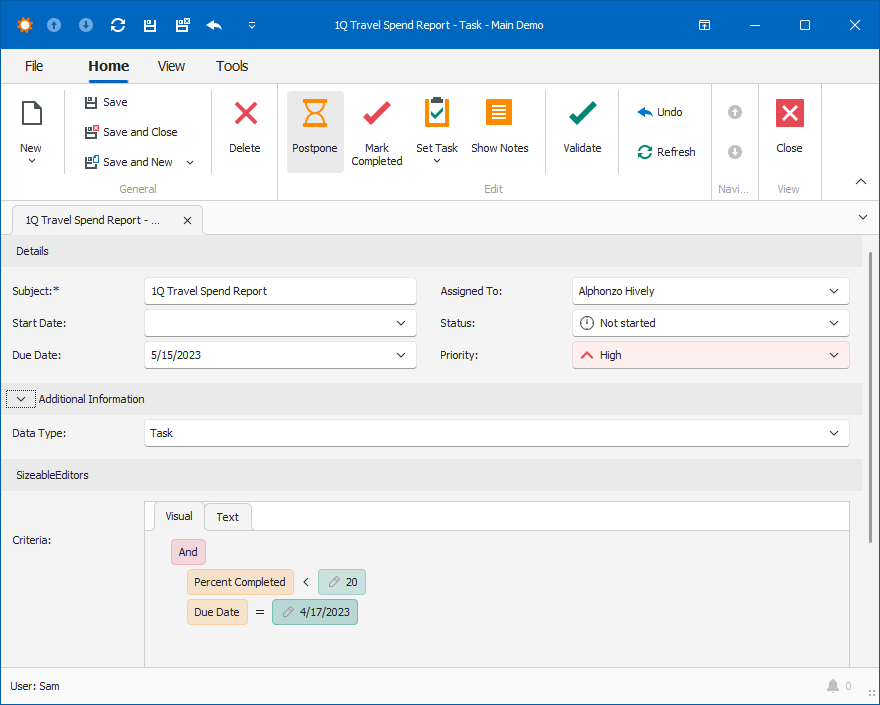
Control: DevExpress.XtraFilterEditor.FilterEditorControl.
Repository Item: None.
This Property Editor displays a Filter Builder control with two tabs. The Filter tab allows users to construct conditions through an easy-to-use UI. The Text tab allows users to type the criteria.
To display CriteriaPropertyEditor for criteria properties, set the static UseAdvancedFilterEditorControl property value to False.
PopupCriteriaPropertyEditor
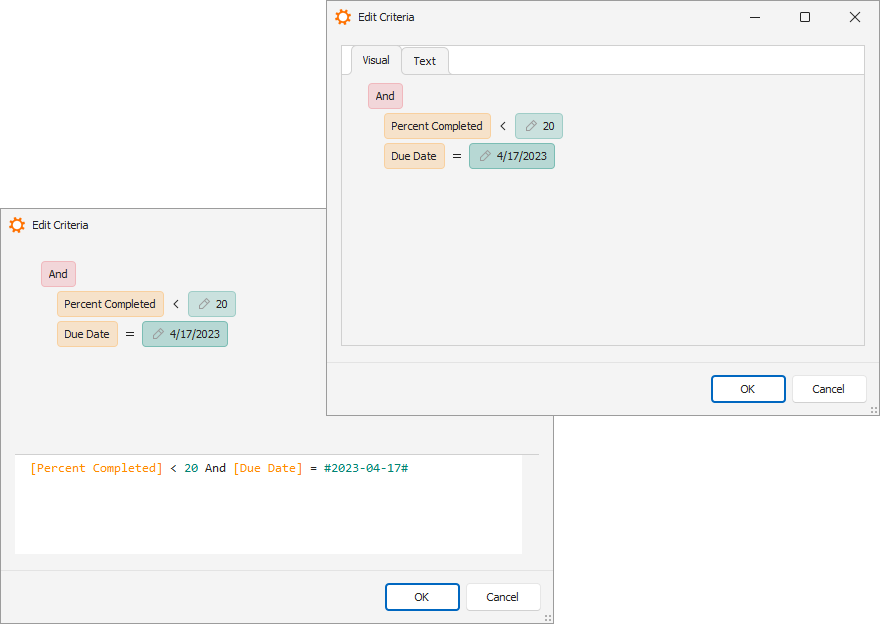
Control: DevExpress.ExpressApp.Win.Editors.PopupCriteriaEdit.
Repository Item: RepositoryItemPopupCriteriaEdit, a descendant of the RepositoryItemButtonEdit repository item from the XtraEditors Library.
Use this Property Editor to display a CriteriaPropertyEditor in a separate window and thus save space on the Detail form.
To use this Property Editor, assign it to the PropertyEditorType property of the required BOModel | <Class> | OwnMembers | <Member> node or Views | <DetailView> | Items | <PropertyEditor> node.
PopupCriteriaPropertyEditor creates a pop-up Detail View with the CriteriaPropertyEditor item that uses the DevExpress.DataAccess.UI.FilterEditorControl or DevExpress.XtraFilterEditor.FilterEditorControl component internally (depending on the static UseAdvancedFilterEditorControl property value). Implement a View Controller for the Detail View of the DevExpress.ExpressApp.Editors.CriteriaProvider type and access the CriteriaPropertyEditor.Control property. Use the technique described in the following topic to do this: Access the Settings of a Property Editor in a Detail View.
Syntax Limitations in ASP.NET Core Blazor and Windows Forms Criteria Property Editors
The tree-like criteria construction in Criteria Property Editors does not support advanced syntaxes, such as:
- Function Criteria Operators
- Object Parameters
- Current Object Parameter in XPO applications
- Free Joins
If a criteria should contain such elements, users can switch to the Text tab and type in the expression. XAF validates the expressions on the server side and applies the filter.