List Editors
- 4 minutes to read
List Views are visualized by means of List Editors. A List Editor has a control that is used to display an object collection supplied by a List View. A List Editor handles the binding of its control and supports interaction between the List View and the control. Certain List Editors are used for all the List Views. You can change the List Editors used in a default UI, or customize them. This topic explains how to do this, and defines available List Editor types. For information on how to implement your own List Editor, refer to the ListEditor class description.
List Editors are abstract UI entities represented by ListEditor class descendants. The ListEditor class declares members common to all List Editors. These members define the basic List Editor functionality. To create actual controls, each List Editor type overrides the protected CreateControlCore method which is called when a List Editor needs to be displayed in a UI. Since different controls are used in ASP.NET Core Blazor and WinForms applications, there are different List Editors implemented for ASP.NET Core Blazor and WinForms UI, respectively. The following tables list the basic List Editors supplied by XAF.
List Editors in WinForms Applications
| Name | Description |
|---|---|
| GridListEditor | The default List Editor used in XAF WinForms applications. This is the most common data visualization format in the form of a two-dimensional table. |
| CategorizedListEditor | Implemented in the TreeList Editors module. Displays data in the form of a two-dimensional table accompanied by the category tree. |
| ChartListEditor | Implemented in the Chart Module. Displays data in the form of a chart. |
| PivotGridListEditor | Implemented in the Pivot Grid Module. Displays data in the form of a pivot table that can be accompanied by a chart. |
| SchedulerListEditor | Implemented in the Scheduler module. Designed to present and manage scheduling information in XAF WinForms applications. |
| TreeListEditor | Implemented in the TreeList Editors module. Displays data in the form of a tree-like structure. |
List Editors in ASP.NET Core Blazor Applications
| Name | Description |
|---|---|
| DxGridListEditor | Displays data in the form of a two-dimensional table. To display object collections, the DxGridListEditor uses the DxGrid component. |
| DxTreeListEditor | Displays data in the form of a two-dimensional table with nested rows. To display object collections, the DxTreeListEditor uses the DxTreeList component. |
| SchedulerListEditor | Implemented in the Scheduler module. Designed to display and manage scheduling information in XAF ASP.NET Core Blazor applications. |
| DxChartListEditor | Displays data in the form of a chart. |
| DxPivotGridListEditor (CTP) | Displays data in the form of a pivot table. |
Customize List Editors
This section contains the most common ways to customize List Editors.
Change the List Editor for a particular List View
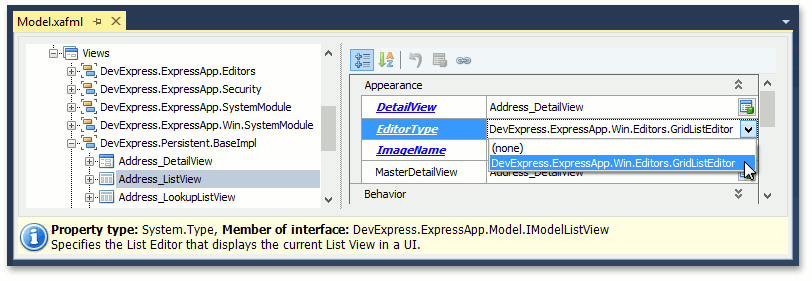
In the Model Editor, navigate to the Views | <ListView> node and set the EditorType property to the required List Editor’s type:
Change the default List Editor for all List Views
In the Model Editor, navigate to the Views node and set the DefaultListEditor property to the required List Editor’s type:

Customize a particular List Editor’s control
The examples below demonstrate how to customize a List Editor’s control:
How to: Access the Grid Component in a List View
Implement a custom List Editor
You can use a custom List Editor if XAF’s built-in List Editors do not meet your requirements. The following articles describe how to create a List Editor and use it to implement additional functionality:
How to Access XafApplication and Collection Source from a custom List Editor
How to: Implement a Custom WinForms List Editor
How to: Support a Context Menu for a Custom WinForms List Editor
How to: Implement an ASP.NET Core Blazor List Editor Using a Custom Control