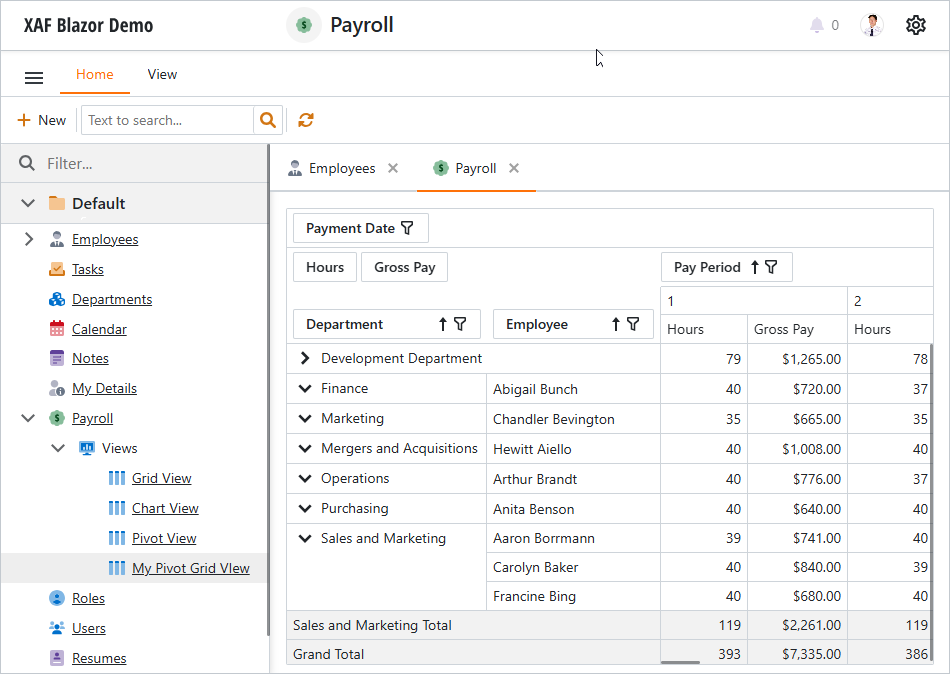
Display a List View as a Pivot Grid (Blazor)
- 3 minutes to read
This topic demonstrates how to display a List View as a pivot table in an XAF ASP.NET Core Blazor application.
Important
The Pivot Grid List Editor for Blazor is currently available as a Community Technology Preview (CTP).
Note
The following tutorial is based on the MainDemo.NET.EFCore application that ships with XAF. You can find this demo in the following folder: %PUBLIC%\Documents\DevExpress Demos 26.1\Components\XAF.
Step 1: Create a List View and Set the List Editor in the Application Model
- In the MainDemo.Blazor.Server project, double-click the Model.xafml file to display the Model Editor.
- Navigate to the Views | MainDemo.Module.BusinessObjects | Paycheck | Paycheck_ListView node. Right-click the node and select the Clone command from the context menu.
Configure the new node:
- Set the EditorType property to
DevExpress.ExpressApp.Blazor.Editors.DxPivotGridListEditor. - Set the List View ID to Paycheck_ListView_MyPivotGridView.
- Set the DataAccessMode property to DataView. This mode optimizes data access performance in List Views.
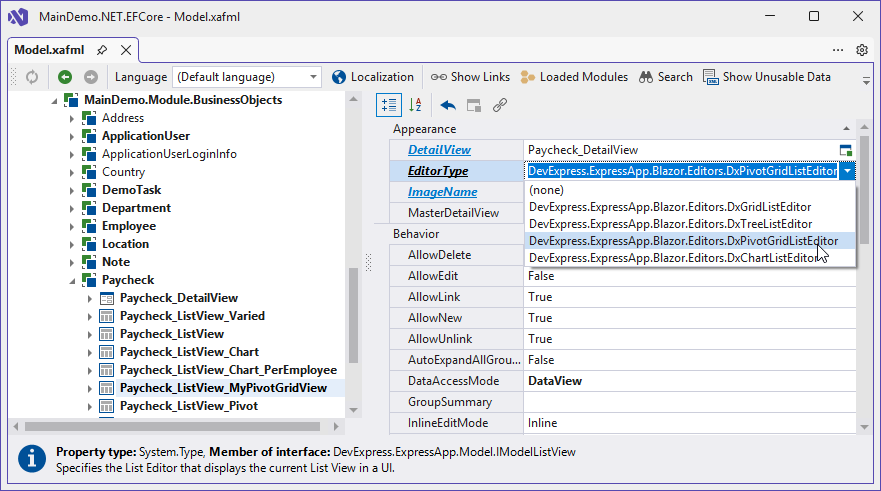
- Set the EditorType property to
Create a view variant to add the Paycheck_ListView_MyPivotGridView List View to the navigation:
- Navigate to <…> | Paycheck | Paycheck_ListView_Varied | Variants.
- Right-click the node and select Add… | Variant from the context menu.
- Set properties for the new node.
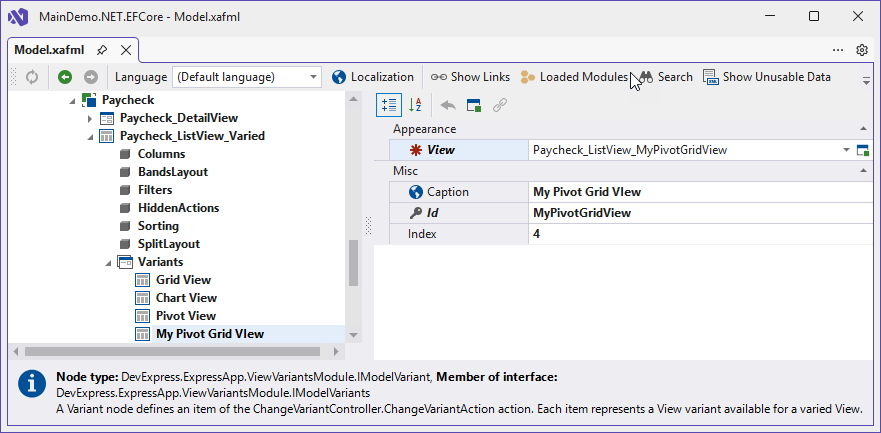
After you complete these steps, the application displays a new List View: My Pivot Grid View. This view uses the DxPivotGridListEditor.
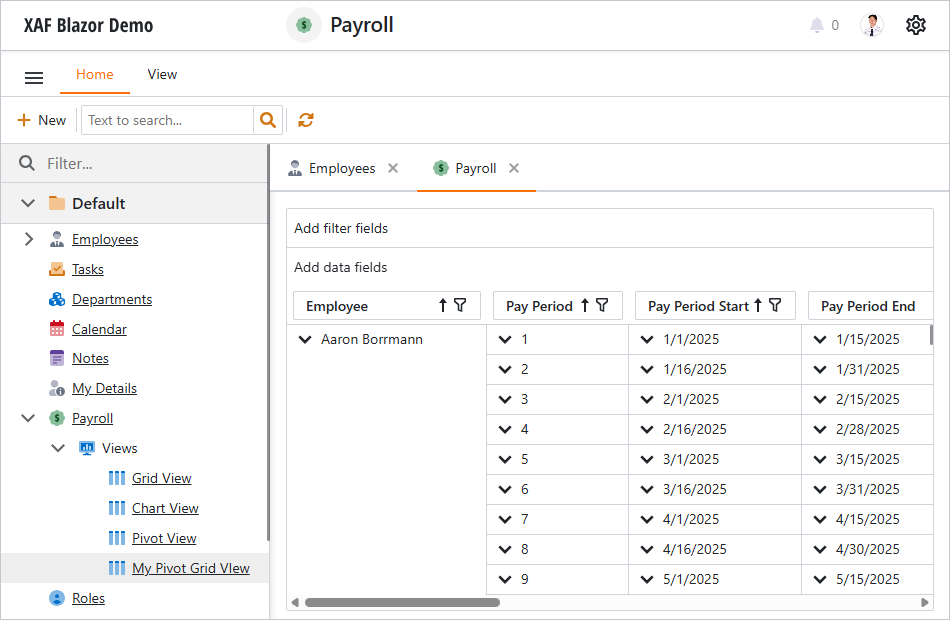
Step 2: Configure the Pivot Grid Layout
Navigate to the Views | MainDemo.Module.BusinessObjects | Paycheck | Paycheck_ListView_MyPivotGridView | Columns node in the Model Editor to configure the Pivot Grid’s column settings.
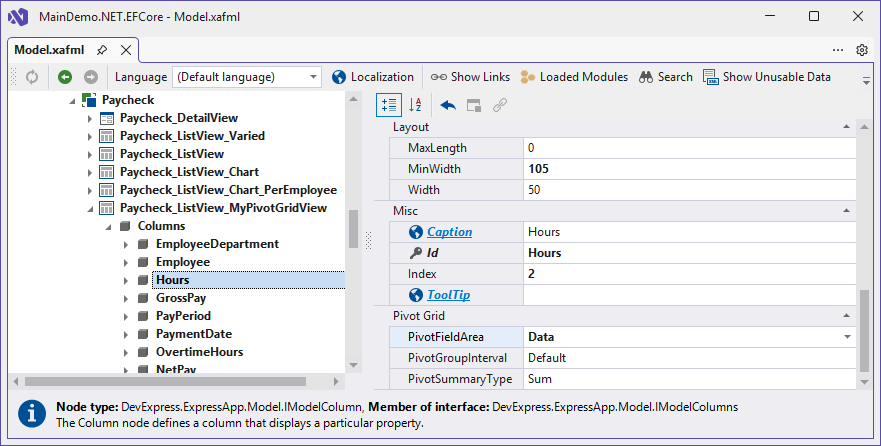
Add a new Department column. Right-click the Columns node and select Add… | Column. For the new column, set PropertyName to
Employee.DepartmentandIDtoEmployeeDepartment.Arrange visible columns and hide unnecessary columns. Use a column’s Index property to change that column’s position and visibility (
-1is hidden).Specify a column’s PivotFieldArea property to place that column between Pivot Grid layout areas: Row, Column, Data, or Filter.
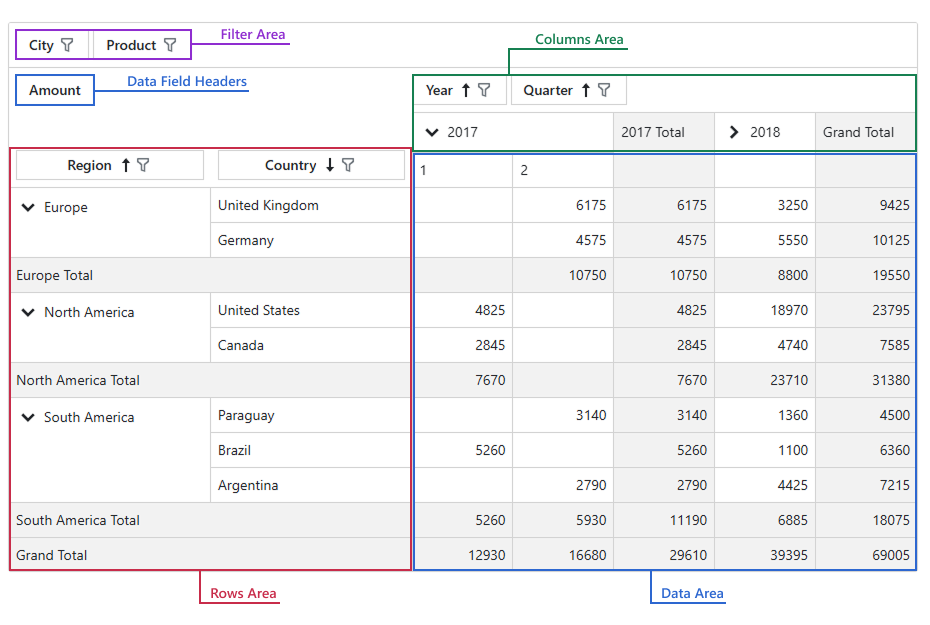
Use other column properties to further customize the Pivot Grid layout.
The resulting code in the Model.xafml file appears as follows:
<ListView Id="Paycheck_ListView_MyPivotGridView" ClassName="MainDemo.Module.BusinessObjects.Paycheck"
  IsGroupPanelVisible="True" Caption="Payroll" ShowAutoFilterRow="True" DataAccessMode="DataView"
  IsNewNode="True" EditorTypeName="DevExpress.ExpressApp.Blazor.Editors.DxPivotGridListEditor" >
  <Columns IsNewNode="True">
    <ColumnInfo Id="ID" PropertyName="ID" Index="-1" IsNewNode="True" />
    <ColumnInfo Id="NetPay" PropertyName="NetPay" Index="-1" IsNewNode="True" />
    <ColumnInfo Id="Notes" PropertyName="Notes" Index="-1" IsNewNode="True" />
    <ColumnInfo Id="OvertimeHours" PropertyName="OvertimeHours" View="" Index="-1" IsNewNode="True" />
    <ColumnInfo Id="OvertimePayRate" PropertyName="OvertimePayRate" View="" Index="-1" IsNewNode="True" />
    <ColumnInfo Id="PayPeriodEnd" PropertyName="PayPeriodEnd" Index="-1" IsNewNode="True" />
    <ColumnInfo Id="PayPeriodStart" PropertyName="PayPeriodStart" Index="-1" IsNewNode="True" />
    <ColumnInfo Id="PayRate" PropertyName="PayRate" Index="-1" IsNewNode="True" />
    <ColumnInfo Id="TaxRate" PropertyName="TaxRate" Index="-1" IsNewNode="True" />
    <ColumnInfo Id="TotalTax" PropertyName="TotalTax" Index="-1" IsNewNode="True" />
    <ColumnInfo Id="EmployeeDepartment" PropertyName="Employee.Department" Index="0" IsNewNode="True" />
    <ColumnInfo Id="Employee" PropertyName="Employee" Index="1" SortOrder="Ascending" IsNewNode="True" />
    <ColumnInfo Id="Hours" PropertyName="Hours" Index="2" PivotFieldArea="Data" IsNewNode="True" />
    <ColumnInfo Id="GrossPay" PropertyName="GrossPay" Index="3" PivotFieldArea="Data" IsNewNode="True" />
    <ColumnInfo Id="PayPeriod" PropertyName="PayPeriod" Index="4" PivotFieldArea="Column" IsNewNode="True" />
    <ColumnInfo Id="PaymentDate" PropertyName="PaymentDate" Index="5" PivotFieldArea="Filter" IsNewNode="True" />
  </Columns>
  <!--...-->