Preview, Print and Export Reports
- 4 minutes to read
Preview a Report
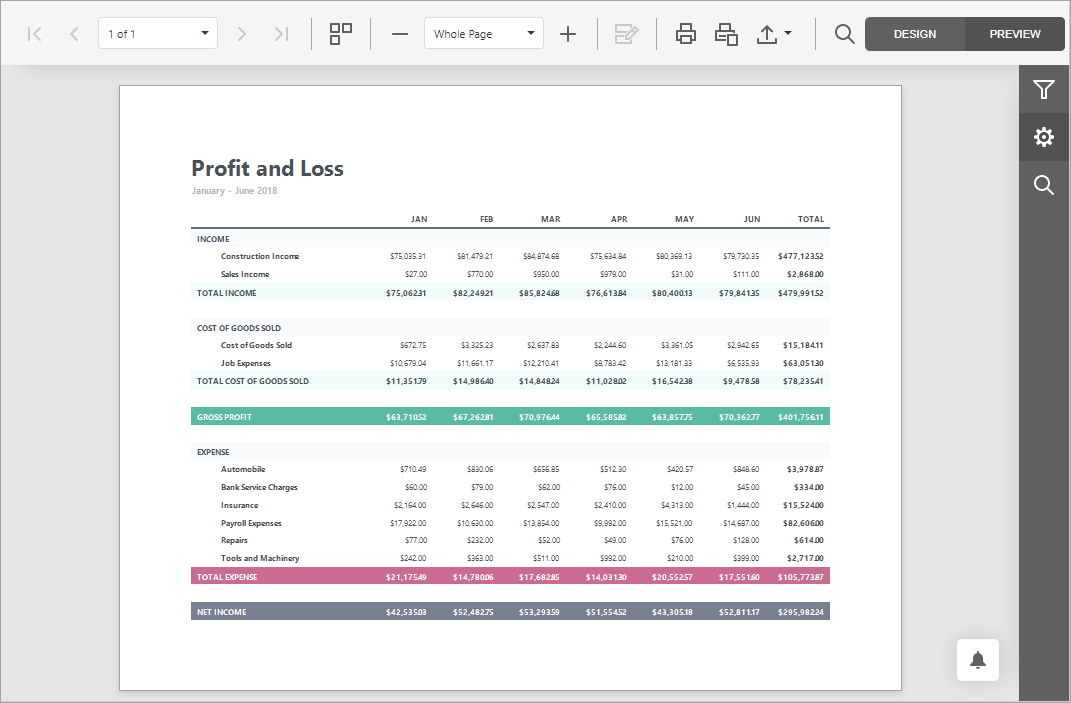
To switch a report to print preview mode, click the Preview button on the toolbar. You will see your report populated with data and broken down into pages.
Note
To learn more about options available in print preview mode, refer to the Document Viewer section of this documentation.
Print a Report
When in Preview mode, you can use toolbar commands to print out your report.

Export a Report
When in Preview mode, you can export your report to files in different formats.
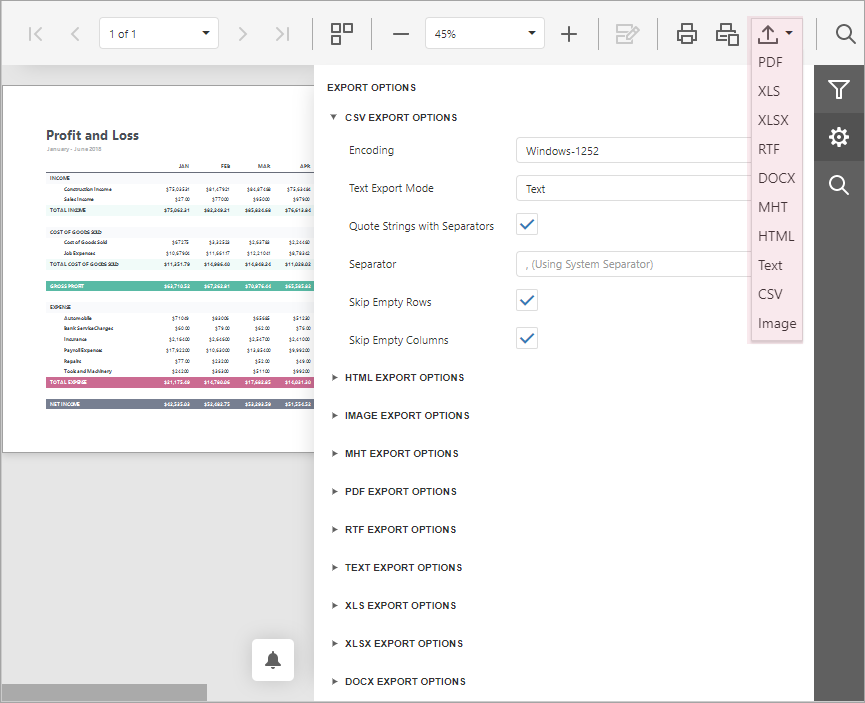
The following documents describe the basics of report exporting and format-specific export options.
- Export a Document
- CSV-Specific Export Options
- HTML-Specific Export Options
- Image-Specific Export Options
- MHT-Specific Export Options
- PDF-Specific Export Options
- RTF-Specific Export Options
- Text-Specific Export Options
- XLS-Specific Export Options
- XLSX-Specific Export Options
- DOCX-Specific Export Options
Hide Report Controls in Documents Exported to Specific Formats
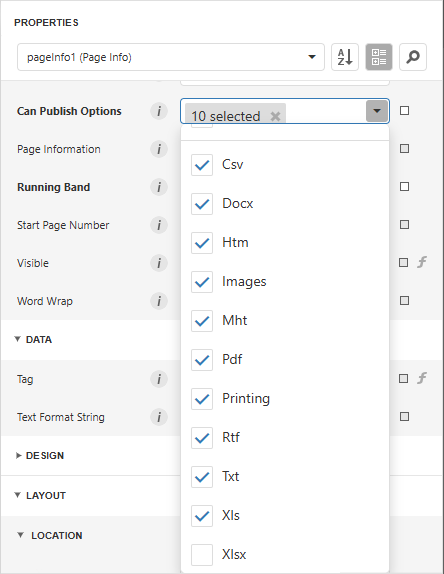
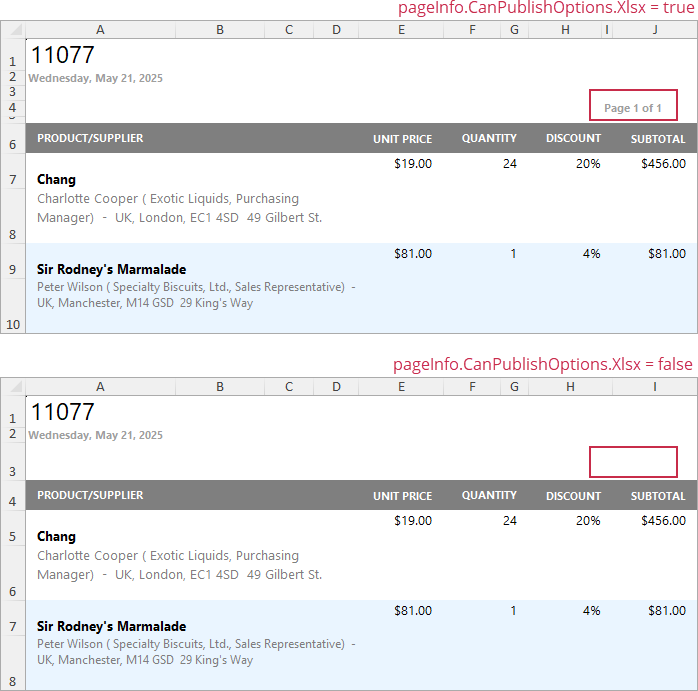
You can specify the Can Publish Options setting in the Properties grid to exclude report controls from export formats of your choosing.
The following image illustrates the resulting XLXS document with and without page information:
Export a Report to PDF with Accessible Tags (PDF/UA Compatibility)
Use the Accessible Role option to specify how report elements should be treated by screen readers in the exported PDF document:
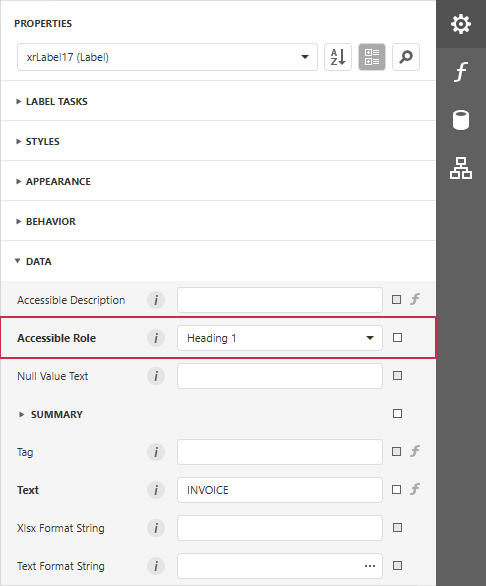
Set the PDF/UA Compatibility property to PDF/UA-1 or PDF/UA-2 to conform the exported PDF document to PDF/UA specification. Then, export the report as a PDF.
The following image illustrates PDF Accessibility Checker (PAC) output after it processes a PDF/UA-compatible exported document:
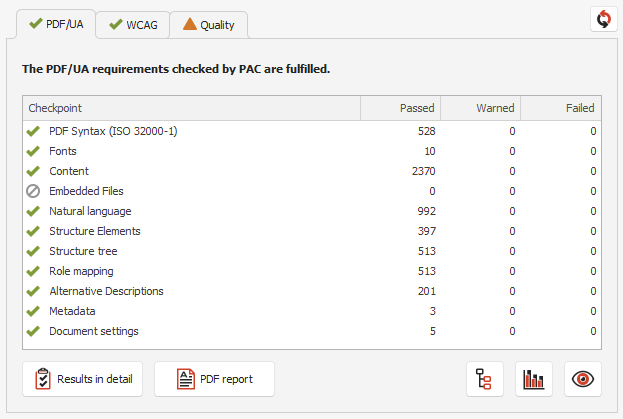
Use this table to map report controls to accessibility structure roles in exported PDF files.
The table below describes the following:
- How each control behaves when the Accessible Role property is set to Default.
- Roles you can assign to ensure that screen readers correctly identify element purpose in the exported PDF document.
Tip
Decorative role means an element is treated as an artifact (outside the tag tree). Use this role only for non-informative visual elements.
| Element(s) | Default behavior when Accessible Role = Default | Role you can specify |
|---|---|---|
Label |
No semantic role; treated as a Div. |
Heading |
Table |
No semantic role; treated as a Div. |
Table |
Table Row |
No semantic role; treated as a Div. |
Table Header Row |
Table Cell |
Treated as a paragraph (P). |
Header Cell |
Watermark (an image watermark) |
Treated as an artifact; excluded from the PDF logical structure. | Figure |
Watermark (a text watermark) |
Treated as an artifact; excluded from the PDF logical structure. | Paragraph |
Picture Box, Shape, Bar Code, Zip Code |
Treated as a Figure. |
Decorative (Artifact) |
Page Info |
Treated as an artifact; excluded from the PDF logical structure. | Paragraph (use for meaningful content such as dates or page numbers) |
Panel |
Included in the document structure. | Decorative (Artifact) (use for layout-only or purely visual panels) |
The Accessible Description property is not in effect for artifacts.
Note
Rich Text content is automatically converted to semantic tags when exported to a tagged PDF: headings become H1–H3, paragraphs become P, lists become L/LI, images become Figure, and tables become Table/TR/TH/TD. No role configuration is needed.
The following image illustrates the difference between default and specified roles:
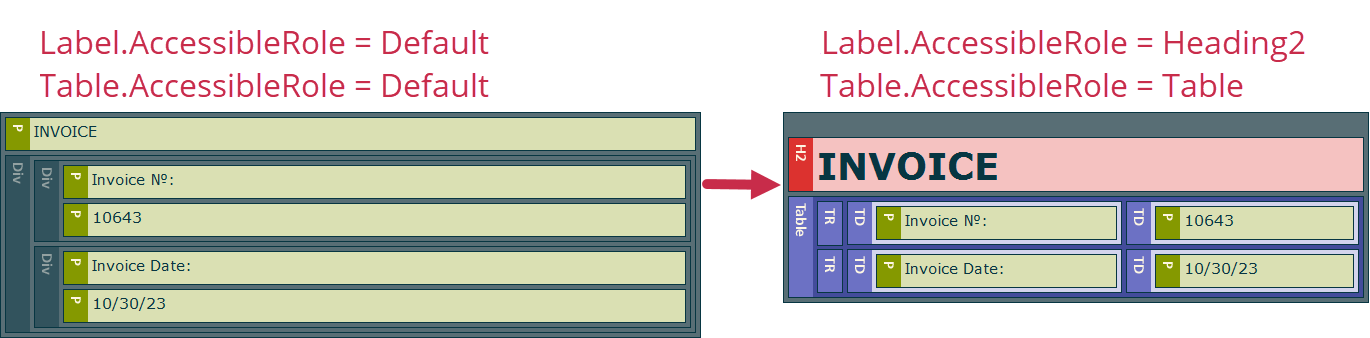
Digital Signature Accessible Description
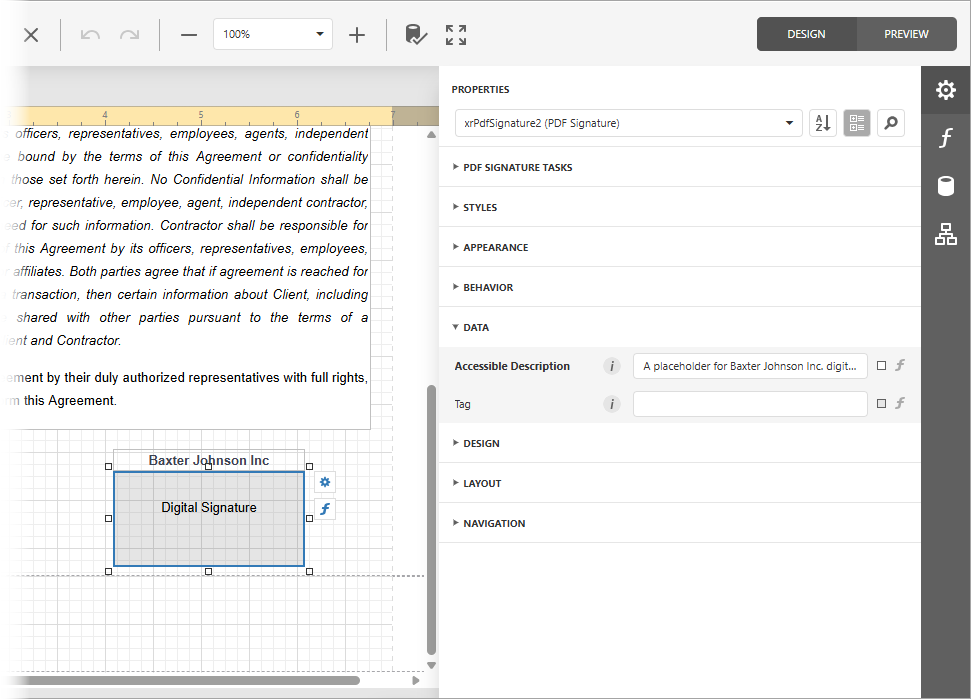
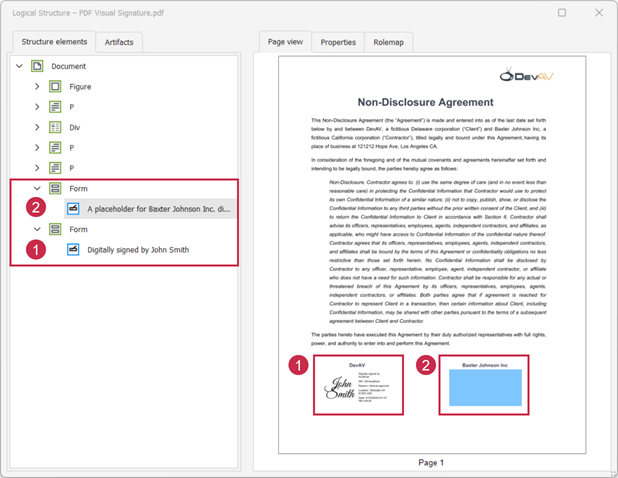
You can specify an accessible description for the PDF Signature control to help screen readers identify its content.
Document Signature
If the control displays a document signature, use the Accessible Description option in the control’s PDF Signature Options in the Export Options tab:
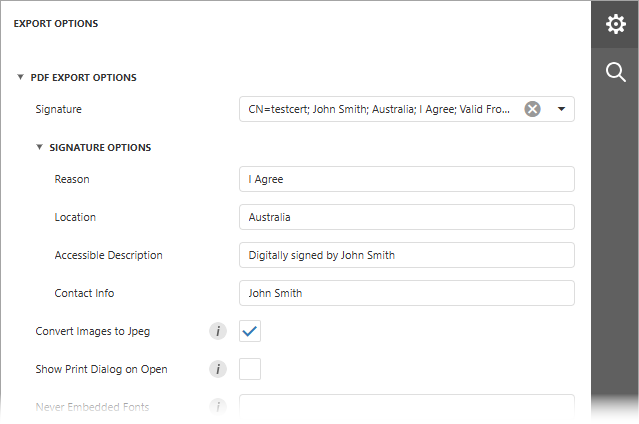
Signature Placeholder
If the control is a signature placeholder (the document signature is disabled), use the control’s Accessible Description property:
The following image shows both signatures in the PDF tag tree:
Limitations
- The Never Embedded Fonts export option is not supported for PDF/UA-compatible documents.
- If a report contains a PDF Content control, you cannot export the report to PDF with the PDF/UA option enabled.
- If a report contains editing fields, the exported document does not comply with PDF/UA requirements.
- Hyperlinks are exported without semantic tags required by PDF/UA-2.