Implement a Property Editor Based on a JavaScript Widget (Blazor)
- 6 minutes to read
This topic explains how to implement a Property Editor for ASP.NET Core Blazor when the underlying control is a JavaScript widget.
This approach requires a JavaScript interop layer in addition to the Razor component and Component Model. The JavaScript module creates the widget, keeps it in sync with the property value, and cleans up when the editor is removed.
If the control is a Razor component instead, refer to the following topic: Implement a Property Editor Based on a Custom Razor Component (Blazor).
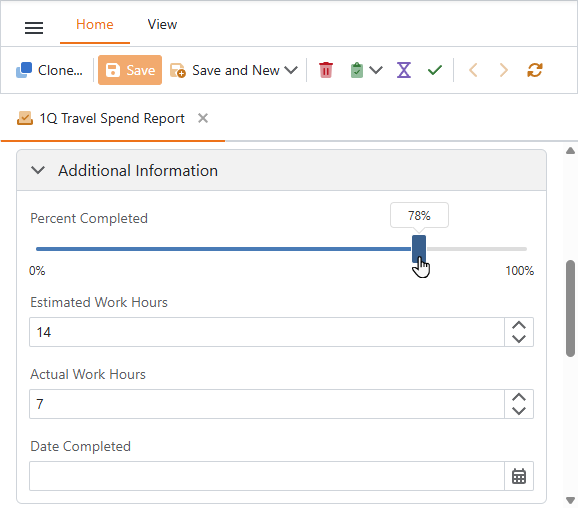
The following example implements a Property Editor using the DevExtreme dxSlider widget. The widget displays a horizontal track with a draggable handle and a hover tooltip showing the current percentage. If a user drags the handle or clicks the track, the editor writes the new value back to the business object in real time.
Note
The DevExpress.ui namespace is available globally because XAF Blazor loads the DevExtreme bundle on every page. No additional script references are required.
Implement the following entities in the application project (SolutionName.Blazor.Server):
- JavaScript Module
- A JS module that creates the
dxSlider, updates its value, and handles disposal. - Razor Component
- A Razor markup file that holds the container
<div>, imports the JS module, and manages its lifecycle. - Component Model
- An object with properties that match the names of the Razor component’s declared parameters.
- Property Editor
- A class that integrates the component into your XAF application.
JavaScript Module
Create a JavaScript module with four exported functions:
initialize— creates adxSliderinstance on the page. It sets the value range, read-only state, and a tooltip that shows the current value as a percentage on hover. It also registers anonValueChangedhandler that notifies .NET when the user moves the slider.setValue— updates the value of an existingdxSliderinstance.setReadOnly— updates the read-only state of an existingdxSliderinstance.dispose— destroys thedxSliderinstance and removes it from the page.
File: SolutionName.Blazor.Server\wwwroot\js\progressSlider.js
const percentFormat = v => `${v}%`;

export function initialize(containerId, dotNetRef, value, readOnly) {
    const el = document.getElementById(containerId);
    if (!el || DevExpress.ui.dxSlider.getInstance(el)) return;

    new DevExpress.ui.dxSlider(el, {
        min: 0,
        max: 100,
        step: 1,
        value,
        readOnly,
        tooltip: {
            enabled: true,
            showMode: 'onHover',
            format: percentFormat
        },
        label: {
            visible: true,
            position: 'bottom',
            format: percentFormat
        },
        onValueChanged: ({ value }) => {
            dotNetRef.invokeMethodAsync('UpdateValue', value);
        }
    });
}

export const setValue = (containerId, value) => setOption(containerId, 'value', value);
export const setReadOnly = (containerId, readOnly) => setOption(containerId, 'readOnly', readOnly);
export const dispose = containerId => getInstance(containerId)?.dispose();

function setOption(containerId, key, value) {
    getInstance(containerId)?.option(key, value);
}

function getInstance(containerId) {
    const el = document.getElementById(containerId);
    return el ? DevExpress.ui.dxSlider.getInstance(el) : null;
}
Razor Component
- Create a Razor component named DxSliderEditor.razor.
- Render a single
<div>with a unique ID. JavaScript creates the slider inside this element. - On the first render, load the JS module and call
initialize. Pass aDotNetObjectReferenceso that JavaScript can notify .NET when the user moves the slider. - On subsequent renders, call
setValueorsetReadOnlyonly when those values have changed. Implement
IAsyncDisposableto destroy the widget and release both the module reference and theDotNetObjectReferencewhen the component is removed.File: SolutionName.Blazor.Server\Editors\DxSliderEditor.razor
@namespace SolutionName.Blazor.Server.Editors
@implements IAsyncDisposable

<div id="@containerId" class="xaf-slider-editor"></div>

@code {
    [Inject] private IJSRuntime JSRuntime { get; set; }

    [Parameter] public int Value { get; set; }
    [Parameter] public EventCallback<int> ValueChanged { get; set; }
    [Parameter] public bool ReadOnly { get; set; }

    private readonly string containerId = "xaf-" + Guid.NewGuid().ToString("N");

    private IJSObjectReference _jsModule;
    private DotNetObjectReference<DxSliderEditor> dotNetRef;

    private int _previousValue;
    private bool _previousReadOnly;

    protected override void OnInitialized()
    {
        dotNetRef = DotNetObjectReference.Create(this);
        _previousValue = Value;
        _previousReadOnly = ReadOnly;
    }

    protected override async Task OnAfterRenderAsync(bool firstRender)
    {
        if (firstRender)
        {
            await JSRuntime.LoadDxResources();
            _jsModule = await JSRuntime.InvokeAsync<IJSObjectReference>("import", "/js/progressSlider.js");
            await _jsModule.InvokeVoidAsync("initialize", containerId, dotNetRef, Value, ReadOnly);
            return;
        }

        if (_jsModule is null) return;

        if (Value != _previousValue)
        {
            _previousValue = Value;
            await _jsModule.InvokeVoidAsync("setValue", containerId, Value);
        }

        if (ReadOnly != _previousReadOnly)
        {
            _previousReadOnly = ReadOnly;
            await _jsModule.InvokeVoidAsync("setReadOnly", containerId, ReadOnly);
        }
    }

    [JSInvokable]
    public async Task UpdateValue(int value)
    {
        _previousValue = value;
        Value = value;
        await ValueChanged.InvokeAsync(value);
    }

    public async ValueTask DisposeAsync()
    {
        if (_jsModule is not null)
        {
            try { await _jsModule.InvokeVoidAsync("dispose", containerId); }
            catch (JSDisconnectedException) { }
            catch (TaskCanceledException) { }

            await _jsModule.DisposeAsync();
        }
        dotNetRef?.Dispose();
    }
}
In the Properties window, set this file’s Build Action to Content.
Component Model
- Create a
ComponentModelBasedescendant named DxSliderModel.cs. - Declare properties with the same names and types as the parameters in
DxSliderEditor.razor. - Override the
ComponentTypeproperty to returntypeof(DxSliderEditor).
File: SolutionName.Blazor.Server\Editors\DxSliderModel.cs
using DevExpress.ExpressApp.Blazor.Components.Models;
using Microsoft.AspNetCore.Components;

namespace SolutionName.Blazor.Server.Editors;

public class DxSliderModel : ComponentModelBase {
    public int Value {
        get => GetPropertyValue<int>();
        set => SetPropertyValue(value);
    }
    public EventCallback<int> ValueChanged {
        get => GetPropertyValue<EventCallback<int>>();
        set => SetPropertyValue(value);
    }
    public bool ReadOnly {
        get => GetPropertyValue<bool>();
        set => SetPropertyValue(value);
    }
    public override Type ComponentType => typeof(DxSliderEditor);
}
Property Editor
- Create a class named DxSliderPropertyEditor.cs that inherits from
BlazorPropertyEditorBase. - Add the
[PropertyEditor(typeof(int), false)]attribute to assign this editor tointproperties. Thefalseargument means that this is not the default editor. You have to assign it explicitly in the Application Model. - Override
CreateComponentModelto create aDxSliderModeland define what happens when the user moves the slider: update the model value and save it to the business object. - Override
ReadValueCoreto pass the current value from the business object to the slider. UseConvert.ToInt32to safely convert the value before passing it. Override
ApplyReadOnlyto disable the slider when the property is not editable. The null check prevents a crash during startup, because XAF calls this method before the component is ready.File: SolutionName.Blazor.Server\Editors\DxSliderPropertyEditor.cs
using DevExpress.ExpressApp.Blazor.Components.Models;
using DevExpress.ExpressApp.Blazor.Editors;
using DevExpress.ExpressApp.Editors;
using DevExpress.ExpressApp.Model;
using Microsoft.AspNetCore.Components;

namespace SolutionName.Blazor.Server.Editors;

[PropertyEditor(typeof(int), false)]
public class DxSliderPropertyEditor : BlazorPropertyEditorBase {
    public DxSliderPropertyEditor(Type objectType, IModelMemberViewItem model) : base(objectType, model) { }
    public override DxSliderModel ComponentModel => (DxSliderModel)base.ComponentModel;

    protected override IComponentModel CreateComponentModel() {
        var model = new DxSliderModel();
        model.ValueChanged = EventCallback.Factory.Create<int>(this, value => {
            model.Value = value;
            OnControlValueChanged();
            WriteValue();
        });
        return model;
    }

    protected override void ReadValueCore() {
        base.ReadValueCore();
        ComponentModel.Value = Convert.ToInt32(PropertyValue);
    }

    protected override object GetControlValueCore() => ComponentModel.Value;

    protected override void ApplyReadOnly() {
        base.ApplyReadOnly();
        if (ComponentModel != null) {
            ComponentModel.ReadOnly = !AllowEdit;
        }
    }
}
Rebuild your solution and double-click the SolutionName.Blazor.Server\Model.xafml to invoke the Model Editor for the ASP.NET Core Blazor application project.
Navigate to BOModel | <Class> | OwnMembers | <Member> and set the PropertyEditorType property to
DxSliderPropertyEditor.Tip
You can also set this Property Editor for a specific View only. To do this, specify the Views | <DetailView> | Items | <PropertyEditor> node’s
PropertyEditorTypeproperty.
Additional Customizations
The following techniques described in Implement a Property Editor Based on a Custom Component (Blazor) also apply to this approach:
- Access XafApplication and ObjectSpace
- If the Property Editor requires access to the application or the View ObjectSpace, implement the
IComplexViewIteminterface. Use IComplexViewItem.Setup to obtain the XafApplication and IObjectSpace objects. - Display a Custom Component in a List View
- By default, the Property Editor renders the same component in Detail Views and during inline editing in List Views. To specify a different component for regular List View cells, override the
BlazorPropertyEditorBase.CreateViewComponentCoremethod.