Export Data
- 2 minutes to read
XAF allows users to export List View data and analysis data to various formats. The export functionality implements the ExportController that contains the Export to Action. The Action is activated for the current List View if the List Editor supports the IExportable interface and the List Editor’s control supports the IPrintable interface. The following editors meet these criteria:
Windows Forms List Editors | ASP.NET Core Blazor List Editors |
When you use any of the XAF List Editors mentioned above, your application already includes the export functionality. If you use a custom List Editor to display List Views and want its data to be exportable, implement the IExportable interface in the List Editor and the IPrintable interface in the control it uses.
If the default implementation of the Export Controller does not meet your needs, handle its events or the events of its platform-specific descendant: BlazorExportController or WinExportController. You can find an example in the following help topic: How to: Customize the Export Action Behavior
Export Data: ASP.NET Core Blazor
The Export to Action exports data to a file stream. The supported file formats are:
|
|
|
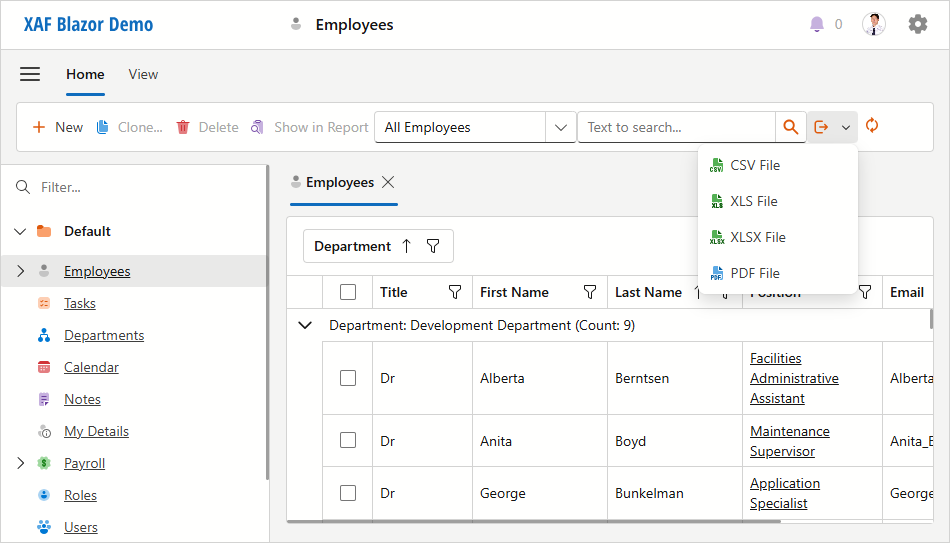
To export data, XAF uses the data-aware export that ships with the DevExpress Blazor Grid. For additional information on this functionality and its limitations, refer to the following topic: Blazor Grid - Export Data.
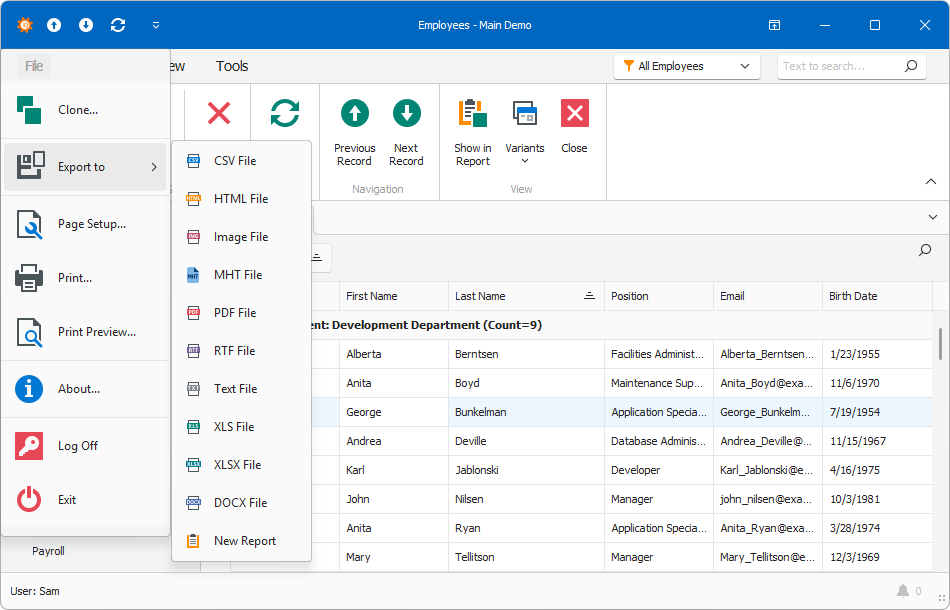
Export Data: Windows Forms
The Export to Action exports data to a file stream. The supported file formats are:
|
|
|
|
|