Use DevExpress Templates to Create a Document Viewer Application
- 3 minutes to read
You can use DevExpress templates to create an application with the WinForms Document Viewer control from the console. Note that the project template targets .NET 8.0+ and supports C# only.
Project Template Kit (Visual Studio, Visual Studio Code, JetBrains Rider)
The DevExpress Template Kit offers a unified project creation experience for Microsoft Visual Studio, Visual Studio Code, and JetBrains Rider.
To create a WinForms Document Viewer application, follow the steps below:
Install the DevExpress Project Template Kit extension. Refer to the following sections in the Project Template Kit help topic for instructions based on your IDE:
Select WinForms or Reporting in the Platforms list. Select the Report Viewer Application template:
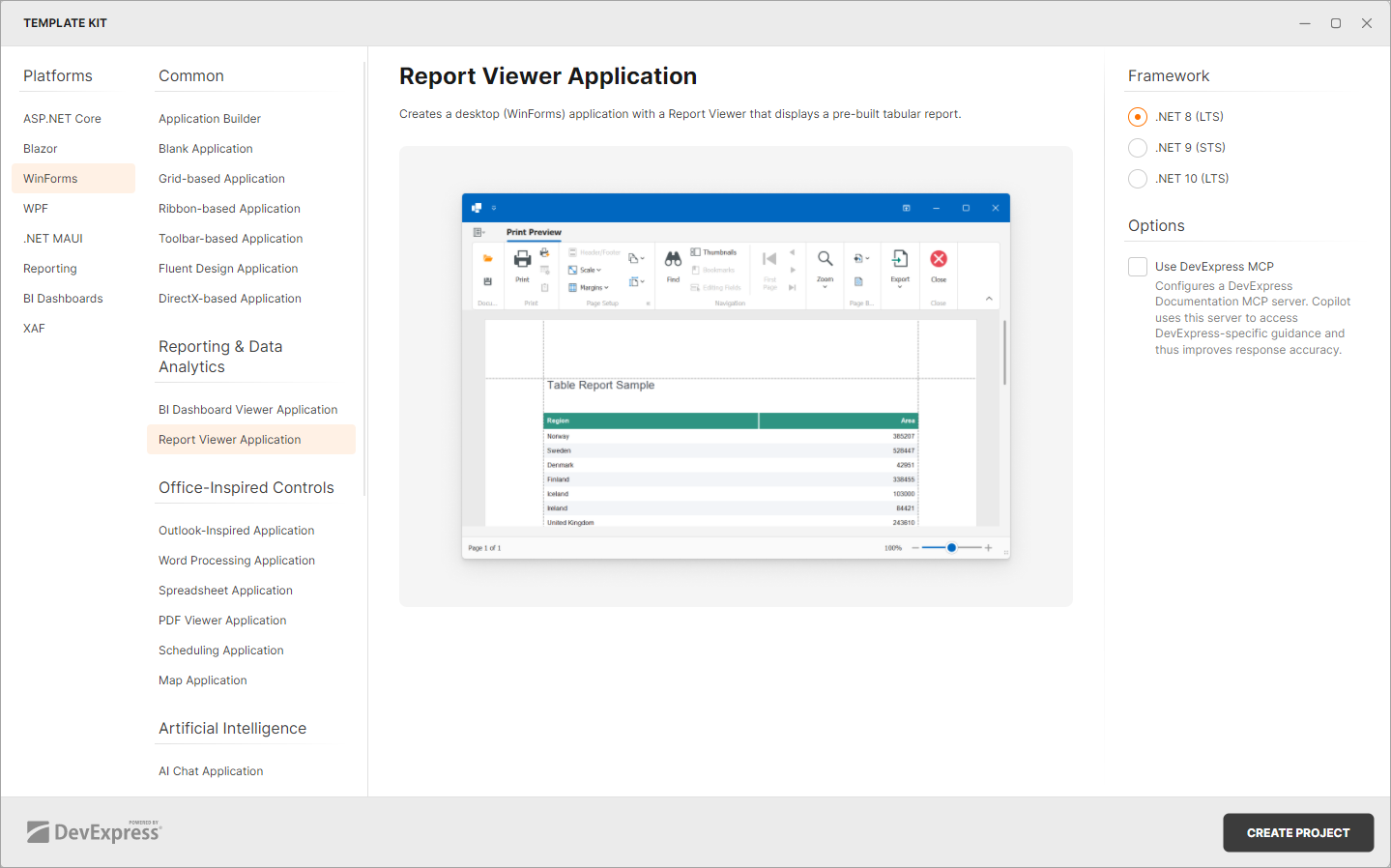
Specify additional options.
CLI Templates
Install DevExpress CLI Templates
DevExpress WinForms project templates are included in our Unified Component Installer.
You can also install the templates from nuget.org or the DevExpress NuGet Gallery (nuget.devexpress.com).
Execute the following command to install DevExpress WinForms project templates from nuget.org:
dotnet new install DevExpress.Win.ProjectTemplates
Ensure that the nuget.org source is enabled. If it is disabled, you may encounter error NU1101: Unable to find package DevExpress.Win.ProjectTemplates. To list sources with their status, run dotnet nuget list source. To enable a source, run dotnet nuget enable source <source name>.
If you are new to NuGet, visit the following page for more information about package management prerequisites: An Introduction to NuGet.
Create a Project
To create a WinForms Report Viewer application, execute the following command:
dotnet new dx.win.reporting -n WinReportViewer
The command creates a WinForms application with Report Viewer called WinReportViewer in the current directory.
You can use the following parameters to see available command options: -? | -h | --help. For example, execute the following command:
dotnet new dx.win.reporting --help
Refer to the following documents for information on template options:
- dotnet new command - Options
- Standard options for .NET CLI templates.
- Template Options
- Options specific to the DevExpress WinForms templates.
Build the Project
You need to configure your personal DevExpress NuGet Feed to load the required DevExpress component packages and build the resulting project. Follow the instructions below:
- Obtain your NuGet feed URL.
Register the source. You can do this in your IDE or from a CLI:
Template Options
The following list contains options you can specify when creating DevExpress WinForms Reporting project templates:
| CLI Option | Template Kit Option | Option Description |
|---|---|---|
--framework <TFM> |
Target Framework | Specifies the target framework. It expects a target framework moniker (TFM). Example: net8.0. |
-mcp, --use-devexpress-mcp |
Use DevExpress MCP | Installs the DevExpress Documentation MCP Server for the generated solution. GitHub Copilot queries DevExpress documentation through this server to improve response accuracy and reduce model hallucinations. Refer to DevExpress Documentation MCP Server for setup details. |
-prerelease, --use-prerelease-dx-version |
– | A flag that indicates whether to use a pre-release DevExpress package version in the project. |
--dx-version <version> |
– | Specifies DevExpress package version to be used in the project. Examples: 25.2.3, 25.2.*, 25.2.*-* |
--dx-nuget-feed <feed> |
– | Specifies the NuGet Feed URL. Refer to nuget.devexpress.com to obtain your personal feed URL (available for registered users). |