Create a Report in Visual Studio
- 3 minutes to read
Install the Report Designer
Use the DevExpress Unified Component Installer to install DevExpress components. These components include the Report Designer.
Tip
DevExpress Reports offer the following AI-coding assistant extensions to help you create reports in Visual Studio Report Designer more efficiently:
Add a New Report
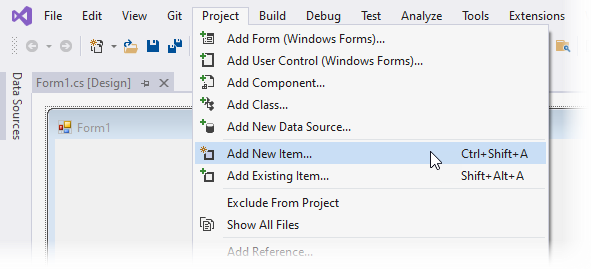
Press CTRL+SHIFT+A or click Project | Add New Item in the Visual Studio menu.
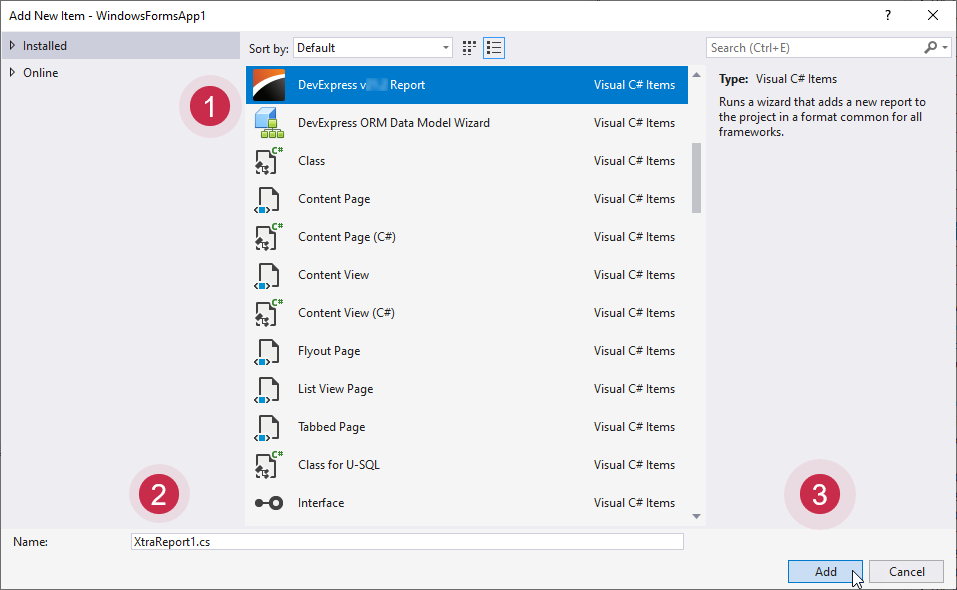
Select the DevExpress Report item, specify a report name, and click Add.
Select the report type in the invoked Report Wizard and click Finish. Select Blank if you want to create a report from scratch.

Note
In .NET/.NET Core projects, a template for inherited reports is not supported in the Report Wizard. In such projects, you can inherit from a report only in code.
Tip
Use the AI Prompt-to-Report functionality to generate a report from a text description.
The Report Designer appears. The designer surface is divided into bands that help you organize the report flow. A band can appear at the beginning or end of the report, on every printed page, once for each data record, and so on.
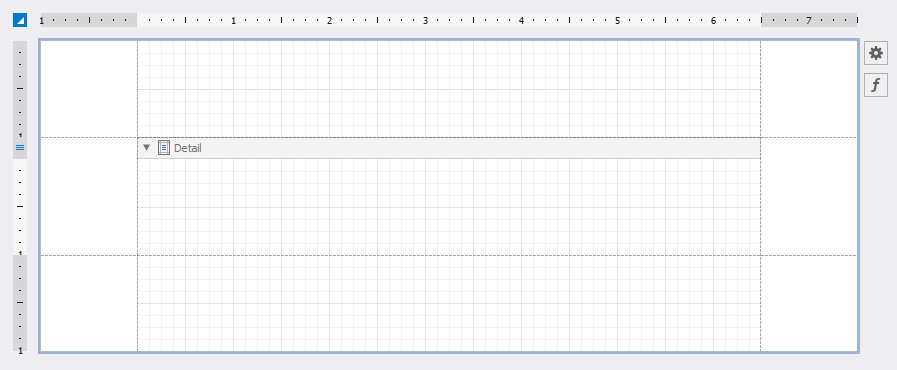
See the following topic for more details on report bands: Introduction to Banded Reports.
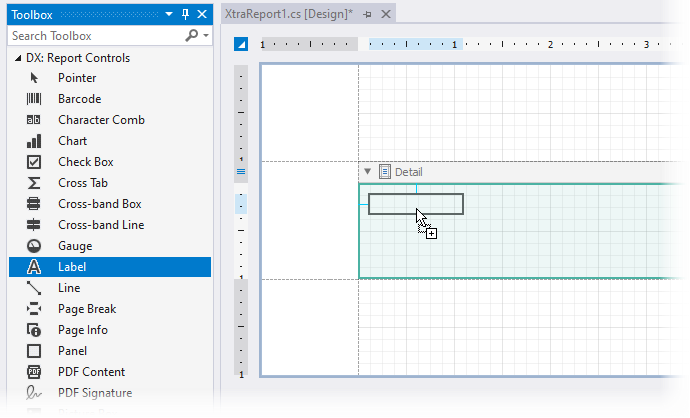
You can drop report controls from the Toolbox onto bands to design the report layout.
Save Report
Reports are stored in your project by default (for example, as .cs files using CodeDOM serialization) and are managed like any project files in Visual Studio.
You can also save a report layout to a .repx file. This file stores the report definition in XML format and allows you to persist and reuse layouts outside the current project. Use this approach to distribute report layouts independently of the application, store them externally (for example, in a database or file storage), or load reports dynamically at runtime (such as in web applications).
Click the report’s smart tag and select Save to store report definition:
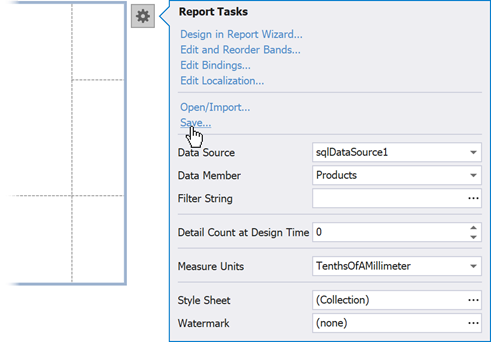
For more information on storing and reusing report layouts, refer to the following topics:
What’s Next
You need to complete a number of tasks to setup your report: bind the report to data, apply a filter condition, customize appearance settings, and more. Refer to the following topics for details:
- Introduction to Banded Reports – describes the basic DevExpress Reports concepts used to build a report layout.
- Create a Report from A to Z – contains step-by-step tutorials that cover basic report features.
- Detailed Guide to DevExpress Reporting – includes detailed information on how to work with reports: bind to data, use report controls, export, and more.
- Create Reports – contains tutorials on how to create different types of reports, such as an invoice, a master-detail report, a table report, and others.
For more information on the Report Designer, its functionality, and limitations, see the following topic: Visual Studio Report Designer.
Get Help on DevExpress Reporting API
You can open online documentation for a report control or its property from Visual Studio. Select a control in the Report Designer or click a property in the Properties window and press F1.
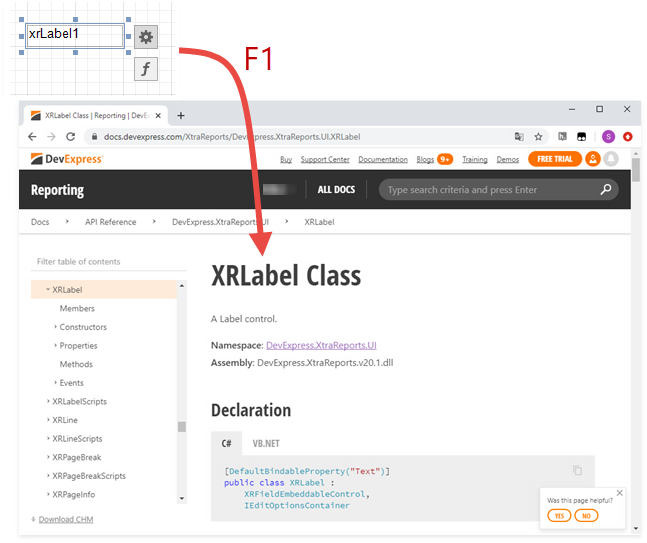
Refer to the following topic for more information: Get Help on DevExpress Reporting API.