Text Annotations — Sticky Notes
Create a TextAnnotation and add it to the page.
The following code snippet creates a sticky note and adds it to the first page:
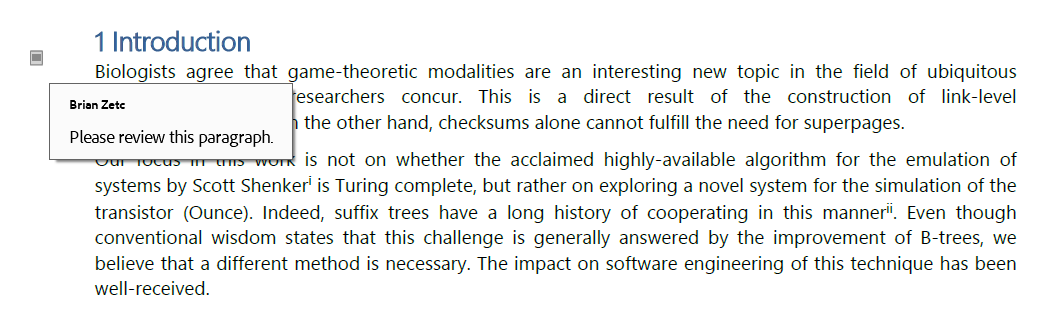
// Get the first page in the document.
Page page = pdfDocument.getPages().getFirst();

TextAnnotation annotation = new TextAnnotation(new RectangleF(50, 430, 24, 36));

annotation.setTitle("Brian Zetc");
annotation.setContent("Please review this paragraph.");
annotation.setColor(PdfColor.getLightGray());

page.getAnnotations().add(annotation);
Configure a Text Annotation
Use the following TextAnnotation methods to specify the annotation’s icon, initial state, and review status:
| Property | Description |
|---|---|
| setIconName() | Specifies the icon displayed for the text annotation. |
| setIsOpened() | Specifies whether the annotation pop-up appears open when the document opens. |
| setStateModel() | Specifies the state model associated with the annotation. |
| setState() | Specifies the annotation state within the selected state model (for example, Accepted or Rejected). |
The following code snippet creates a text annotation, displays a comment icon, and opens the annotation when the document is loaded:
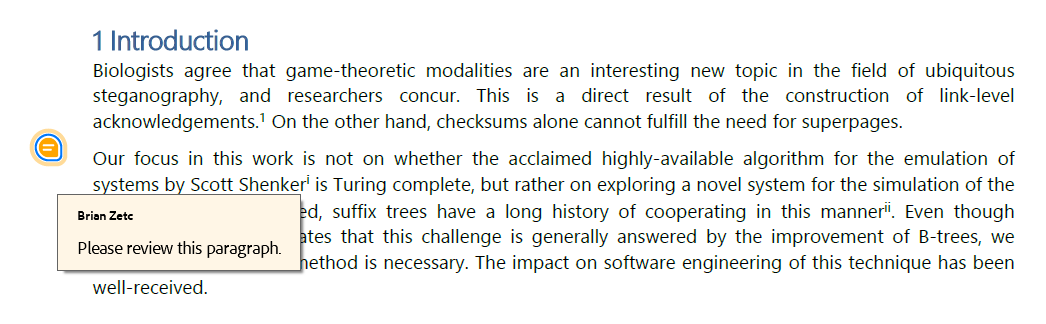
TextAnnotation annotation = new TextAnnotation(new RectangleF(50, 450, 24, 36));

annotation.setTitle("Brian Zetc");
annotation.setContent("Please review this paragraph.");
annotation.setColor(PdfColor.getOrange());
annotation.setIconName(TextAnnotationIconName.COMMENT);
annotation.setIsOpened(true);

page.getAnnotations().add(annotation);
The following code snippet marks the annotation as accepted in the Review state model:
annotation.setStateModel(TextAnnotationStateModel.REVIEW);
annotation.setState(TextAnnotationState.ACCEPTED);