Modify Shape Text and Content in Presentations (Java)
- 7 minutes to read
The DevExpress Presentation API adds, searches, replaces, and formats text inside presentation shapes. Shape text is organized into paragraphs and runs so you can apply formatting at multiple levels.
Shape Text Hierarchy
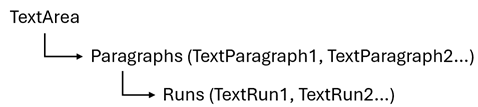
- TextArea
- Contains all text within a shape.
- TextParagraph
- A paragraph within a text area.
- TextRun
- A portion of text within a paragraph that shares the same formatting.
Add and Format Shape Text
Use the shape’s getTextArea() method to access the shape’s text area.
shape.getTextArea().setText("Text Area");
The following code snippet creates a shared TextArea object, customizes its settings, and applies it to multiple shapes:
// Create a text area.
TextArea sharedTextArea = new TextArea("Text Area");

// Center paragraph text and make it bold.
sharedTextArea.getParagraphProperties()
        .setAlignment(TextParagraphAlignment.CENTER);

sharedTextArea.getParagraphProperties()
        .getTextProperties()
        .setBold(true);

// Assign the same text area instance to both shapes.
shape1.setTextArea(sharedTextArea);
shape2.setTextArea(sharedTextArea);
Create Multiple Paragraphs
A text area initially contains one default empty paragraph to keep the presentation document valid. This paragraph is the first item in TextArea.getParagraphs().
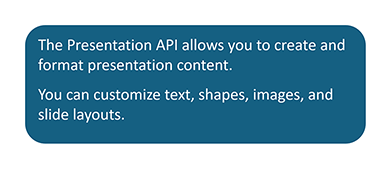
To display multiple paragraphs, create TextParagraph objects and add them to TextArea.getParagraphs():
Shape shape = new Shape(
        ShapeType.getRoundedRectangle(),
        100,
        100,
        600,
        400);

// Create a text area.
TextArea textArea = new TextArea();

// Remove the default empty paragraph.
textArea.getParagraphs().clear();

// Create shared paragraph properties.
TextParagraphProperties paragraphProperties = new TextParagraphProperties();
paragraphProperties
        .setSpacingAfter(new TextSpacing(TextSpacingType.PERCENTAGE, 50));

// Create the first paragraph.
TextParagraph paragraph1 =
        new TextParagraph("The Presentation API allows you to create and format presentation content.");
paragraph1.setProperties(paragraphProperties);

// Create the second paragraph.
TextParagraph paragraph2 =
        new TextParagraph("You can customize text, shapes, images, and slide layouts.");
paragraph2.setProperties(paragraphProperties);

// Add the paragraphs to the text area.
textArea.getParagraphs().add(paragraph1);
textArea.getParagraphs().add(paragraph2);

// Assign the text area to the shape.
shape.setTextArea(textArea);
You can configure paragraph settings at different levels:
- Use TextArea.setParagraphProperties() to apply settings to all paragraphs within the shape.
- Use TextParagraph.setProperties() to configure an individual paragraph.
Tip
When you call TextArea.setText(), the \r\n sequence creates separate paragraphs within the text area.
TextArea textArea = new TextArea("Paragraph 1\r\nParagraph 2\r\nParagraph 3");
shape.setTextArea(textArea);
Apply Mixed Formatting Within a Paragraph
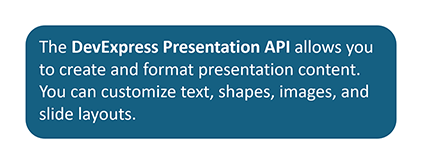
To apply different formatting within a paragraph, split the paragraph into multiple TextRun objects and add them to TextParagraph.getRuns().
Shape shape = new Shape(
        ShapeType.getRoundedRectangle(),
        100,
        100,
        1500,
        400);
// Create a text area for the shape.
TextArea textArea = new TextArea();

// Create a paragraph.
TextParagraph paragraph = new TextParagraph();

// Add mixed formatting (runs).
// Plain text before highlighted phrase.
paragraph.getRuns().add(new TextRun("The "));

// Bold formatted phrase.
TextRun boldRun = new TextRun("DevExpress Presentation API");
boldRun.getTextProperties().setBold(true);
paragraph.getRuns().add(boldRun);

// Continue plain text.
paragraph.getRuns().add(new TextRun(" allows you to create and format presentation content. "));
paragraph.getRuns().add(new TextRun("You can customize text, shapes, images, and slide layouts."));

// Add paragraph to the text area.
textArea.getParagraphs().add(paragraph);

// Assign the text area to the shape.
shape.setTextArea(textArea);
Note
Different presentation viewers may prioritize paragraph-level and level-specific settings differently. In some instances, top-level paragraphs may use either getParagraphProperties() or getLevel1ParagraphProperties() settings.
Create Bulleted and Numbered Lists
Pass a ListBullet object to a paragraph’s setListBullet() method to display the paragraph as a bulleted list item.
Bulleted (Unordered) Lists
CharListBullet uses a UTF-16 character as a bullet symbol:
• (U+2022)
▪ (U+25AA)
➤ (U+27A4)
Bullet types support the following customization options:
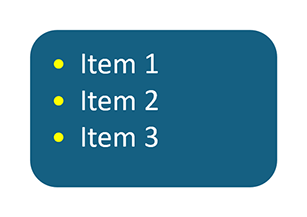
The following code snippet creates a bulleted list:
// Create a character-based bullet (custom bullet symbol).
CharListBullet c_bullet = new CharListBullet('•');

// Create shared paragraph properties container.
TextParagraphProperties sharedParagraphProps = new TextParagraphProperties();

// Assign the bullet style to the paragraph.
sharedParagraphProps.setListBullet(c_bullet);

// Set special indentation to shift bullet alignment.
sharedParagraphProps.setSpecialIndent(-70f);

// Create a text paragraph.
TextParagraph paragraph = new TextParagraph("Item 1\r\nItem 2\r\nItem 3");

// Apply shared paragraph formatting properties.
paragraph.setProperties(sharedParagraphProps);

// Set the bullet color.
paragraph.getProperties()
        .setListBulletColor(
                new TextBulletColor(
                    new OfficeColor(Color.getYellow())));

// Add the formatted paragraph to the shape's text area.
shape.getTextArea().getParagraphs().add(paragraph);

// Add the shape to the slide.
slide.getShapes().add(shape);
Numbered (Ordered) Lists
NumberingListBullet creates an automatically numbered list.
The following code snippet creates a numbered list:
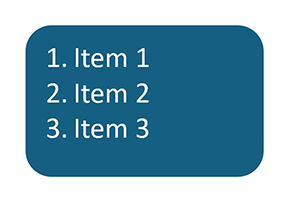
// Create a numbered list bullet.
NumberingListBullet n_bullet =
        new NumberingListBullet(
                NumberingListBulletFormat.NUMBER_WITH_PERIOD, (short)1);

// Create shared paragraph properties container.
TextParagraphProperties sharedParagraphProps = new TextParagraphProperties();

// Set special indentation to shift bullet alignment.
sharedParagraphProps.setSpecialIndent(-70f);

// Attach numbering bullet configuration to the paragraph.
sharedParagraphProps.setListBullet(n_bullet);

// Create a new text paragraph.
TextParagraph paragraph = new TextParagraph("Item 1\r\nItem 2\r\nItem 3");

// Apply shared formatting properties to the paragraph.
paragraph.setProperties(sharedParagraphProps);

// Add the formatted paragraph to the shape's text area.
shape.getTextArea().getParagraphs().add(paragraph);

// Add the shape to the slide.
slide.getShapes().add(shape);
Image Lists
ImageListBullet uses an image as a bullet. Call the setImage() method to specify a bullet image.
The following code snippet creates an image list:
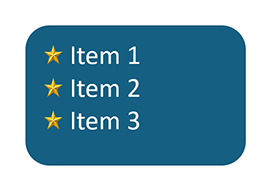
TextParagraphProperties sharedParagraphProps = new TextParagraphProperties();
sharedParagraphProps.setSpecialIndent(-70f);

// Create an image-based bullet.
ImageListBullet i_bullet = new ImageListBullet();

// Load the bullet image and assign it to the image bullet.
try (FileInputStream stream = new FileInputStream("images/star.png")) {
    i_bullet.setImage(
        new OfficeImage(DXImage.fromStream(stream)));
}

// Assign the image bullet to the paragraph.
sharedParagraphProps.setListBullet(i_bullet);

TextParagraph paragraph = new TextParagraph("Item 1\r\nItem 2\r\nItem 3");
paragraph.setProperties(sharedParagraphProps);

shape.getTextArea().getParagraphs().add(paragraph);
slide.getShapes().add(shape);
Multi-Level Lists
Use the TextParagraphProperties.setListIndentLevel() method to create hierarchical lists.
Valid values range from 0 to 8:
- Level 0 – top-level item
- Level 1–8 – nested list items
To configure formatting for specific levels, use the following methods:
| Method | Description |
|---|---|
| setParagraphProperties() | Specifies settings that are applied to all paragraphs unless overridden by level-specific properties. |
| setLevel1ParagraphProperties() | Specifies settings for Level 1 paragraphs. |
| setLevel2ParagraphProperties() | Specifies settings for Level 2 paragraphs. |
| setLevel3ParagraphProperties() | Specifies settings for Level 3 paragraphs. |
| setLevel4ParagraphProperties() | Specifies settings for Level 4 paragraphs. |
| setLevel5ParagraphProperties() | Specifies settings for Level 5 paragraphs. |
| setLevel6ParagraphProperties() | Specifies settings for Level 6 paragraphs. |
| setLevel7ParagraphProperties() | Specifies settings for Level 7 paragraphs. |
| setLevel8ParagraphProperties() | Specifies settings for Level 8 paragraphs. |
| setLevel9ParagraphProperties() | Specifies settings for Level 9 paragraphs. |
The following code snippet creates a hierarchical bulleted list and applies different formatting to second-level list items:
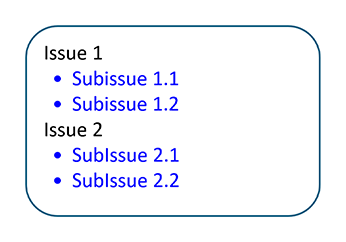
CharListBullet c_bullet = new CharListBullet('•');

// Create paragraph properties for second-level list items.
TextParagraphProperties propsLevel2 = new TextParagraphProperties();
propsLevel2.getTextProperties().setFill(new SolidFill(Color.getBlue()));
propsLevel2.setListBullet(c_bullet);
propsLevel2.setSpecialIndent(-70f);
propsLevel2.setLeftIndent(100f);

// Create a top-level list item.
TextParagraph paragraphIssue1 = new TextParagraph("Issue 1");
paragraphIssue1.getProperties().setListIndentLevel(0);

// Create second-level list items under "Issue 1".
TextParagraph paragraphSubIssues1 = new TextParagraph("Subissue 1.1\r\nSubissue 1.2");
paragraphSubIssues1.getProperties().setListIndentLevel(1);

// Create another top-level list item.
TextParagraph paragraphIssue2 = new TextParagraph("Issue 2");
paragraphIssue2.getProperties().setListIndentLevel(0);

// Create second-level list items under "Issue 2".
TextParagraph paragraphSubIssues2 = new TextParagraph("SubIssue 2.1\r\nSubIssue 2.2");
paragraphSubIssues2.getProperties().setListIndentLevel(1);

// Apply the second-level paragraph settings to the text area.
shape.getTextArea().setLevel2ParagraphProperties(propsLevel2);

// Add paragraphs to the text area.
shape.getTextArea().getParagraphs().add(paragraphIssue1);
shape.getTextArea().getParagraphs().add(paragraphSubIssues1);
shape.getTextArea().getParagraphs().add(paragraphIssue2);
shape.getTextArea().getParagraphs().add(paragraphSubIssues2);

// Add the shape containing the bulleted list to the slide.
slide.getShapes().add(shape);
Replace Text
Use one of the replaceText() overloads to replace text in a shape’s text area.
Replace Text by String Value
// Create search options.
TextSearchOptions searchOptions = new TextSearchOptions();
searchOptions.setMatchCase(false);          // Perform a case-insensitive search.
searchOptions.setWholeWordOnly(true);       // Match whole words only.

// Replace all matching occurrences of the specified text.
shape.getTextArea().replaceText(
        "old text",
        "updated text",
        searchOptions);
Replace Text Within a Text Range
shape.getTextArea().replaceText(new TextRange(0, 4), "https");
Find Text
Use the findText() method to obtain all occurrences of the specified text.
import com.devexpress.docs.presentation.*;
import com.devexpress.system.collections.generic.*;

// Search for all occurrences of the specified text.
List<TextRange> searchResults =
        shape.getTextArea().findText("PowerPoint", searchOptions);

// Iterate through each found text range returned by the search.
for (TextRange searchEntry : searchResults) {

    // Process each matched text range (for example, apply formatting or modify text).
}
Remove Text
Use the removeText() method to remove the specified text from the TextArea:
// Remove the first 7 characters from the text area.
shape.getTextArea().removeText(new TextRange(0, 7));
// Create search options.
TextSearchOptions searchOptions = new TextSearchOptions();
searchOptions.setWholeWordOnly(false);      // Match substrings, not only whole words.
searchOptions.setMatchCase(true);           // Perform a case-sensitive search.

// Find and remove all occurrences of the specified text.
shape.getTextArea().removeText(
        shape.getTextArea().findText("https://", searchOptions)
);
Format Specified Text Ranges
Use the modifyTextProperties() method to format the specified text range.
The following code snippet finds and highlights all occurrences of the “PowerPoint“ substring:
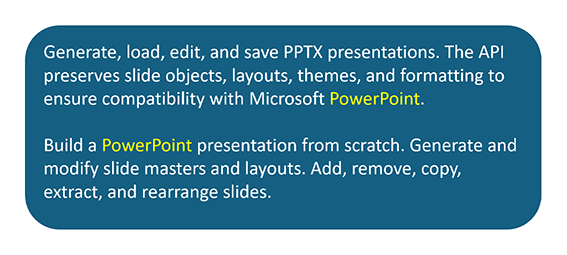
List<TextRange> searchResults =
        shape.getTextArea().findText("PowerPoint", searchOptions);

TextProperties textProperties = new TextProperties();
textProperties.setFill(new SolidFill(Color.getYellow()));

for(TextRange searchEntry : searchResults) {
    shape.getTextArea().modifyTextProperties(searchEntry, textProperties);
}