Create Your First Presentation with Presentation API for Java
- 9 minutes to read
This tutorial uses the DevExpress Presentation API to create a three-slide PowerPoint presentation, save the presentation as a PPTX file, and export it to a PDF document.

Tutorial result - Slide 1 with a presentation title
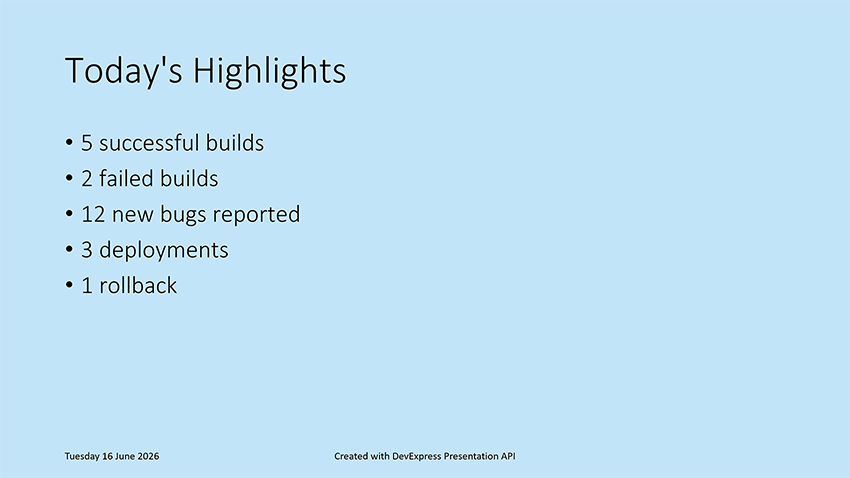
Tutorial result - Slide 2 with today’s highlights
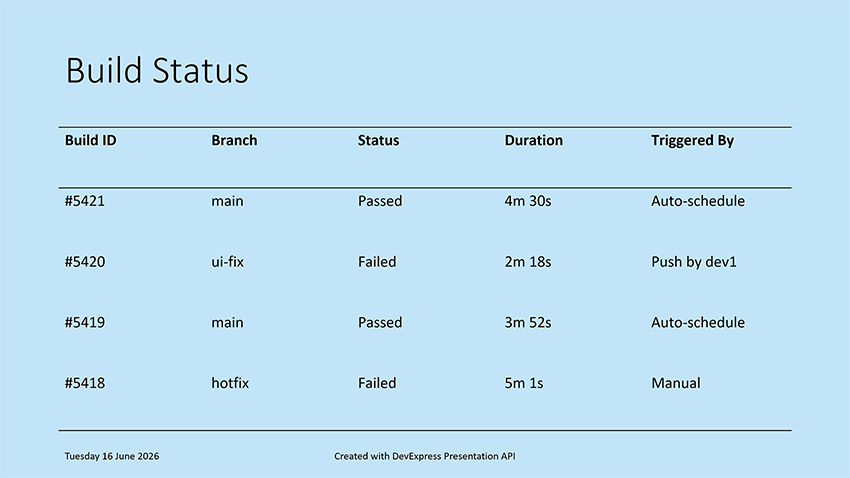
Tutorial result - Slide 3 with a build status table
Create a Java Application
- Create a new Java application.
- Add the
devexpress-docs-presentationdependency (Learn more). - Open the Main.java file and paste the following code in the
main()method to create a presentation with a blank slide. This boilerplate code contains commented-out lines. As you progress through this tutorial, you will uncomment them step by step.
package presentation;

import com.devexpress.docs.office.*;
import com.devexpress.system.drawing.*;
import com.devexpress.docs.presentation.*;

import java.io.FileOutputStream;
import java.io.IOException;
import java.nio.channels.*;
import java.nio.file.*;
import java.time.LocalDate;
import java.time.format.DateTimeFormatter;

public class Main {
    public static void main(String[] args) throws Exception {
        // Create a presentation.
        try (Presentation presentation = new Presentation()) {
            // Removes the default, blank slide from the presentation.
            presentation.getSlides().clear();

            // createTitleSlide(presentation);
            // createHighlightsSlide(presentation);
            // createBuildStatusSlide(presentation);
            // customizePresentationBackground(presentation, Color.fromArgb(194, 228, 249));
            // addFooter(presentation);

            // savePresentationToPptx(presentation);
            // exportPresentationToPdf(presentation, "export-result.pdf");
        }
    }
}
When you create a Presentation instance, the Presentation API automatically creates:
- A default slide master
- Predefined slide layouts
- A blank slide with the Title layout.
Add Slides
Add a Presentation Title (Slide #1)
In this tutorial, the first slide displays the presentation title and a subtitle with the current date.

Add createTitleSlide() and findPlaceholder() methods to the Main class and uncomment the corresponding line in main():
// Create Slide 1: Presentation Title
static void createTitleSlide(Presentation presentation) {
    SlideMaster slideMaster = presentation.getSlideMasters().get(0);
    Slide slide1 = new Slide(slideMaster.getLayouts().get(SlideLayoutType.TITLE));

    // Locate the centered title placeholder on the slide.
    Shape title = findPlaceholder(slide1, PlaceholderType.CENTERED_TITLE);

    // Specify the title.
    if (title != null) {
        title.setTextArea(new TextArea("Daily Testing Status Report"));
    }

    // Obtain the subtitle placeholder on the slide.
    Shape subtitle = findPlaceholder(slide1, PlaceholderType.SUBTITLE);

    // Display the current date in the subtitle placeholder.
    if (subtitle != null) {
        String date = LocalDate.now().format(DateTimeFormatter.ofPattern("EEEE, MMMM dd, yyyy"));
        subtitle.setTextArea(new TextArea(date));
    }

    presentation.getSlides().add(slide1);
}

static Shape findPlaceholder(Slide slide, PlaceholderType type) {
    for (ShapeBase shapeBase : slide.getShapes()) {
        if (shapeBase instanceof Shape shape
                && shape.getPlaceholderSettings().getType() == type) {
            return shape;
        }
    }
    return null;
}
Add Slide #2 (Today’s Highlights)
The second slide displays a title and a bullet list.
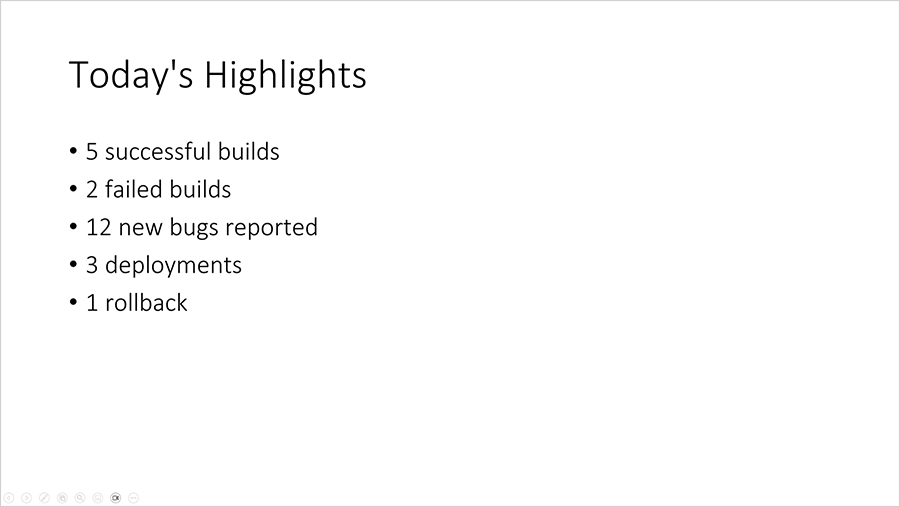
Add the createHighlightsSlide() method to the Main class and uncomment the corresponding line in main():
// Create Slide 2: Today's Highlights
static void createHighlightsSlide(Presentation presentation) {
    SlideMaster master = presentation.getSlideMasters().get(0);

    // Create a slide based on the Object layout.
    Slide slide2 = new Slide(master.getLayouts().getOrCreate(SlideLayoutType.OBJECT));
    Shape title = findPlaceholder(slide2, PlaceholderType.TITLE);

    if (title != null) {
        title.setTextArea(new TextArea("Today's Highlights"));
    }

    Shape body = findPlaceholder(slide2, PlaceholderType.BODY);

    if (body != null) {
        // Define slide content displayed as a bullet list.
        String[] highlights = {
                "5 successful builds",
                "2 failed builds",
                "12 new bugs reported",
                "3 deployments",
                "1 rollback"};

        // Create a text area with multiple paragraphs.
        TextArea textArea = new TextArea();
        textArea.getParagraphs().clear();

        for (String item : highlights) {
            textArea.getParagraphs().add(new TextParagraph(item));
        }

        // Assign the text area to the placeholder shape.
        body.setTextArea(textArea);
    }
    presentation.getSlides().add(slide2);
}
Add Slide #3 (Build Status)
The third slide displays a title and a table.
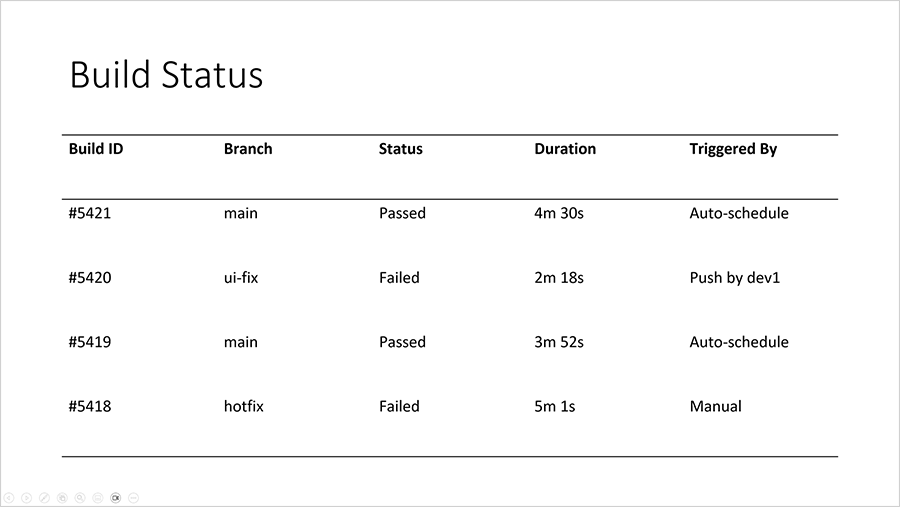
Add createBuildStatusSlide() and populateBuildTable methods to the Main class and uncomment the corresponding line in main():
// Create Slide 3: Build Status
static void createBuildStatusSlide(Presentation presentation) {
    SlideMaster master = presentation.getSlideMasters().get(0);
    Slide slide3 = new Slide(master.getLayouts().getOrCreate(SlideLayoutType.OBJECT));

    Shape title = findPlaceholder(slide3, PlaceholderType.TITLE);

    if (title != null) {
        title.setTextArea(new TextArea("Build Status"));
    }

    Shape body = findPlaceholder(slide3, PlaceholderType.BODY);

    if (body != null) {
        RectangleF bounds = presentation.getActualShapeBounds(slide3, body);
        slide3.getShapes().remove(body);

        // Create a 5x5 table positioned within the placeholder bounds.
        Table table = new Table(
                5,
                5,
                bounds.getX(),
                bounds.getY(),
                bounds.getWidth(),
                bounds.getHeight());

        // Add the table to the slide.
        slide3.getShapes().add(table);

        // Populate the table with build status information.
        populateBuildTable(table);

        // Apply a predefined table style.
        table.setStyle(new ThemedTableStyle(TableStyleType.LIGHT_STYLE_1));

        // Disable alternating row colors.
        table.setHasBandedRows(false);
    }
    presentation.getSlides().add(slide3);
}

static void populateBuildTable(Table table) {
    // Define table content.
    String[][] data = {
            {"Build ID", "Branch", "Status", "Duration", "Triggered By"},
            {"#5421", "main", "Passed", "4m 30s", "Auto-schedule"},
            {"#5420", "ui-fix", "Failed", "2m 18s", "Push by dev1"},
            {"#5419", "main", "Passed", "3m 52s", "Auto-schedule"},
            {"#5418", "hotfix", "Failed", "5m 1s", "Manual"}};

    // Fill table cells with data.
    for (int row = 0; row < data.length; row++) {
        for (int col = 0; col < data[row].length; col++) {
            table.getThis(row, col)
                    .getTextArea()
                    .setText(data[row][col]);
        }
    }
}
Add Slide Footers
Presentation slides can display footer information (such as footer text, date and time, and slide numbers).
Add the addFooter() method to the Main class and uncomment the corresponding line in main(). The method uses the HeaderFooterManager to add footer and date-time placeholders to slides in the presentation.

// Display a footer within presentation slides.
static void addFooter(Presentation presentation) {
    HeaderFooterManager manager = presentation.getHeaderFooterManager();
    for(Slide slide : presentation.getSlides()) {
        manager.addFooterPlaceholder(slide, "Created with DevExpress Presentation API");
        manager.addDateTimePlaceholder(slide,
                LocalDate.now().format(
                        DateTimeFormatter.ofPattern(
                                "EEEE dd MMMM yyyy")));
    }
}
Customize Presentation Background
Add the customizePresentationBackground() method to the Main class and uncomment the corresponding line in main(). The method uses the slide master’s setBackground(SlideBackground value) method to specify the background fill.

// Specify the background color of a presentation.
static void customizePresentationBackground(Presentation presentation, Color bgColor) {
    // Obtain the first slide master in the presentation.
    SlideMaster slideMaster = presentation.getSlideMasters().get(0);

    // Apply a custom background color to all slides that use this slide master.
    slideMaster.setBackground(
            new CustomSlideBackground(
                    new SolidFill(bgColor)));
}
Save the Presentation
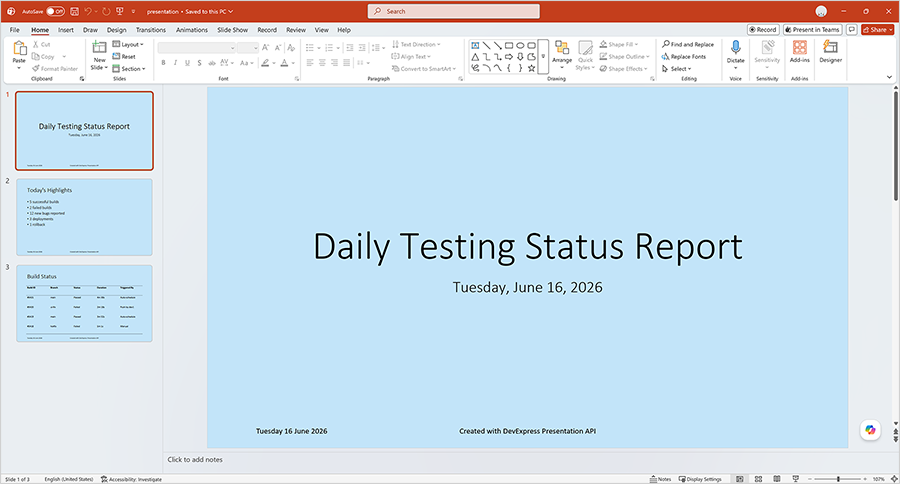
Add the savePresentationToPptx() method to the Main class and uncomment the corresponding line in main(). The method uses the Presentation.saveDocument() method to save the presentation to a PPTX file.
// Save a presentation to a PPTX file.
static void savePresentationToPptx(Presentation presentation)
        throws IOException {
    Path outputDir = Path.of("output");
    Files.createDirectories(outputDir);

    try (WritableByteChannel writableByteChannel =
                 FileChannel.open(outputDir.resolve("presentation.pptx"),
                         StandardOpenOption.CREATE,
                         StandardOpenOption.WRITE,
                         StandardOpenOption.TRUNCATE_EXISTING)) {

        presentation.saveDocument(writableByteChannel, DocumentFormat.PPTX);
    }
}
Export the Presentation to PDF
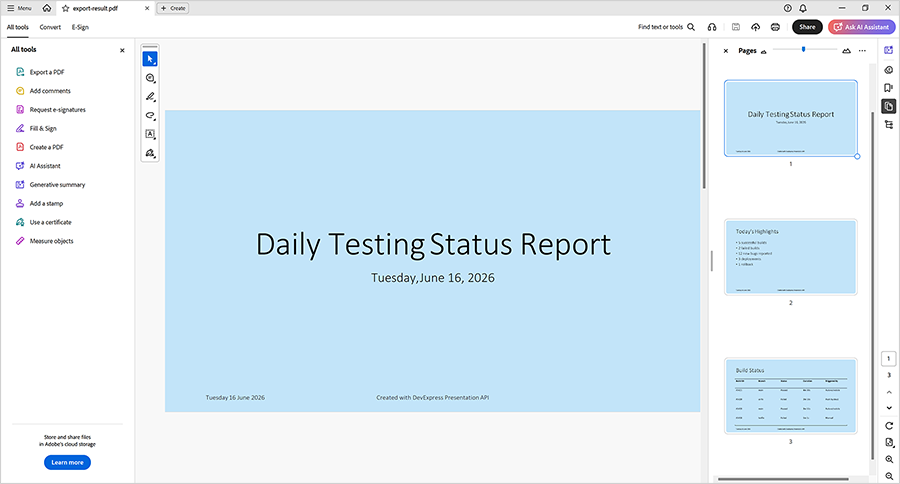
Add the exportPresentationToPdf method to the Main class and uncomment the corresponding line in main(). The method uses the Presentation.exportToPdf() method to export the presentation to PDF.
// Export a presentation to PDF.
static void exportPresentationToPdf(Presentation presentation, String fileName)
        throws IOException {
    Path outputDir = Path.of("export");
    Files.createDirectories(outputDir);

    Path pdfPath = outputDir.resolve(fileName);

    try (FileOutputStream stream = new FileOutputStream(pdfPath.toFile())) {
        presentation.exportToPdf(stream);
    }
}
Tutorial Source Code
Expand this section to see the complete source code for the tutorial.
package presentation;

import com.devexpress.docs.office.*;
import com.devexpress.system.drawing.*;
import com.devexpress.docs.presentation.*;

import java.io.FileOutputStream;
import java.io.IOException;
import java.nio.channels.*;
import java.nio.file.*;
import java.time.LocalDate;
import java.time.format.DateTimeFormatter;

public class Main {
    public static void main(String[] args) throws Exception {
        // Create a presentation.
        try (Presentation presentation = new Presentation()) {
            // Remove the default, blank slide from the presentation.
            presentation.getSlides().clear();

            createTitleSlide(presentation);
            createHighlightsSlide(presentation);
            createBuildStatusSlide(presentation);
            addFooter(presentation);
            customizePresentationBackground(presentation, Color.fromArgb(194, 228, 249));

            savePresentationToPptx(presentation);
            exportPresentationToPdf(presentation, "export-result.pdf");
        }
    }

    // Crease Slide 1: Presentation Title
    static void createTitleSlide(Presentation presentation) {
        SlideMaster slideMaster = presentation.getSlideMasters().get(0);
        Slide slide1 = new Slide(slideMaster.getLayouts().get(SlideLayoutType.TITLE));

        // Locate the centered title placeholder on the slide.
        Shape title = findPlaceholder(slide1, PlaceholderType.CENTERED_TITLE);

        // Specify the title.
        if (title != null) {
            title.setTextArea(new TextArea("Daily Testing Status Report"));
        }

        // Obtain the subtitle placeholder on the slide.
        Shape subtitle = findPlaceholder(slide1, PlaceholderType.SUBTITLE);

        // Display the current date in the subtitle placeholder.
        if (subtitle != null) {
            String date = LocalDate.now().format(DateTimeFormatter.ofPattern("EEEE, MMMM dd, yyyy"));
            subtitle.setTextArea(new TextArea(date));
        }

        presentation.getSlides().add(slide1);
    }

    // Create Slide 2: Today's Highlights
    static void createHighlightsSlide(Presentation presentation) {
        SlideMaster master = presentation.getSlideMasters().get(0);

        // Create a slide based on the Object layout.
        Slide slide2 = new Slide(master.getLayouts().getOrCreate(SlideLayoutType.OBJECT));
        Shape title = findPlaceholder(slide2, PlaceholderType.TITLE);

        if (title != null) {
            title.setTextArea(new TextArea("Today's Highlights"));
        }

        Shape body = findPlaceholder(slide2, PlaceholderType.BODY);

        if (body != null) {
            // Define slide content displayed as a bullet list.
            String[] highlights = {
                    "5 successful builds",
                    "2 failed builds",
                    "12 new bugs reported",
                    "3 deployments",
                    "1 rollback"};

            // Create a text area with multiple paragraphs.
            TextArea textArea = new TextArea();
            textArea.getParagraphs().clear();

            for (String item : highlights) {
                textArea.getParagraphs().add(new TextParagraph(item));
            }

            // Assign the text area to the placeholder shape.
            body.setTextArea(textArea);
        }
        presentation.getSlides().add(slide2);
    }

    // Create Slide 3: Build Status
    static void createBuildStatusSlide(Presentation presentation) {
        SlideMaster master = presentation.getSlideMasters().get(0);
        Slide slide3 = new Slide(master.getLayouts().getOrCreate(SlideLayoutType.OBJECT));

        Shape title = findPlaceholder(slide3, PlaceholderType.TITLE);

        if (title != null) {
            title.setTextArea(new TextArea("Build Status"));
        }

        Shape body = findPlaceholder(slide3, PlaceholderType.BODY);

        if (body != null) {
            RectangleF bounds = presentation.getActualShapeBounds(slide3, body);
            slide3.getShapes().remove(body);

            // Create a 5x5 table positioned within the placeholder bounds.
            Table table = new Table(
                    5,
                    5,
                    bounds.getX(),
                    bounds.getY(),
                    bounds.getWidth(),
                    bounds.getHeight());

            // Add the table to the slide.
            slide3.getShapes().add(table);

            // Populate the table with build status information.
            populateBuildTable(table);

            // Apply a predefined table style.
            table.setStyle(new ThemedTableStyle(TableStyleType.LIGHT_STYLE_1));

            // Disable alternating row colors.
            table.setHasBandedRows(false);
        }
        presentation.getSlides().add(slide3);
    }

    // Display a footer within presentation slides.
    static void addFooter(Presentation presentation) {
        HeaderFooterManager manager = presentation.getHeaderFooterManager();
        for(Slide slide : presentation.getSlides()) {
            manager.addFooterPlaceholder(slide, "Created with DevExpress Presentation API");
            manager.addDateTimePlaceholder(slide,
                    LocalDate.of(2026, 06, 14).format(
                            DateTimeFormatter.ofPattern(
                                    "EEEE dd MMMM yyyy")));
        }
    }

    // Specify the background color of a presentation.
    static void customizePresentationBackground(Presentation presentation, Color bgColor) {
        // Obtain the first slide master in the presentation.
        SlideMaster slideMaster = presentation.getSlideMasters().get(0);

        // Apply a custom background color to all slides that use this slide master.
        slideMaster.setBackground(
                new CustomSlideBackground(
                        new SolidFill(bgColor)));
    }

    // Save a presentation to a PPTX file.
    static void savePresentationToPptx(Presentation presentation)
            throws IOException {
        Path outputDir = Path.of("output");
        Files.createDirectories(outputDir);

        try (WritableByteChannel writableByteChannel =
                     FileChannel.open(outputDir.resolve("presentation.pptx"),
                             StandardOpenOption.CREATE,
                             StandardOpenOption.WRITE,
                             StandardOpenOption.TRUNCATE_EXISTING)) {

            presentation.saveDocument(writableByteChannel, DocumentFormat.PPTX);
        }
    }

    // Export a presentation to PDF.
    static void exportPresentationToPdf(Presentation presentation, String fileName)
            throws IOException {
        Path outputDir = Path.of("export");
        Files.createDirectories(outputDir);

        Path pdfPath = outputDir.resolve(fileName);

        try (FileOutputStream stream = new FileOutputStream(pdfPath.toFile())) {
            presentation.exportToPdf(stream);
        }
    }

    // Utility method: populates a table with data.
    static void populateBuildTable(Table table) {
        // Define table content.
        String[][] data = {
                {"Build ID", "Branch", "Status", "Duration", "Triggered By"},
                {"#5421", "main", "Passed", "4m 30s", "Auto-schedule"},
                {"#5420", "ui-fix", "Failed", "2m 18s", "Push by dev1"},
                {"#5419", "main", "Passed", "3m 52s", "Auto-schedule"},
                {"#5418", "hotfix", "Failed", "5m 1s", "Manual"}};

        // Fill table cells with data.
        for (int row = 0; row < data.length; row++) {
            for (int col = 0; col < data[row].length; col++) {
                table.getThis(row, col)
                        .getTextArea()
                        .setText(data[row][col]);
            }
        }
    }

    // Utility method: searches for a placeholder shape of the specified type.
    static Shape findPlaceholder(Slide slide, PlaceholderType type) {
        for (ShapeBase shapeBase : slide.getShapes()) {
            if (shapeBase instanceof Shape shape
                    && shape.getPlaceholderSettings().getType() == type) {
                return shape;
            }
        }
        return null;
    }
}